
JoyPro set up your stick, or you did. Now you want another button for one thing. That takes the four steps below: three on the Binds page, then one export.
- Binds
in the bar at the bottom - Pick a game control
in the list - Record input
press your button - Export
send it to the game
For beginners
#Step by step
- Open Binds in the bar at the bottom. Everything you set up is there.
- Click a game control in the list, for example "Gear Up/Down". The search box above finds it fast.
- Click Record input. Then press the new button on your stick. For an axis, move it all the way.
- Send it to the game again. Close the game first. Open Export in the bar at the bottom. Press Export ticked games.
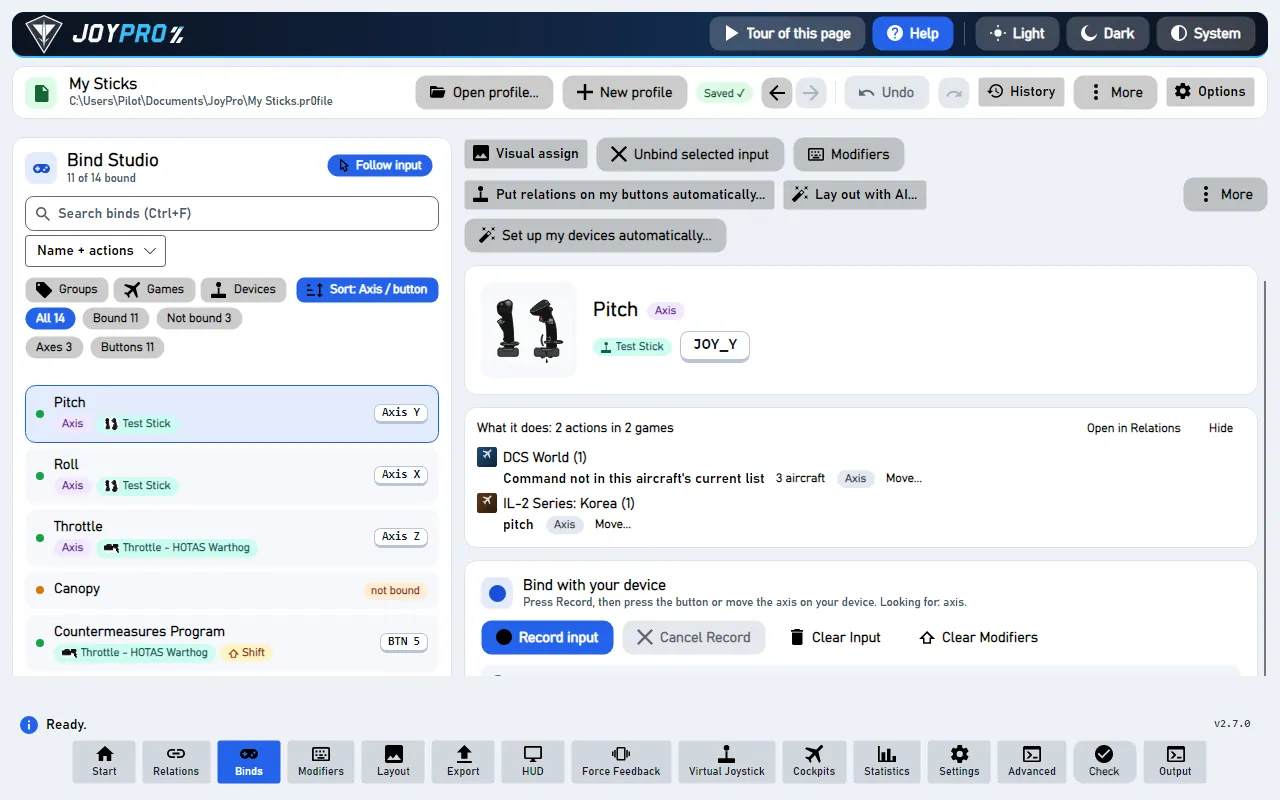
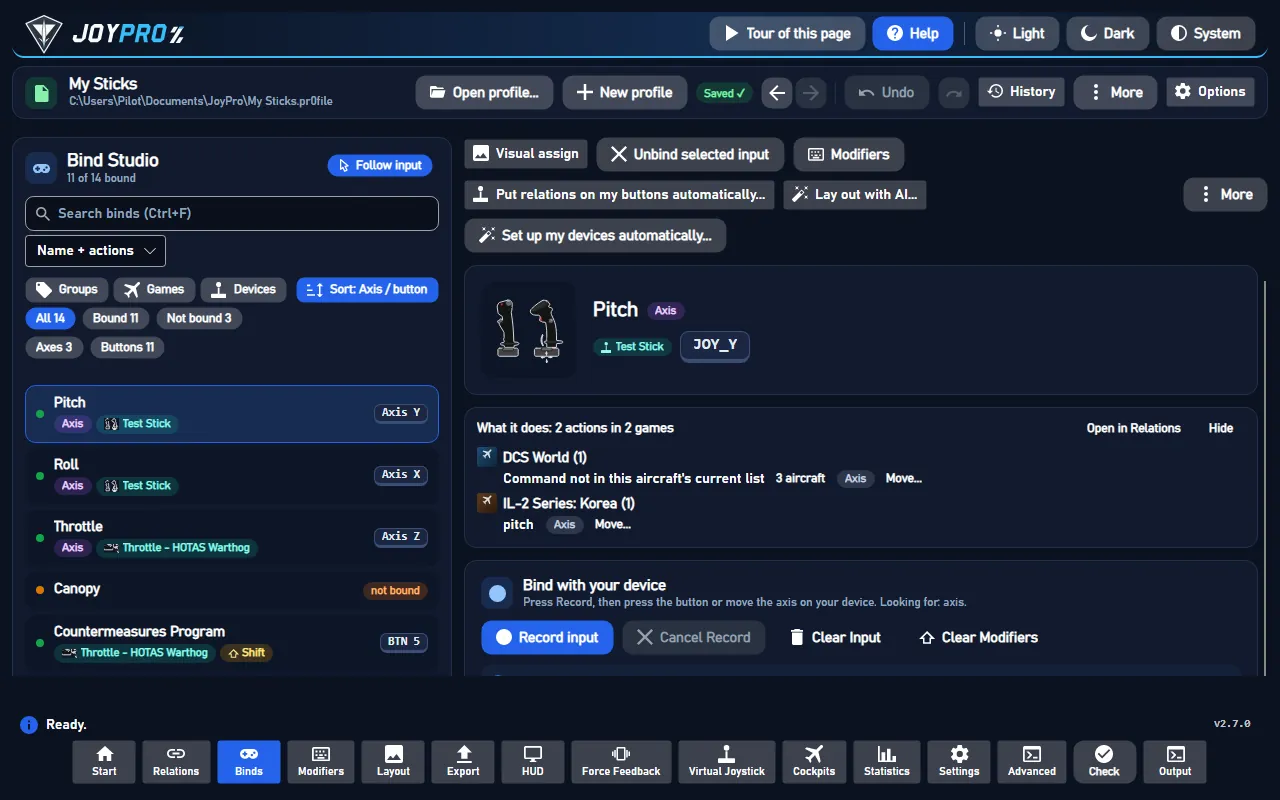
Record input shows only after you picked a game control. Pick one first.
#In an Xbox-only game
ACE COMBAT 8 and Hell Let Loose: Vietnam get no export. Press Stop, then Start on the Virtual Joystick page. The pretend controller (virtual Xbox pad) then uses your new button.
#Undo
Pressed the wrong button? Press Ctrl+Z. Your old button is back.
Advanced
#More ways
- Press the button you want to change. Follow input on the Binds page opens the relation of the button you press.
- On the picture. The Layout page in Bind mode: click an input, pick a relation, Bind to this input.
- One game only. The Start page's game card has Export for that game.
- A second button for the same thing. See Several buttons for one function.
- The same button in two relations is allowed. The Check tells you where it means two jobs in one aircraft.
Technical internals
#Behind it
Record input waits for the next input of any device and sets the bind (engine binds set); the export is the
game's export with the Export page's mode (Export). Each change is one profile version, so
Ctrl+Z works also after a restart.