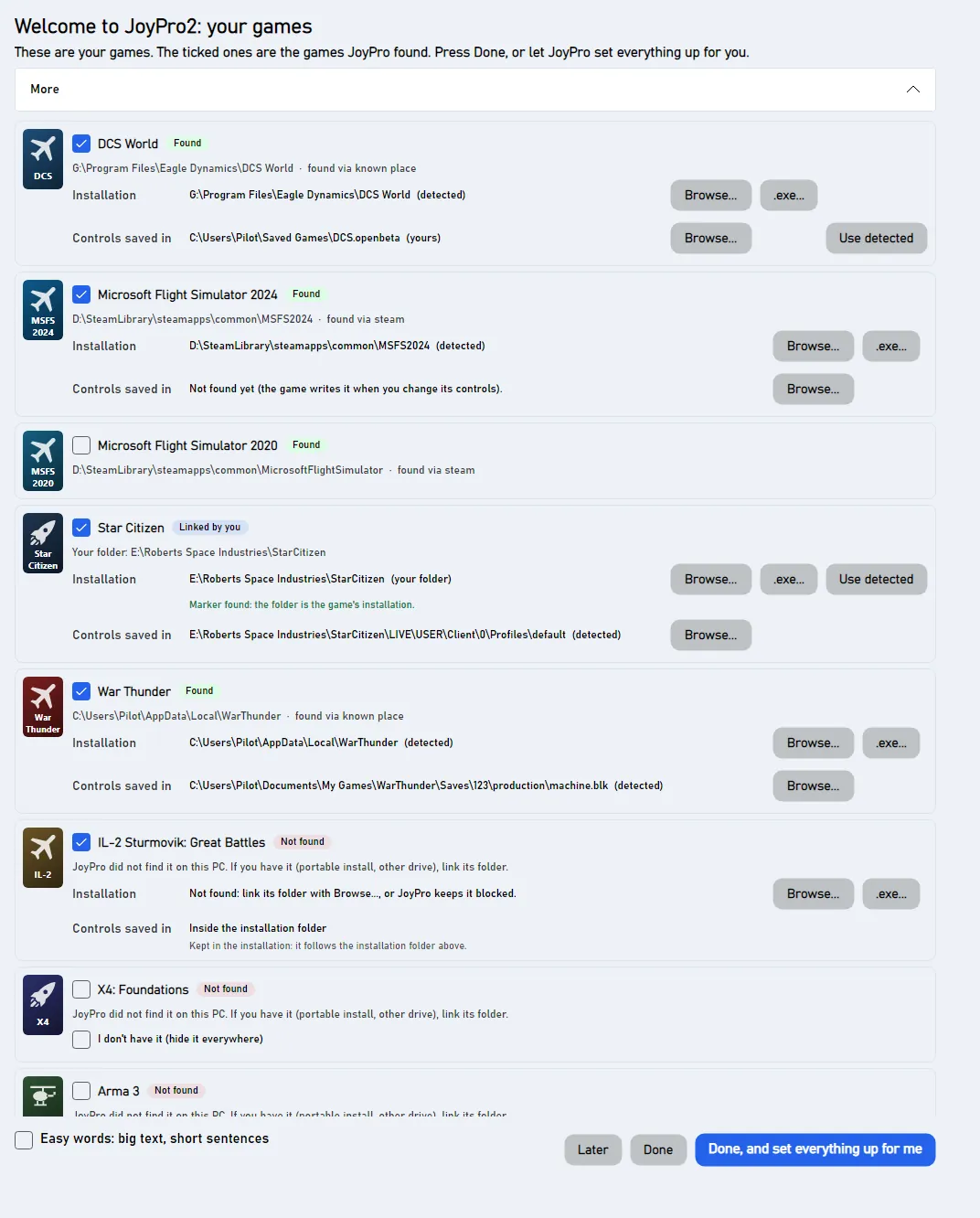
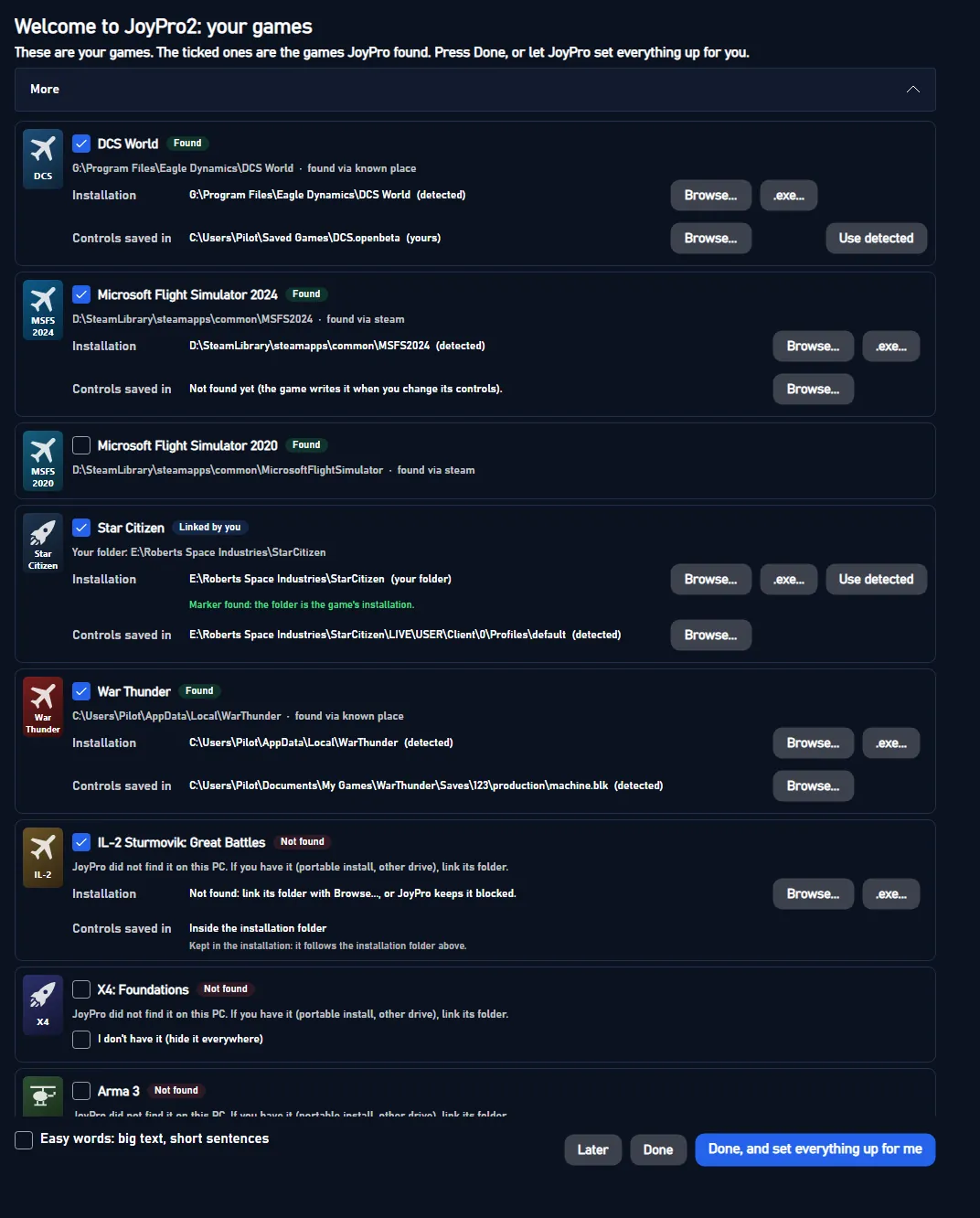
The window "Welcome to JoyPro2: your games" opens once at the first start, after JoyPro has looked for your games. It
lists every game JoyPro supports, found ones first. Here you say which games you have, link a game installed somewhere
JoyPro did not look, and point JoyPro to another folder for a game's controls. The same window opens again from
Settings > Games > Run setup again. The walk-through for a new user is on
First start.
The first-start setup: found, linked and missing games
In each row
What happens
Untick I have this game
JoyPro hides the game everywhere. Your binds for it stay.
Browse... or .exe... next to Installation
That folder is the game. Good for a copy on another drive.
Browse... next to Controls saved in
JoyPro reads and writes the game's controls there.
Then press one of the three buttons at the bottom:
You press
What comes next
Done
JoyPro saves your games. At the first start, the welcome asks what you want to do.
Done, and set everything up for me
JoyPro saves your games. Then the quick setup puts the important functions on your stick.
Later
Nothing changes. At the first start, the welcome comes next.
Each row has the game's cover, its name and a status:
Ticked, with a folder: JoyPro found the game (the row says how: Steam, a known place, the Windows apps list).
Unticked: JoyPro did not find it. That is fine if you do not have it; it is not hidden and JoyPro finds it
as soon as you install it.
What you can do:
Untick a found game you do not have or do not care about: it is hidden everywhere in JoyPro (game cards, export
cards, the watcher, game lists). Your binds for it stay in the profile.
A game installed somewhere else (a portable copy, another drive): tick it and press Browse... next to
Installation to pick its folder, or .exe... to pick the game's program or launcher.
Controls saved in: some games keep their controls in your user folders. If yours are elsewhere, for example
Saved Games\DCS.openbeta instead of Saved Games\DCS, press Browse... there.
Press Done. Later closes the window and changes nothing.
Or press Done, and set everything up for me: JoyPro saves your games and sets up your stick by itself. See
Quick start.
Tip
After Done JoyPro builds the command list of every game you have from your own installation. The Start page shows
the progress and a notice for any list still missing.
A linked folder is checked against the game's marker files (bin\DCS.exe, bin\game\Il-2.exe, X4.exe ...): the row
says "Marker found", or "Marker not found, but the folder is kept as you chose it". A linked folder counts as the
installation for everything (import, export, command list) and detection never replaces it.
Use detected (installation or config) forgets your link; JoyPro detects the game again.
I don't have it (hide it everywhere) is offered for a game JoyPro did not find: without it, the game stays "not
installed" and shows up by itself once installed; with it, the game is hidden like an unticked found game.
Games that keep their controls in the installation (IL-2, Falcon BMS, X-Plane ...) show their config location
read-only.
Hidden games are listed at the end of Settings > Games with Show again.
Window Views/GameSetupWindow.axaml (+ .axaml.cs for the folder pickers, Done and Later), view model
MainWindowViewModel.GameSetup.cs, rows Models/GameSetupItem.cs. The window opens once when gameSetupDone is not
set in ui-settings.json and the startup detection (engine games installs) has answered. Done runs, per changed
row, engine games install set (or clear), engine games config set (or clear), then one
engine games install disable / enable for the hidden and shown games, detects again, marks the setup done and starts
engine db check-updates to build the missing command lists. Reference: Game installations.
11 controls, read from the program’s source: 11 written, 0 with the facts from the source (tooltip, code comment, engine call), 0 still to be expanded.
"I have this game": ticked at the start for every game JoyPro found or you linked. Untick a found game you do not have
and Done hides it everywhere in JoyPro (your binds for it stay); tick a game you hid before and Done shows it
again. A game JoyPro did not find stays unticked and is only "not installed": it shows up by itself once installed.
From the code "I have this game": ticked for the games JoyPro found (or the user linked). Unticking one of those hides the game on Done; a game JoyPro did not find stays unticked and merely "not installed" (found once it is installed), unless the user also ticks "I don't have it".
Tooltip Otherwise JoyPro finds the game once it is installed
Shown for a game JoyPro did not find: ticked, Done hides it everywhere like an unticked found game. Without it the
game stays "not installed" and JoyPro finds it by itself once you install it.
From the code "I don't have it" for a game JoyPro did not find: hide it on Done.
Tooltip Link the game's folder (portable install, other drive); it then counts as the installation
Installation > Browse...: pick the folder of a game JoyPro did not find, for example a portable copy or one on
another drive. JoyPro takes the game's folder from what you pick (a launcher or bin folder works too), ticks the
game and checks it for the game's marker file. Nothing is written until Done; then the folder counts as the
installation.
Tooltip Pick the game's .exe or its launcher instead; JoyPro links the game's folder
.exe...: pick the game's program or its launcher instead of a folder; JoyPro links the game's folder next to it
and checks it for the game's marker file. Written with Done.
Tooltip Where the game keeps its controls, e.g. Saved Games\\DCS.openbeta instead of Saved Games\\DCS
Controls saved in > Browse...: pick where the game keeps its controls when it is not the detected place, for
example C:\Users\Pilot\Saved Games\DCS.openbeta instead of Saved Games\DCS (a folder for DCS and Star Citizen,
otherwise the file). Not offered for games that keep their controls in the installation or the Windows registry.
Written with Done (engine games config set).
Tooltip Forget your config location; JoyPro finds it again
Shown when the row has your own config location: forgets it, so JoyPro looks for the game's controls in the detected
place again. Takes effect with Done.
Tooltip Big text and very short sentences in the tours and the help. Change it any time in Settings > Tours.
Only at the first start: Easy words switches on big cards and the shortest texts in the tours and the help. The first
start's Done, and set everything up for me skips the welcome, where this switch is offered too; it is the same
switch as in Settings > Tours and stays after a restart.
From the code Settings > Tours and the welcome: big cards, the shortest texts (German "du"), help that leads with one plain sentence and keeps the details behind "More details". Kept in ui-settings.json ("tours" > "easyWords").
Tooltip Change nothing; Settings > Games > Run setup again shows this again
Closes the window and changes nothing: no folder is linked and no game is hidden. The window does not open by itself
again at the next start; Settings > Games > Run setup again brings it back.
Saves your choices and closes the window: linked folders and config locations are written
(engine games install set, engine games config set), unticked found games are hidden and ticked ones shown
(engine games install disable / enable), then JoyPro detects the games again and builds the command lists of the
games you have. If a step fails, the window stays open and says which game. The window does not open by itself again;
Settings > Games > Run setup again brings it back.
Tooltip Saves your games, then JoyPro puts the important functions on your stick and throttle by itself and shows you the result
Only at the first start: Done, and set everything up for me saves your games like Done, then JoyPro sets up your
devices by itself for the games where nothing is assigned yet. It finds your stick, throttle and pedals, gives each its
usual job and puts the important functions where pilots expect them (flying, engine, weapons, gear, flaps, brakes, trim,
looking around, radio). You see the result in the setup window: Use these buttons puts them into JoyPro, Write to my
game writes them to the game. A device JoyPro does not know is set up like a usual stick or throttle, and the window
says so. Same as Set it all up for me on the Start page.