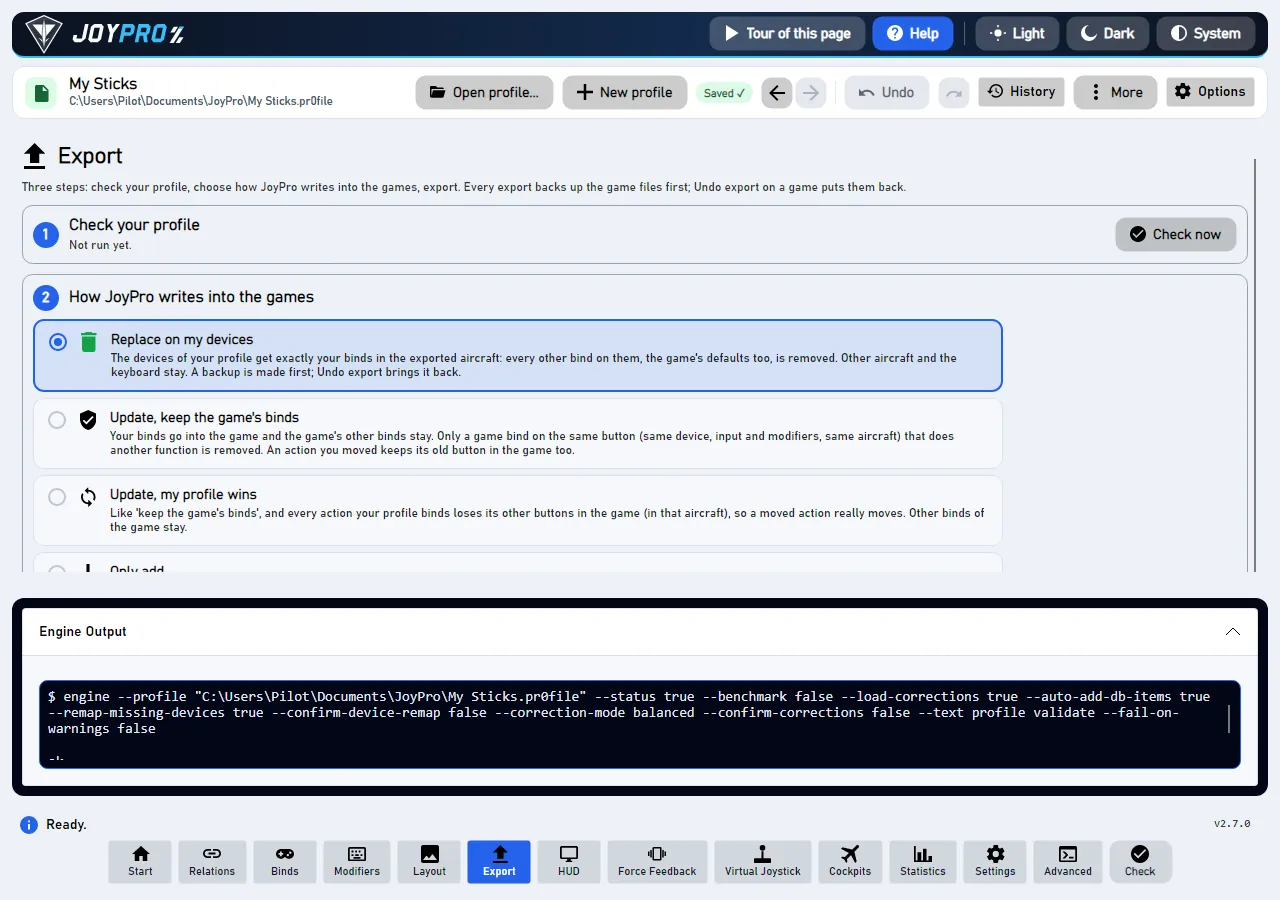
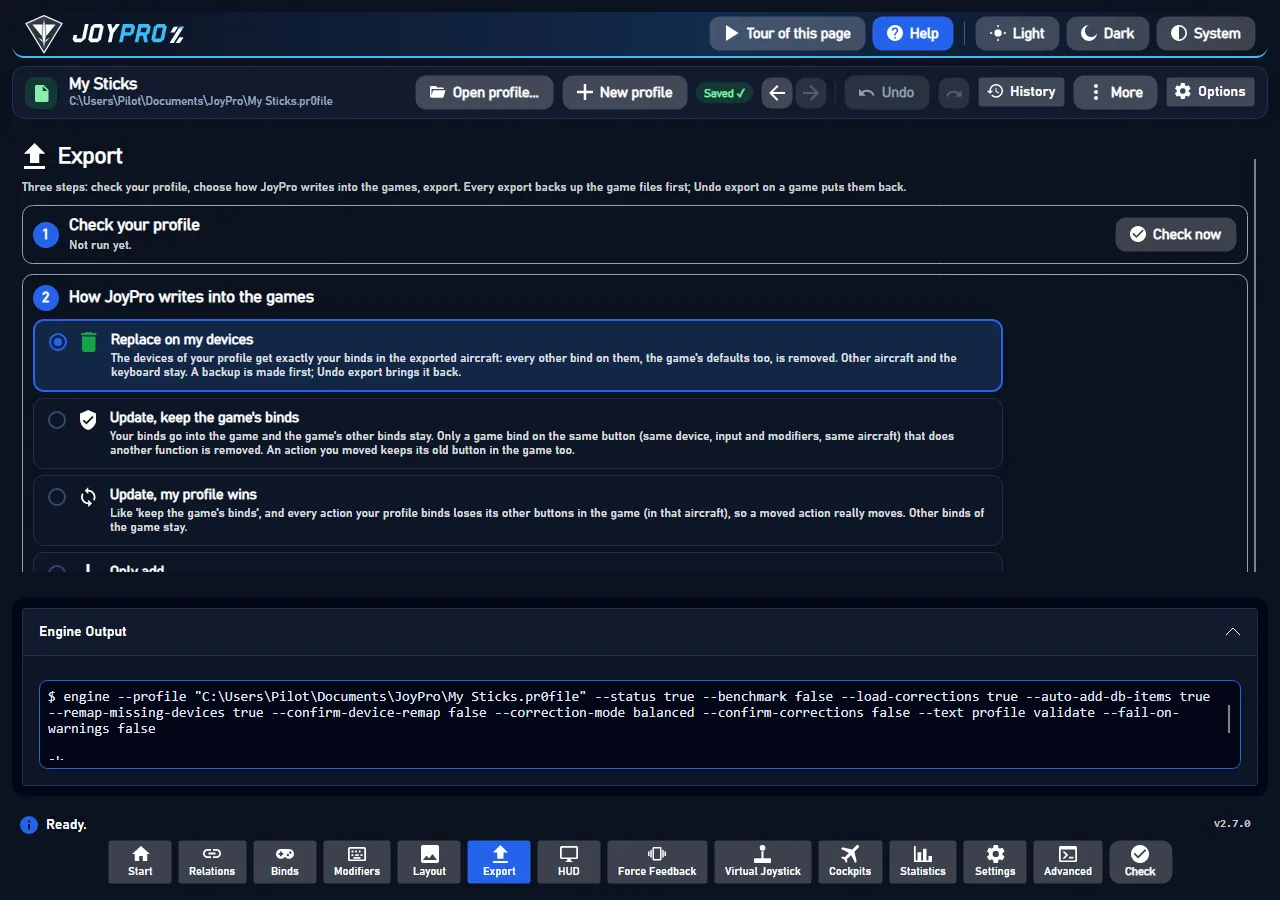
Every button in JoyPro runs a command of JoyPro's engine. The status line at the bottom says the short result
("Exported 5 of 6 games"); the Output panel shows the details: the exact command and everything the engine
printed. It is the first place to look when something did not do what you expected.
The first line starts with $ engine and is the exact command JoyPro ran, with your profile and every option.
Then the engine's answer: what it read, what it changed, the files it wrote, warnings.
Under [stderr]: errors and the progress lines, when there were any.
Tip
A red status line or "see Output" means the details are here. For a problem report use Settings > Report a
problem: it collects the Output's session log and everything else needed, so you do not have to copy it by hand.
The panel shows the last command a button or the Advanced Console ran. Background
checks (the game config watcher, the usage harvest, the HUD's device list) do not replace it, so what you clicked last
stays readable.
Very long answers are cut in the panel with "... n more characters are not shown here"; the whole answer is in the
session log, which goes into the support file of Settings > Report a problem.
With Text output off on the Advanced page, a typed command answers in JSON here.
Copy the $ engine ... line into a terminal in JoyPro's folder to run the same command by hand (see
Engine command line).
Shows "$ engine ...", the answer and [stderr] in the Output panel, and writes the same into the session log engine-output.log.
5
JoyPro
Shows you one status line.
MainWindow.axaml (the EngineOutputExpander and its GridSplitter; the height is kept in ui-layout.json by
MainWindow.axaml.cs), MainWindowViewModel.cs: RunEngineAsync sets LastCommandText and OutputText from
BuildOutputText ($ <command>, an optional [gui-note], stdout, then [stderr]), LimitOutputPane cuts the pane
text, AppendSessionLog writes the session log engine-output.log (progress lines thinned to a few per step) in the
log folder. Background runs (background: true) only go to the session log. Reference: Logging.
Tooltip What JoyPro's engine printed (details of the last action)
Opens or closes the Output panel under the page. It shows the exact engine command of the last action ($ engine ...)
and everything the engine printed, errors under [stderr]. Drag the line above it to change its height (kept for the
next start). Changes nothing in the profile or the games.