
Project Wingman is an arcade air combat game on Unreal Engine 4. It reads several DirectInput devices at once and
keeps the binds in a plain Input.ini, each named after the device and its place in the game's device list; curves
and dead zones live in the save game. JoyPro reads both into your profile and writes them back. Keyboard, mouse,
gamepad and hats stay as the game has them.
Project Wingman native (its own bind files)
- Support
- native (its own bind files)
- Engine command
engine pw- Bind file
%LOCALAPPDATA%\ProjectWingman\Saved\Config\WindowsNoEditor\Input.ini(Unreal ini, per device name and place) + curves and dead zones insavegame.sav- Command list from
DefaultInput.iniof the game's pak + yourInput.ini- In-game test
- 19/25 steps passed (2026-10-12)
- ✓ Import
- ✓ Export
- ✗ Keyboard binds
- ✗ Modifiers
- ✓ Command list built on your PC
- ✓ Game watcher
- ✓ Axis curves and dead zones
- ✗ Game control settings
- ✗ In-game force feedback settings
- ✗ Force feedback from telemetry
- ✗ Telemetry recording
- ✓ Virtual joystick (vJoy)
- ◐ Virtual Xbox pad
- ✓ Virtual functions
- ◐ Setup wizard / Auto Assign
- ✗ Cockpits
- ✓ Cheat sheets
- ◐ In-game testProject Wingman: export and import seen in game; one full run of the test is pending (19/25 and 17/24 so far).
From the support matrix, generated from the engine’s code: all games.
#Get it working in 3 steps
- Set it all up for me
on the Start page - Use these buttons
look at the list first - Write to my game
keep Project Wingman closed
Before: start the game once, then close it. Switch Steam Input off for the game.
Then: your binds are in the game's Controls. Added or removed a controller? Export again.
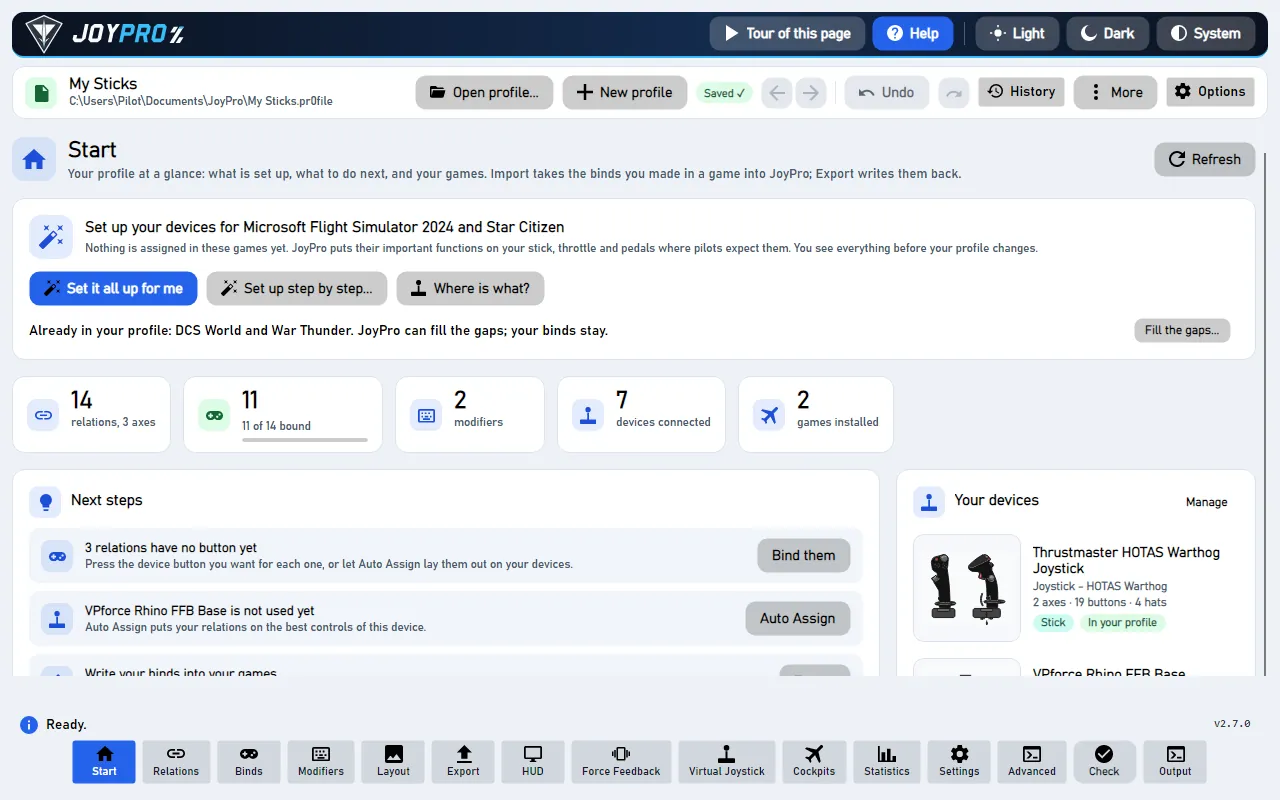
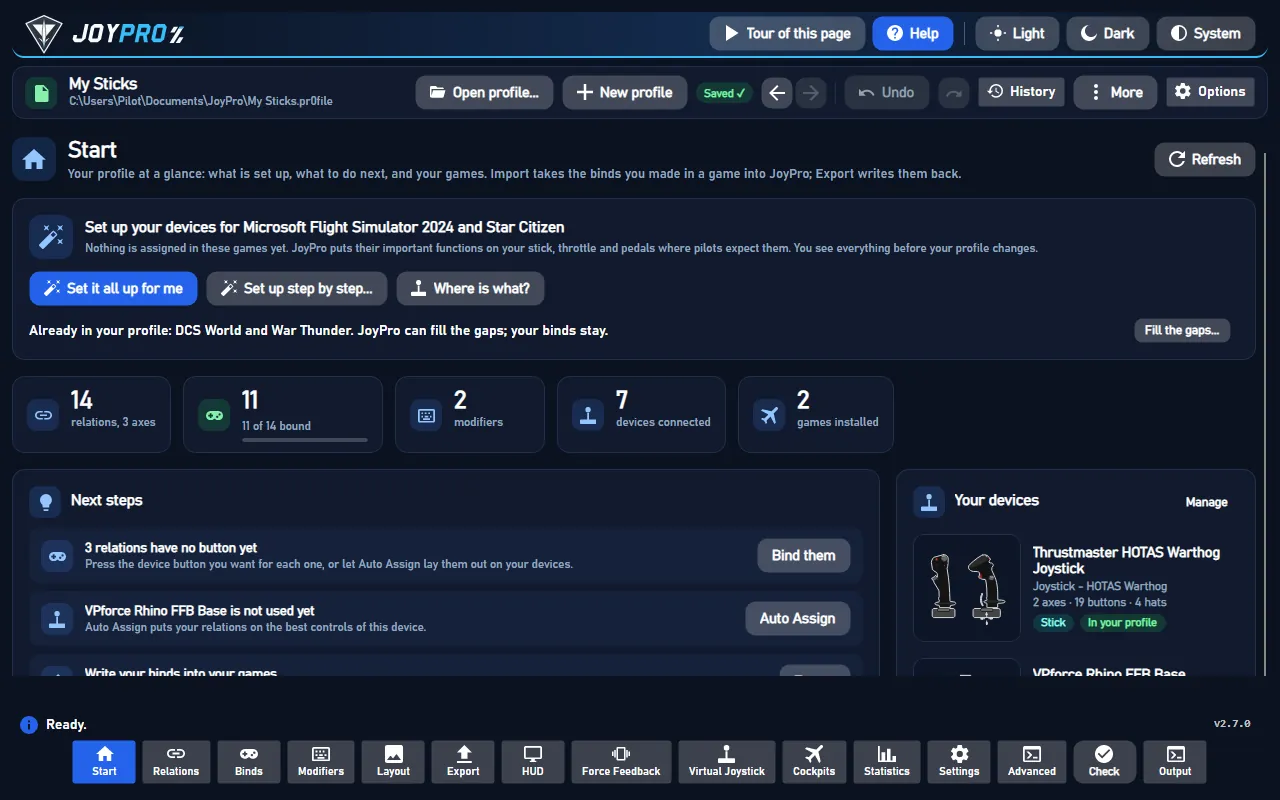
Did you bind buttons in Project Wingman before? Then the Start page offers Import, then fill the gaps. Your binds stay, and only free buttons get new jobs. See Quick start: make my stick work.
#What JoyPro does for Project Wingman
- Import: every joystick bind of the flight actions (pitch, roll, yaw, thrust, the two view axes and the buttons) comes into your profile on your real devices, with invert, curve and dead zone.
- Relations: "Fire missile" in Project Wingman can be the same relation as the weapon release of your other games.
- Export: JoyPro writes your binds into
Input.iniand the curves and dead zones into the save game.
#Import your Project Wingman binds
- Start the game once if you never did, so its folder exists.
- Open Start. If the Project Wingman card asks for a command list, press Build List: JoyPro reads the flight actions from the game's own files.
- Press Import on the card, keep Add to my profile (recommended), press Import now.
#Build and check relations
Join the Project Wingman actions with your other games on the Relations page (relations flow), then run Check on the Export page: it finds one button that does two things in the game.
#Export to Project Wingman
- Close Project Wingman. JoyPro refuses to write while it runs.
- Open Export and tick the Project Wingman card.
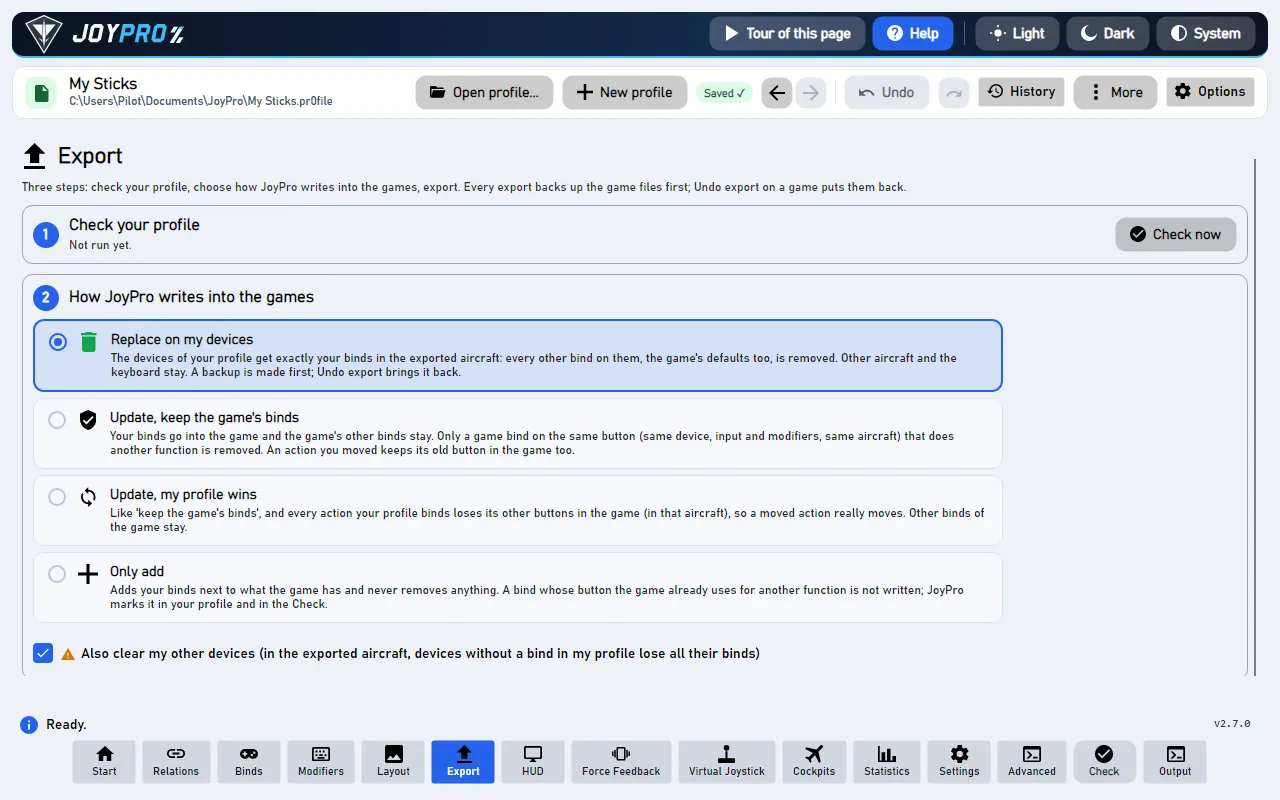
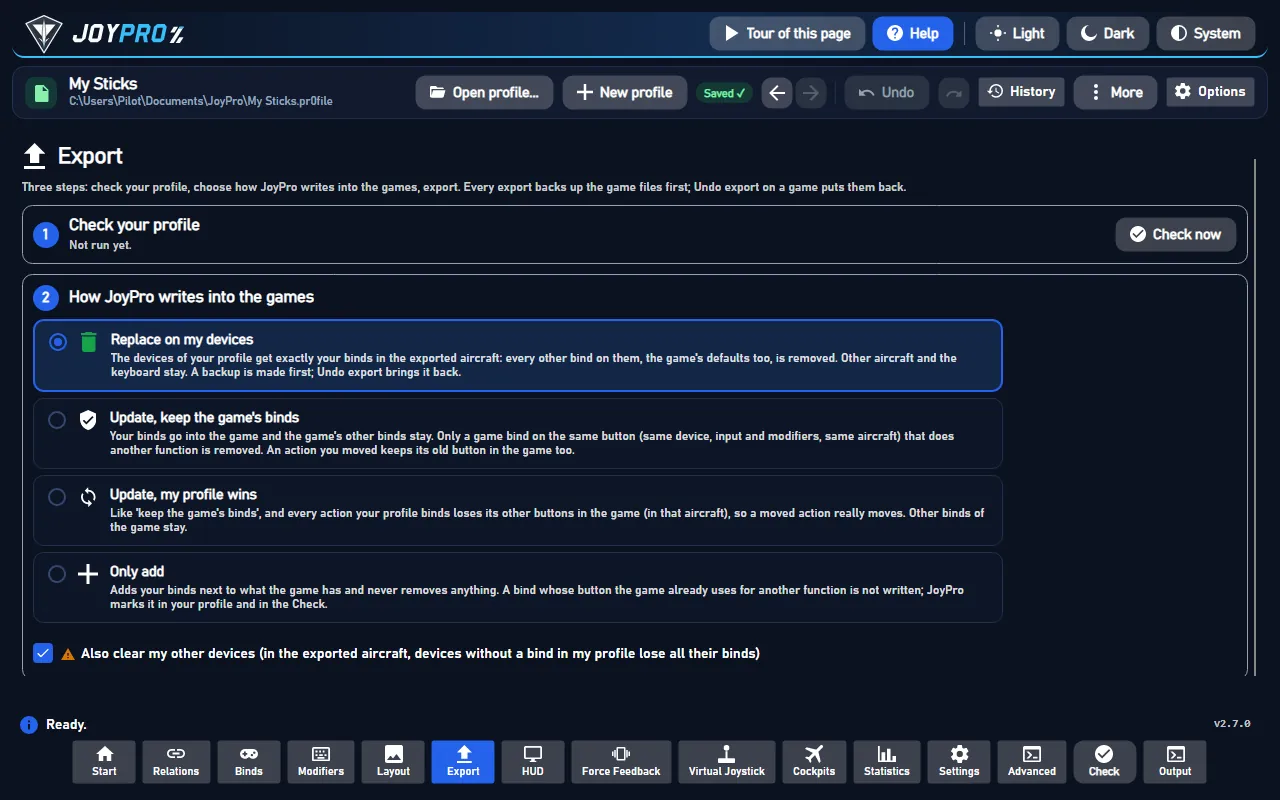
- Keep Replace on my devices with Also clear my other devices, or pick Update, keep the game's binds if you also bind in the game. Press Export now on the card.
Open the game's Controls. KEY BINDINGS and AXIS BINDINGS show your binds in the next free slot of each row, named after the device without spaces and its number, for example "VJOYDEVICE 8 BUTTON 24" or "VJOYDEVICE 8 AXIS 1", with the Invert box ticked where you inverted. CURVES + DEADZONES shows the CURVE and DEADZONE JoyPro wrote for each axis.
#What you do yourself in Project Wingman
- Export again after you add or remove a controller. The game numbers a device by its place in its device list, and that place changes when a controller comes or goes. JoyPro computes it from the devices connected at the export.
- Hats: the game cannot bind a hat. Set Hat Function 1 / 2 (WEAPON or VIEW) in Controls > Miscellaneous.
- Switch Steam Input off for the game; a Steam Input pad shows up as an extra device.
#Common pitfalls
- Binds point at the wrong device: a controller was added or removed since the export. Export again with your usual devices connected. The import warns when a device's number moved.
- A hat bind is refused: by design, see Hat Function above.
- The throttle brakes in the lower half: "Thrust Axis" is a centred axis in Project Wingman: above the centre it accelerates, below it brakes.
#Files JoyPro reads and writes
| File | What it is |
|---|---|
%LOCALAPPDATA%\ProjectWingman\Saved\Config\WindowsNoEditor\Input.ini |
the binds, section [/Script/Engine.InputSettings]: ActionMappings=(...) and AxisMappings=(...) lines |
%LOCALAPPDATA%\ProjectWingman\Saved\SaveGames\savegame.sav |
curves and dead zones per axis action (<Axis>Curve, <Axis>Deadzone) and the hat functions |
<install>\ProjectWingman\Content\Paks\pakchunk0-WindowsNoEditor.pak |
read only: DefaultInput.ini, the game's default binds and the action list |
...\Input.ini.joypro-meta.json |
JoyPro's data of the exported binds (names, groups, tuning) for the next import |
The game writes Input.ini the moment a bind changes in its menu, and only the lists you changed; the others come
from the pak's defaults. Because a written list replaces the defaults, JoyPro writes the defaults of a missing list
first. Steam Cloud syncs the save folder.
#The export modes in Project Wingman
Only joystick mappings of cataloged flight actions are removed; keyboard, gamepad, mouse, menu rows and devices that are not connected stay.
| Mode | What happens |
|---|---|
| Only add | A bind on an input the game uses for another flight action is not written (marked "Not written to the game"); the game's own form of a bind (Invert) stays. |
| Update, keep the game's binds | Also removes the game's mapping on an input the profile gives another action; the action's other mappings stay. |
| Update, my profile wins | Also removes the other joystick mappings of every action the profile binds, so a move fully moves. |
| Replace on my devices | The exported devices lose their other joystick mappings (a flight-only game). |
| + Also clear my other devices | The same on the other connected devices. |
#What is never touched
- Keyboard, mouse and gamepad mappings, menu rows, hats.
- Devices that are not connected, the import's ignored devices and the vJoy device JoyPro tunnels into.
- Every other line of
Input.ini(order and line ends stay) and every other byte ofsavegame.sav.
#Curves, dead zones, other settings
- Per axis action, for all devices together: CURVE (the menu's 0.00 to 2.00, 1.00 = straight) and DEADZONE (0 to 100 %) for pitch, roll, thrust, yaw and the two view axes. The game's defaults: pitch and roll 25 %, view 10 %, thrust and yaw 0 %.
- Invert per bind (the slot's Invert box).
- The game's formula is not known. JoyPro's preview assumes a rescaled dead zone and the curve as an exponent (not confirmed yet).
- Global: no aircraft profiles. No modifiers (the game has none), no force feedback.
- Watcher:
Input.iniandsavegame.savare watched after the game closes (the watcher). - HUD: while the game runs, the HUD names the action of each pressed button.
#Inside the Project Wingman integration
flowchart LR
  P["Your profile<br/>(relations + binds)"] --> E["engine pw export"]
  D["Connected devices<br/>(their place in the list)"] --> E
  E --> I["Input.ini<br/>ActionMappings /<br/>AxisMappings"]
  E --> S["savegame.sav<br/>curve + dead zone<br/>per axis"]
  I --> G["Project Wingman: Controls<br/>KEY / AXIS BINDINGS"]
  S --> C["CURVES + DEADZONES"]
Code: engine\Games\ProjectWingmanIntegration.cs, engine\Games\ProjectWingmanSaveGame.cs,
engine\AxisModels\ProjectWingman.cs (axis model projectwingman).
- Keys:
Joystick_<name>_<place>_Axis<n>,..._Button<n>.<name>is the DirectInput product name without spaces (VPforce Rhino FFB JoystickbecomesVPforceRhinoFFBJoystick), not the HID string.<place>is the device's place in the game's list (Controls > Miscellaneous), which is DirectInput's order reversed; XInput pads are not in that list.Axis<n>counts the device's present axes from 0 in X Y Z Rx Ry Rz Slider Slider order;Button<n>counts from 0. A key with a comma in the name is quoted. - Invert =
Scale=-1.000000. - Defaults: the
Android_*keys of the pak's defaults are kept, because the menu shows one slot per mapping and those keys are the empty slots. - savegame.sav: Unreal GVAS; FloatProperty
<Axis>Curve(half the menu value) and<Axis>Deadzone(0..1), edited in place or added before the closingNone. No checksum. - Command list:
engine pw refresh-dbreads the pak'sDefaultInput.iniand yourInput.ini: 6 axes and 14 buttons. - Commands:
engine pw paths,engine pw catalog,engine pw scan,engine pw import,engine pw export--mode clean|add|merge|merge-overwrite --nuke-untouched-devices --dry-run.
#Known limits
- The device number changes with your controllers: export again after a hardware change.
- Hats and modifiers are refused.
- The curve formula is a working assumption.
- One full in-game run of the test is still open; export and import were seen in the game.
- Tests:
engine\tests\smoke\projectwingman.ps1(fixtures of the real shape); in the gametools\e2e\games\ProjectWingmanSettings.ps1(random axes, buttons, invert, curve and dead zone; the controls pages read back; the config and save folders restored).
All technical notes on this game (generated from the repository): project-wingman.md.