
Import reads the control settings a game has saved and turns them into a JoyPro profile: one relation per function with its button or axis. It is the quickest start: everything you already set up in your games comes in, and from then on JoyPro keeps it in one place.
flowchart LR
  G["Your game's<br/>control files"] --> I["Import"]
  D["Your connected<br/>devices"] --> I
  I --> P["Your profile:<br/>relations, binds,<br/>modifiers, curves"]
#Import in three clicks
- Open Start (the first button in the bottom bar). Under Your games every game JoyPro found on your PC has a card with its picture. Press Import on the game you play most.
- JoyPro asks how:
- Add to my profile (recommended) keeps what you have and adds the game's binds.
- Start over from this game replaces your relations with what the game has (JoyPro keeps a copy of your profile first).
- Also take the keyboard keys brings flight commands on the keyboard too. Device binds are always taken.
- For DCS: All my DCS aircraft, or untick it and choose aircraft.
- Press Import now. A moment later the card says "Done: your profile now has 214 relations (180 bound)" and See my relations opens them. Look first instead shows what the game has, without changing anything.
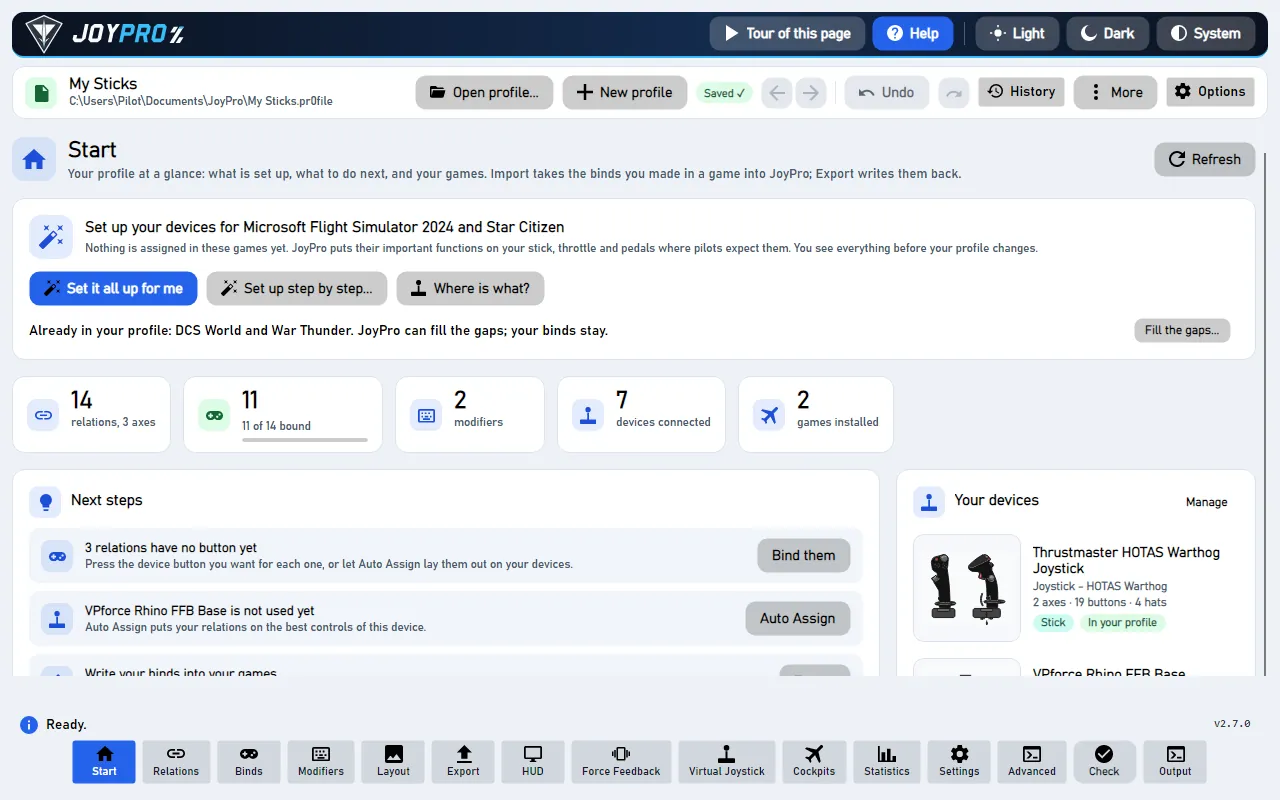
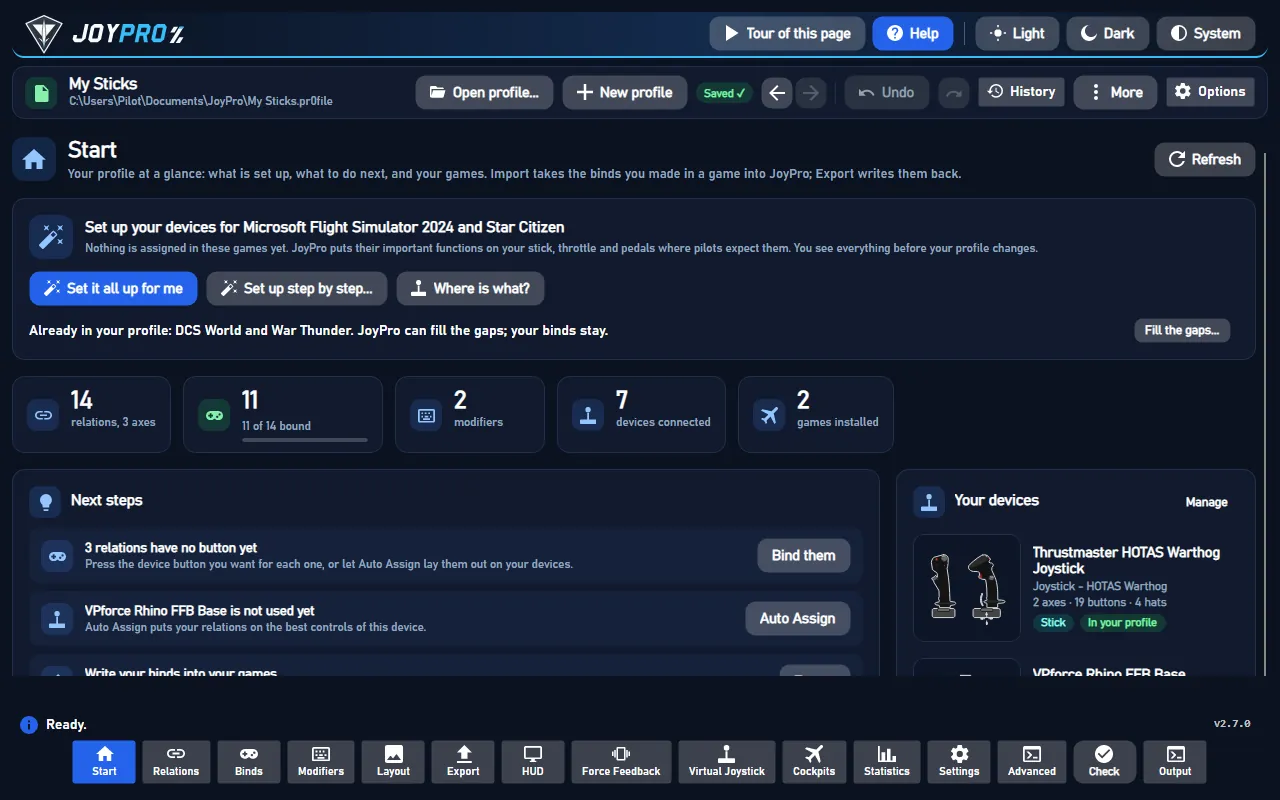
No profile open? JoyPro makes one for you and saves it automatically from then on (there is no Save button: every change is saved and can be undone, also after a restart).
#What changes in the game?
Nothing. Import only reads the game's files. The game keeps its binds exactly as they are, whether you export later or not.
#Import, then let JoyPro fill the gaps
On the Start page, the card "Set up your devices" lists games where you made binds yourself. Import, then fill the gaps imports such a game first. Then Now fill the gaps... puts the important functions on the buttons that are still free. Your own binds stay. For games already in your profile, the card offers Fill the gaps....
#Before your first import: the command list
JoyPro needs to know the commands of each game (their names and ids). It builds this list once from your own installation. When a list is missing, the Start page shows Build List (or Build All Missing Lists); a game card offers Update after a game update. This takes from a few seconds to a few minutes (DCS reads every module).
#Options and what they do
| Option | Default | Effect |
|---|---|---|
| Add to my profile / Start over | Add | Add merges into the open profile; Start over replaces its relations after a confirmation and a copy of the profile. |
| Also take the keyboard keys | your last choice | Flight commands bound to keys come in too. |
| Also import devices that are not connected | on | Devices that are not plugged in now are imported too (useful for a stick you connect later). Off: they are skipped and counted. |
| Treat devices with the same name as one device | on | Windows gives a device a new ID now and then; its old and new files are read as one device on the connected ID. Two identical devices plugged in at once stay apart. |
| Include defaults (DCS, expert form) | on | Every default bind DCS has active for an imported device comes in, so that import followed by a Replace + Also clear export leaves DCS as it was. Your own binds win over a default on the same input. |
| Import inverted / slider / curvature / deadzone / saturation (expert form) | off | Takes values set in the game for binds JoyPro did not export itself. A bind JoyPro exported gets its tuning back without these. |
| DCS: ignore *_easy aircraft | off | The easy-mode copies of aircraft are left out. |
The expert import (Start page, below the cards, and the Advanced page) offers every engine option per game with Scan (preview), Import and Export. Every choice is remembered for the next import.
#Names, groups and modifiers come back
A game file only holds device, input and maybe a curve. JoyPro's export keeps its own data next to it, and an import reads it back:
| Game | JoyPro's data | Restored |
|---|---|---|
| DCS | <aircraft>\joystick\<device>.jp, modifiers.lua |
relation name, groups (in order), modifiers with names, invert, slider, dead zone, saturation, curve |
| IL-2 Great Battles | data\input\jp.actions |
name, groups, alias, modifiers, the exact tuning |
| Registry games (X-Plane, Elite, X4, Arma, MSFS, War Thunder, BMS ...) | <config>.joypro-meta.json |
name, groups, alias, modifiers, tuning |
| Star Citizen | actionmaps.jp |
names |
The game's current state wins: a curve you changed in DCS after the export is kept. Binds JoyPro never exported get
a name built from the game's action and the groups DCS, IL2 or GENERATED + game.
#Two guards
- Changes not exported yet. If you changed binds in JoyPro and have not exported them to this game, an import would bring the old binds back. JoyPro asks first.
- Already imported? When the profile has the game, changes you make in the game later come in through the game watcher (it asks after the game closes); importing again stays one click.
Import never writes into a game folder. What it reads:
- DCS: the binds of every aircraft and device, your modifiers, and with "Include defaults" the default binds DCS has for each device.
- IL-2 Great Battles / Korea: the key mapping and the axis responses.
- Star Citizen: the keybindings of the branch (LIVE, PTU ...), with the game's joystick defaults on js1.
- Games with infantry or vehicles (War Thunder, Arma, Reforger, WARDOGS ...): only the flight actions; everything else is ignored, not deleted.
- MSFS: the input profiles of the sim (Steam or the Microsoft Store version) and, on request, the sim's default presets.
Devices the game cannot tell apart (two devices of one model in some games) and half-axis binds (Elite) are skipped and named in the result.
#How it works inside
- GUI.
StartImportWizard→RunImportWizardAsync(MainWindowViewModel.GameHub.cs). It asksAskAboutUnexportedChangesAsync(enginesync pending), confirms Start over and keeps a copy of the profile (BackupProfileBeforeChange("before-import")), then calls the game's import:ImportDcsAsync,ImportIl2Async,ImportStarCitizenAsyncorImportRegistryGameAsync. Look first runs the same withscan(PreviewImportWizardAsync) and opens the Output panel. - Engine. For DCS:
engine dcs import [--path <Saved Games\DCS>] --merge --include-defaults [--plane <a> --plane <b>] --include-keyboard true|false --ignore-easy-planes false --only-connected false --merge-same-name true. The importer reads each device file, maps the device by its DirectInput instance GUID and name, maps every command id to the game's command list (DB\<game>in%LOCALAPPDATA%\JoyPro2\GameData), and builds one relation per function and input. Load-time corrections (--load-corrections,--correction-mode) remap renamed command ids with a confidence score. - Profile. The relations are merged by name and by the same input; modifiers are created from
modifiers.lua(DCS) or the game's shift settings. The profile is saved atomically and every save is a version in<data>\ProfileHistory(Undo works across restarts). - Watcher. An import of a game without a sync record records the game's files, so changes you make in the game
later are noticed (
<data>\Sync\<game>.json).
#The files it reads
| Game | Files |
|---|---|
| DCS | Saved Games\DCS\Config\Input\<aircraft>\{joystick,keyboard}\*.diff.lua and modifiers.lua, plus the clean profiles JoyPro built from your DCS install |
| IL-2 Great Battles / Korea | data\input\*.actions and the axis responses |
| Star Citizen | actionmaps.xml of the branch |
| MSFS | the Steam remote folder or the Microsoft Store save |
The options of the GUI as engine options: Add --merge, keyboard --include-keyboard true, devices not connected
--only-connected false, same name --merge-same-name true, easy aircraft --ignore-easy-planes true. The guard for
changes not exported yet is engine sync pending.
Engine commands: engine dcs import, engine dcs scan, engine il2 import, engine starcitizen import and
engine <game> import for every registry game (for example engine warthunder import, engine msfs2024 import).
Re-import rules: re-import. Tests: engine\tests\smoke\dcsincludedefaults.ps1,
engine\tests\smoke\roundtrip.ps1, gui\JoyPro.Gui.Tests\ImportSettingsPersistTests.cs.
#Related
- The Start page, every control on it
- First start: which games JoyPro finds
- Build relations: what to do after the import
- The game watcher