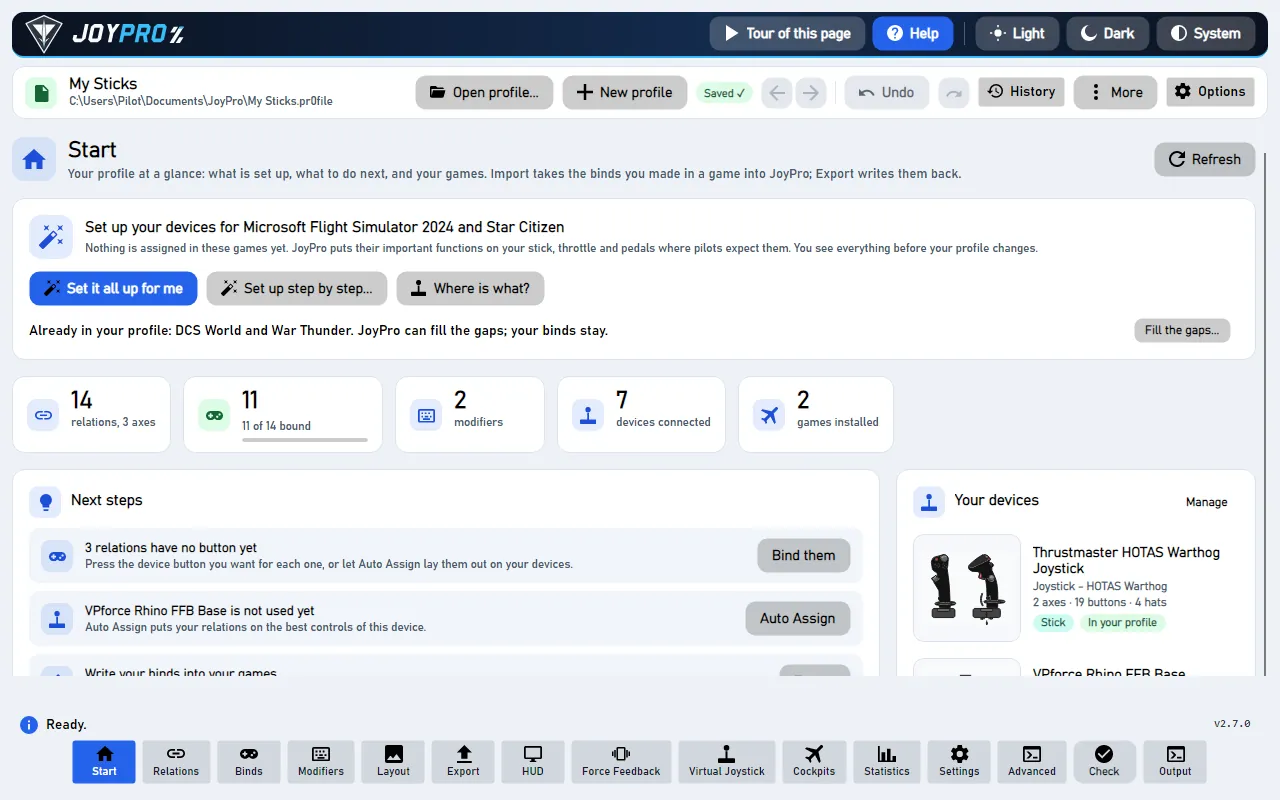
The profile bar sits above every page. It names the open profile and holds what works everywhere: open or start a
profile, the save state, Back and Forward, Undo and Redo, the profile's history, the More menu, the expert
Options. The banner above it has Tour of this page and Help next to the colour buttons. The bottom bar below
every page switches between the pages. A notice under the bar tells you when devices were moved to a new ID.
A profile is one file (.pr0file) with everything you set up in JoyPro: your relations, which button does what
(binds), shift buttons (modifiers) and axis curves. You can have several profiles, but one is open at a time. Its name
is on the left of the bar; hover it to see where the file is.
New profile: an empty profile. It gets a name with the date in Documents\JoyPro2\profiles; More > Rename...
gives it yours. Easier: import a game on the Start page, which makes a profile for you.
Saved ✓: JoyPro saves every change by itself. While it saves you see Saving…; when a save fails, Not
saved with the reason (it tries again).
Back / Forward (arrows): go to where you were before, like a browser (page, open relation, search, scroll
position). They never change the profile.
Undo / Redo: take back the last change of the profile, or do it again (Ctrl+Z, Ctrl+Y). The tooltip names the
change ("Undo Adding relation").
History: every saved version of the profile, to look at, compare, roll back to or keep.
More: open the last profile, save a copy, rename, add another profile, reload, close, check for updates, about.
Options: settings for experts (paths and how a profile is repaired when it loads).
Tour of this page (top right, in the banner): a short tour of the page that is open: what it is for, its main
parts, what comes next.
Help (top right, in the banner): a menu with Help mode (F1) (click anything to see what it does), Tour of this page, Tours...
(the welcome with every tour) and Open the wiki. See Help mode and tours.
One button per page: Start, Relations, Binds, Modifiers, Layout, Export, HUD, Force
Feedback, Virtual Joystick, Statistics, Cockpits, Settings, Advanced, plus Check and the
Output panel. Settings > Pages in the bottom bar hides pages you do not use and changes their order.
Advanced
#Undo, History and Back are three different things
What it walks through
Changes the profile?
Back / Forward
the places you were: page, sub-view, open relation or device, search texts, filters, scroll position (at most 50)
no
Undo / Redo
the profile's versions, one step at a time, also after a restart
yes
History
every version with what it changed; roll back to any of them
yes (a roll back is a new version, so Undo goes back)
Back and Forward also work with Alt+Left / Alt+Right and the mouse's back and forward buttons.
Left: the versions, newest first ("Adding relation", "Import from DCS", "Before export to DCS"), with now on the
version the profile is at and kept on versions you keep.
Details shows what a version changed ("Relation 'Gear' renamed to 'Landing gear'"); Compare shows what
differs between that version and the profile now.
Keep protects a version from the clean-up; Roll back to here makes the profile exactly as it was at that
point: every change after it is taken back in one step, and one Undo brings them back.
Clean up thins out old versions of all profiles now: all of the last day, then fewer per hour, day and week.
JoyPro also does this by itself in the background. Kept versions always stay.
flowchart TD
  E["A change<br/>(button, import, drag)"] --> X["JoyPro's engine<br/>saves it"]
  A["Small changes<br/>(markers, tuning)<br/>saved 2 s later"] --> X
  X --> W["The profile file,<br/>written safely"]
  W --> V["A new version<br/>in the history"]
  V --> U["Undo / Redo / History"]
Every change becomes a version of the profile. Undo, Redo and History move between these versions.
When you open a profile and a device has a new ID (Windows gives devices new IDs now and then, or a new stick of the
same model), JoyPro moves its binds and shows a notice under the bar: which device moved where. Undo puts the binds
back on the old device, Replace device... opens the window to move binds yourself, input by input, OK closes
the notice.
Up to JoyPro 2.6.1, when the command lists changed (Refresh DB, an update with new lists), JoyPro could switch on
aircraft in your relations that you never chose: every other aircraft that shares a command with one of your actions,
for example the F-15C, A-10C and MiG-29 in a helicopter power lever relation. That was JoyPro's mistake. Since 2.6.2 it
only adds aircraft that are new in the lists (a module you added), and when you open a profile it looks in the
profile's history for such a step. If it finds one, a notice under the bar says how many aircraft it switched on, in
how many relations and when, with the list per relation and aircraft: Take them out (the ticked ones, one undo
step; your own binds stay), Keep these aircraft (JoyPro stops asking) or Later. Nothing changes until you choose.
If you did want one of them, untick it.
"Default" and the other input layers of DCS (the cameras, the radio menu, ground units) are no aircraft. An export writes
them into the layer's own folder, never into a module. They are not counted, they come last in the list marked "not an
aircraft", and when a profile has nothing else there is no notice at all. Imports and builders such as Auto Group are
never offered: those aircraft are your own.
Replace device... (the notice, a device card on the Layout page, Settings > Devices) moves the binds of an old
device to another one:
Automatic: the same product gets the same input ids; another device is matched by its parts.
Same input ids (1:1): button 5 stays button 5, X stays X.
By layout (device catalog): trigger to trigger, hat 2 to hat 2, throttle to throttle; buttons without a
matching part go by their order (shown as a guess).
When the new device already has binds on some inputs: Keep both, Keep the new device's binds or Replace
them with the old device's binds.
Move binds asks first, keeps a copy of the profile next to it and does it as shown (Undo takes it back);
Cancel closes without a change.
In the game: moved binds
Moving binds to another device changes nothing in a game until the next export; then the binds are written for the new
device. With Replace on my devices the old device's binds are cleared in the exported aircraft.
Profile commands: MainWindowViewModel.cs (OpenLastProfileAsync, LoadProfileAsync, MergeProfileAsync,
SaveLastProfileAsync, ClearWorkspace, RefreshAllAsync), the menu's file dialogs in Views/MainWindow.axaml.cs.
Autosave and history: Services/AutosaveScheduler.cs, MainWindowViewModel.ProfileHistory.cs, the store
engine/ProfileHistory.cs in %LOCALAPPDATA%\JoyPro2\ProfileHistory\<profile id>\ (history.json, one gzip blob
per distinct content, drafts.json). Details: profile-history.
Back / Forward: Services/NavigationHistory.cs, MainWindowViewModel.NavigationHistory.cs,
Views/MainWindow.Navigation.cs (ui/navigation).
Device notice and Replace device: MainWindowViewModel.DeviceReplace.cs, Views/ReplaceDeviceWindow.axaml.
73 controls, read from the program’s source: 73 written, 0 with the facts from the source (tooltip, code comment, engine call), 0 still to be expanded.
Tour of this page starts a short tour of the page that is open: what the page is for, its main parts and what
comes next. The tour outlines each part and waits for you; Next, Back, Skip and End tour are on its
card.
Tooltip Help mode (F1): click anything to see what it does. Also the tours and the wiki.
Help opens a small menu: Help mode (F1), Tour of this page, Tours... and Open the wiki. Pick
Help mode (F1), then click any button to see what it does without running it.
Tooltip Click anything to see what it does; F1 or Esc ends it
Help mode (F1) switches help mode on: a click on any button, field, list row or tab no longer runs it but shows
what it does. A small window next to it explains where it fits and what happens next; F1, Esc or End help mode
ends it.
Tours... opens the welcome again, also when you answered it before: pick what you want to do and the tour that
fits you. From there you can also start the quick setup that gets your buttons working.
From the code The welcome now (Settings > Tours, the ? menu, "--welcome").
Picks a JoyPro profile (.pr0file) and opens it. Pending edits of the profile that is open now are saved first, so
nothing is lost. Engine: engine profile load.
Tooltip Start an empty profile (it gets a name in Documents\\JoyPro2\\profiles; More > Rename... gives it yours). Tip: importing from a game (Start page) makes one for you.
Starts an empty profile at once, without a dialog: it gets a name with the date in Documents\JoyPro2\profiles
(More > Rename... gives it yours). Pending edits of the open profile are saved first. Easier for a first profile:
import a game on the Start page, which makes one for you. Engine: engine profile new.
Goes back to the place you were before: the page, its tab or panel, the open relation or device, search texts,
filters and scroll positions (also Alt+Left and the mouse's back button). The profile is not changed; the tooltip names
where it goes.
Takes back the last change of the profile (Ctrl+Z); the tooltip names it ("Undo Adding relation"). Edits not saved
yet are saved first, so they are undone first. Works across restarts, one version of the History at a time. Your
games change only with the next export.
Tooltip Every version of this profile: what changed, compare, restore, keep
Opens or closes the History panel below the bar: every saved version of this profile, newest first, with Details,
Compare, Keep and Roll back to here. Only with a profile open. Opening it changes nothing.
Opens the menu of the less used profile actions: Open last profile, Save as..., Rename..., Add another
profile..., Reload, Close profile, Check for updates and About JoyPro.
Tooltip Save a copy under another name; JoyPro works on the copy from then on
More > Save as...: saves a copy of the open profile under a name and folder you choose; from then on JoyPro works
on the copy and remembers it as the last profile. The original file stays as it was. Engine: engine profile save.
Tooltip Give the profile file another name (its history goes along)
More > Rename...: gives the profile file another name or folder; its history goes along. When a profile with that
name exists, JoyPro asks first and keeps the replaced file as <name>.pr0file.bak next to it, with its history. A
file another program holds open stops the rename and nothing changes.
Tooltip Merge another .pr0file into this one (asks first; a copy of your profile is kept). What wins: Profile options.
More > Add another profile...: picks another .pr0file and merges its relations, binds and modifiers into the
open profile. Asks first and keeps a copy of your profile next to it; where both have the same relation, Options
decides which one wins. Needs an open profile. Engine: engine profile merge.
More > Reload: reads the profile summary, the relations, binds and modifiers, the devices and the DCS aircraft
list again, for example after you changed the profile file outside JoyPro. Changes nothing. Engine:
engine profile summary.
Tooltip Close the profile in JoyPro (the file stays)
More > Close profile: saves pending edits and closes the profile in JoyPro, so every page is empty. The file and
its history stay; Open profile... or More > Open last profile opens it again.
Tooltip Asks GitHub for a newer JoyPro; it is offered with what changed
More > Check for updates: asks GitHub for the latest release of JoyPro and always says what it found. A newer
version is offered with what changed (Update now, Later, Skip this version); nothing is downloaded without
your click.
Tooltip Version, build, license and updates (Settings)
More > About JoyPro and the version at the bottom right: opens Settings > About JoyPro and updates (version,
build, licence line, updates). When a newer version is on offer, the version corner names it.
From the code The version in the corner: Settings > About JoyPro and updates.
Options: opens or closes the Profile and engine options panel below the bar, for experts: what wins when you
add another profile, the engine and profile paths, and how a profile is repaired when it loads. Normal use needs none
of it.
Merges the Merge profile file into the open profile: relations, binds and modifiers are added; where both have the
same relation, the setting above decides which one wins. Asks first and keeps a copy of your profile next to it.
Engine: engine profile merge <yours> <other> --mode left|right --save <yours>.
Tooltip Also writes the open profile to the engine's last-profile file (the one the engine loads when it is given no profile)
Options panel: saves the open profile as the engine's own last profile (last.pr0file), the one engine commands use
when no profile is given. Your profile file is not changed. Engine: engine profile save-last.
On (default): an import or another change while no profile is open makes a new profile for it in
Documents\JoyPro2\profiles. Off: such commands stop with "Profile path required".
On (default): every engine command repairs the profile while it loads (--load-corrections true): actions whose
game command changed with a game update are matched to the current command, and missing devices are looked for. Off:
the profile is read exactly as stored; the two boxes next to it are then off too.
With load corrections: when an action is matched to a corrected command of the command list, that command is added to
the relation in its place, and an aircraft that is new in the command lists since the profile was last saved (a module
you added) is switched on in the actions whose command it has, when nothing else is on that button for it and the
command means the same there (--auto-add-db-items). Aircraft that were in the lists before and that you did not
choose are never added (2.6.2). What the repair changed is a step of its own in the History ("Updated to the new
command lists: 3 aircraft in 2 relations"), so Ctrl+Z takes exactly it back. How sure a match must be: Correction
Mode (strict, balanced, aggressive) and Auto Threshold below; Correction Report writes what was changed to a
file.
With load corrections: binds of a device that is not connected are moved to a connected device of the same model with
a new ID (--remap-missing-devices). The device notice under the bar lists what moved and offers Undo.
Keeps the engine's status and progress lines in the Output panel (--status true). Off: the busy area still shows them
while a command runs, but the Output keeps only the result.
Tooltip Thin out the old versions of all profiles now (kept versions stay). JoyPro also does it by itself in the background.
History panel: thins out the old versions of all profiles now: all of the last day, then one per hour for 7 days, one
per day for 60 days, one per week after that. Kept versions always stay. JoyPro also does this by itself a minute
after start and every 6 hours; the status line says how much space it freed.
From the code The retention right now (it also runs in the background a minute after start and every 6 hours).
Details on a version: lists on the right what this version changed against the one before it ("Relation 'Gear'
renamed to 'Landing gear'"). Changes nothing.
From the code What this version changed against the one it was made on.
Tooltip Makes the profile exactly as it was at this point: every change after it is taken back in one step. Undo brings them back.
Roll back to here on a version: asks first, then makes the profile exactly as it was at that point: every change
after it is taken back in one step (to go back to the version five changes ago, click that one; the four after it go
too). The roll back is a new version: the later versions stay in the History, and one Undo (Ctrl+Z) brings all of them
back. In the game: the rolled back binds arrive with the next export.
From the code "Roll back to here": writes the version's whole profile back as a new version, so every change after it is taken back in one step; the versions after it stay in the list and one Undo returns to the state before the roll back.
Tooltip Move the binds of a device yourself, input by input (a new stick, a device that was not moved)
Replace device... in the notice about moved devices: opens the window to move the binds of a device to another one
yourself, input by input, with a preview, for example a new stick or a device JoyPro did not move by itself.
From the code The window, with the card's device as the old device (or empty to pick one).
Undo in the notice about moved devices: puts the binds back on the old devices and closes the notice. Works while
the move is still the last change; after other changes JoyPro opens the History panel instead, where you roll back to the
version before the move.
From the code Undo takes back the remap (or the replace) when it is still the last change; later changes stay, so then the History panel is the way back.
Tooltip Takes the ticked aircraft out of these relations again: back to how you had them. One version of your profile; Ctrl+Z takes all of it back.
Take them out in the notice about aircraft JoyPro added: up to JoyPro 2.6.1, after Refresh DB or an update
with new command lists, JoyPro switched on aircraft in your relations that you did not choose (for example a helicopter
power lever relation suddenly also for the F-15C and the MiG-29). This takes the ticked ones out again, back to how
you had them; your own binds stay. One version of your profile: Ctrl+Z takes all of it back. In the game: nothing
changes until the next export, which then no longer binds these actions in those aircraft. Engine: engine profile auto-added --apply.
From the code "Take them out": every ticked aircraft back to "not in the action", one profile version (Ctrl+Z).
Tooltip The aircraft stay switched on; JoyPro does not ask about them again.
Keep these aircraft in the notice about aircraft JoyPro added: the aircraft stay switched on as they are, and JoyPro does
not ask about them again for this profile. Engine: engine profile auto-added --keep.
From the code "Keep them": nothing changes in the relations; the profile remembers the answer and JoyPro does not ask again.
Shows or hides the list of the aircraft JoyPro added, one line per relation and aircraft with what the command is
called there when that says more than the relation's name ("'THROTTLE - SLIDER -HELO POWER BOTH': F-15C, command
'Thrust'"). Input layers come last: "'F1 Cockpit view': Default (not an aircraft)".
#Stops the command before it writes anything (JoyPro offers this only while it reads)
Buttonwritten
Cancel next to the progress bar at the bottom: stops a longer command before it writes anything. JoyPro offers it
only while the command still reads; the button says "Cancelling..." until it has stopped.
From the code Stops a download (an installer that already runs is not killed; its own window has Cancel).
Tooltip Write your binds into the games; backups and undo
Opens the Export page: write your binds into the games, the check, undo and the game config backups. Pressed while
the page is open, it reads the backup list again (engine backups list).
#Virtual joystick (vJoy + HidHide): per game one virtual device instead of your real ones
Toggle buttonwritten
Opens the page of the pretend controller and the virtual joystick: per game your real devices, one vJoy joystick or
a pretend Xbox controller, with HidHide and virtual functions. The button says Pretend controller when all your
virtual games are on the pretend controller (ACE COMBAT), else Virtual Joystick.
Tooltip Your most played games, aircraft and ships, streaks and fun facts (from your games' logs, on this PC only)
Opens the Statistics page: your most played games, aircraft and ships, streaks and fun facts from your games' logs, on
this PC only. Shown only when Settings > Usage statistics > Show the Statistics page in the bottom bar is on.
Tooltip Games and their folders, devices, command lists, force feedback, updates, report a problem
Opens the Settings page: games and their folders, devices, command lists, force feedback, appearance, updates and
problem reports. It cannot be hidden from the bar.
Show it always, in the hint next to the bottom bar while a page you hid in Settings > Pages in the bottom bar is
open: shows that page in the bar for good again. Kept for the next start.
From the code Shows the open hidden page in the bar for good (the hint's button).
Tooltip The same product: the same input ids. Another device: by its parts on the device.
Replace device window, default: the same product gets the same input ids; another device is matched by its parts
(trigger to trigger, hat to hat). The preview below updates at once.
Tooltip Trigger to trigger, hat 2 to hat 2, roll to roll, throttle to throttle; buttons without a matching part by their order (shown as a guess)
Replace device window: matches by the device catalog: trigger to trigger, hat 2 to hat 2, roll to roll, throttle to
throttle. Buttons without a matching part go by their order and are marked as a guess in the preview.
Tooltip Both binds stay on that input (fine when they are for different games or aircraft)
Shown when the new device already has binds on some of the target inputs, default: both binds stay on that input.
Fine when they are for different games or aircraft.
Tooltip Moves the binds as shown above; Undo (top bar or the notice) takes it back
Move binds: asks first, keeps a copy of the profile next to it (<profile>.before-device-replace-<time>.pr0file)
and moves every bind and modifier of the old device to the new one as the preview shows, as one change, and closes the
window. The notice under the bar says how many moved and which stayed on the old device; its Undo
(or Ctrl+Z) takes it back. Engine: engine devices replace. In the game: the binds are on the new device after the
next export.