The Setup wizard sets up your controls for your games in one go. It looks at your connected devices, gives each one a
role (main stick, throttle, pedals, panel ...), makes relations for the important functions of your games' aircraft,
binds them to your devices and shows you the result as cheat sheets. You review everything before your profile
changes, and one Undo takes it all back. It runs without AI: the same choices always give the same plan.
Open it from the Start page. Its card "Set up your devices" has two buttons:
Set it all up for me (the blue one): the quick setup. It runs this wizard by itself, without showing the steps,
and stops at a plain list of what goes where. See Quick start.
Set up step by step...: this wizard with all five steps, so you choose each one yourself.
Without that card (every game is set up already), press Set up my devices automatically... under Your games on
the Start page, or on the Binds page.
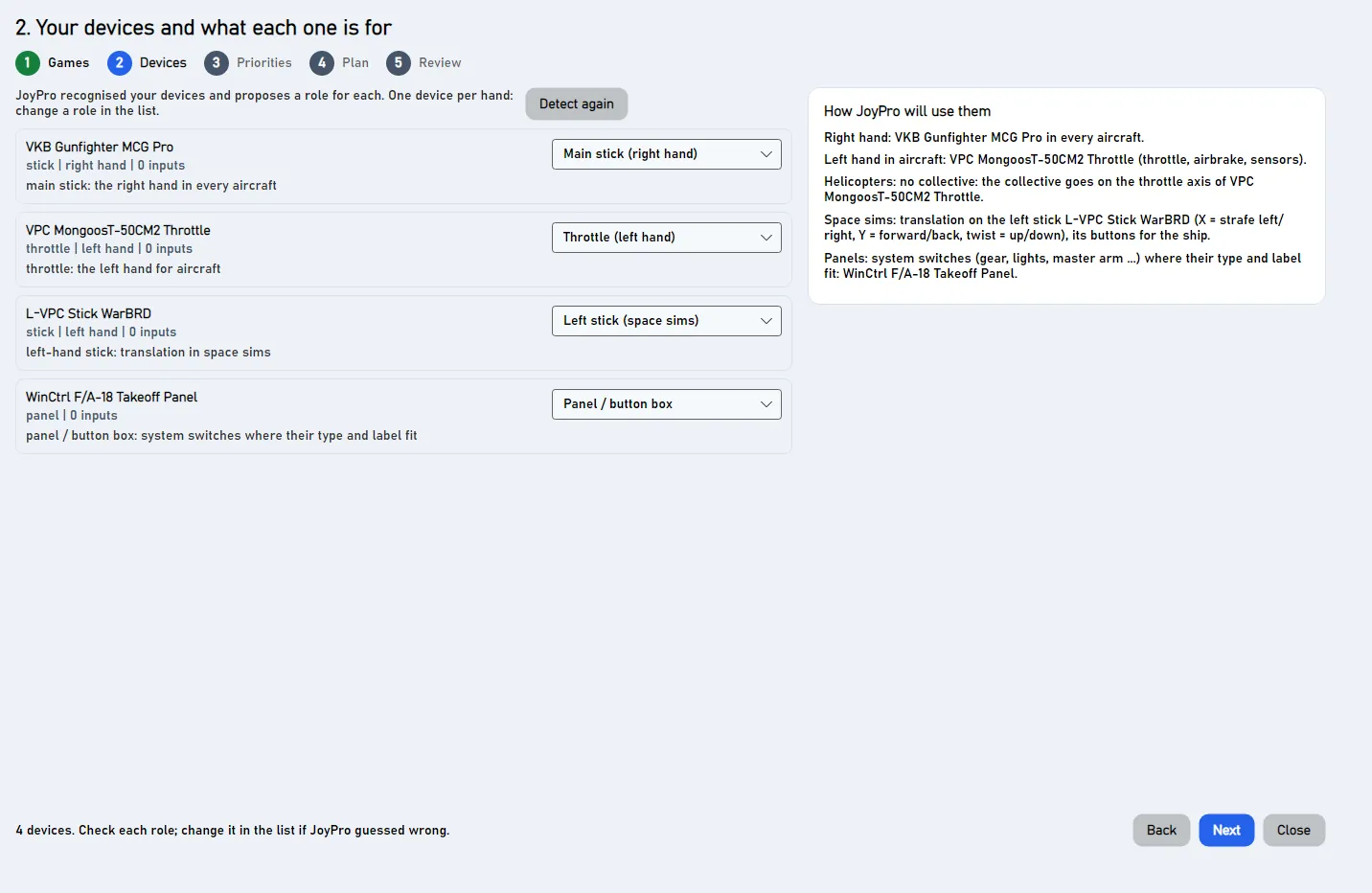
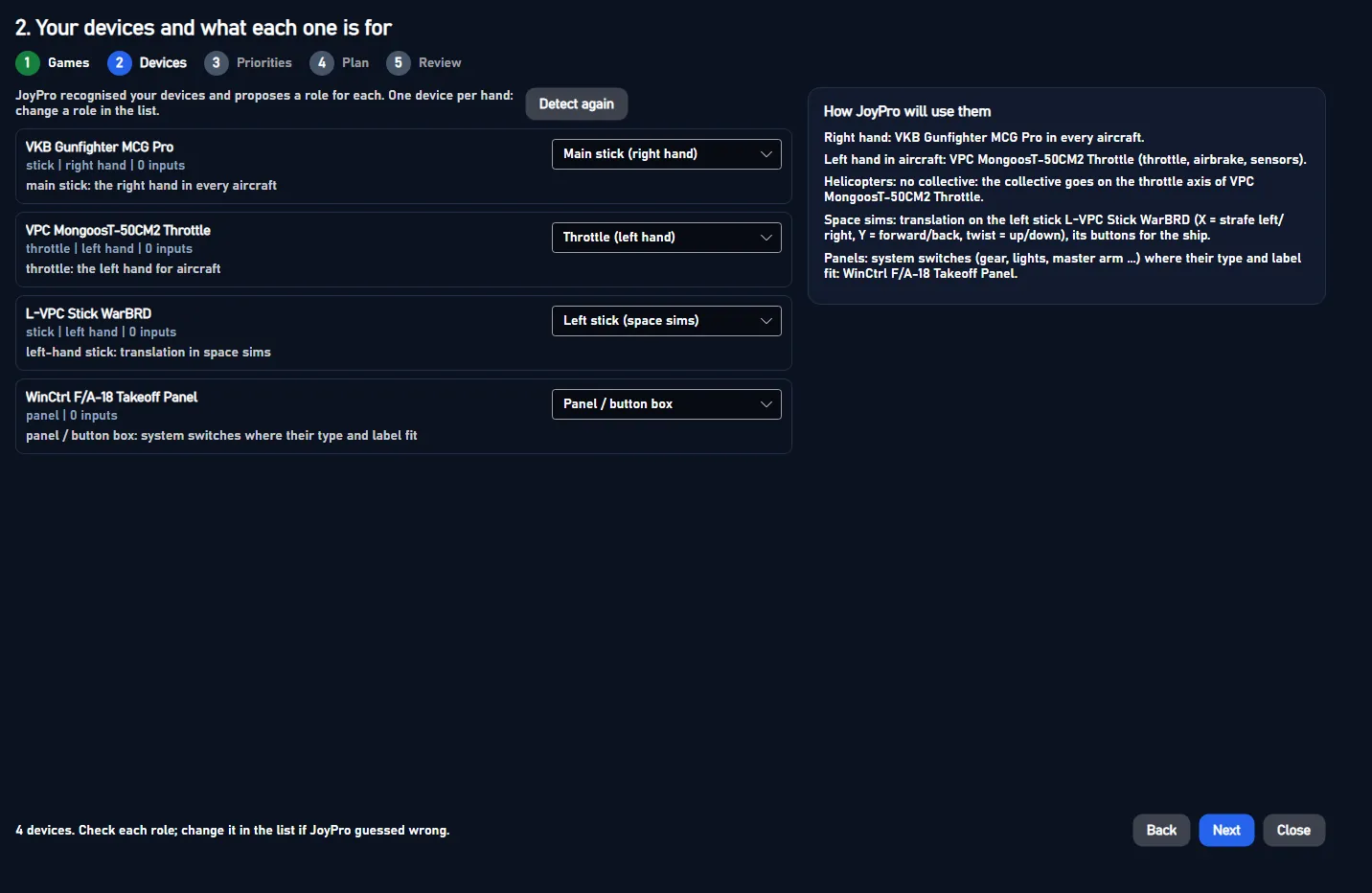
Step 2 of the Setup wizard: your devices and their roles
Games which games to set up
Devices what each device is for
Priorities your aircraft, modifiers, where functions go
Plan what JoyPro placed
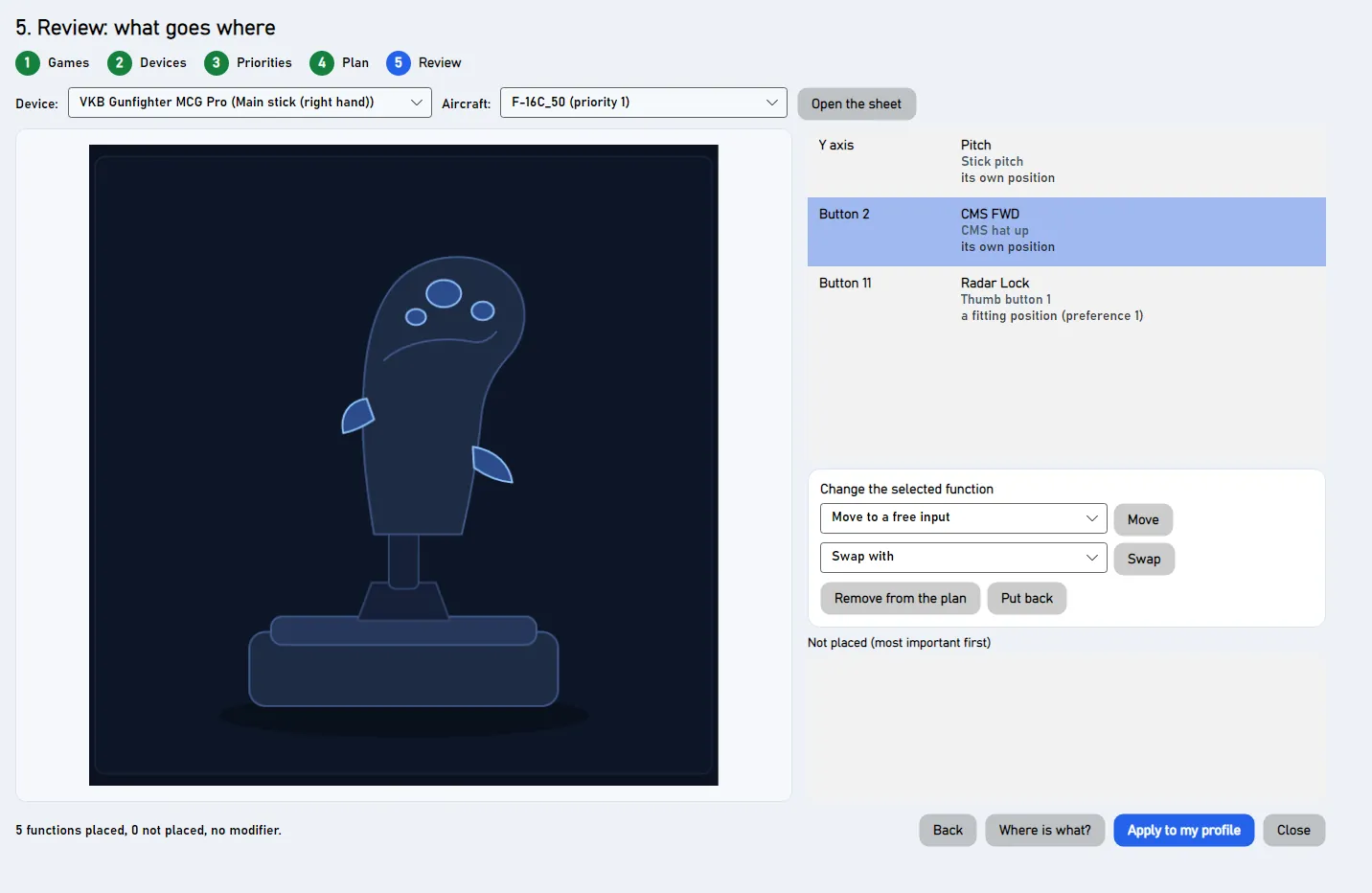
Review check, then Apply to my profile
The quick setup (Set it all up for me) runs the same planner without these steps. It uses your devices' usual
roles, every aircraft equal, no modifier and your last choice of Where should functions go?. For a flight sim it
asks one question: Do you use head tracking or VR?
The steps are shown at the top; Back and Next at the bottom move between them. Close the window at any time:
a wizard you close before Apply comes back as you left it.
JoyPro recognises your sticks, throttles, pedals and panels and proposes a role for each one: "What this device is
for". Change a role in its list. One device per hand: a second stick for the same hand gets "unused" unless you
choose otherwise. A base that takes several grips asks for the grip. The box on the right says in words how JoyPro
will use them. Detect again reads the devices again (plug in a device first).
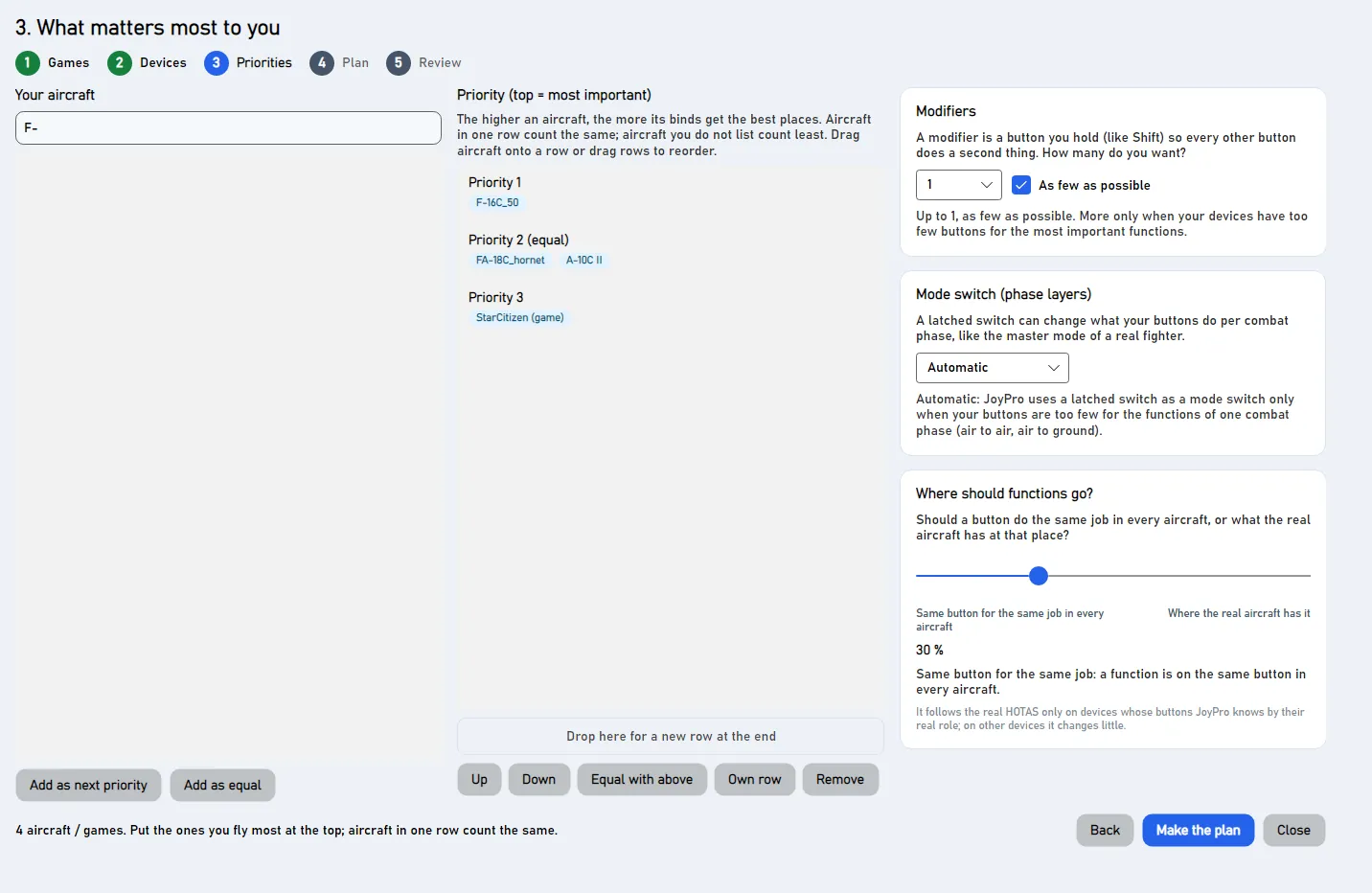
Step 3: aircraft priorities, modifiers and where functions go
Your aircraft: search an aircraft ("F-16", "helicopter", "Star Citizen") and press Add as next priority
(a new row) or Add as equal (into the selected row). The higher an aircraft, the better places its functions get.
Aircraft in one row count the same; aircraft you do not list count least.
Modifiers: a modifier is a button you hold (like Shift) so every other button does a second thing. Choose how
many; As few as possible uses one only when your buttons run out.
Mode switch (phase layers): a latched switch can change what your buttons do per combat phase.
Where should functions go?: a slider. Left end: Same button for the same job in every aircraft. Right end:
Where the real aircraft has it. The middle is the start. The gun and the throttle never move. See
Where should functions go?.
Do you use head tracking or VR? Only for flight sims. Yes if you look around by moving your head (TrackIR,
a face tracking webcam, Tobii or VR), or plan to: no look buttons on your devices, only "recenter the view". No:
looking around goes on a hat of your stick or throttle, right after the most important buttons. See
Head tracking and looking around.
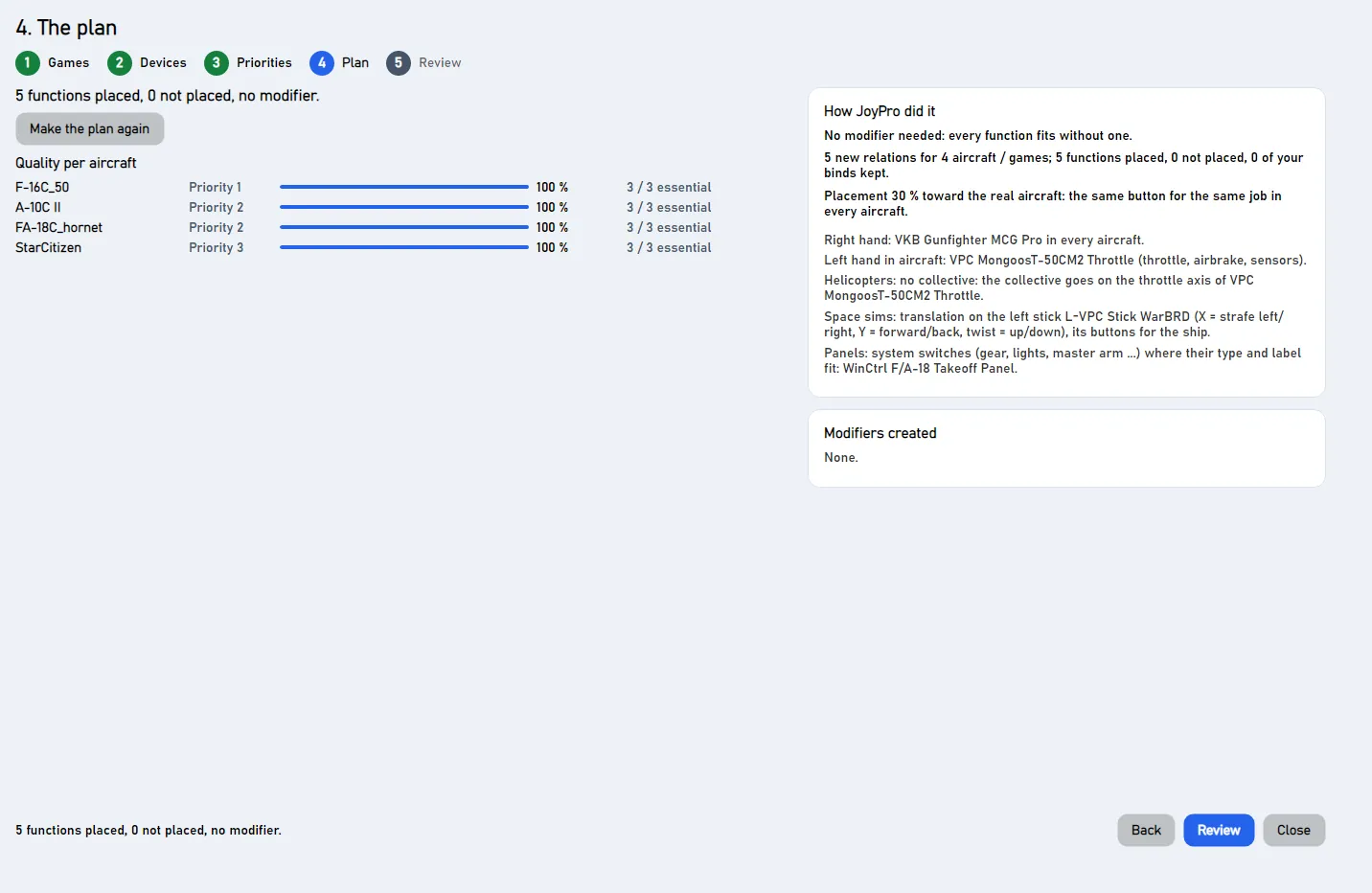
JoyPro makes the plan: how many functions it placed, what it could not place, the modifiers it made, the rules it
followed and a quality score per aircraft (100 % = every function on its best place).
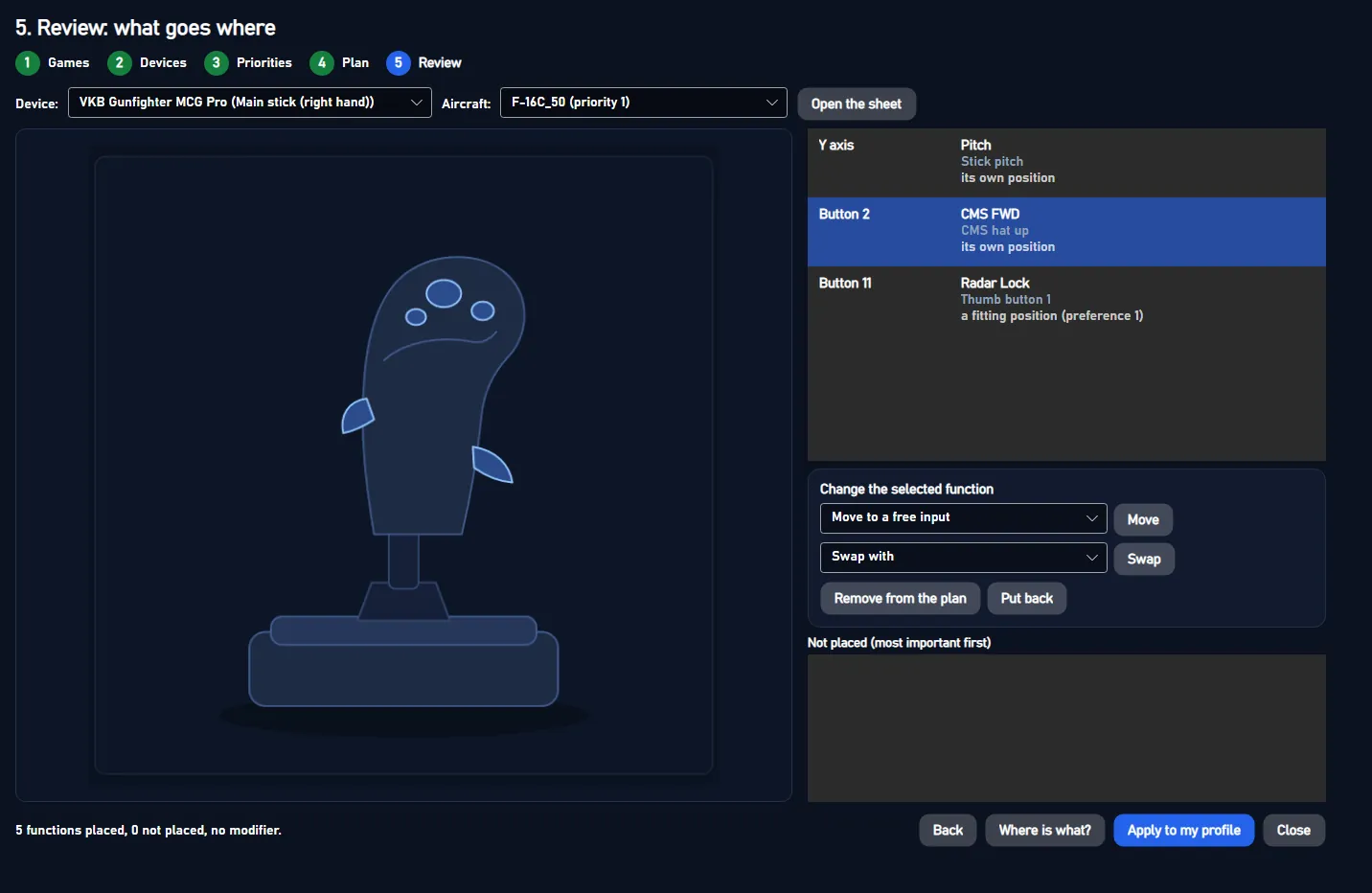
Pick a Device and an Aircraft to see JoyPro's drawing of the device with what is bound where. Select a function
in the list to move it to a free input, swap it with another one or take it out of the plan. Not placed lists what
did not fit, most important first.
When you like it: Apply to my profile, then Export to my games (the Export page opens). Your games change only
with the export.
Roles: main stick (right hand in every aircraft), heli stick (right hand in helicopters, for a second stick such as
a force feedback base), left stick (left hand in space games; the throttle side without a throttle), throttle,
collective (left hand in helicopters), pedals (rudder and toe brakes), panel (system switches whose printed label
fits: "LDG GEAR UP" gets the gear), keyboard joystick and virtual (kept, nothing new bound), unused.
Your profile first: a command that is already in one of your relations stays there, and a relation already bound
on a device of this setup keeps its input. A command you switched off stays off.
Where should functions go? The slider runs from Same button for the same job in every aircraft to Where the
real aircraft has it. Below the middle there is one relation per function for all aircraft; from the middle on,
aircraft whose real HOTAS has the function elsewhere get their own relation, and the further right, the stronger the
real position pulls. The quick setup and the Start page use your last choice (the middle at first).
The choices of step 3 are remembered; the next wizard starts with them.
Apply writes everything as one change: one version in the profile History named "Setup wizard: N relations, M
binds". Undo (Ctrl+Z) takes all of it back.
Open the sheet shows the cheat sheet full size in your picture viewer, to print it.
The new layout follows your most used aircraft of its class when Settings > Usage statistics > Lay out new
aircraft like my most used one is on.
In the game: After Apply and an export
Nothing until you export. After Apply and an export, each game's control files hold the wizard's binds: in DCS
every chosen aircraft has the same function on the same button when the slider is near Same button for the same job
in every aircraft, Star Citizen gets
the ship controls on the stick and the strafe axes on a left stick, panels get the systems their labels name. Export
with Replace on my devices if the devices should lose the binds the game had before.
Window Views/SetupWizardWindow.axaml, view model ViewModels/SetupWizardViewModel.cs (its own view model, created by
MainWindowViewModel.SetupWizard.cs with the watched games), planner engine/SetupWizard/*.cs. Every step is an
engine command, so the CLI makes the same plan: engine setup devices (recognition and roles, --role, --grip),
engine setup aircraft (the priority list), engine setup plan (--games, --priorities "A>B|C", --modifiers,
--prefer-fewer or --use-all-modifiers, --placement (old name --realism), --phase-layers, cockpit entries of engine cockpits as
--cockpit-file; writes the plan JSON), engine setup render (a callout sheet per device), engine setup apply
(--plan, one profile version). Move, swap, remove and put back edit the plan in the GUI (SetupPlanEdit) and are
checked again before Apply. Reference: Setup wizard.
30 controls, read from the program’s source: 30 written, 0 with the facts from the source (tooltip, code comment, engine call), 0 still to be expanded.
#Yes – I use head tracking, face tracking, Tobii or VR, or I plan to (no view buttons on the HOTAS)
Optionwritten2 ×
Step 3 and the quick setup, for flight sims: pick this when you look around with head tracking (TrackIR, a face tracking
webcam), a Tobii eye tracker or VR, or when you plan to get one. The plan then puts no view or look buttons on your
HOTAS, only a button to recenter the view, so your buttons stay free for other functions. Your answer is kept; change
it later in Settings > Looking around.
#No – put looking around on a hat of my stick or throttle
Optionwritten2 ×
Step 3 and the quick setup, for flight sims: pick this when you look around with your stick or throttle. The plan puts
looking around on a hat (forward, back, left, right) or a thumb stick, with a high priority: right after the gun,
weapon release, countermeasures, brakes, trim and target. A device without a free hat gets it behind a shift button.
Tooltip Closes this window. Start the game: your controller works as it is.
Quick setup only, when an Xbox controller is your only device and every game reads it (ACE COMBAT): Close and play
closes the window. The controller already works in the game as it is: nothing is set up, no driver is installed.
Tooltip Not needed to play. Other buttons and a softer stick feel through a pretend controller; it needs a small extra driver.
Quick setup only, next to Close and play: Make it feel better (optional) sets up the controller anyway, with
other buttons and stick curves, through the pretend controller (it needs the small ViGEmBus driver). Not needed to play.
Tooltip Looks for your games and devices again and starts over
Try again runs the quick setup once more: JoyPro looks for your games and devices again and goes on to the review.
Fix what the line above says first, for example plug in your stick or start the game once.
Tooltip Opens the setup with all its steps, so you can choose each one yourself
Set it up step by step leaves the quick setup and shows the wizard's first step. There you choose the games, your
devices' roles and your priorities yourself.
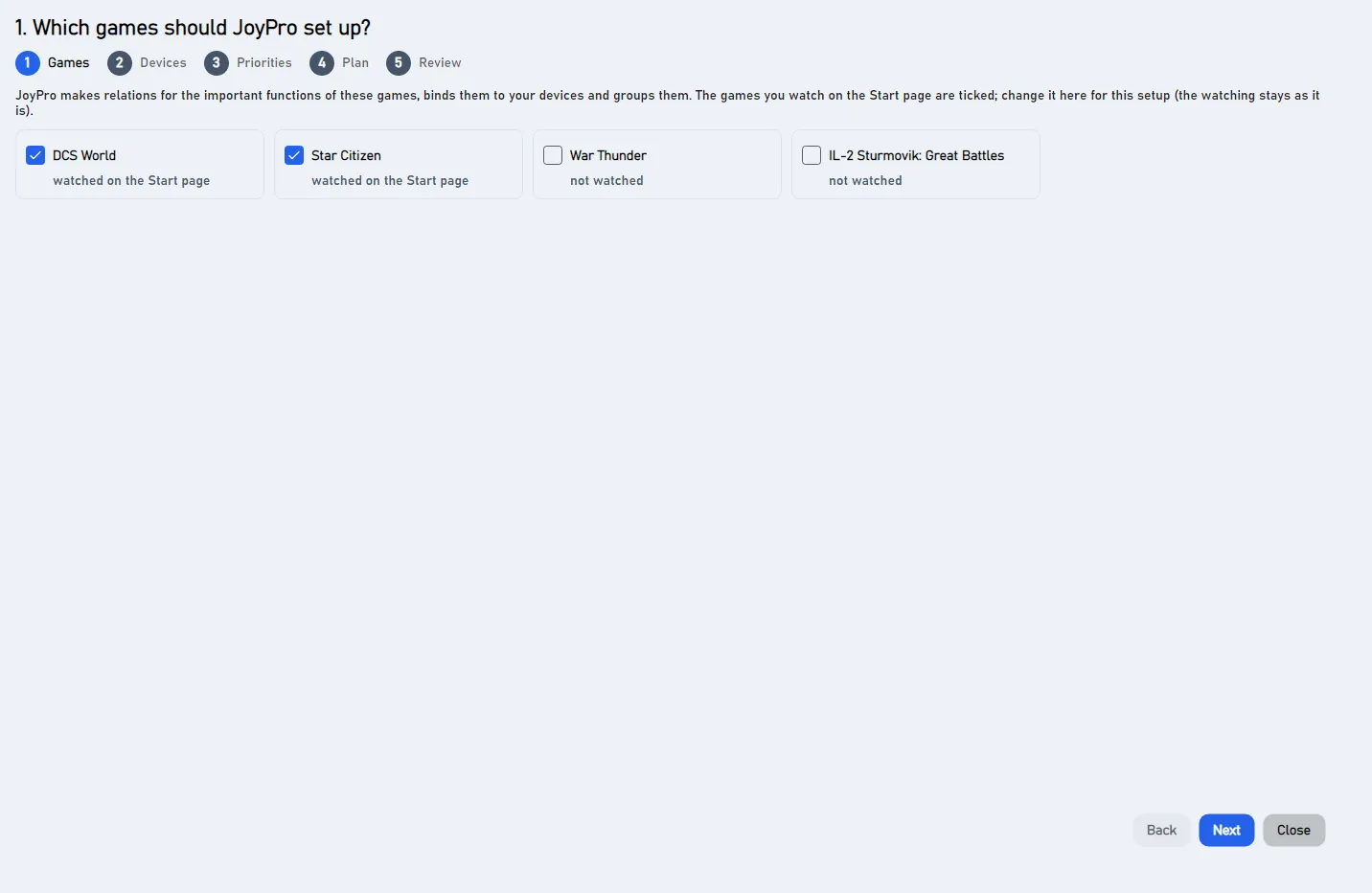
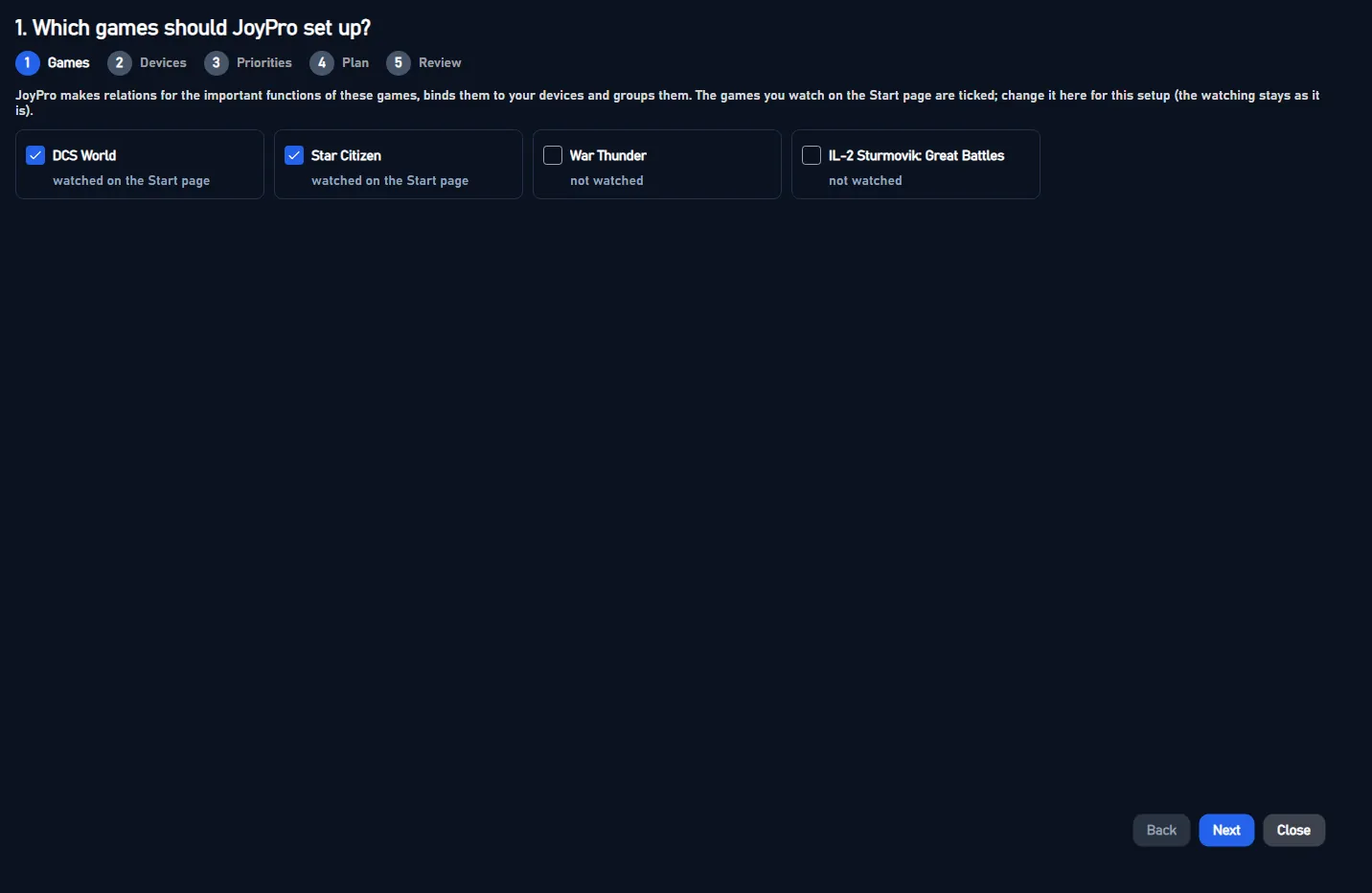
Step 1: tick the games this setup covers. The games you watch on the Start page (and started once) are ticked at the
start. Changing it here does not change which games JoyPro watches.
Step 2: reads your connected devices again and proposes a role for each one (plug a device in first). Roles you
chose stay chosen. Engine: engine setup devices.
Step 3: puts the aircraft selected in the search results into a new row at the end of the priority list (below every
aircraft listed so far). A changed list makes a new plan at step 4.
Tooltip Into the selected row: counts the same as the aircraft there
Step 3: puts the selected aircraft into the selected row of the priority list, so it counts the same as the aircraft
already there (into the last row when no row is selected).
Tooltip The selected aircraft gets a row of its own below
Step 3: takes the aircraft selected inside a row out of it and gives it a row of its own right below, so it counts a
little less than the others. Works only on a row with two or more aircraft.
From the code The selected aircraft gets a row of its own right below its current one.
Step 3: takes the selected aircraft out of the priority list (or the whole row when no aircraft of it is selected).
An aircraft you do not list still gets functions; it counts least.
Step 3, on by default: JoyPro adds a modifier only when your devices have too few buttons for the most important
functions, up to the number you chose, and tells you. Off: it uses every modifier you allowed. Engine:
--prefer-fewer / --use-all-modifiers of engine setup plan.
Step 4: makes the plan again with the current games, devices, priorities, modifiers and where functions go, for example after
going back and changing something. Edits made in the review are dropped. Engine: engine setup plan.
#The sheet full size in your picture viewer (to print it)
Buttonwritten
Step 5: opens the cheat sheet shown for the chosen device and aircraft full size in your picture viewer, to print it
and keep it next to the sim. The file is JoyPro's drawing from the review; nothing in your profile changes.
From the code The shown sheet full size in the picture viewer (print it, keep it next to the sim).
#Shows the tools to move, swap or leave out a function, and why each one sits where it is
Buttonwritten
Quick setup only: Change something shows the tools to change the plan (move, swap, leave out a function, put it back), why each function sits where it is, and what did not fit. Press it again to hide them.
Step 5: moves the selected function (or a function of Not placed) to the free input picked in Move to a free
input. The sheet redraws. Only the plan changes; your profile changes with Apply.
Goes to the next step and runs its engine command: detecting the devices (step 2, engine setup devices), reading the
aircraft (step 3, engine setup aircraft), making the plan (step 4, engine setup plan) and drawing the sheets (step 5).
Refuses with a hint when no game is ticked or no device has a role.
Tooltip JoyPro sets up the buttons of the ticked aircraft
Quick setup for DCS World: after Which aircraft do you fly? (the aircraft on this PC are ticked, the most popular
first), Next sets up the buttons of the ticked aircraft only and shows the review. Back on the review brings the
question again.
Tooltip Shows your stick and throttle with the function on each control, per game and aircraft
Step 5: Where is what? opens the layout window with this plan: every device with the function on each control for
the game and aircraft you choose, before anything changes (after Apply: your profile). See the Layout page.
From the code "Where is what?": every device of the plan (after Apply: of the profile) for one game and aircraft at a time.
Step 5: writes the plan's relations, binds and modifiers into your profile in one step: one version in the profile
History, and one Undo (Ctrl+Z) takes all of it back. The plan is checked first; a problem stops it with a hint.
Your games change only with the export (Export to my games). Engine: engine setup apply.
Closes the wizard window. Before Apply nothing has changed, and the wizard comes back as you left it the next time
you open it; after Apply the next one starts fresh.