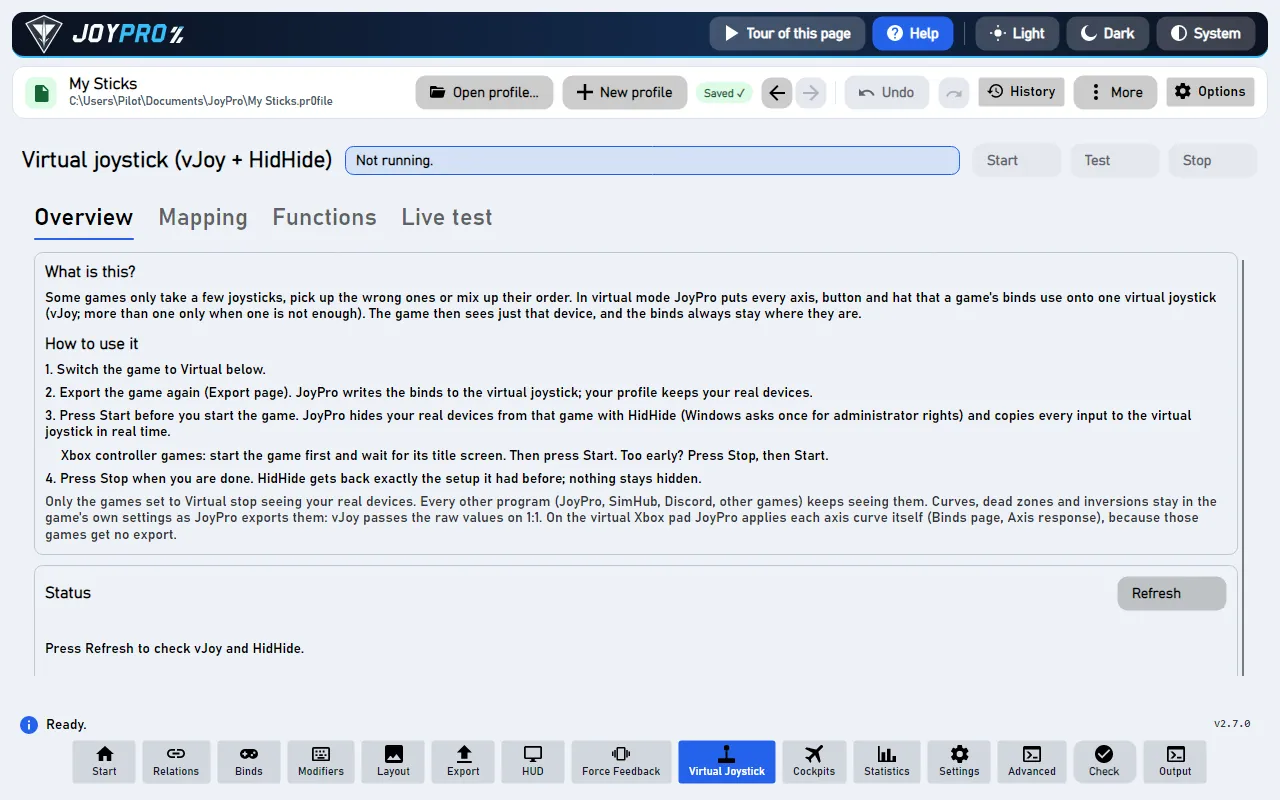
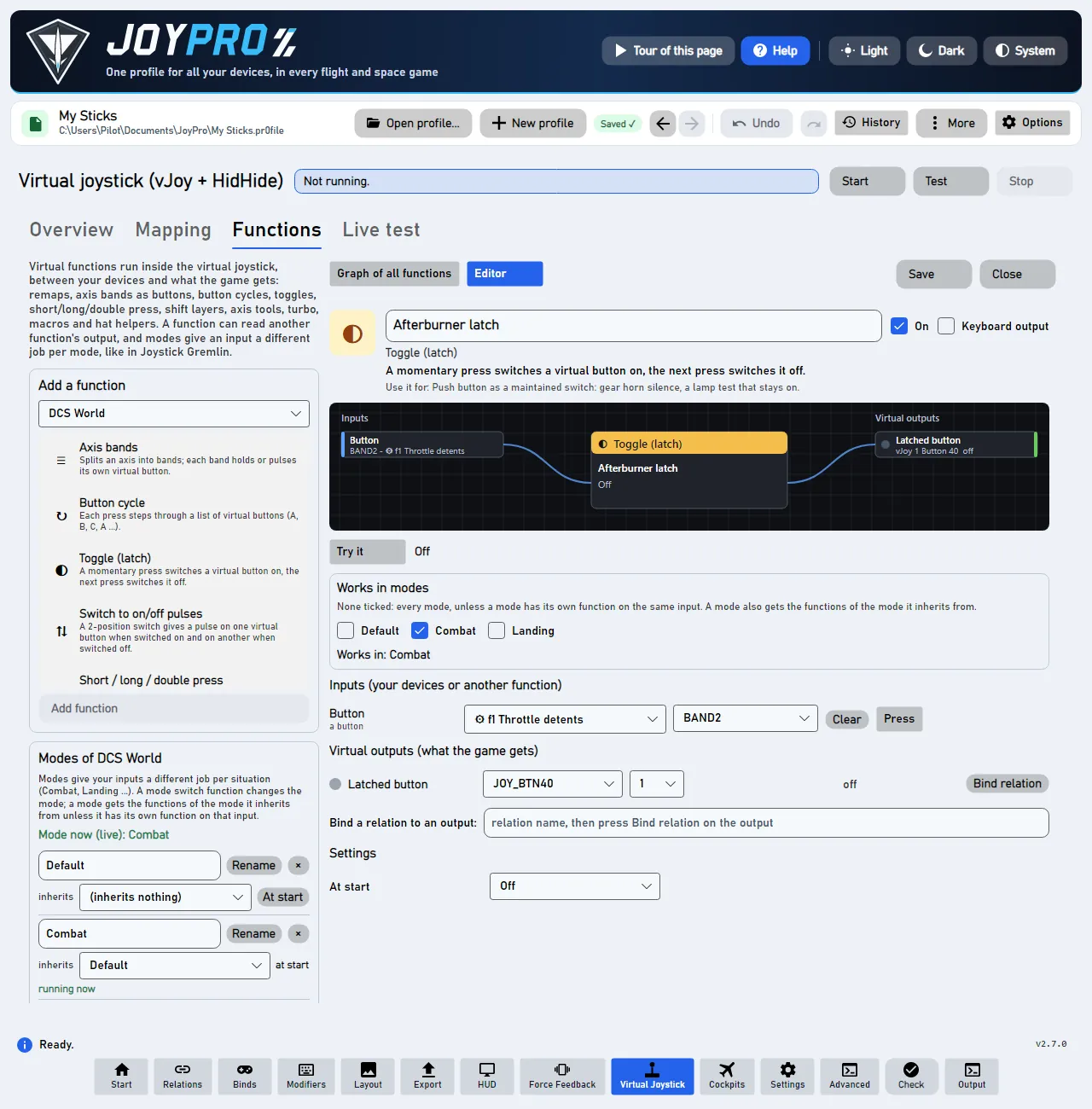
Some games take only a few joysticks, pick up the wrong ones or mix up their order when you plug in another device.
In virtual mode JoyPro puts every axis, button and hat that a game's binds use onto one virtual joystick (vJoy),
or onto a virtual Xbox 360 pad for games that only read gamepads. The game sees one device whose inputs never
move; your profile keeps your real devices. On top, virtual functions do what Joystick Gremlin does: axis bands
as buttons, toggles, short/long press, shift layers, macros, modes.
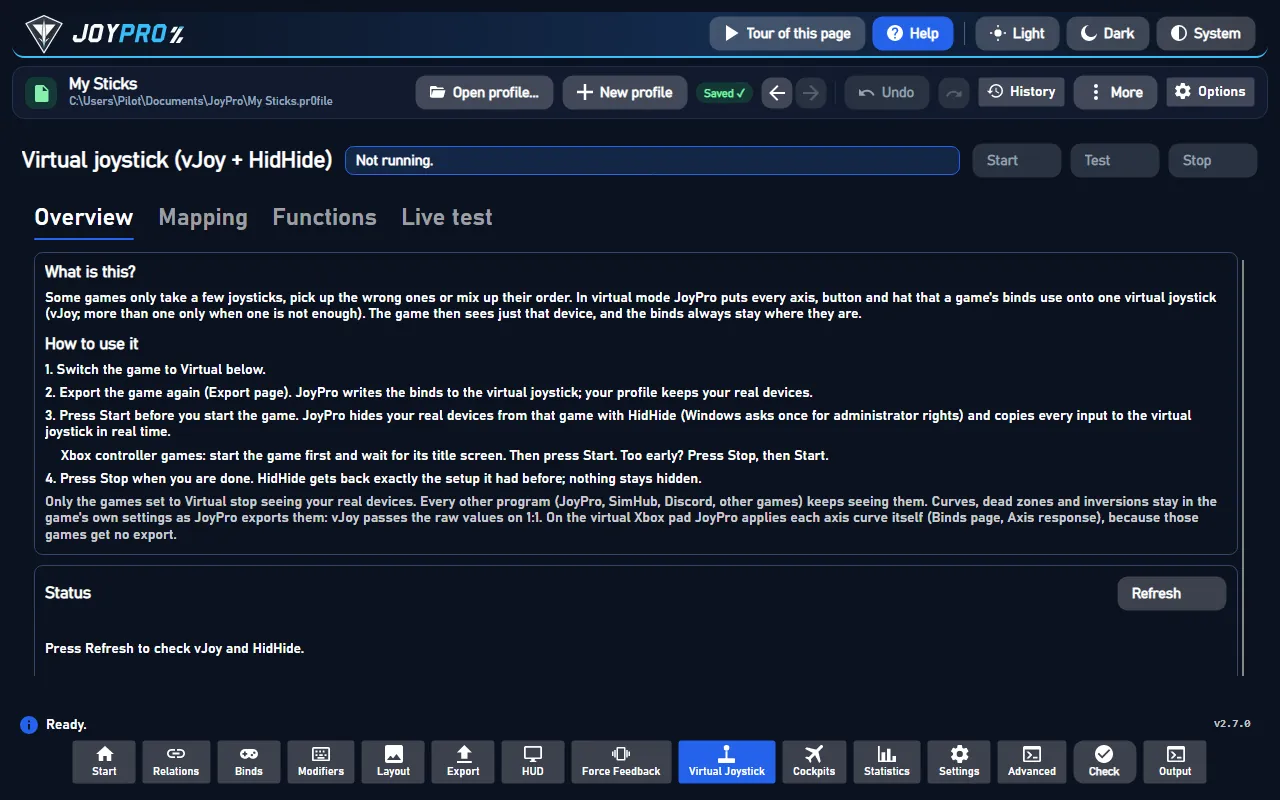
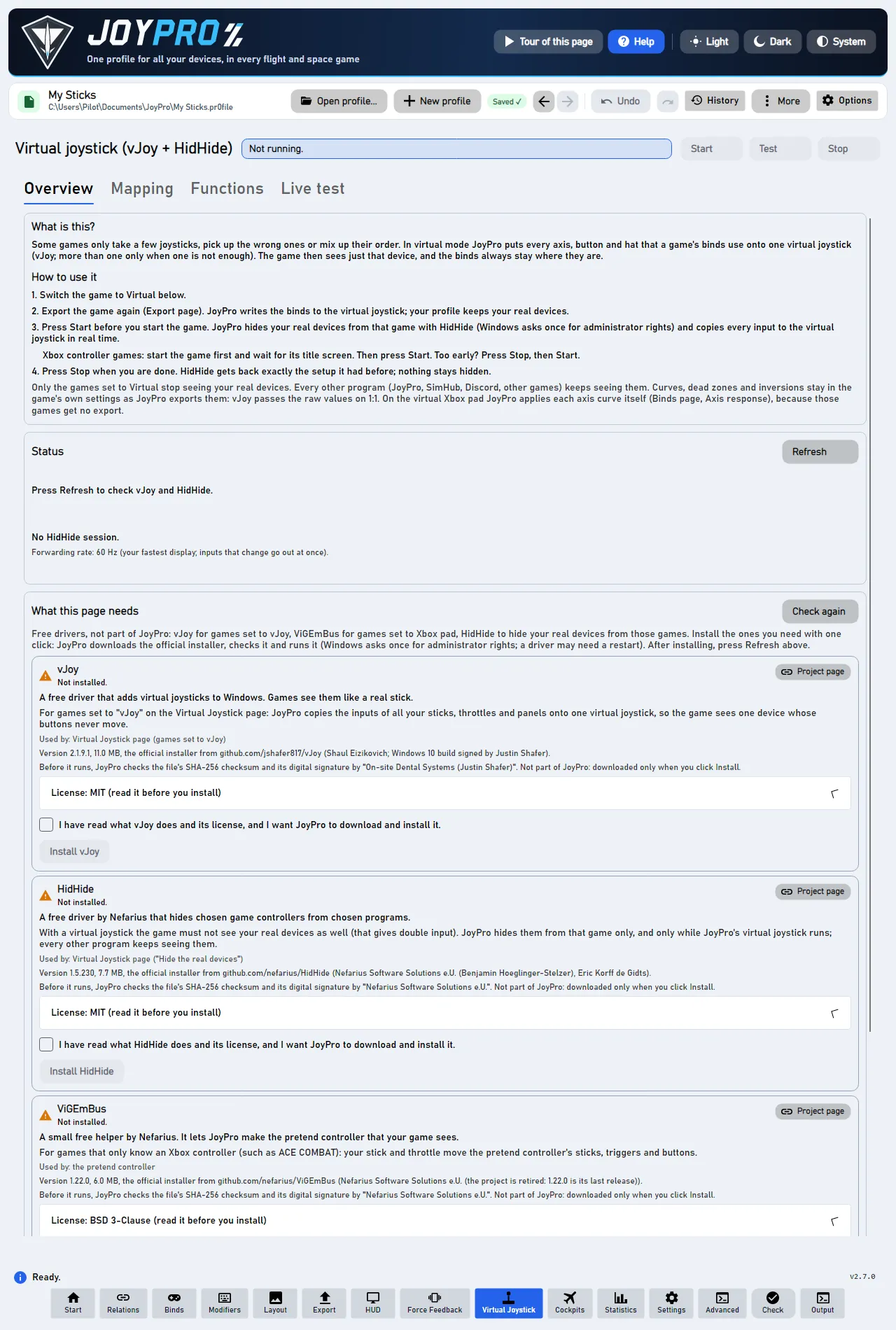
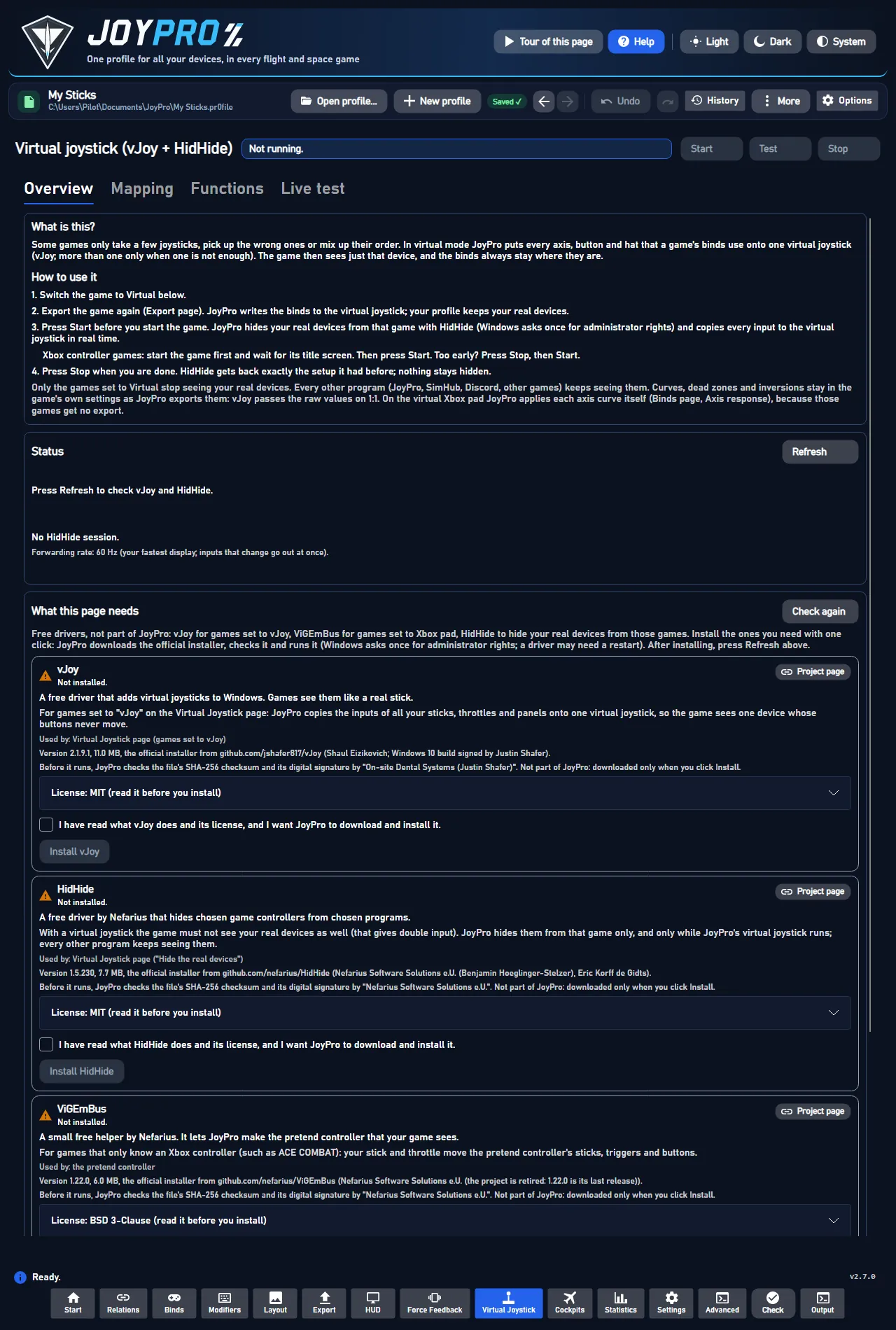
The Virtual Joystick page, Overview tab
flowchart LR
  D["Your stick, throttle,<br/>pedals, panels"] --> J["JoyPro copies<br/>every input live"]
  J --> V["One vJoy device<br/>or pretend Xbox controller"]
  V --> G["Game set to vJoy<br/>or Xbox pad"]
  D --> O["Every other game<br/>and program:<br/>your real devices"]
Through "JoyPro copies every input live": a game set to vJoy or Xbox pad, while Start is on. Straight to "Every other game": everything else. HidHide only for vJoy games; games that read only Xbox controllers need no HidHide.
Under Games switch the game to vJoy (or Xbox pad for games that only take a gamepad). Games known to
read only one device show a suggestion with Use it. Games that read only Xbox controllers (ACE COMBAT 8, Hell
Let Loose: Vietnam) are on the Xbox pad by themselves until you pick another mode; the page says why. The list is
sorted by name.
Export the game again on the Export page. JoyPro writes the binds to the virtual joystick; your
profile keeps your real devices.
Press Start. One rule per kind of game, said the same way in the pad tour, the help and the page:
Xbox pad (ACE COMBAT, Hell Let Loose: Vietnam): start the game first and wait for its title screen, then
press Start. Too early? Press Stop, then Start. These games get no export and need no switching, so
steps 1 and 2 are left out for them.
vJoy: press Start before you start the game. JoyPro hides your real devices from that game with HidHide
(Windows asks once for administrator rights) and copies every input to the virtual joystick live.
Press Stop when you are done. HidHide gets back exactly the setup it had before; nothing stays hidden.
What this page needs shows the free drivers: vJoy (for games set to vJoy), ViGEmBus (Xbox pad) and HidHide (for
vJoy games). They are not part of JoyPro; install the ones you need with one click there. A game that reads only Xbox
controllers (ACE COMBAT 8, Hell Let Loose: Vietnam) needs only ViGEmBus: it never sees your real devices, so HidHide is
not needed and Windows asks for no administrator rights.
Only Xbox-only games?
Then the page is called Pretend controller and shows only what these games need: the ViGEmBus card, Test and
Start. vJoy, HidHide and the mode lists are behind Show details for experts (vJoy, HidHide, modes). See
Play an Xbox-only game with a HOTAS.
Test first
Test reads your devices and shows on the Live test tab what the game would get, without touching vJoy or
HidHide. Move your stick and watch the bars.
In the game: What changes in the game
The game's controls menu shows one device, "vJoy Device", with your binds on its buttons and axes. Your real devices
are invisible to that game only while the virtual joystick runs; every other program keeps seeing them. Curves, dead
zones and inverts still come from the game's own settings that JoyPro exports. On the Xbox pad it is different:
those games get no export, so JoyPro applies each axis curve itself (Binds page, Axis response).
Overview: what it is and how to use it; Status of vJoy (version, devices), HidHide and JoyPro's session
(Refresh, Set up vJoy for the table when a vJoy device lacks axes, buttons or hats, Restore HidHide after
a crash, Set up vJoy for maximum: 8 axes, 128 buttons, 4 hats, needs a Windows restart); What this page needs;
Games (Native / vJoy / Xbox pad per game, what the game reads of one joystick with warnings above it);
Options: hide the real devices (HidHide, recommended), start and stop by itself when a virtual game starts and
ends (JoyPro looks for it every 3 seconds; pressing Start before the game is still the safest for vJoy; the Xbox pad games above want it after their title screen).
Mapping: the table. Each physical input the virtual games use has a fixed place on the virtual joystick: an axis
keeps its own axis where it is free (X stays X), buttons and hats take the next free number. Existing places never
move, so the game's binds stay the same from run to run. Update mapping gives new inputs a place and saves the
table in the profile.
Functions: virtual functions, their modes, the Gremlin import and the graph (below).
Live test: bars for the axes, the pressed buttons and hats of each vJoy device as the forwarder writes them, with
the forwarder's log. Show the virtual joystick live (for players whose games are all on the pretend controller:
Show the pretend controller live) switches the bars on or off. For the Xbox pad each mapped
control says what it does and where it comes from ("A: Fire machine gun (VKB Gunfighter BTN1)", "LX: Roll (Rhino
X)"), and a pressed button lights up.
By itself: a game that reads no joystick, only Xbox controllers, uses the Xbox pad while you have not chosen a
mode for it ("On the Xbox pad by itself"). Your choice wins and is kept. Without the ViGEmBus driver the Games
card says so and offers its one-click install.
Axis curves: these games get no export, so JoyPro applies the relation's axis curve (dead zone, saturation,
curvature or user curve, invert; the game's own curve, else the Default curve) to the pad stick or trigger itself. The
Binds page's Axis response says so for them. vJoy games keep the raw values, as their curve is in
the export.
Several games on the pad: each keeps its own pad table; one is live at a time. With auto start the table of the
game that runs; Start and Test take the running game's table, else the one picked under Xbox pad table for
Start and Test (kept in the profile).
Auto setup (from the ACE COMBAT 8 live test, for every profile): the throttle drives both triggers (forward RT,
back LT) and a brake axis does not take LT; yaw on LB/RB comes from your stick twist, else the rudder pedals, at
about 30 % deflection; ACE COMBAT 8's flares (L3 + R3 together, not confirmed in the game yet) come from your flare /
CMS forward button; the wingman D-pad from your comm switch or AI-menu hat; a hat direction on Change target drives
Y; your Cobra button (DCS ASC Direct Control) or a button relation named "High-G" holds both triggers for the High-G
turn. One input never drives two pad
controls, and a pad slot no relation feeds any more goes by itself.
Invert on the pad: DCS's invert never reaches the pad. ACE COMBAT 8's pitch is reversed by default (with the
game's default Pitch Controls, forward gives nose down). Flip one game's axis in Axis response with only that
game ticked under Applies to; DCS keeps its own.
engine vjoy pad-check shows what a profile reaches on the pad.
The graph of all functions of a game, and the editor of one function
Functions run inside the virtual joystick, between your devices and what the game gets. Pick the game, the type,
Add function, then set its inputs and outputs in the editor.
Function
What it does
Axis bands
an axis split into up to 16 bands, each band a button (throttle detents)
Button cycle
each press steps to the next output
Toggle (latch)
a push button that stays on until pressed again
Switch to on/off pulses
a maintained switch sends one pulse per position
Short / long / double press
three jobs on one button
Shift layer
while the shift button is held, inputs go to other outputs
Merge / split axes
two pedals into one rudder; one axis into two
Axis curve
dead zone, saturation, curvature, invert, slider
Axis ends to buttons, axes to hat, buttons to axis, axis to encoder pulses
conversions
Turbo, macro
repeat while held; a sequence of presses and keys
Hat to buttons, buttons to hat, remap
hats and remaps
Mode switch
changes the mode (switch to, hold, toggle, cycle, back)
The editor: name, On, Keyboard output (lets outputs and macro steps press keys; only while it runs for real),
a node view (inputs → function → outputs, lit while an output fires), the axis band bar with draggable edges, the
curve, Works in modes, Mode to switch to, inputs (device and input, Clear), outputs (vJoy button or
axis, Xbox control or key; Bind relation binds a relation to that output), settings and macro steps. Try it
runs the function in the editor with sliders and press buttons; nothing goes to vJoy or the game. Save stores it;
a running virtual joystick takes it after Stop and Start.
Chaining: an input can read another function's output instead of a device: pick ⚙ f1 ... in the input's device
list, or drag in the Graph of all functions from an output dot (right edge) to an input dot (left edge). Loops are
refused. Click a wire, then its × to disconnect.
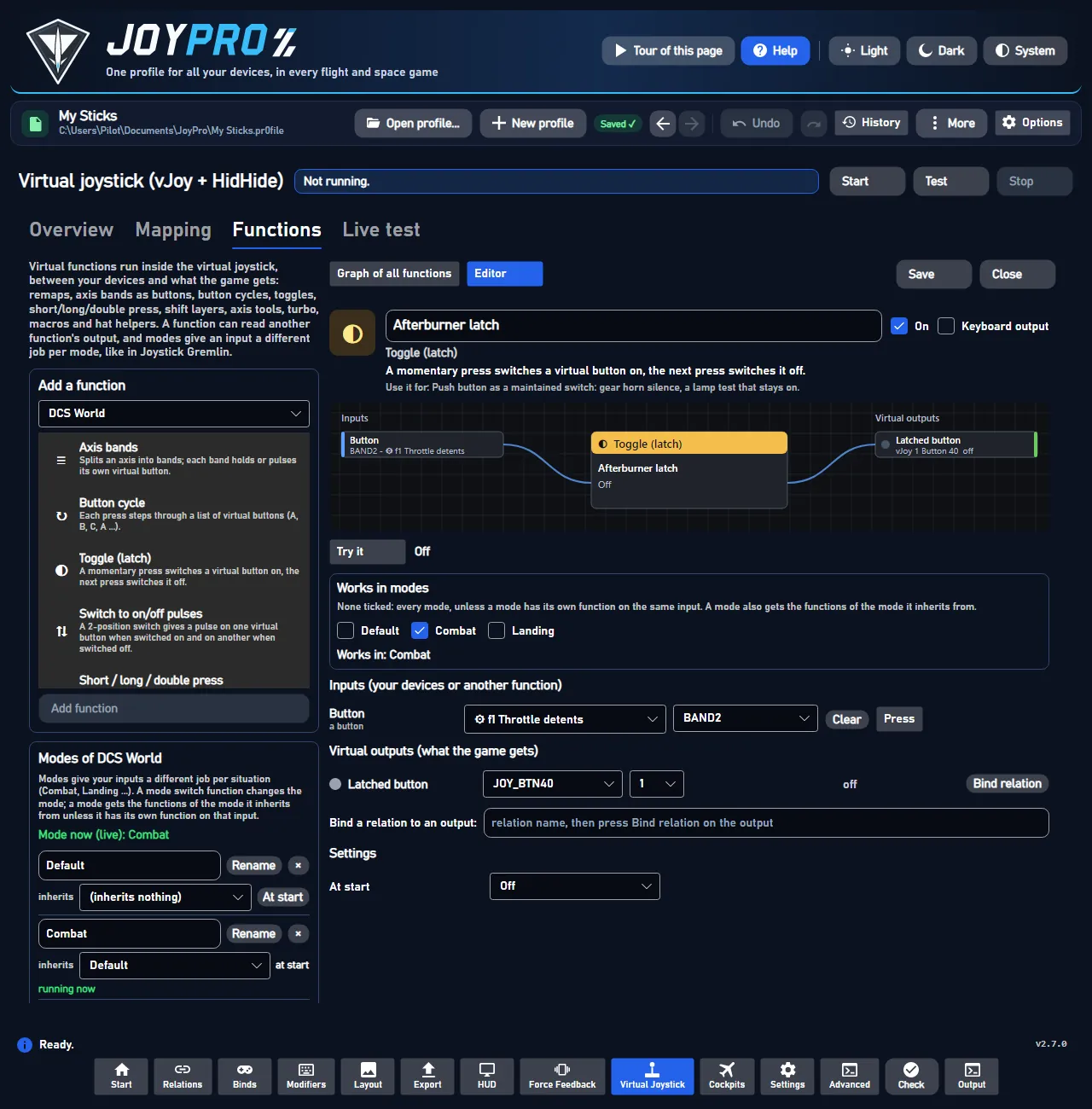
Two chains: the throttle's afterburner band toggles vJoy button 40, and holding stick button 5 switches to the Landing mode.
Modes (layers): give your inputs another job per situation (Combat, Landing ...). A mode can inherit from
another; a function works in the ticked modes (none = every mode). Add mode, Rename, × (remove),
At start (the mode the forwarder starts in). The running mode is marked live.
Pick the game, optionally tick Replace the game's functions and modes, press Import a Gremlin profile... and
choose the .xml (R13 or R14). JoyPro shows a report first: what it makes of it, what it cannot do (activation
conditions, mouse actions, Python plugins, sounds ...) and what is imported, but different. Nothing is saved until
Import. Modes, remaps, curves, macros, merged axes, tempo, chain and toggle containers become functions and modes.
Then set the game to vJoy, keep or bind the relations on the vJoy outputs, export and Start: HidHide and the
forwarder replace Gremlin's device hiding and its background program.
vjoy map: new inputs get a slot; the table is saved in the profile.
3
Engine
vjoy forwarder-config: the table and the functions, resolved.
4
Engine
vjoy apply-hidhide writes its journal first, then hides the physical devices from the vJoy games (HidHide asks for admin rights once). Games that read only Xbox controllers: "HidHide is not needed", no prompt.
5
JoyPro.VJoy
run --sink vjoy --parent-pid N: every pass (for example 144 times a second) it reads the devices, runs the functions and writes vJoy or the Xbox pad.
Stop:
#
Who
What happens
1
You
Press Stop.
2
JoyPro.VJoy
Stops: outputs neutral, keys released.
3
Engine
vjoy restore-hidhide puts back exactly the setup from before.
Export, import, sync: while a virtual game is exported, imported or synced, its binds point at the vJoy slots;
afterwards the profile has its physical devices back. A missing vJoy device stops the export with a message.
Forwarder: gui/JoyPro.VJoy (JoyPro.VJoy.exe run --config ... --sink vjoy|dry), non-exclusive DirectInput
in, vJoyInterface.dll / ViGEmBus out. Test uses the dry sink and no HidHide.
43 controls, read from the program’s source: 43 written, 0 with the facts from the source (tooltip, code comment, engine call), 0 still to be expanded.
Tooltip Off: the forwarder skips this function (its outputs stay reserved).
Function editor: on by default. Off: the forwarder skips this function, but its virtual outputs stay reserved in the
table, so nothing else takes them. Saved with Save.
Tooltip Only when you want keys: lets outputs and macro steps press keyboard keys (KEY_...). They are sent only while the virtual joystick runs for real (Start), never in Test.
Function editor, off by default: lets this function's outputs and macro steps press keyboard keys (KEY_...). Keys
are sent only while the virtual joystick runs for real (Start), never in Test or Try it. Saved with
Save.
Tooltip Runs the function here with the inputs you set below (sliders, buttons): nothing goes to vJoy or the game. With Test or Start on the page, the bars show your real devices instead (LIVE).
Try it: runs the function right in the editor with the inputs you set in the rows below (sliders, Press, hat
directions); the node view and the band bar light up as the outputs fire. Nothing goes to vJoy, the Xbox pad or the
game. While Test or Start runs on the page, the bars show your real devices instead (LIVE).
Tooltip Splits the widest band in two (up to 16 bands).
Axis bands editor: splits the widest band in two, up to 16 bands; the new band gets an output of its own. Drag the
edges on the bar to place them. Save keeps it.
One more of the function's numbered parts: a cycle step, a shift layer input, a macro output (the - button removes
one). The rows below grow at once; Save keeps it.
From the code Count +/- for numbered roles; bands add or remove an edge.
A mode tick in the editor: under Works in modes the function works in that mode (none ticked = every mode); under
Mode to switch to the mode a mode switch goes to (Cycle goes through every ticked mode in order).
Tooltip Try it: hold the button (click again to let go)
Press on a button input of the editor, for Try it: holds that button down until you click again, so you see
what the function does with it. Your real device is not involved.
Tooltip Binds the relation named below to this output, like any vJoy button (engine binds set). Export the game again afterwards.
On an output that goes to vJoy: binds the relation named under Bind a relation to an output to this output, like
any vJoy button or axis (engine binds set). Then export the game again so it gets the bind. Disabled for Xbox pad and
keyboard outputs.
In the function list: removes the function from the game (inputs of other functions that read it are cleared). In the
editor's macro steps: removes that step.
Macro: adds a step (after n ms tap, press or release an output or key, hold n ms). Keys only with Keyboard output
on; they type only while the virtual joystick runs for real.
Turns the virtual devices on: your real stick and throttle drive them live. Pretend controller: start the game, wait
for its title screen, then press it; vJoy: press it before you start the game. Too early for the pretend controller? Stop, then
Start. For vJoy JoyPro updates the mapping table and hides your real devices from those games with HidHide (Windows
asks once for administrator rights; skipped when hiding is off). If the prompt is declined, nothing starts. Engine: engine vjoy map,
engine vjoy forwarder-config, engine vjoy apply-hidhide.
Tooltip Reads your devices and shows below what the virtual joystick would get. vJoy and HidHide are not touched.
Reads your stick and shows on the Live test tab what the pretend controller or the virtual joystick would get.
Nothing is changed: vJoy, the pretend controller and HidHide are not touched, so it also works without the helpers,
and the profile stays as it is (the mapping is only checked; Start saves it in the profile). Stop ends it.
From the code Reads the sticks and shows what vJoy would get; writes nothing to vJoy and does not touch HidHide.
Tooltip Stops forwarding (the virtual joystick goes neutral) and gives HidHide back exactly the setup it had before.
Turns the pretend controller or the virtual joystick off (it goes neutral, held keys are let go); HidHide gets back
exactly the setup it had before. JoyPro does the same by itself when the forwarder ends on its own. Engine: engine vjoy restore-hidhide.
Tooltip Runs vJoyConfig once (Windows asks for administrator rights) so the vJoy devices have the axes, buttons and hats the table needs. It never takes anything away from a device.
Shown when a vJoy device lacks axes, buttons or hats the table needs: runs vJoyConfig once (Windows asks for
administrator rights) and adds what is missing. It never takes anything away from a device. Engine:
engine vjoy configure-vjoy.
Tooltip Gives HidHide back the setup it had before JoyPro changed it (for example after JoyPro or the PC crashed).
Shown while a HidHide session of JoyPro is open: gives HidHide back the setup it had before JoyPro changed it, for
example after JoyPro or the PC crashed (Windows asks for administrator rights). Engine: engine vjoy restore-hidhide.
Tooltip 8 axes, 128 buttons and 4 hats on each vJoy device JoyPro uses (one administrator prompt). Windows must restart before it takes effect; JoyPro never restarts Windows.
Asks first, then runs vJoyConfig once so each vJoy device JoyPro uses has 8 axes, 128 buttons and 4 hats (one
administrator prompt). Windows must restart before it takes effect; JoyPro never restarts Windows. Export the games in
virtual mode again afterwards. Engine: engine vjoy configure-vjoy--max.
Tooltip Switches this game to the suggested virtual mode. Export the game again afterwards.
Use it on a game known to read only one device: switches the game to the suggested mode (vJoy or Xbox pad). Export
the game again afterwards so its binds go to the virtual device.
#Hide the real devices from the games set to Virtual (HidHide)
Check boxwritten
Tooltip Off: the games see your real devices and the virtual joystick, which can give double input. Recommended: on.
On by default (recommended): Start hides your real devices from the games set to Virtual with HidHide, so they
see only the virtual device. Off: those games see your real devices and the virtual one, which can give double input.
Saved in the profile (engine vjoy settings).
#Start and stop by itself when a game set to Virtual starts and ends
Check boxwritten2 ×
Off by default. On: JoyPro looks for a game set to Virtual every 3 seconds, starts the virtual joystick when the game
starts and stops it when the game ends. Pressing Start before the game is still the safest, as some games only
look for devices when they start. Not for the Xbox pad of Hell Let Loose: Vietnam and ACE COMBAT 8: the auto start
creates the pad within about 3 seconds of the game's start, before its title screen; if the game does not react to
the pad, press Stop and Start once the title screen shows. Saved in the profile (engine vjoy settings).
Shows only when all your virtual games are on the pretend controller: shows the parts for experts (vJoy, HidHide, the
forwarding rate, each game's mode and "What this page needs"). Off by default; kept over a restart.
From the code Pad-only players see the pretend controller's page: vJoy, HidHide, the forwarding rate and the modes only under "Show details" (kept over a restart, ui-settings.json).
Tooltip Gives new inputs a slot and saves the table in the profile. Inputs that already have a slot never move.
Mapping tab: gives every new input the virtual games use a slot on the virtual joystick and saves the table in the
profile. Inputs that already have a slot never move, so the game's binds stay the same. Engine: engine vjoy map.
Tooltip Adds the function with free virtual outputs; then choose its inputs in the editor.
Adds a function of the chosen type to the chosen game, with free virtual outputs, and opens it in the editor; then
choose its inputs there and press Save. Engine: engine vjoy functions add --game.
On a mode: removes it after a question. Functions that worked only in it then work in every mode, mode switches lose
it as a target, and modes that inherited from it inherit from its parent. Engine: engine vjoy modes remove.
On a mode: the forwarder starts in this mode when the virtual joystick starts. The mode at start shows a label instead
of the button. Engine: engine vjoy modes start.
Adds a mode with the typed name to the chosen game, inheriting from the mode picked next to it (engine vjoy modes add). In the game: functions limited to that mode only work while it is the current mode.
Picks a Joystick Gremlin profile (.xml, R13 or R14) and runs the import as a dry run (engine vjoy import-gremlin --dry-run): the report shows the devices it found, the functions and modes it would make, what it cannot import
and what differs. Nothing is saved yet.
Tooltip Every function of the game as a node: drag an output to an input to chain functions
Graph of all functions / Editor: switches the right side between the graph of every function of the game
(drag from an output dot to an input dot to chain functions; loops are refused) and the editor of the function you
opened with Edit. Switching keeps unsaved edits in the editor.
From the code true: the graph; false: the editor of one function.
Tooltip Saves the function in the profile. A running virtual joystick takes it after Stop and Start (or Test).
Saves the function from the editor in the profile. A running virtual joystick takes it only after Stop and
Start (or Test); the message says so. Engine: engine vjoy functions set --game.
Imports the reported Gremlin profile into the game (engine vjoy import-gremlin) and shows the graph of its
functions. Then bind the relations to the vJoy outputs (or keep them), export the game and press Start.