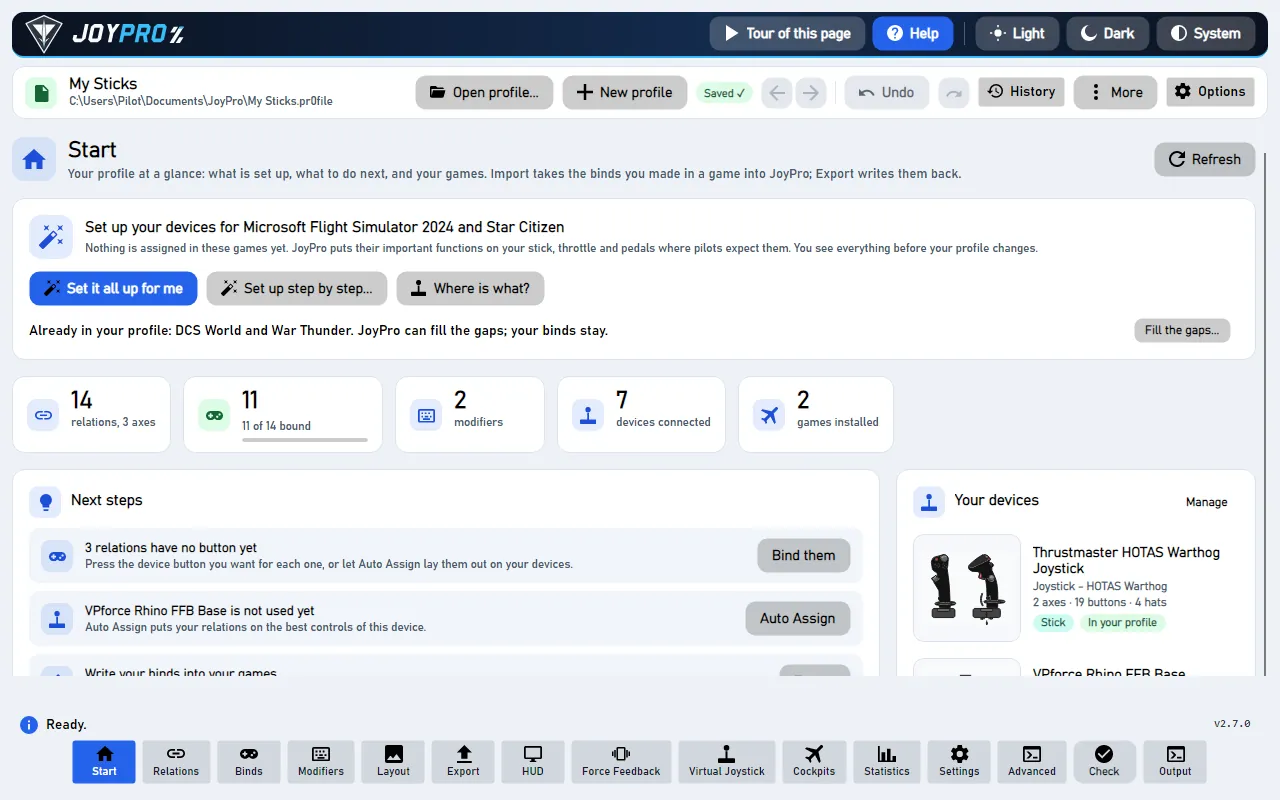
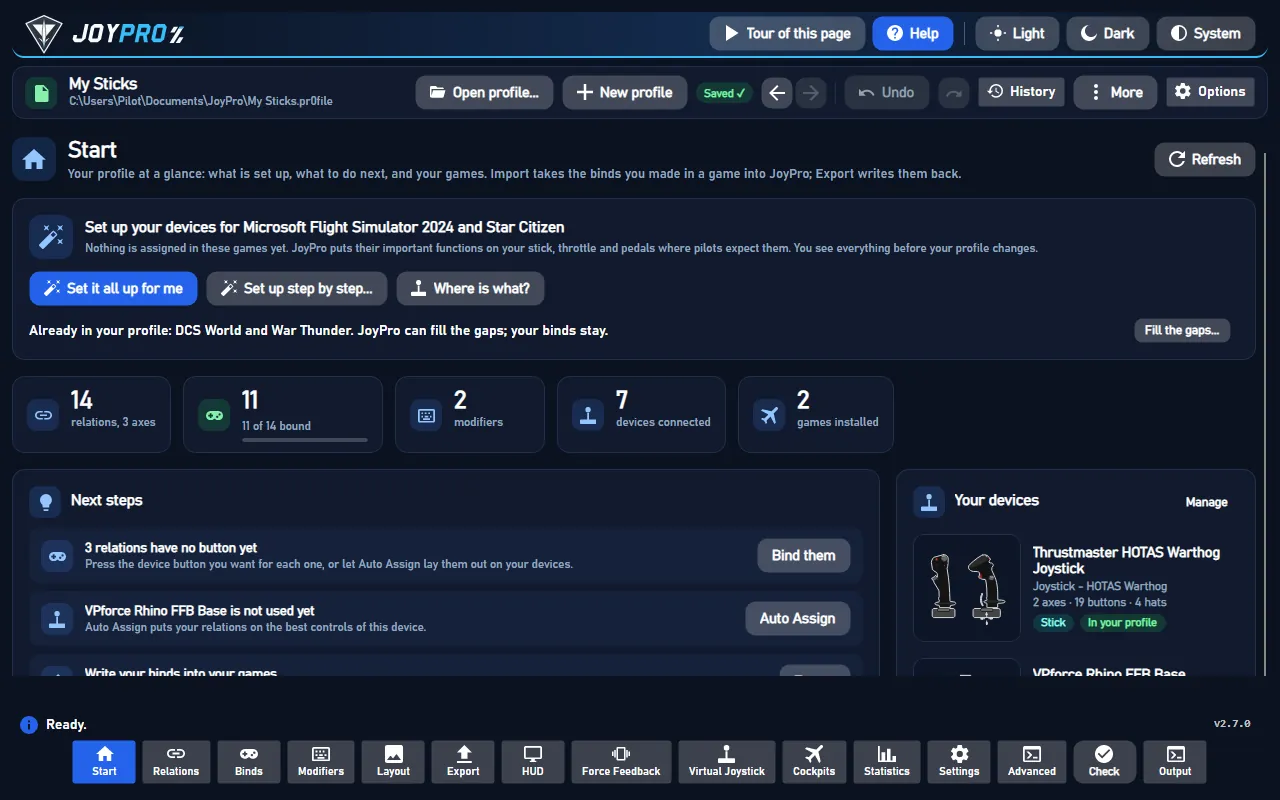
The Start page is where JoyPro opens. It shows what is set up, what to do next, and your games: Import takes
the binds you made in a game into JoyPro; Export writes them back. The import step by step:
Import a game.
110 controls, read from the program’s source: 110 written, 0 with the facts from the source (tooltip, code comment, engine call), 0 still to be expanded.
#Stops the command before it writes anything (JoyPro offers this only while it reads)
ButtonwrittenCancel in the busy area: asks the running engine command to stop at its next safe point; the label turns to
Cancelling.... JoyPro offers it only while the command still reads, so nothing has been written when it stops.
Tooltip Look at your devices and the recent activity again
Reads your connected devices and the recent activity per game again, for example after you plugged in a stick or
exported to a game. Nothing is changed. Engine: engine sync status, engine hud devices.
#Install Missing
ButtonwrittenDownloads and installs the missing components the notice lists (for example a .NET runtime the engine needs), one after
the other, then checks again whether the engine starts. Errors are shown in the notice.
#Check Again
ButtonwrittenCheck Again in the "Components missing" notice: checks whether the components the engine needs are installed, then
whether the engine really starts, as at program start. Use it after you installed a missing component yourself.
#Report It...
ButtonwrittenOpens Settings > Report a problem with a text started for the last crash ("JoyPro2 ran into an error. What I was
doing: ..."). Describe what you did and press Create Report; the crash details are added by themselves.
Hides the crash notice; the crash counts as seen and is not offered again.
#Install Update
ButtonwrittenDownloads the new version the notice names, checks the download, then closes JoyPro, installs it and starts it again.
If the download or the check fails, your installed version stays as it is and the dialog says why.
"What's New": opens the release page of the new version on GitHub with its notes.
#Reads the game's commands from its own files into JoyPro's list (DCS is read without starting the game)
ButtonwrittenRefresh DB (Build List when the game has no command list yet): reads the game's commands from its own files
into JoyPro's command list, then checks the notice again. DCS is read through its own Lua files without starting the
game; its first list also builds the clean profiles. Your profile and the game's files are not changed. Engine:
engine dcs refresh id, engine db refresh-il2, engine db refresh-starcitizen or engine <game> refresh-db.
Tooltip This game's current build counts as known; its DB stays as it is
Keep DB: this game's current build counts as known and its command list stays as it is; the game leaves the
notice. Use it when the game update added nothing you need. Engine: engine db check-updates --accept <game>.
#Build All Missing Lists
ButtonwrittenTooltip Builds the command list of every installed game that has none yet, from the game's own files
Builds every missing command list, one game after the other, with progress and Cancel.
#Check Again
ButtonwrittenChecks again which games were updated since their command list was built (engine db check-updates) and refreshes the
notice: each game with an older list gets Refresh or Keep DB.
#Keep All DBs, Hide Notice
ButtonwrittenTooltip Marks the current game builds as known without refreshing the DBs
Marks the current build of every listed game as known without refreshing any command list, and hides the notice.
Engine: engine db check-updates --accept-all.
#Set it all up for me
ButtonwrittenTooltip JoyPro does every step by itself and shows you the result. You only press Use these buttons and Write to my game.
Set it all up for me: JoyPro does every step of the setup by itself with its defaults (your devices and their
usual jobs, every aircraft equal, no modifier) for the games named in the card, and stops at the review. A box at the top
says in plain words what was set up and which device JoyPro does not know (set up like a usual stick or throttle). Then
Use these buttons and Write to my game (the export of these games). The same as the first start's Done, and
set everything up for me. Engine: engine setup games, engine setup plan, engine setup apply.
From the code From the first start ("Done, and give me binds quickly") and the Start page's card: the games with nothing assigned (else the ones already in the profile), the setup run by itself up to its review, then "Use these binds" and "Write to my game" (QuickExportAsync).
Source MainWindow.axaml:536 · QuickSetupCommand in MainWindowViewModel.AutoSetupStart.cs
#Set up step by step...
ButtonwrittenTooltip Opens the setup with these games ticked: your devices and their roles, what matters most to you, the plan, and a review before anything changes
The auto setup card's main button: opens the setup wizard with the games ticked where nothing is assigned yet (named in
the card's title, "Set up your devices for ..."). Your devices get their roles, the important functions of these games
go where pilots expect them, and you review the plan before anything changes. Engine: engine setup games,
engine setup plan.
#Where is what?
Buttonwritten2 ×Tooltip Shows your stick and throttle with the function on each control, per game and aircraft
Where is what?: opens the layout window with every device and the function on each control for one game and
aircraft. While a setup plan waits to be applied it shows that plan; otherwise your profile. See the Layout page.
#Import, then fill the gaps
ButtonwrittenTooltip Takes your binds from the game into JoyPro first; afterwards the setup only uses the controls that are still free
For a game where you have binds of your own: starts the import of that game first (the usual import steps). Its result
then offers Now fill the gaps...: the setup only uses the controls that are still free, your binds stay.
#Fill the gaps...
ButtonwrittenTooltip The setup for these games: your binds stay, only free controls get functions
For the games already in your profile: opens the setup wizard with them ticked. Your binds stay where they are; only
free controls get functions.
From the code "Fill the gaps": the wizard for one game (or every game already in the profile); the plan keeps the profile's binds.
Source MainWindow.axaml:569 · FillAutoSetupGapsCommand in MainWindowViewModel.AutoSetupStart.cs
The button of a next step ("Bind them", "Auto Assign", "Export"): it opens the page or runs the action the step names.
#Supported games
ButtonwrittenTooltip Every game JoyPro knows, what it can do for each (import, export, curves, settings, virtual joystick ...) and how it was tested, in your browser
Opens the list of every game JoyPro knows in your browser: what it can do for each (import, export, curves, settings,
virtual joystick ...) and how it was tested. The engine writes the page into your temp folder; nothing else changes.
Engine: engine games support --html.
#Set up my devices automatically...
ButtonwrittenTooltip Binds the most important functions of the games you watch to your devices: roles, priorities, modifiers, where functions go; you review before anything changes
Opens the setup wizard: your games, your devices and their roles, your priorities, then a plan of relations and
binds you review before it is applied. Shown here when the auto setup card above is not (no game it could set up).
From the code A wizard the user closed before Apply comes back as it was (devices, priorities, plan); after Apply a new one starts.
Source MainWindow.axaml:668 · OpenSetupWizardCommand in MainWindowViewModel.SetupWizard.cs
#Watch all
Check boxwrittenTooltip Watch every installed game for changes (tick) or none of them (untick). Each card has its own box.
Ticks or unticks Watch for changes on every installed game card at once (mixed when only some are ticked). Saved
at once and kept across restarts; it only has an effect while the Game watcher switch is on.
Tooltip Find your games again (Steam, launchers, your folders)
Detects the installed games again (after you installed one) and rebuilds the cards (engine games installs).
#Now fill the gaps...
ButtonwrittenTooltip The setup for this game: your imported binds stay, only free controls get functions
After an import started with Import, then fill the gaps: opens the setup wizard for that game. The binds you just
imported stay; only free controls get functions.
#See my relations
Buttonwritten"See my relations": closes the import result and opens the Relations page with what the import brought in.
#Try again
Buttonwritten2 ×Back to the import options after an import failed (or from step 2 back to the game cards), to change a choice and try
again. Nothing was changed by the failed import.
Tooltip Hide this result; your games stay below
Close on the import result: hides the result and goes back to the game cards (step 1). The import itself stays in
your profile.
#Export to games
Buttonwritten"Export to games": opens the Export page to write the imported (or changed) binds back into your games.
Closes the BYOJoystick panel of VTOL VR without installing anything.
#I have read what BYOJoystick is and its license situation, and I want to install it from the Steam Workshop
Check boxwrittenTick to confirm that you read what BYOJoystick is and want to install it from the Steam Workshop; Install
BYOJoystick works only then. JoyPro backs up your BYOJ files and opens Steam; Steam downloads the mod. Without the mod
VTOL VR binds only rudder and toe brakes; with it JoyPro writes the binds of stick, throttle and switches per aircraft
and seat.
#Install BYOJoystick
ButtonwrittenWorks only after you ticked the consent box. JoyPro backs up your BYOJ files (Export > Game config backups) and opens
Steam: install the VTOL VR Mod Loader if asked, then press Subscribe on the BYO Joystick page; Steam downloads the
mod. The consent counts once: a second install asks again. Engine: engine vtolvr mod prepare.
#Check again
ButtonwrittenTooltip Look for the installed mod and build JoyPro's VTOL VR command list from it
Looks again whether BYOJoystick is installed (engine vtolvr mod status); once it is, builds JoyPro's VTOL VR command
list from the mod. Press it after Steam finished the download. Engine: engine vtolvr refresh-db.
#Hide this game: it leaves the cards, the export, the watcher and the setup suggestions (your binds for it stay). 'Hidden games' below the cards shows it again.
ButtonwrittenHides this game everywhere in JoyPro (it counts as not installed). Your relations for it stay; Settings > Games >
Show again brings it back.
#Watch for changes
Check boxwrittenWatch this game's control files: after the game closes, JoyPro asks whether to take changes you made in the game into
your profile. Off: changes in this game are ignored.
From the code "Watch for changes" (docs/sync-watcher.md#which-games-are-watched): JoyPro's watcher offers to take over binds the user changes in the game. Ticked for installed games unless the user unticked it; a game not found has nothing to watch (the box is off and greyed, and ticks itself once the game is installed unless the user unticked it).
Source MainWindow.axaml:789 · Watch in GameCardItem.cs · setting Watch
Starts the import wizard for this game: step 2 asks how to import. Nothing is read or changed yet.
Exports only this game with the Export page's mode (the same questions as on the Export page).
Tooltip Read the game's new commands (after a game update). The game is not started.
Builds or updates this game's command list from your installation (DCS: the command list and the clean profiles,
run with DCS's own Lua, no game window). Needed after a game update adds aircraft or commands.
#Undo export
Buttonwritten
Puts this game back the way it was before the last export: its files come back byte for byte
(engine backups restore latest --game <id>).
#Install BYOJoystick
ButtonwrittenTooltip Full HOTAS support in VTOL VR needs the BYOJoystick mod (Steam Workshop). JoyPro shows what it is and its license first; Steam downloads it.
On the VTOL VR card: opens the BYOJoystick panel with what the mod is, its official source, its size and license, and
what is on this PC already (engine vtolvr mod status). Nothing is installed or changed yet.
#Show them in Settings > Games
Buttonwritten2 ×Tooltip Settings > Games lists your hidden games; Show again brings one back on the cards, in the export and the watcher
Opens Settings with its section open: from the hidden games note the Games section, which lists your hidden
games (Show again there brings a game back on the cards, in the export and in the watcher); Manage next to Your
devices opens the Devices section, where binds move to another device and an old device is removed.
#Add to my profile (recommended)
OptionwrittenAdds the game's binds to the open profile (the safe default). Relations with the same name or input are merged.
From the code true: add to the open profile (engine --merge); false: the profile's relations are replaced by the game's.
Source MainWindow.axaml:853 · ImportWizardAddToProfile in MainWindowViewModel.GameHub.cs · setting ImportWizardAddToProfile
#Start over from this game
OptionwrittenReplaces the relations of the open profile with what the game has. JoyPro asks first and keeps a copy of the profile.
#Turn on watching from import
Buttonwritten"Turn on watching for ": switches on the game watcher for this game (and the watcher itself if it was off). From
then on, binds you change in the game are offered to your profile after the game closes.
#Report a watcher problem
ButtonwrittenOpens Settings > Report a problem with the description started as "Watcher: ...". Describe what the watcher did and
create the report there.
#Don't show this again
ButtonwrittenHides the hint about the game watcher on the import page for good (Settings > Confirmations shows it again).
#Also take the keyboard keys (flight commands only; device binds are always taken)
Check boxwrittenAlso imports the game's keyboard keys of flight commands (device binds are always imported). Off: only devices.
#Also import devices that are not connected
Check boxwritten2 ×Tooltip MSFS keeps the binds of every device it ever saw. Off: only the devices connected now.
MSFS import (wizard step 2 and the expert import): also takes the binds of devices that are not connected now. MSFS
keeps the binds of every device it ever saw; off, only the connected devices are imported (--include-disconnected).
Remembered with the import and export settings.
From the code MSFS keeps the binds of every device it ever saw: import takes the connected devices unless the user asks for the others too (engine --include-disconnected; remembered with the import/export settings).
Source MainWindow.axaml:881 · ImportIncludeDisconnected in MainWindowViewModel.RegistryGames.cs · setting ImportIncludeDisconnected
#Also import default presets the sim may not use
Check boxwritten2 ×Tooltip Devices you never changed in MSFS run on a preset the sim ships. JoyPro takes it when the sim records that it uses it. On: also when that is not known (this can add binds the sim does not have).
MSFS import: devices you never changed in the sim run on a preset MSFS ships. JoyPro takes it when the sim records
that it uses it; on, also when that is not known, which can add binds the sim does not have
(--include-sim-defaults). Remembered with the import and export settings.
From the code MSFS runs an untouched device on a default preset it ships; JoyPro takes it when the sim's device records show it is used. On: also when that is not known (engine --include-sim-defaults; remembered like the one above).
Source MainWindow.axaml:884 · ImportIncludeSimDefaults in MainWindowViewModel.RegistryGames.cs · setting ImportIncludeSimDefaults
#Treat devices with the same name as one device (their ID changed over time)
Check boxwritten2 ×Tooltip Windows gives a device a new ID now and then. On: its binds are read as one device, on the connected ID (else the newest). Two identical devices plugged in at once stay apart.
DCS import (on by default): Windows gives a device a new ID now and then. On, the binds of its IDs are read as one
device, on the connected ID (else the newest); two identical devices plugged in at once stay apart
(--merge-same-name). Saved in the settings.
#Only import connected devices
Check boxwritten2 ×Tooltip Off: devices that are not plugged in now are imported too (useful for a stick you connect later). On: they are skipped and counted.
DCS import: on, devices that are not plugged in now are skipped and counted. Off (the default), they are imported too,
useful for a stick you connect later (--only-connected). Saved in the settings.
From the code DCS import (saved in the settings): only the devices connected now (off: devices that are not plugged in are imported too), and one device under several Windows IDs read as one (on: the connected ID, else the newest file's).
Source MainWindow.axaml:894 · ImportDcsOnlyConnected in MainWindowViewModel.cs · setting ImportDcsOnlyConnected
#All my DCS aircraft
Check boxwritten2 ×Imports every DCS aircraft that has binds. Off: only the aircraft ticked in the list below.
#Is selected
Check boxwritten4 ×Ticks this DCS aircraft for the import (used when All my DCS aircraft is off).
Tooltip Shows what the game has, without changing your profile
"Look first": runs the game's scan and shows what it has in the Output panel. Nothing changes in the profile or the
game. Engine: engine <game> scan.
Imports the game with the choices of step 2. It first asks if you changed binds in JoyPro that this game does not
have yet (an import would bring the old ones back), and before Start over it keeps a copy of your profile. The
game's files are only read. Engine: engine dcs import --merge ..., engine il2 import, engine starcitizen import
or engine <game> import.
#Use selected devices only
Check boxwrittenExpert import: imports only the devices ticked in the list below (--device per device). Off: every device.
#Merge into profile
Check boxwrittenExpert import: adds the game's binds to the open profile (--merge). Off: the profile's relations are replaced by the
import.
#Include defaults
Check boxwrittenTooltip DCS: also takes the binds DCS gives by default to actions you have not bound yourself: the keyboard keys, and the binds DCS has for your exact device model. Only for aircraft and devices you already have binds for. Your own binds always win. DCS general joystick defaults, which it puts on every device, are left out.
Expert DCS import and scan (on by default): also takes the binds DCS gives by default to actions you have not bound:
the keyboard keys and DCS's binds for your exact device model, only for aircraft and devices you already have binds
for. Your own binds win; DCS's general joystick defaults are left out (--include-defaults). Remembered.
#DCS: import keyboard commands
Check boxwrittenExpert DCS import: also reads the keyboard binds (--include-keyboard true).
#Star Citizen: include keyboard commands (ship controls only)
Check boxwrittenExpert Star Citizen import: also reads the keyboard binds of ship controls (--include-keyboard true).
#DCS: ignore *_easy aircraft
Check boxwrittenExpert DCS import: leaves out the *_easy variants of the aircraft (game-flight-mode copies), so they do not double
the relations (--ignore-easy-planes true).
#Import inverted
Check boxwrittenExpert import: takes the axis "invert" setting from the game into the bind's tuning (--import-inverted).
#Import slider
Check boxwrittenExpert import: takes the axis "slider" setting from the game (--import-slider).
#Import curvature
Check boxwrittenExpert import: takes the axis curvature from the game (--import-curvature).
#Import deadzone
Check boxwrittenExpert import: takes the axis dead zone from the game (--import-deadzone).
#Import sat-x
Check boxwrittenExpert import: takes the axis saturation X from the game (--import-saturation-x).
#Import sat-y
Check boxwrittenExpert import: takes the axis saturation Y from the game (--import-saturation-y). Binds JoyPro exported itself always
come back with their curves, whatever these boxes say.
#Refresh DCS
ButtonwrittenReads the connected devices and the DCS aircraft again (engine devices list, engine db planes) for the expert
import's lists.
Shows what DCS has (aircraft, devices, binds) in the Output panel without changing anything (engine dcs scan).
Imports from DCS with every option of the expert import (engine dcs import with path, aircraft, devices, ignored
devices, keyboard and axis values). Asks first when JoyPro has changes DCS does not have yet. DCS's files are only read.
Exports to DCS with the Export page's mode (engine dcs export). In the game: the aircraft's control files hold your
binds.
#Refresh IL-2
ButtonwrittenReads the connected devices again for the IL-2 expert import (engine devices list).
Shows what IL-2 has in the Output panel without changing anything (engine il2 scan).
Imports from IL-2 with the expert options (engine il2 import). IL-2's files are only read.
Exports to IL-2 with the Export page's mode (engine il2 export). In the game: data\input\global.actions holds your binds (Settings > Key mapping shows them).
#Refresh Star Citizen
ButtonwrittenReads Star Citizen's device list and the connected devices again (engine starcitizen list-devices, engine devices list).
Shows what Star Citizen has in the Output panel without changing anything (engine starcitizen scan).
Imports from Star Citizen with the expert options (engine starcitizen import). The game's files are only read.
Exports to Star Citizen with the Export page's mode (engine starcitizen export). In the game: the bindings of your
profile are in place at the next start of the game.
Looks for the picked game's control file (engine <game> paths) and fills File / Folder with it (the newest when
there are several; the others are in the Output panel).
Loads the list of the other games JoyPro reads (engine games integrations): WARDOGS, Arma, War Thunder, X-Plane,
MSFS, Falcon BMS, IL-2 Korea, X4, Elite Dangerous, VTOL VR, Nuclear Option and more.
Shows what the picked game's control file has in the Output panel without changing anything (engine <game> scan).
Imports the picked game's binds into the profile (engine <game> import). The game's files are only read.
Exports to the picked game with the Export page's mode (engine <game> export; with the dry run box only shows what
would change). Only flight controls are written; everything else in the game's file stays.
#Export as dry run (show changes only)
Check boxwrittenThe export of the picked game only shows what would change (--dry-run); nothing is written.
#Include keyboard binds (flight actions only)
Check boxwrittenExpert import and export of the picked game: also reads or writes the keyboard binds of flight actions
(--include-keyboard). Off: only device binds. Remembered per game.
From the code Keyboard binds are only imported and exported when the user asks for them (flight actions only).
Source MainWindow.axaml:1085 · RegistryGameIncludeKeyboard in MainWindowViewModel.RegistryGames.cs · setting RegistryGameIncludeKeyboard
#Nuke: remove all binds from devices JoyPro does not use
Check boxwrittenWith the expert export of a game: connected devices that have no bind in your profile lose all their binds in that game
(--nuke-untouched-devices). The same setting as Also clear my other devices on the Export page.
#Write into my MSFS profiles
Check boxwrittenTooltip The export puts the binds into the profile MSFS 2024 uses for each device and category (Steam or Microsoft Store), backed up first. Off: only import files.
MSFS 2024 export (on by default): writes the binds into the profile the sim uses for each device and category (Steam
or Microsoft Store), backed up first. Off: JoyPro writes only import files (--user-profiles false). The same setting
as on the Export page. In the game: your MSFS 2024 controls profiles hold the binds.
From the code On: the export writes into the user's MSFS 2024 profiles (engine default; off: --user-profiles false).
Source MainWindow.axaml:1091 · MsfsWriteUserProfiles in MainWindowViewModel.MsfsProfiles.cs · setting MsfsWriteUserProfiles
#Also write MSFS import files for every device
Check boxwrittenTooltip Off: import files only where JoyPro could not write your profile.
MSFS 2024 export: also writes an import file for every device and category (--import-files). Off: import files only
where JoyPro could not write your profile. Import them in MSFS 2024 under Settings > Controls.
From the code On: import files for every device and category (--import-files), not only where the profile could not be written.
Source MainWindow.axaml:1093 · MsfsAlwaysImportFiles in MainWindowViewModel.MsfsProfiles.cs · setting MsfsAlwaysImportFiles
#Open folder
ButtonwrittenOpens the folder with the MSFS 2024 import files (one per device and category), for profiles JoyPro could not write
itself. Import them in MSFS 2024 under Settings > Controls.
Rebuilds the picked game's command list from its files (engine <game> refresh-db, from DB Source when set). Games
whose list ships with JoyPro say so.
#Open device card in layout
ButtonwrittenOpens the Layout page with this device's picture.
#Answer device card question
ButtonwrittenThe orange Which grip? or Which model? on a device card: opens the Layout page with this device and its choice
open. Which grip?: a base does not say which grip is on it. Which model?: several products report the same USB
id. Your answer is kept for this device, also after a restart, and the chip goes away.
Yes on a device card: downloads the maker's photo of this device model from the maker's site and shows it on the
card. The answer is kept for this model; Settings > Privacy changes it.
From the code The answer on a card to "Download the maker's photo?": yes / no for its model, always / never for every device; the cards' pictures follow at once (a photo is downloaded only after a yes).
Source MainWindow.axaml:1175 · CardPhotoYesCommand in MainWindowViewModel.DeviceCenter.cs
No maker's photo for this device; JoyPro's drawing stays. Asked again only from Settings > Privacy.
#Always for all my devices
ButtonwrittenDownloads the maker's photo of every device from now on without asking (Settings > Privacy: always).
Never downloads makers' photos of devices; JoyPro's drawings are shown (Settings > Privacy changes it back).
Downloads the 3D views of the connected devices from JoyPro's releases; the Layout page and the Bind page's picture
then have 3D view.
Not now: the 3D views are not downloaded; the offer comes back in a later session.
Downloads every reference photo JoyPro knows for the connected devices, in the background; each is checked against
JoyPro's record. It counts as your yes for these devices.
Not now: no photos are downloaded; JoyPro asks again in the next session.
#Always download
ButtonwrittenTooltip Download the reference photos of every device that appears, in the background (Settings > Privacy)
Always download: downloads the offered reference photos now and, from now on, the photos of every device that
appears, in the background. It also allows the photos to be shown (Settings > Privacy switches it off).
Tooltip Do not download photos of these devices; JoyPro's drawings stay
No on the reference photo offer: no photos for these devices, JoyPro's drawings stay. The answer is kept per
device model; Settings > Privacy forgets the answers.
Tooltip After a game closes, JoyPro asks whether to take the binds you changed in the game into your profile
The game watcher's main switch (on by default, kept across restarts): after a game closes, JoyPro asks whether to take
the binds you changed in the game into your profile. Only games ticked Watch for changes are watched; off, none
is. The same as Settings > Games > Watch game configs.
#Toggle overlay
ButtonwrittenShows or hides the HUD overlay over your game (the label says which). It shows your devices live as designed on the HUD
page.
#Open HUD designer
ButtonwrittenOpens the HUD designer (the HUD page).
#Engine Summary
ButtonwrittenPrints the engine's summary in the Output panel (engine summary): version, data folders, command lists.
#Profile Summary
ButtonwrittenPrints the open profile's summary in the Output panel (engine profile summary): relations, binds, modifiers, games.
#List Devices
ButtonwrittenLists the connected devices with their names and IDs in the Output panel (engine devices list).
#List DB Games
ButtonwrittenLists the games of JoyPro's command lists in the Output panel (engine db games).
#List DB Planes
ButtonwrittenLists the aircraft of the command lists in the Output panel (engine db planes).