
You want your stick to work in your game. You do not want to learn JoyPro first. This page is for you.
JoyPro looks at your stick, throttle and pedals. It puts the important game controls on them by itself. You look at the result and click two blue buttons. That is all.
- Set it all up for me
on the Start page - Use these buttons
in the new window - Write to my game
the next blue button - Fly
start your game
#Before you start
- Download JoyPro and unzip it: Download and install.
- Plug in your stick, throttle and pedals.
- Start your game once, then close it. Some games make their control files only then.
- Keep the game closed while JoyPro writes into it.
#The quick way, step by step
- Start JoyPro. The first time, a window shows your games. Press Done, and set everything up for me. You can then skip step 2.
- Press Set it all up for me. You find it on the Start page, in the card "Set up your devices". The answer Just make my stick work to the welcome (JoyPro's first question after the first start) does the same.
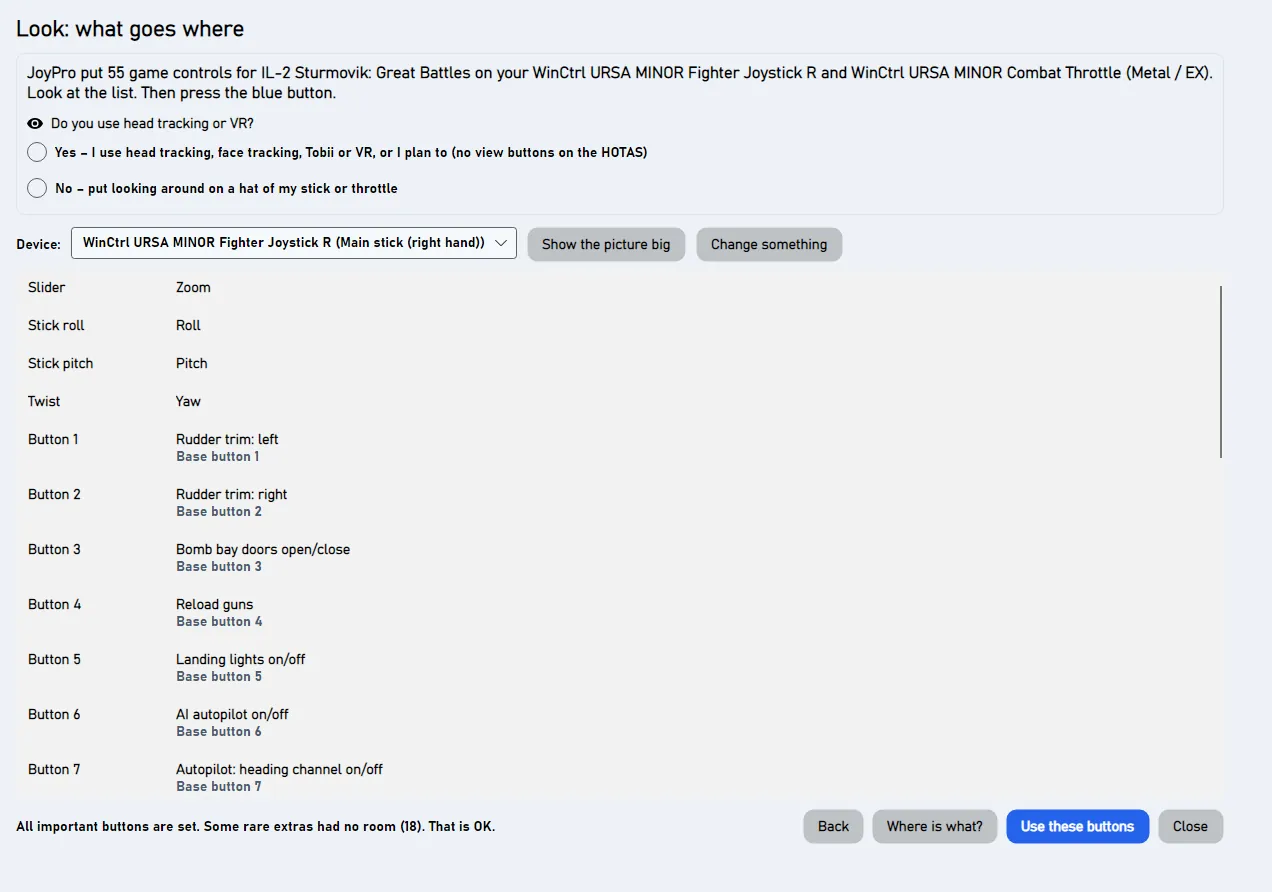
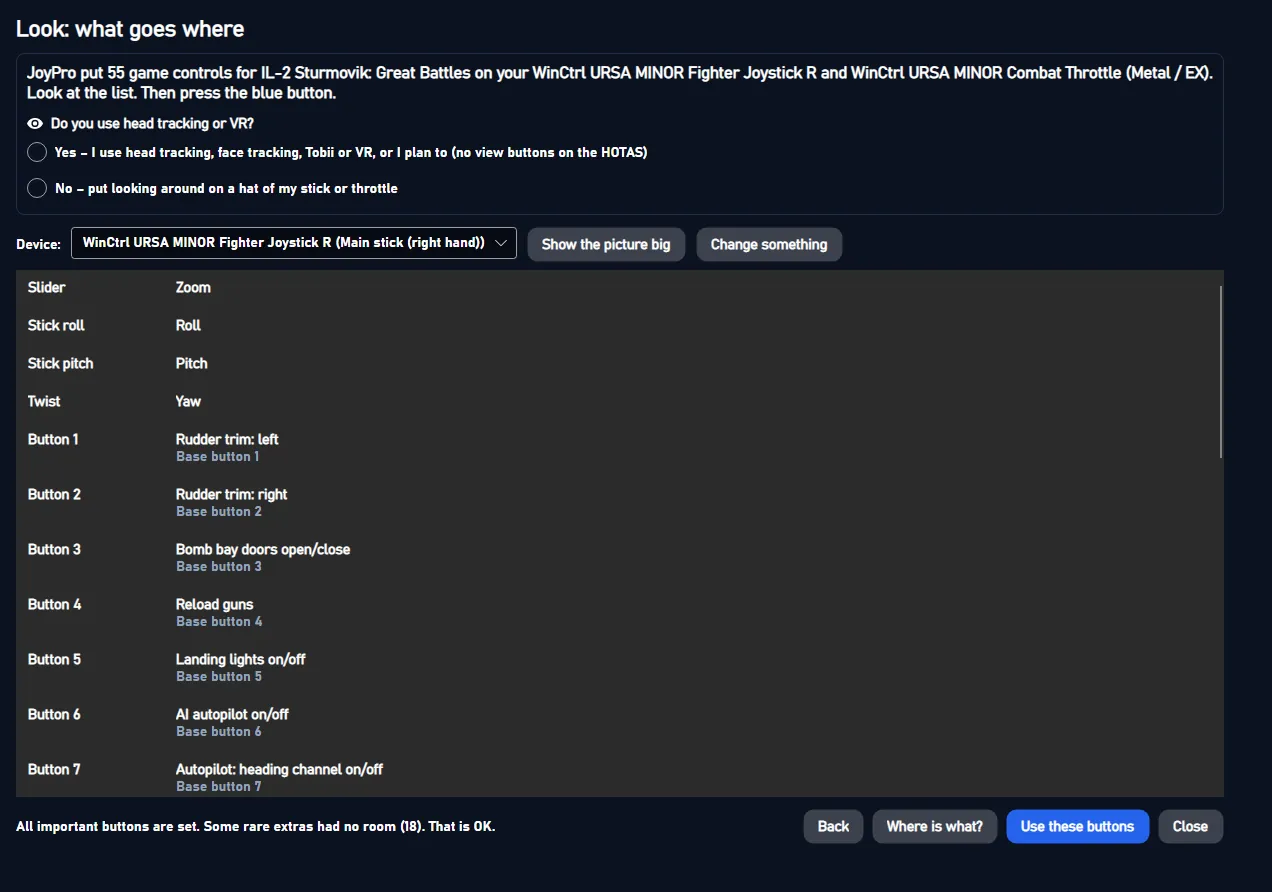
- Look at the list. It says what each button does, for example "Button 4: Reload guns". Show the picture big shows your stick with every button.
- Press Use these buttons. Now JoyPro has your buttons. Your game does not change yet.
- Press Write to my game. Now your game has your buttons. JoyPro keeps a copy of the old ones.
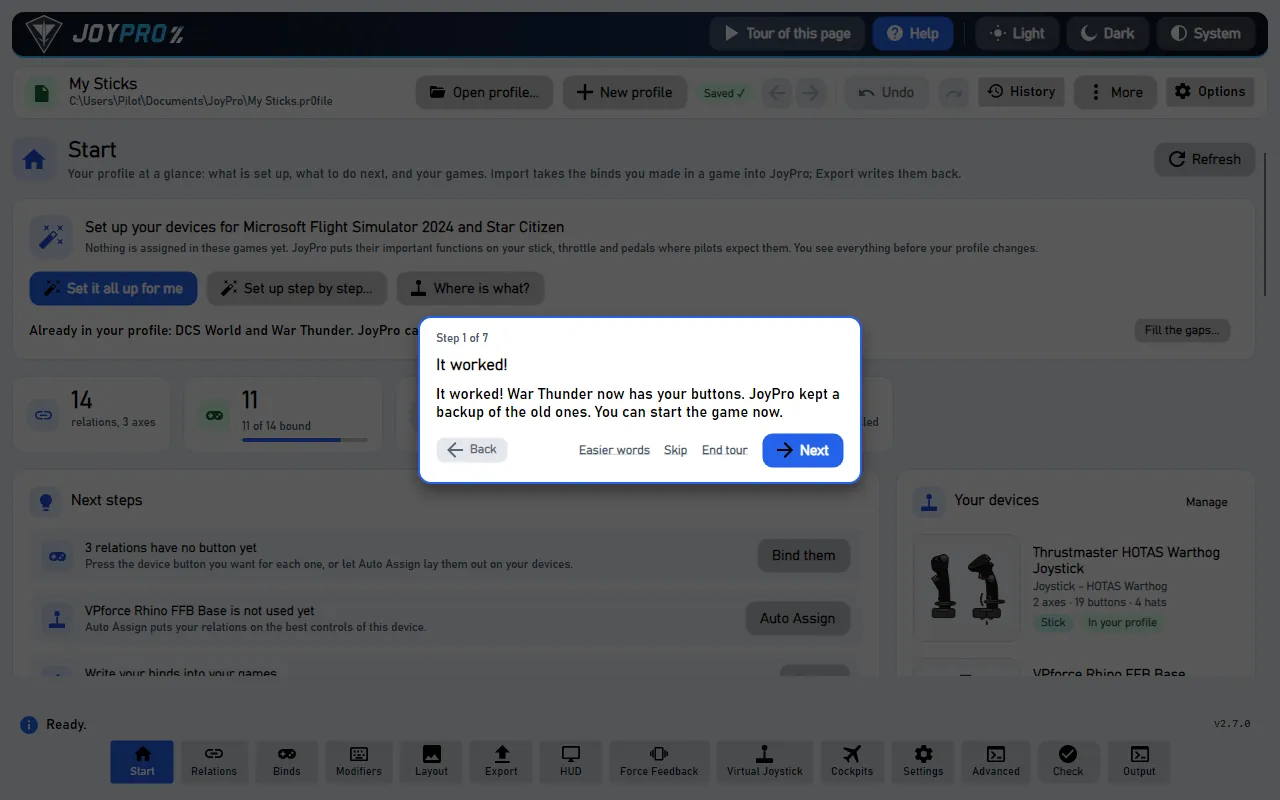
- Fly. The Start page says "It worked!". Start your game and fly.
Only one button is blue at a time. Click the blue one, and the next one turns blue.
#The head tracking question
For a flight sim, the list asks: Do you use head tracking or VR? Answer Yes if you look around by moving your head (TrackIR, a face tracking webcam, Tobii or VR), or plan to. Then no look buttons go on your stick, only "recenter the view". Answer No if you look around with your stick: a hat gets looking around. See Head tracking and looking around.
"All important buttons are set. Some rare extras had no room (18). That is OK." This is good news. Your stick has fewer buttons than the game has controls. The important ones are all on your stick.
#The game already has buttons
Did you set up buttons in the game before? Then Write to my game asks one question:
| Answer | What happens |
|---|---|
| Use the new ones | JoyPro's buttons replace the old ones. JoyPro keeps a copy of the old ones. |
| Keep the old ones too | Your new buttons go next to the old ones. Nothing is removed. |
| Cancel | Nothing is written. Press Write to my game again when you are ready. |
#ACE COMBAT and other Xbox-only games
ACE COMBAT 8 and Hell Let Loose: Vietnam only know an Xbox controller. They do not see your stick. JoyPro turns your stick into a pretend controller (a virtual Xbox pad). Nothing is written into these games.
- Set it all up for me
then Use these buttons - Set up the pretend controller
the second blue button - Test
move your stick - Start the game
wait for its title screen - Alt+Tab, Start
then Alt+Tab back
- Press Set it all up for me, then Use these buttons.
- The next blue button is Set up the pretend controller. The Virtual Joystick page opens.
- The first time, it needs a free helper called ViGEmBus. Tick the box below the license. Then press Install ViGEmBus. Windows asks for permission: click Yes.
- Press Test. Move your stick. The controller picture moves too.
- Start the game. Wait for its title screen.
- Hold Alt and press Tab. You are back in JoyPro. Press Start.
- Press Alt+Tab again. You are back in the game. Fly!
Press Start only when the game shows its title screen. Too early? JoyPro says "Too early". Press Stop, then Start. Do this every time you play.
More about these games: Play an Xbox-only game with a HOTAS and ACE COMBAT.
#Something went wrong?
- No game or no stick found. Plug in your stick, or start your game once. Then press Try again.
- You want to choose more yourself. Press Set it up step by step. That opens the setup wizard with all its steps.
- You want the old buttons back. See Undo the quick setup.
- You want another button for one thing. See Change one button later.
#Easy words
Do you want big text and very short sentences? Tick Easy words: big text, short sentences in the welcome or in the first window. Every tour card has Easier words too. See Easy words, tours and F1.
#What the quick setup does
- It is the setup wizard running by itself. It uses its defaults: your devices and their usual jobs, every aircraft equal, no modifier.
- It sets up only the games where nothing is on your sticks yet. The Start page card names them: "Set up your devices for War Thunder and Star Citizen".
- Where should functions go? comes from your last choice in the wizard (the middle at first). See Where should functions go?.
- A device JoyPro does not know is set up like a usual one of its kind. Moving the stick steers, button 1 fires, the first hat trims, the first lever is the throttle. The box at the top says so.
- Change something shows the tools: move, swap or leave out a function, and put it back. It also shows what did not fit.
- Games where you made binds yourself are listed below the card. Import, then fill the gaps takes your binds in first; then the setup only uses the free controls. Games already in your profile get Fill the gaps....
- Use these buttons is one step in the profile history. One Undo (Ctrl+Z) takes it all back.
- Write to my game is an export of these games. It backs up the game files first, like the Export page.
- After it, a short tour shows where to change a button later. It ends with "Done! Start your game".
#Behind the quick setup
The quick path runs the wizard's engine steps without showing them: engine setup devices, engine setup aircraft and
engine setup plan up to the review. Use these buttons runs engine setup apply (one profile version).
Write to my game runs the game's export with the Export page's settings and backup. For pad-only games it opens
the Virtual Joystick page instead; their table comes from engine vjoy map. GUI: QuickSetupCommand on the Start
page, StartQuickSetupAsync (MainWindowViewModel.AutoSetupStart.cs), the window Views/SetupWizardWindow.axaml.
#Related
- Your first profile in 10 minutes: the quick way and the way by hand
- Help mode and tours: the welcome and its answers
- Help and FAQ