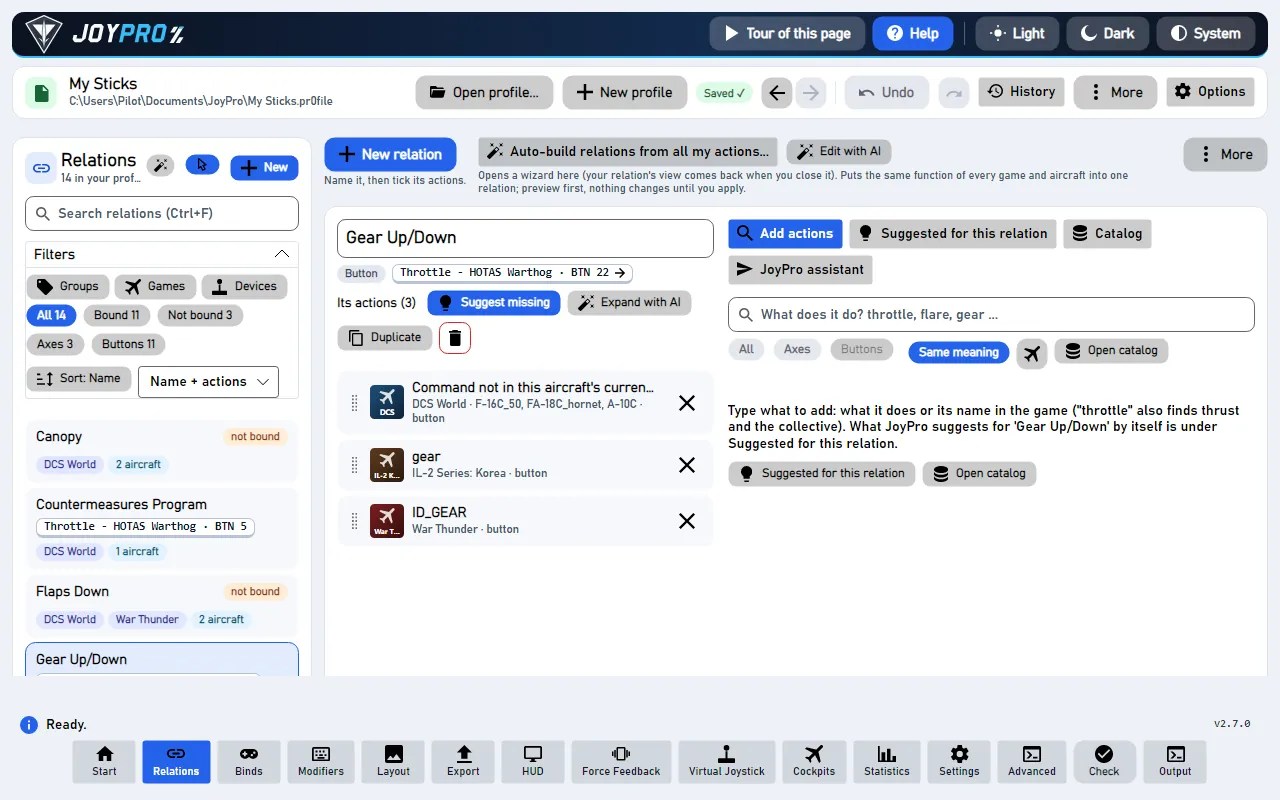
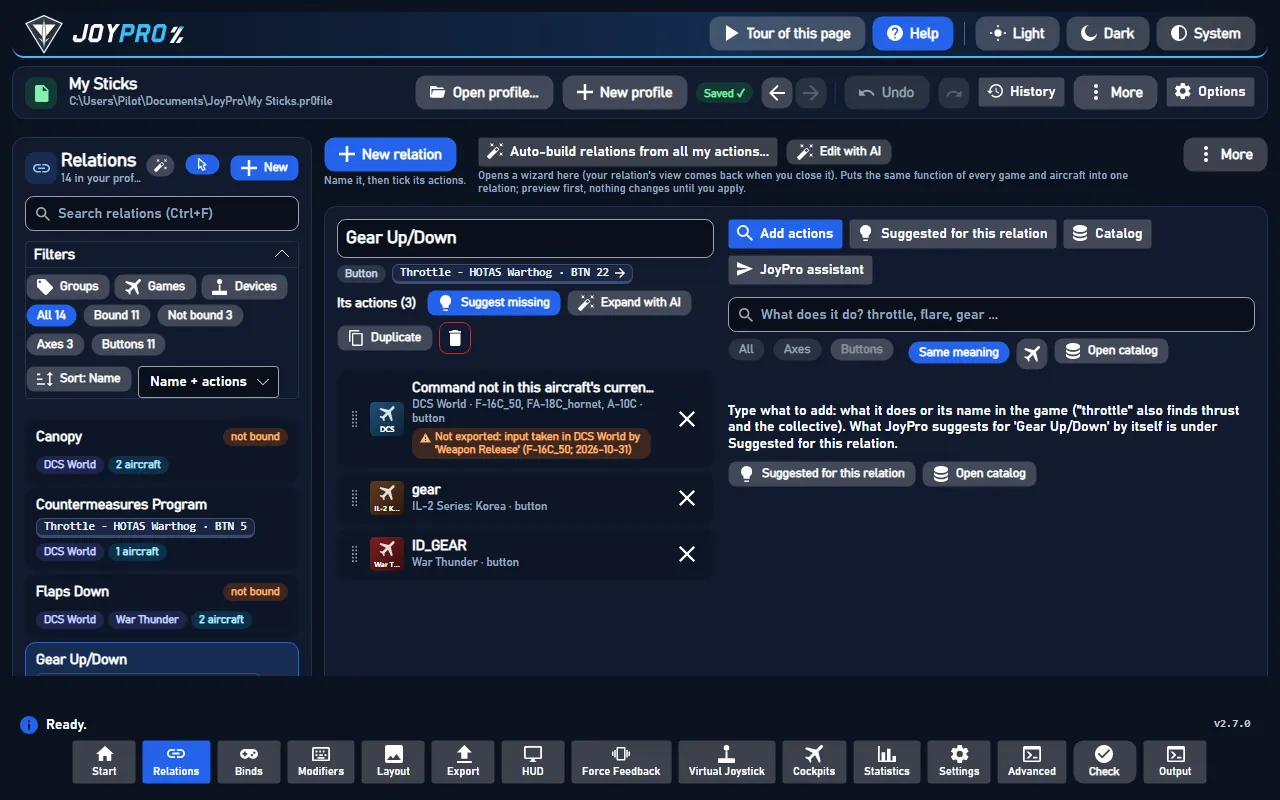
The Relations page builds and organizes relations: one function with its action in every game and aircraft. The
walk-through with diagrams and the in-game meaning is on Build relations.
168 controls, read from the program’s source: 168 written, 0 with the facts from the source (tooltip, code comment, engine call), 0 still to be expanded.
Tooltip Tick every aircraft shown
Aircraft list of an action: ticks every aircraft the list shows (with a filter typed, only those). The ticks count
when you press Apply on the action card, or when you add the row from the search or the catalog.
Tooltip Untick every aircraft shown
Aircraft list of an action: unticks every aircraft the list shows (with a filter typed, only those). Nothing is saved
before Apply on the action card, or before you add the row.
#Only same meaning
ButtonwrittenTooltip Tick the aircraft where this id means the same (also the nearly same ones), untick the ones where it means something else
Aircraft list: ticks the aircraft where this id means the same as the row (also the nearly same ones) and unticks
those where it means something else. It acts on the whole list, also on aircraft a typed filter hides.
#Only same function
ButtonwrittenTooltip Tick every aircraft where this id is this function, also under another title (a helicopter's cyclic pitch for pitch)
Aircraft list, shown when some aircraft have another title for the same function: ticks every aircraft where this id
is this function, also under another title (a helicopter's cyclic pitch for pitch), and unticks the rest.
#Only same title
ButtonwrittenTooltip Tick only the aircraft whose title of this id is exactly the row's (not the near ones, never the ones where it means something else)
Aircraft list: ticks only the aircraft whose title of this id is exactly the row's (also in another category). Nearly
same titles and aircraft where the id means something else are unticked.
Tooltip Swap the ticks of the aircraft shown
Aircraft list: swaps the ticks of the aircraft the list shows (with a filter typed, only those).
#Tick or untick every action of this category shown
Check boxwritten12 ×A tick in one of the page's lists: an aircraft of an action, a catalog category ("every action of this category
shown"), a search row, a suggestion, or a group, game or device in the filters. A filter tick applies at once; the
other ticks change nothing until you press the button below them (Apply, Add selected, Add ticked).
#Only free
Toggle buttonwrittenTooltip Only actions no relation uses yet
Catalog: shows only the actions no relation uses yet, so you see what is still free in this game or aircraft.
#Same meaning
Toggle buttonwritten2 ×Tooltip On: the filter also finds the actions that do the same (by a synonym or a description). Off: only actions whose name has every word you typed. The same switch as in Add actions; remembered.
Add actions: Same meaning (on by default) also lists, below the actions whose name has every word you typed, the
ones that do the same (Same function) and the looser ones (Related, folded). Off: only the name matches; the
line above the list says how many are hidden. Kept for the next start; the same switch is in Settings > Relations. The
Catalog's filter has the same switch: on, it also finds the actions that do what your words mean.
From the code On: the rows found by what they do ("Same function") and the looser ones ("Related") are listed below the name matches; off: only titles with every typed word. Remembered (ui-settings.json addActionsSameMeaning, null: on); the same switch is in Settings > Relations. The catalog's filter follows it (its hits by what they do).
Source CatalogBrowserPanel.axaml:41 · BuilderShowSameMeaning in MainWindowViewModel.RelationBuilder.cs · setting BuilderShowSameMeaning
Tooltip Open every category
Catalog: opens every category, so all actions of the game or aircraft show at once.
Tooltip Close every category
Catalog: closes every category; only the category names with their counts stay.
#Open or close this category
Buttonwritten2 ×Catalog: opens or closes this category (a click on its name does the same).
#The one action to take in this game (or aircraft): the function's main control, not a variant
Check boxwrittenCatalog: ticks one action of the game or aircraft. Add at the bottom of the catalog puts the ticked actions into
the open relation (or a new one). A main chip marks the one action to take for the function (its main control,
not a variant); a used action shows which relations have it already.
#Every aircraft with this id, each with its own title: tick the ones the action is for
Buttonwritten3 ×The aircraft line of a DCS action ("4 of 37 aircraft · ..."): opens or closes the list of every aircraft with this id,
each with its own title, to tick the ones the action is for. In the catalog, the search and on the action cards.
#Puts every ticked action into the open relation (a DCS action with its ticked aircraft); without one it makes a new relation. Ctrl+Z undoes it.
ButtonwrittenCatalog: Add selected (n) puts every ticked action into the open relation (a DCS action with its ticked aircraft);
without an open relation it reads Create relation with n actions and makes a new one. Axes and buttons together
are refused with a hint. Ctrl+Z undoes it. Engine: engine relations add / engine relations suggest apply.
#Clear ticks
ButtonwrittenCatalog: unticks every ticked action; nothing is added.
Tooltip Only relations of these groups (several: any of them)
Filter bar: Groups lists your groups with a count each; tick one or more to show only the relations of these
groups (any of them). The Groups button under the list adds, removes and renames groups instead.
Filter bar: clears the group filter, so relations of every group show again.
#Only relations with an action of these games, or of some aircraft of a game (open the game)
Buttonwritten3 ×Filter bar: Games lists the games of your relations with a count each. Tick a game for every relation with an
action of it, or open it (>) to tick only some of its aircraft.
Tooltip Only relations bound to these devices
Filter bar: Devices lists the devices your relations are bound to; tick one or more to show only the relations
bound to them.
Filter bar: clears the device filter, so relations on every device (and unbound ones) show again.
#Bound and not bound
Toggle buttonwritten3 ×Filter switches All / Bound / Not bound (each with its count): every relation, only those on an input of a
device, or only those with no input at all, in any game. A click on the active switch goes back to all.
From the code A switch clicked again goes back to "all" (the switches always show the state, also after a second click).
Source ListFilterBar.axaml:94 · SetBoundCommand in ListFilterViewModel.cs · setting IsBoundAll
#Only axis relations (again: axes and buttons)
Toggle buttonwritten2 ×Filter switches Axes / Buttons (each with its count): only axis or only button relations. A second click on
the active switch shows both again.
#Toggle no action in games
Toggle buttonwrittenWith a game or aircraft ticked under Games, one more switch appears, for example No action in Falcon BMS (4):
the relations that do NOT have an action there yet. Together with Devices it shows what one device still lacks in that
game. An action added to the open relation counts at once; the relation leaves the list when you open the next one. A
click on the switch again, or the x of its chip, goes back to the relations that have one. On the Binds page it works
the same.
A filter chip above the list ("Group: Weapons", "Device: Warthog"): a click removes just that filter.
Tooltip Every filter off, the search too
Clear all next to the filter chips: switches every filter off and empties the search box, so every relation shows
again.
Filter bar: clears the game and aircraft filter, so relations of every game show again.
Tooltip Tick every aircraft shown (with a filter typed: only those)
Games filter, inside an opened game: ticks every aircraft shown (with a filter typed, only those), so the relations
with an action for them show.
Tooltip Untick every aircraft shown
Games filter, inside an opened game: unticks every aircraft shown.
Tooltip Sort the list: by several keys in order, e.g. device, then input, then name
Sort (the label names the levels, e.g. "Sort: Device, Input"): the tiered sort of the list. Each level is a key
and a direction; rows equal on one level go by the next. Relations sort by name, device, input, kind, games, aircraft
count, group, bound or modifiers; the catalog by game, aircraft, category, title, kind or date. Remembered per list.
Sort: Name only (in the catalog Own order) removes every level, back to the list's own order.
#Turn this level around
ButtonwrittenSort: turns this level around (A to Z or Z to A, low to high or high to low, oldest or newest first).
Tooltip Move this level up
Sort: moves this level one place up, so it counts before the level above it.
Tooltip Move this level down
Sort: moves this level one place down.
#Remove this level
ButtonwrittenSort: removes this level.
Tooltip Another sort key, used where the ones above are equal
Sort: Add level adds a level with the first key not used yet (pick another key in its box); it sorts the rows the
levels above leave equal.
#Check again
Buttonwritten2 ×Tooltip Look at every relation again
Suggest missing for every relation... (More menu) and Check again in its review: checks every relation for the
games and aircraft it lacks (medium or high confidence, no AI) and lists the actions no other relation uses. Nothing
changes until you add them. Engine: engine relations suggest --all --missing.
#Only games installed on this PC
Check boxwritten2 ×Tooltip Off: suggestions for every game JoyPro knows, also the ones you do not have.
Only games installed on this PC (on by default, in Suggest missing and Suggest missing for every relation): the
suggestions are only for the games JoyPro found on your PC, so with one game you do not get a list of games you do not
have. Untick it to see every game JoyPro knows. JoyPro remembers your choice.
From the code Suggestions only for the games installed on this PC (on by default, kept in ui-settings.json): a user with one game gets no list of games he does not have. Off: every game JoyPro knows.
Source MissingReviewPanel.axaml:19 · SuggestInstalledGamesOnly in MainWindowViewModel.SuggestMissing.cs · setting SuggestInstalledGamesOnly
Tooltip Open the relation with its suggestions (also the ones other relations use)
Suggest missing for every relation: opens this relation with its own suggestions, also the ones other relations use
(to move them here).
#Hide
Toggle buttonwrittenTooltip Show or hide its suggestions
Suggest missing for every relation: shows or hides this relation's suggestions (the first three relations start open).
#Adds the ticked actions to their relations (Ctrl+Z undoes them one relation at a time)
ButtonwrittenAdd ticked (n): adds the ticked actions to their relations, one engine call per relation, so Ctrl+Z takes them
back one relation at a time. Engine: engine relations suggest apply --add. In the game: after the next export the
relation's input also does these actions.
Suggest missing for every relation: ticks every suggestion in the review, ready for Add.
#Clear ticks
ButtonwrittenSuggest missing for every relation: unticks every suggestion; nothing is added.
#Manage with AI: say what to do with your relations (rename, delete, create, groups, aircraft); you see every step before anything changes
Toggle buttonwrittenManage with AI (the wand next to the list title): opens the plan panel for the whole profile. Say what to do with
your relations (rename, delete, create, groups, aircraft); you see every step before anything changes. Click again to
close it.
#Follow input: press a button or move an axis a long way and the list jumps to its relation; press it again for the next relation on it (without modifiers first). Not while recording or typing. The switch is kept for the next start (Settings > Binds has it too).
Toggle buttonwrittenFollow input: press a button or move an axis a long way and the list jumps to its relation; press it again for the
next relation on it (without modifiers first). Not while recording or typing. On by default; the same setting as on
the Binds page and in Settings > Binds, kept across restarts.
From the code Settings > Binds and the toggles of the Binds and Relations pages: on by default.
Source MainWindow.axaml:1311 · FollowInputOnBinds in MainWindowViewModel.LiveInput.cs · setting FollowInputOnBinds
Tooltip New relation: give it a name, then tick its actions in the search over every game (Ctrl+N)
Starts a new relation (Ctrl+N): type a name, then tick its actions under Add actions. Left empty, the relation is
named after its first action. Nothing changes in any game until you bind and export it.
#Move actions to...
ButtonwrittenTooltip Every action of the selected relations goes to a new or an existing relation of the same kind; the emptied relations are deleted (Ctrl+Z undoes it)
Move actions to... (several relations selected): every action of the selected relations goes, with its aircraft, to
a new relation (named in the window) or an existing relation of the same kind; the emptied relations are deleted with
their binds. The selected relations must all be axis or all button. One undo step. Engine:
engine relations mass move-actions --delete-empty. In the game: after the next export the actions are on the input
of the relation they went to.
Tooltip Delete the selected relations (asks first; Ctrl+Z undoes it) - Del
With several relations selected (Ctrl/Shift+click): deletes them and their binds after a question (Del). One undo
step: Ctrl+Z brings them back. Engine: engine relations mass delete. In the game: at the next export their binds are
no longer written.
Tooltip Unselect all
Clear (also More > Clear selection): unselects every relation in the list and closes the open one. Nothing
changes in the profile.
#Duplicate
Menu entrywrittenTooltip Copy this relation with its actions, aircraft, groups, tuning and bind as a new relation named (copy) and open it (Ctrl+Z undoes it)
Right-click on a relation card: copies it with its actions, aircraft, groups, tuning and bind as a new relation with
"copy" added to its name and opens the copy. Ctrl+Z undoes it. Engine: engine relations mass duplicate.
#Duplicate without bind
Menu entrywrittenTooltip Copy this relation with its actions, aircraft, groups and tuning but without its bind: the same actions for another input
Right-click on a relation card: copies it without its bind (--no-bind), the same actions for another input, and
opens the copy; bind it on the Binds page. Ctrl+Z undoes it.
Tooltip Delete this relation (asks first; Ctrl+Z undoes it)
Right-click on a relation card: deletes that relation and its bind after a question. Ctrl+Z brings it back. In the
game: at the next export its binds are no longer written.
#Group all automatically
ButtonwrittenShown on an empty Relations page: opens Auto Group (By function), which builds relations for the whole profile
from your imported actions, with a preview before anything changes.
#Import from a game
ButtonwrittenShown on an empty Relations page: opens the Start page to import the binds of a game you already
play; the import makes relations from them.
#Bulk changes
ButtonwrittenTooltip Delete, duplicate, merge, split or rename the selected relations (or all, or a query)
Opens the bulk tools under the list: pick what to Do (delete, duplicate, merge, split, add-prefix, add-postfix,
remove-part, export), a Value, and Apply to (the selected relations, all, or a query), then Run Mass Operation.
#Run Mass Operation
ButtonwrittenRuns the chosen bulk operation on the ticked relations (engine relations mass): delete, duplicate, merge (into the
name in Value), split (the listed aircraft move into a new relation), add-prefix, add-postfix, remove-part (text from
the names) or export (to a file). One undo step. In the game: deleted or merged relations change what the next
export writes.
Adds the typed groups (comma-separated) to the ticked relations, or the open one (engine relations group add).
Groups only sort and filter; the games never see them.
#Only this game (several: any of them; none: every game)
Check boxwritten9 ×A tick or chip that picks an item: a group under Remove Groups, a step or action of an AI plan or a By description
preview, or a game chip over the search results or suggestions. A game chip stays on for the next search, for the next
relation you open and after a restart; when the chosen game has nothing for a search, the list says so and Show all
games switches the chips off in one click. A game chip filters at once; the other ticks only
decide what Remove Selected, Apply selected or Create use.
#Remove Selected
ButtonwrittenRemoves the groups selected in the list from the ticked relations (engine relations group remove).
Removes every group from the ticked relations (engine relations group remove).
#Clear Selection
ButtonwrittenUnselects the groups picked for Remove Selected.
Renames a group in every relation that has it (engine relations group rename).
#List Groups (Selected or All)
ButtonwrittenPrints the groups of the open relation (or of every relation) into the Output panel (engine relations group list).
Changes nothing.
#Auto-build relations from all my actions...
Toggle buttonwrittenTooltip For the whole profile at once: JoyPro puts the same function of every aircraft and game into one relation (throttle, gear, flares ...), or groups what you describe. You see the result before anything changes.
Opens the whole-profile tools in place of the editor: By function (Auto Group) puts the same function of every
aircraft and game into one relation; By description groups only what a sentence names. Both show a preview
first. In the game: after binding and export, one button does that function in every aircraft.
#Edit with AI
ButtonwrittenTooltip Change the open relation by saying it: actions, aircraft ticks, name, groups, axis tuning; you see before and after first
Edit with AI (with an open relation): opens the plan panel for this relation only. Say what to change (its
actions, aircraft ticks, name, groups, axis tuning); you see before and after first, and nothing outside this relation
changes.
The chip of the optional local AI model while it runs: a click stops it at once and frees its memory. It starts again
by itself when an AI feature needs it (Settings > Local AI).
Tooltip Refresh, import and export relations, save
Opens the More menu: refresh the relations, show the open one in the Output panel, clear the selection, the next
relation with suggestions, suggest missing for every relation, import, Relations JSON in and out, save and merge the
profile.
#Refresh relations
Menu entrywrittenReads the profile's relations again (engine relations list) and rebuilds the list, for example after a change made
outside this window.
#Show selected in output
Menu entrywrittenPrints the open relation with its actions and their aircraft into the Output panel (engine relations show,
engine relations aircraft). Changes nothing.
#Next relation with suggestions
Menu entrywrittenMore menu: opens the next relation (by name, after the open one) that has suggestions of medium or high confidence;
use it again to walk through them. Engine: engine relations suggest --all.
#Import...
Menu entrywrittenOpens the Start page, where the import of a game's binds is set up and run.
#Import Relations JSON...
Menu entrywrittenTooltip Replaces all relations and binds of the profile with those of a JSON file (asks first; Undo brings them back)
More menu: pick a relations JSON file (for example one saved with Export Relations JSON...). JoyPro asks first:
the file's relations and binds replace all relations and binds of the open profile, and relations that are not in the
file are removed. Ctrl+Z brings the previous profile back. Engine: engine relations import --replace.
#Export Relations JSON...
Menu entrywrittenTooltip Saves all relations of the profile to a JSON file
More menu: saves every relation of the profile, with its actions, groups and bind, to a JSON file you pick (proposed
name relations.json). The profile is not changed. Engine: engine relations export.
#Save Profile
Menu entrywrittenSaves the profile now (Ctrl+S). JoyPro saves by itself after every change; this writes pending edits at once
(engine profile save).
#Merge Profile
Menu entrywrittenAdds the profile picked under Add another profile... in the profile bar to the open one: relations, binds and
modifiers (engine profile merge). Asks first and keeps a copy of your profile next to it.
Tooltip Back to the relation editor
Close on the AI plan panel: back to the relation editor. Nothing is applied.
#Make a plan
ButtonwrittenTooltip JoyPro (offline rules or your local AI model) makes a plan; nothing changes before you apply it
Make a plan: turns your request into steps, each with before and after; steps that cannot run are unticked with
the reason. Simple requests work with offline rules, free sentences with the optional local AI model. Nothing changes
yet. Engine: engine relations plan ask.
#Apply selected
ButtonwrittenTooltip Runs the ticked steps as one change (Ctrl+Z undoes all of them)
Apply selected: runs the ticked steps in one engine call, so one Ctrl+Z undoes all of them; steps that failed are
named. Engine: engine relations plan apply. In the game: renamed, deleted or changed relations change what the next
export writes.
Tooltip Forget this plan; nothing changes
Discard: forgets the plan and its steps; nothing changes.
#By function (Auto Group)
Toggle buttonwritten2 ×Shows By function (Auto Group): the same function of every aircraft and game into one relation, by a preset,
with a preview before Apply.
#By description
Toggle buttonwritten2 ×Shows By description: type what to group in your words ("speed brake in and out on all jets") and preview the
relation it makes.
#Close and back to my relation
Buttonwritten2 ×Tooltip Closes the wizard; your relation's view comes back
Close and back to my relation: closes Auto-build relations (By function or By description); the open relation's
editor comes back. A preview you did not apply changes nothing.
#Fill free slots with substitutes
Check boxwrittenAuto Group (on by default): when an aircraft lacks a function, the slot is filled with the closest substitute action
(for example another control that does the same job there). Off: such aircraft stay without that action
(--no-substitutes).
#Replace earlier Auto Group relations
Check boxwrittenTooltip Removes relations tagged AutoGroup first (your own relations are never removed)
Auto Group: first removes the relations tagged AutoGroup by an earlier run, then builds again (--replace). Your own
relations are never removed. Off: earlier Auto Group relations stay.
Shows what Auto Group would build or change (relations, their actions, what moves) without changing the profile.
Engine: engine relations auto-group (preview).
Applies the Auto Group preview as one change (one undo step).
Shows the relation your description would make: which actions of which games and aircraft, without changing the
profile (engine relations from-text; the optional local AI helps with other words and languages).
Tooltip Creates the ticked relations (unticked commands are left out)
By description: Create makes the ticked relations of the preview; unticked actions are left out. It uses the same
answer as the preview (the local AI only when the preview used it). Engine: engine relations from-text --select.
#Review them
ButtonwrittenAfter an import put actions into a second relation: runs the Check and opens its cards (duplicates,
conflicts, merge suggestions) on the Export page.
Hides the notice about new duplicates for now; the Check still finds them.
#Switches this relation off in those aircraft, except the ones ticked use here in the list. They stay listed, one tick brings one back; Ctrl+Z undoes it, one step per action.
ButtonwrittenAircraft check: the question names the button and what it does in each aircraft ("BTN 20 does different things in
these aircraft: F/A-18C: RADAR Switch - EMERG · F-16C: KY-58 MODE Knob - RV. Where should BTN 20 work?").
Only in the F/A-18C (take it off the F-16C) (several actions: Only where it does the same) switches the
relation off in the aircraft where its command does something else, except those ticked use here. They stay
listed, one tick brings one back; Ctrl+Z undoes it, one step per action. Aircraft that came from your own game files
(an import) are never the ones it takes off, and a helicopter's engine throttle counts as the same as the throttle or
power levers of the other aircraft. Engine: engine relations aircraft set --off. In the game: those aircraft no
longer get the action on this input.
#Changes nothing in your profile: every aircraft keeps what it does now, and JoyPro stops asking about them on this PC.
ButtonwrittenAircraft check: Keep it in both (F-16C keeps KY-58 MODE Knob - RV) (more meanings: Keep it in all, several
actions: Keep it everywhere) changes nothing in the profile: every aircraft keeps what the button does now, and
JoyPro stops asking about them on this PC (kept across restarts, not part of the profile and not undone by Ctrl+Z).
#Decide later
ButtonwrittenTooltip Hide this question until JoyPro starts again
Aircraft check: Decide later hides the question for this relation until JoyPro starts again. Nothing changes.
#Toggle relation check expanded
ButtonwrittenShows or hides the list of aircraft the open relation's aircraft check is about (aircraft where an action's id may
mean something else).
#use here
Check boxwrittenTooltip Keep this relation in this aircraft too
Aircraft check: use here keeps the relation in this aircraft too when you press Only where ...; the aircraft
is then remembered and not asked about again.
#Every relation with aircraft where its command does something else
ButtonwrittenCheck all relations (n actions): runs the aircraft check over the whole profile and opens (or closes) the list of
every relation with aircraft where its command does something else. Engine: engine relations check-aircraft.
#Switch them all off
ButtonwrittenTooltip Switches those aircraft off in every one of these actions: they stay listed, one tick brings one back; Ctrl+Z undoes it (one step; one per action when you kept some aircraft).
Profile check: Switch them all off switches the flagged aircraft off in every listed action. They stay listed, one
tick brings one back; Ctrl+Z undoes it (one step, or one per action when you kept some aircraft). Engine:
engine relations check-aircraft --apply. In the game: those aircraft no longer get these actions.
#Open this relation
ButtonwrittenProfile check: opens this relation in the editor.
Tooltip Each of them only for the aircraft whose profiles in the sim had it. Ctrl+Z undoes one at a time.
MSFS 2024 import notice: Limit all limits every listed relation to the aircraft whose profiles in the sim had it.
Each relation is one undo step, so Ctrl+Z undoes one at a time. In the game: after the export the other aircraft no
longer get these binds.
#Keep for all aircraft
ButtonwrittenTooltip Hide this notice
MSFS 2024 import notice: Keep for all aircraft hides the notice; the relations stay for all aircraft as imported.
#Limit to these aircraft
ButtonwrittenMSFS 2024 import: this bind existed only in some aircraft's profiles in the sim but came in for all aircraft; this
limits it to those aircraft. Ctrl+Z undoes it. In the game: after the export the other aircraft no longer get it.
#Return to check
ButtonwrittenBack to the check (when the relation was opened from a Check card) returns to the Check list at that card; Back
to '...' (when it was opened from an action's tag) returns to the relation and search you came from. The same as the
Back arrow at the top (Alt+Left). After a change in the relation the check runs again, so a fixed card is gone.
#Open this bind on the Binds page
Buttonwritten3 ×Tooltip Binding happens on the Binds page: this opens it with this relation selected
Opens the Binds page with this relation's bind selected: Not bound yet: Binds page for a relation without a bind,
ready to record its button or axis; the bind chip under the name ("MFD CENTER · BTN 11", with an arrow) for a bound
one. Back (Alt+Left) brings you to the relation again. The way the other way round: Open in Relations on the
Binds page.
From the code The Binds page with the relation's bind selected: "Not bound yet: Binds page" of an unbound relation, the bind chip under a bound relation's name. Back returns.
Source MainWindow.axaml:1978 · BindSelectedRelationCommand in MainWindowViewModel.Design.cs
#The function this relation stands for in every aircraft and game. Suggestions, AI fill and Auto Assign use it.
ButtonwrittenThe function chip of the open relation: opens the picker with the catalog functions of the relation's kind, a search
box, None and (after you set one) Automatic. The function is what the relation stands for in every aircraft
and game; suggestions, AI fill and Auto Assign use it. Engine: engine relations function --list.
#None: each aircraft uses it for its own function
ButtonwrittenTooltip A button position (like the real cockpit): no single function, nothing is suggested by function
Function picker: None makes the relation a button position, like in the real cockpit: each aircraft uses it for
its own function, and nothing is suggested by function (--none). Ctrl+Z undoes it.
#Automatic: from its name and its actions
ButtonwrittenTooltip JoyPro decides again: a function only when (nearly) all of the relation's actions are it
Function picker (after you set a function): Automatic lets JoyPro decide again from the name and the actions; it
picks a function only when (nearly) all actions are it (--auto). Ctrl+Z undoes it.
#Set builder function
ButtonwrittenSets the open relation's function (the function chip) to the picked one (engine relations function). The function
steers the suggestions; change it when JoyPro guessed wrong.
#Expand this relation: the same function in the games and aircraft it does not have yet, without the actions other relations use (no AI). Tick, add.
Buttonwritten"Suggest missing (n)": lists the games and aircraft this relation lacks, from the function catalog, your style and
the same DCS id where it means the same.
#Expand with AI
ButtonwrittenTooltip Opens the JoyPro assistant for this relation: say in your own words what else belongs in it, or what does not, and it adds or removes it (one Undo per answer)
Expand with AI: opens the JoyPro assistant on the right, working on this relation ("Working on: ..."). Say in your
words what else belongs in it, or what does not; the assistant then changes it with your answer, and Undo this
in its answer takes it back. The button itself changes nothing.
Tooltip Copy this relation as a new relation named (copy) and open it, with or without its bind (Ctrl+Z undoes it)
Duplicate on the open relation: a menu with Duplicate (with its bind) and Duplicate without bind. Both
make a new relation with "copy" added to its name and open it; Ctrl+Z undoes it.
#Duplicate
Menu entrywrittenTooltip Copy this relation with its actions, aircraft, groups, tuning and bind as a new relation named (copy) and open it (Ctrl+Z undoes it)
Makes a copy of the open relation with its bind. Duplicate without bind copies it without the input, for example
to put a variant on another button.
#Duplicate without bind
Menu entrywrittenTooltip Copy this relation with its actions, aircraft, groups and tuning but without its bind: the same actions for another input
Copies the open relation with its actions, aircraft, groups and tuning but without its bind, for the same actions on
another input; bind the copy on the Binds page. Ctrl+Z undoes it. Engine: engine relations mass duplicate
--no-bind.
#Delete this relation (asks first; Ctrl+Z undoes it)
ButtonwrittenDeletes the open relation (Ctrl+Z brings it back). In the game: at the next export its binds are no longer written
(with Replace they are removed from your devices).
#Paste relation nodes
ButtonwrittenPaste n action(s) (shown after Copy, in another relation of the same kind): copies the copied actions into the open
relation with their aircraft (switched-off ones stay off); an action it already has gains the aircraft it lacked. The
relation they were copied from keeps them. Ctrl+V does the same in the action list. One undo step. Engine:
engine relations item copy-to.
Tooltip Copy the selected actions; open another relation and press Paste (Ctrl+C, Ctrl+V)
Copy (several actions selected, or an action's right-click menu; Ctrl+C): remembers these actions of the open
relation for Paste. Nothing changes until you paste.
#Move to...
Buttonwritten2 ×Tooltip Move the selected actions to a new relation or to another relation of the same kind (Ctrl+Z undoes it)
Move to... / Move to another relation...: opens a window for the selected actions (or the right-clicked one):
New relation with a name you type, or an Existing relation of the same kind picked from a searchable list. The
actions leave this relation with their aircraft. One undo step. Engine: engine relations item move-to.
Tooltip Remove the selected actions from this relation (asks first; Ctrl+Z undoes it) - Del
Remove (several actions selected, Del, or Remove from the relation in an action's right-click menu): takes the
actions out of the open relation after one question; its bind stays. One undo step. Engine:
engine relations item remove with one --node per action.
Tooltip Select every action of this relation (Ctrl+A)
Select all (Ctrl+A in the action list): selects every action of the open relation, for Copy, Move to... or Remove.
Tooltip Unselect all
Clear (in the bar of the selected actions): unselects the actions. Nothing changes in the profile.
Tooltip Do not make a new relation
Cancel on the new relation form: closes it without making a relation.
#The actions of this relation for other games and aircraft than your filter. They stay in the relation; click to show or hide them.
ButtonwrittenOther aircraft (n) under the open relation's actions, shown while the Games filter is on a game or aircraft: the
relation's actions for other games and aircraft than the filter's. They stay in the relation; a click shows or hides
them (another relation starts with them folded). The filter's own actions stand above it with a blue edge and
Filter: F-100D on their aircraft line. Clearing the filter brings the plain list back.
#Move up
Menu entrywrittenMoves the action card one place up in the relation (engine relations item move). The order decides which action a
game gets first when two of one game share the bind.
#Move down
Menu entrywrittenMoves the action card one place down in the relation (engine relations item move).
#Move to the top
Menu entrywrittenMoves the action card to the top of the relation (engine relations item move).
#Move to the bottom
Menu entrywrittenMoves the action card to the bottom of the relation (engine relations item move).
#Move to another button...
Menu entrywrittenTooltip Only one action goes to another button; the other actions stay on this one
Right-click on an action card: moves only this action (with its aircraft) to another input: press the new button or
pick device and input. It joins the relation that already uses that input, else gets a relation of its own; the other
actions stay. One undo step. Engine: engine relations item move-to-input. In the game: the action is on the new
input.
#Show or hide the aircraft of this action
ButtonwrittenThe chevron on an action card (actions with an aircraft list, such as DCS): shows or hides the action's aircraft with
a tick each. A click on the card's header row does the same.
From the code A click on an action of the open relation: its aircraft open (or close). Games with one list per game (one aircraft) have none. Before the aircraft are read (engine relations aircraft runs in the background) the click is remembered and the list opens when they come.
Source MainWindow.axaml:2198 · ToggleNodeAircraftCommand in MainWindowViewModel.RelationAircraft.cs
#Remove this action from the relation (Ctrl+Z undoes it)
ButtonwrittenTakes this action out of the relation (asks first unless switched off in Settings > Confirmations). In the game: the
action is no longer written on this relation's button.
Tooltip Saves the ticks: the action is exported for the ticked aircraft only (Ctrl+Z undoes it)
Saves the ticked aircraft of this action (one undo step). In the game: aircraft you unticked do not get this action
on the relation's button at the next export.
Tooltip Back to the ticks the relation has
Action card: Reset puts the aircraft ticks back to what the relation has; nothing is saved.
Tooltip It may be suggested again
Dismissed for this relation: Restore takes the dismissed suggestion out of the relation, where it was kept
switched off, so it may be suggested again. Ctrl+Z undoes it. Engine: engine relations suggest apply --remove.
#Add actions
Toggle buttonwrittenTooltip Search every game and aircraft at once, tick what belongs and add it with one click (Ctrl+Shift+F)
Right panel: Add actions (Ctrl+Shift+F) shows the search over every game and aircraft at once; tick what belongs
and add it with one click. When you open a relation the search box starts empty: type what you want to add, or use
Suggested for this relation, which suggests by the relation itself. The list has three parts:
Name has every word (the action's title has every word you typed; singular and plural are the same word, "brakes"
finds "Wheel Brake"; brackets and punctuation do not matter: "tacan channel (xx0x) - inc" finds "TACAN Channel (xx0x) -
[Inc]"), Same function (the action does what your words mean: the same function, found by a synonym or a
description, "thrust" finds the throttles) and Related (looser links: a word of the action's category, some of
your words, a similar word; folded, a click on its header shows them). Hover the little label on a row to read why it
was found, for example "'thrust' is a synonym of 'Throttle'" or "Related: its category 'Gears, Brakes, Hook' has the
word 'brakes'". The parts keep their order whatever the sort, by game or by function. When something matches all of
several words, actions that match only some of them are left out: "master reset" in the F-14 lists MASTER RESET and
Master Caution Reset, not every "master" switch. A single word, or a sentence nothing matches completely, still finds
everything that means it. The F-4E's "[SimPit] ... (Switch)" commands are axes in DCS (for home cockpits that wire a
switch as an axis); they say axis (sim-pit switch).
#What means the same in your other games and aircraft, from JoyPro's function catalog, each with the reason
Toggle buttonwritten2 ×Right panel: Suggested for this relation (n) shows what means the same in your other games and aircraft, from
JoyPro's function catalog, each with its reason. Only with an open relation.
#Catalog
Toggle buttonwritten3 ×Tooltip Browse everything a game or aircraft has, by its own categories, and see what is bound already: tick what you want and add it
Opens the catalog: every action of a game (DCS: of an aircraft) by its categories, with ticks and Only free
(actions no relation uses yet). It starts on the open relation's game and aircraft; with the Games filter on, on the
filtered aircraft (or game) when the relation has it. Engine: engine relations browse.
The filter box keeps the actions whose name has your words and, with Same meaning on, those that do what they mean
("thrust" finds the throttles); while it has text, Recommended marks the best action for your words and the best rows
come first.
#JoyPro assistant
Toggle buttonwrittenTooltip Say in a sentence what you want: JoyPro creates and fills relations directly, one Undo per answer. Free sentences need the optional local AI model.
Right panel: JoyPro assistant. Say in a sentence what you want; it creates and fills relations directly, one Undo
per answer. Simple requests work offline; free sentences need the optional local AI model.
#All
Toggle buttonwritten3 ×Tooltip Axes and buttons. {0}
Add actions: All / Axes / Buttons limit the search to one kind. A relation holds only one kind, so once
the open relation has actions the switches are locked to its kind.
#Type an aircraft, e.g. F-16
ButtonwrittenTooltip Only some aircraft: pick them here
Add actions: the aircraft button opens the aircraft JoyPro knows, with a box to type in (e.g. F-16); pick one to
search only its actions.
#Add builder search plane
ButtonwrittenAdd actions: limits the search to the picked aircraft (a chip appears; several can be picked) and searches again.
#Remove this aircraft filter
ButtonwrittenTooltip Add actions adds again instead of replacing
Add actions, when a Check card's Replace ... with... opened it: Cancel ends replacing; the button adds again
instead of replacing.
#Did you mean: {0}?
ButtonwrittenTooltip Search for this instead
Add actions: Did you mean: ...? puts the proposed words into the search box and searches for them.
#Show all games
ButtonwrittenTooltip Switches the game chips off: the search goes over every game again
Add actions: when the game chips that are on have nothing for your search, the list says so and how many results the
other games have. Show all games switches the chips off in one click, and the search goes over every game again.
#Show same meaning
ButtonwrittenTooltip Switches Same meaning on: the actions that do the same and the related ones are listed again
Add actions: Same meaning next to All / Axes / Buttons switches the Same function and Related parts on or off. Off,
only actions whose name has every word you typed are listed; the line above the list counts those and says how many
are hidden. When no action with every word was found, the list says so and Show same meaning switches it on again in one click.
A search whose only results are already in the open relation says so too ("No new actions: the 2 found are already in
this relation (see below)"), and they are listed under Already in this relation. The switch is remembered and is the same as Settings > Relations.
Tooltip Every action of every game for this search (ticks stay)
Add actions: Expand all shows every action of every game for this search, not only the best rows; ticks stay.
Engine: engine relations search.
#Collapse all
ButtonwrittenTooltip Only the best rows of each game again (ticks stay)
Add actions: Collapse all shows only the best rows of each game again; ticks stay.
#By function
Toggle buttonwrittenTooltip Group the rows by the function they are (throttle, collective ...) instead of by game
Add actions: By function groups the result rows by the function they are (throttle, collective ...) instead of by
game. The groups of Name has every word still come before those of Same function, and those before Related.
From the code The rows grouped by game (default) or by the function they are (relations search FunctionGroups).
Source MainWindow.axaml:2449 · BuilderGroupByFunction in MainWindowViewModel.RelationBuilder.cs · setting BuilderGroupByFunction
#Toggle builder related
ButtonwrittenAdd actions: a click on Related (n) shows or hides the related actions (folded at first; open by itself when the
search found nothing else). A new search folds it again.
#Toggle builder game expanded
ButtonwrittenAdd actions: shows all results of this game ("Show n more"), or folds them back to the best ones.
#Open other relations tag
Buttonwritten2 ×Add actions and Suggested for this relation: an action that is switched on in other relations has a tag under it. A
tag in 'Name' opens that relation; a tag in 3 relations lists them under the action, and a name opens that
relation. An action in no other relation has no
tag. The search stays; Back to '...' above the relation's name (or the Back arrow at the top, Alt+Left) returns to
the relation and search you came from.
#Opens this relation; Back returns to this search
Buttonwritten2 ×Add actions: a relation name in the list under an action's tag opens that relation; Back to '...' returns.
#Puts every ticked action into the relation; for a new relation it creates it with them. Ctrl+Z undoes it.
ButtonwrittenCreates the relation with the ticked search rows ("Create relation with n actions"), or adds them to the open
relation ("Add selected (n)"). A DCS row adds only its ticked aircraft. Axes and buttons together are refused with a
hint. Engine: engine relations add / engine relations suggest apply --add.
#Tick all shown
ButtonwrittenTooltip Ticks every action in the list (narrow the list with the game chips first)
Add actions: Tick all shown ticks every action in the list; narrow the list with the game chips first. Actions
already in the open relation are not ticked: they are listed greyed at the bottom under Already in this relation,
without a tick box, and the count above the list says how many ("+ 1 already in this relation"). Each names its aircraft,
so two actions of one title are told apart, and its aircraft button says how many are in ("1 of 3 aircraft in this
relation"); the list it opens only shows them. An action the relation has for only some of its aircraft stays in the list
and says "already in this relation for 19 of 20 aircraft"; it offers only the aircraft still free.
#Clear ticks
ButtonwrittenTooltip Unticks everything
Add actions: Clear ticks unticks every row of the search; nothing is added.
#Adds the ticked suggestions (Ctrl+Z undoes it)
ButtonwrittenSuggested for this relation: Add ticked (n) adds the ticked suggestions to the open relation in one engine call.
Ctrl+Z undoes it. Engine: engine relations suggest apply --add. In the game: after the next export the relation's
input also does these actions.
#Adds every suggestion shown that no other relation uses (Ctrl+Z undoes it)
ButtonwrittenAdds every shown suggestion that no other relation uses (one engine call, one undo step).
#Also actions whose title only looks similar (weaker evidence)
Toggle buttonwrittenSuggested for this relation: Also weak matches (n) also shows actions whose title only looks similar (weaker
evidence). Off by default.
#Moves it to the relation of its function
ButtonwrittenLooks wrong in this relation: Move to '...' moves the action into the relation of its function. Ctrl+Z undoes it.
Engine: engine relations suggest apply --move.
Tooltip Takes it out of this relation
Looks wrong in this relation: Remove takes the action out of this relation. Ctrl+Z undoes it. In the game: it is
no longer written on this relation's input at the next export.
#The other actions of this game for the same thing, each with how it differs
ButtonwrittenA suggestion: +n other actions in this game shows the game's other actions for the same thing under it, each with
how it differs; Hide the other actions folds them away.
Tooltip Add to this relation
Suggested for this relation: Add puts this one suggestion into the open relation. Ctrl+Z undoes it.
Tooltip Takes it out of the other relation and adds it here
The suggested action is already in another relation; this moves it here (it leaves the other relation). In the game:
after the next export the action is on this relation's button instead.
#Dismiss: never suggested again for this relation
ButtonwrittenDismisses the suggestion for good: it is kept in the relation switched off, so it is never suggested again.
Restore in "Dismissed for this relation" takes it back.
#Show all games
ButtonwrittenSuggested for this relation: clears the game chips, so suggestions of every game show again.
#Not this relation: the whole profile
ButtonwrittenJoyPro assistant: the x next to "Working on: ..." stops working on that relation; your next sentence is about the
whole profile.
#Use assistant example
ButtonwrittenJoyPro assistant: puts the example sentence into the input box; edit it or send it as it is.
#Open this relation
ButtonwrittenJoyPro assistant: a relation name in an answer opens that relation in the editor.
Tooltip Takes back everything this answer changed
Takes the assistant's whole last answer back (it was one engine command, so one undo snapshot).
Tooltip JoyPro does it at once; Undo in the answer takes it back (Enter)
Sends your sentence to the JoyPro assistant. It changes relations at once and answers with what it did, the ids it
rejected and Undo this. Works without the optional AI model (offline rules); with the model it calls the same
tools. Engine: engine relations assistant.