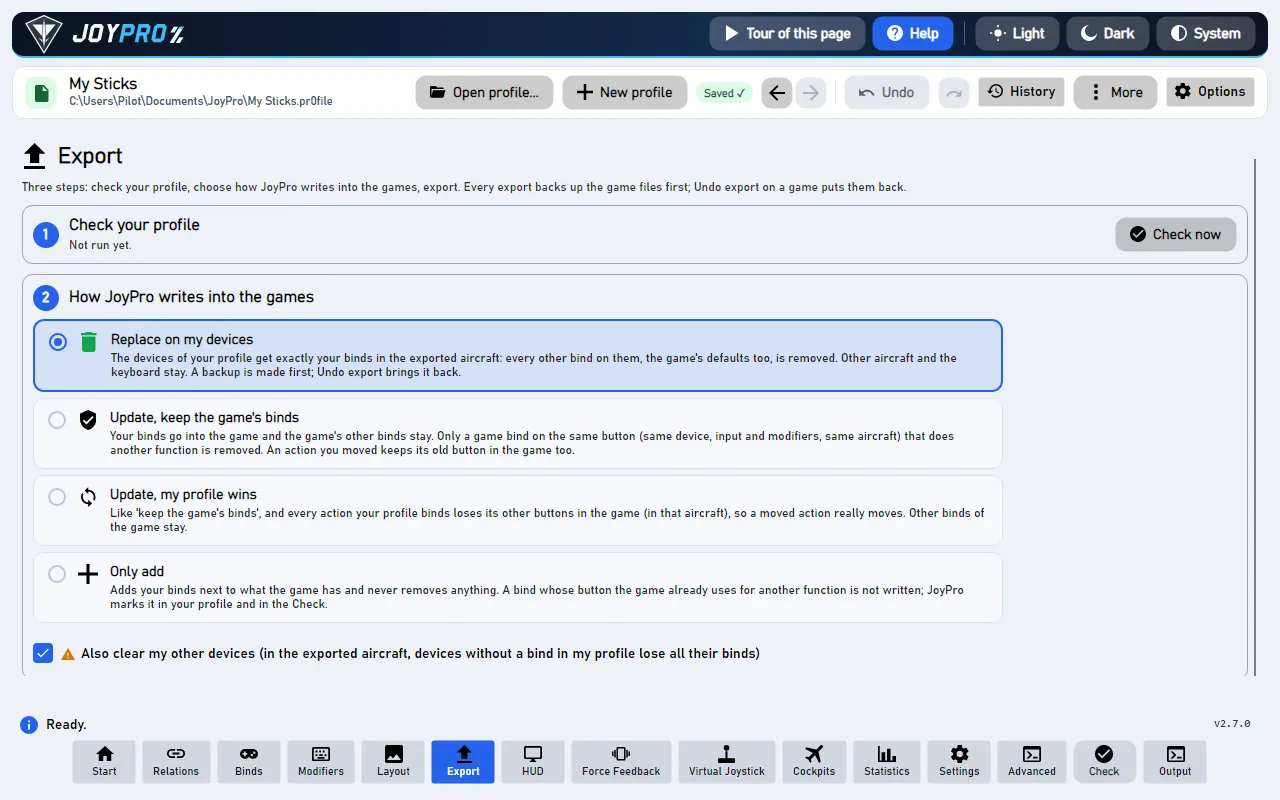
The Export page writes your profile into the games. It is three numbered steps, then the expert options and the
game config backups. The full story of the modes and what they do in each game is on
Export to your games.
Check your profile: Check now runs the Check; its cards appear further down.
How JoyPro writes into the games: four choices (Replace on my devices, Update keep the game's binds, Update my
profile wins, Only add) and the tick Also clear my other devices.
Export to games: one card per game with binds in your profile. Tick cards and press Export ticked games,
or Export now on one card. Undo last export on a card restores that game's files.
Below: Options and paths (for experts), then Problems found by the check, Same button used twice and
Game config backups.
A card starts ticked only when the game has bound relations and was started once (its control files exist). A tick
you change stays, per profile.
The DCS card has Aircraft...: every aircraft (and input layer) of the profile with its picture and how many of
its relations are bound; only ticked aircraft are written (All / None).
Each card shows its last result ("Exported 14:02" or the engine's error).
Games not installed get no card; the page names them with a link to Settings > Games.
Preview on a card (where offered) runs the export as a dry run and shows what would change.
30 controls, read from the program’s source: 30 written, 0 with the facts from the source (tooltip, code comment, engine call), 0 still to be expanded.
#Also clear my other devices (in the exported aircraft, devices without a bind in my profile lose all their binds)
Check boxwritten2 ×
Tooltip Removes every bind of the devices your profile does not use (asks first; a backup is made)
Connected devices that have no bind in your profile lose all their binds in the exported aircraft (DCS: their
DCS defaults too). Devices that are not connected, the import's ignored devices and the vJoy device JoyPro tunnels
into are never cleared. Not used with Only add. Engine: --nuke-untouched-devices true. In the game: a second
stick you never bound in JoyPro is empty in those aircraft after the export.
Tooltip The export puts the binds into the profile MSFS 2024 uses for each device and category (Steam or Microsoft Store), backed up first. Off: only import files.
Microsoft Flight Simulator 2024 only, on by default: the export writes your binds straight into the profile MSFS 2024
uses for each device and category (Steam or Microsoft Store version), after a backup. The box below the cards then
says per device which profile got them. Off: JoyPro writes only import files (--user-profiles false). Remembered for
the next start. In the sim: your own controls profile holds the binds; no import is needed for those devices.
From the code On: the export writes into the user's MSFS 2024 profiles (engine default; off: --user-profiles false).
Tooltip Off: import files only where JoyPro could not write your profile.
Microsoft Flight Simulator 2024 only, off by default: the export also writes an import file for every device and
category (--import-files), not only where JoyPro could not write your profile. Open folder in the MSFS box shows
the files. Remembered for the next start.
From the code On: import files for every device and category (--import-files), not only where the profile could not be written.
Microsoft Flight Simulator 2024 only. Where JoyPro could not write your own MSFS 2024 profile, the export writes your
binds as one file per device and category; this opens that folder in Explorer. In the sim: Settings > Controls, pick
the device and the category (Airplanes or General), the cogwheel of your profile, Import, and choose the file of
that device and category. Import a file again only when JoyPro's export says it changed.
Shown when some games of your profile are not installed (they get no card): opens Settings > Games, where you can
link a portable install or another folder so the game counts as installed.
Tooltip Exports every ticked game one after the other (DCS: only the ticked aircraft)
Writes your binds into every ticked game, one after the other, with the way chosen above. JoyPro keeps a backup
first, so Undo last export puts each game back. A game exported for the first time by this profile asks "Import
first?" before, and Replace on my devices or Nuke ask once whether binds may be removed. The
status line ends with "Exported 5 of 6 games, 1 failed: ()" and notes binds the games did not take.
In the game: the game's control files hold your binds; start the game to see them.
The tick of a game card: ticked cards are exported by Export ticked games. A card starts ticked when the game has
bound relations and was started once; a tick you change is remembered per profile. It cannot be ticked when the game
has no export. Under Aircraft..., the same tick on an aircraft decides whether that aircraft is written.
#Shows the aircraft; only the ticked ones are exported
Buttonwritten
Aircraft... / Hide aircraft on a card with aircraft (DCS): opens the list of the profile's aircraft with their
pictures and how many of their relations are bound. Only the ticked aircraft are written by the export; your ticks are
remembered per profile.
Tooltip Puts the game's control files back from before JoyPro's last export (asks first; only after an export of this game)
Puts the game back the way it was before the last export: JoyPro restores the newest backup of this game: every file the last export changed comes back byte for byte, files it
created are removed. The restore itself is backed up first, so it can be undone too. Refused while the game runs.
Engine: engine backups restore latest --game <id>. In the game: the controls are exactly as before the export.
In the Aircraft... list of the DCS card: unticks every aircraft (All ticks them again). Only ticked aircraft are
written by the export; the others keep their DCS files as they are.
Tooltip Off (default): the game paths and the ignored devices belong to this PC and every profile uses them. On: this profile keeps its own; a path you type always beats what JoyPro detects.
Gives the open profile its own game paths and ignored devices instead of the PC's. Opening another profile brings
the PC's paths back.
Expert option: exports IL-2 Great Battles alone, with the path typed in the box next to it (empty: the detected
installation) and the mode chosen above. The same as Export now on the IL-2 card. Engine: engine il2 export. In
the game: IL-2 keeps its controls in the installation (data\input); start IL-2 to see the binds.
Expert option: exports Star Citizen alone, with the path and optional source in the boxes above, the mode chosen above
and the two Star Citizen ticks. Engine: engine starcitizen export. In the game: the binds are in the game's
actionmaps.xml; the game reads it at start.
Expert option: exports the game picked in Other Game (every game outside DCS, IL-2 and Star Citizen), to the file or
folder in the box (empty: the detected one), with the mode chosen above; with Dry run ticked it only shows what
would change. Engine: engine <game> export.
DCS only, on by default: the keyboard keeps DCS's default keys. Off: the profile's keyboard binds are written and
only the DCS default keys they take are removed. Engine: --keep-keyboard-defaults.
#DCS: also clean my devices in every other aircraft
Check boxwritten
Tooltip Off (default): an export touches only the aircraft you export. On: with Replace on my devices, the devices JoyPro writes also lose their binds and DCS defaults in every other installed aircraft.
DCS only, off by default: with Replace on my devices, the written devices also lose their binds and DCS defaults
in every other installed aircraft, not only the exported ones (input layers such as UiLayer and Camera are not
touched). Engine: --clean-all-aircraft true.
From the code DCS: the written devices also lose their binds and DCS defaults in every other aircraft (off by default since 2.5.0: an export touches only the exported aircraft).
Star Citizen only, on by default: the keyboard keeps the game's default keys. Off: the profile's keyboard binds are
written and the default keys they take are released. Engine: --keep-keyboard-defaults.
Star Citizen only, on by default: a device keeps the joystick slot (js1, js2, ...) the game already gave it in its own
file; other devices fill the free slots. Off: the slots follow the order Windows reports the devices in, which can move
every bind of a device to another slot. Engine: --prefer-local-order.
Expert option: exports DCS alone, every aircraft of the profile, to the DCS path in the box (empty: the detected Saved
Games folder), with the mode and the DCS ticks chosen here. Export now on the DCS card does the same but only for
the aircraft ticked under Aircraft.... Engine: engine dcs export. In the game: each aircraft's
Config\Input\<aircraft>\joystick\<device>.diff.lua holds your binds; DCS reads them when the aircraft loads.
Looks for mistakes and shows each one as a card. It runs the Check: engine profile validate, the duplicate and conflict reports and the export marks; the cards appear
under Problems found by the check. Changes nothing.
Reads the list of game config backups again (engine backups list) for the game picked on the left (or all). Backups
of games you hid in Settings > Games are left out. Also updates which cards offer Undo last export.
Tooltip Puts the game files back the way they were before the selected export (only for installed games)
Puts the selected backup set back (any set, not only the newest). Use Preview Restore first to see which files
change. The current files are backed up before the restore.