
MSFS 2024 keeps your controls in profiles, one per device and category (Airplanes and General), and remembers for every device and aircraft which profile it uses. JoyPro reads these profiles into one profile of its own and writes your binds back into exactly the profiles the sim uses, in the Steam and the Microsoft Store version. For aircraft the sim has not set up for a device yet, JoyPro adds its own presets as a small package in the sim's Community2024 folder, and where it cannot write a profile it leaves you a file to import in the sim's Controls menu.
Microsoft Flight Simulator 2024 native (its own bind files)
- Support
- native (its own bind files)
- Engine command
engine msfs2024- Bind file
- your own profile the sim uses per device and category (Steam
remote\inputprofile_*XML or the Microsoft Store save,--user-profiles) + JoyPro's Community package (joypro-input-profiles, one preset XML per device); import files inDocuments\JoyPro2\MSFS 2024 import fileswhere your profile cannot be written - Inputs the game reads
- reads 8 axes, 1 hat (4 directions) per joystick (documented)
- Command list from
- Asobo's preset files, the flight events
fs-base\en-US.locPaknames, the installed aircraft - In-game test
- 26/26 steps passed (2026-10-11)
- ✓ Import
- ✓ Export
- ✗ Keyboard binds
- ◐ ModifiersMSFS: modifier buttons of the same device only.
- ✓ Command list built on your PC
- ✓ Game watcher
- ✓ Axis curves and dead zones
- ✗ Game control settings
- ✗ In-game force feedback settings
- ✗ Force feedback from telemetry
- ✓ Telemetry recording
- ✓ Virtual joystick (vJoy)
- ◐ Virtual Xbox pad
- ✓ Virtual functions
- ✓ Setup wizard / Auto Assign
- ✓ Cockpits
- ✓ Cheat sheets
- ✓ In-game test
From the support matrix, generated from the engine’s code: all games.
#Get it working in 3 steps
- Set it all up for me
on the Start page - Use these buttons
look at the list first - Write to my game
keep the sim closed
Before: connect every device once.
Then: read the box Your MSFS 2024 profiles. Does it name an import file? Then import that file in the sim (see What you do yourself below).
Did you bind buttons in MSFS 2024 before? Then the Start page offers Import, then fill the gaps. Your binds stay, and only free buttons get new jobs. See Quick start: make my stick work.
#What JoyPro does for MSFS 2024
- Import: the profiles you made in the sim's Controls menu (Steam or Microsoft Store) come into your profile, flight binds and General binds (cameras, views, active pause and so on), with the axis settings of the Sensitivity page. A device you never changed in the sim brings the preset the sim ships for it, when the sim's own records show that it uses that preset.
- Relations: one relation is one function. In MSFS 2024 a relation can be for all aircraft (the default) or only for the aircraft you tick, like in DCS.
- Export: JoyPro writes your binds into the profile the sim uses for each device and category, writes its preset package for aircraft the sim has not set up yet, and writes an import file where it could not update your profile.
#Import your MSFS 2024 binds
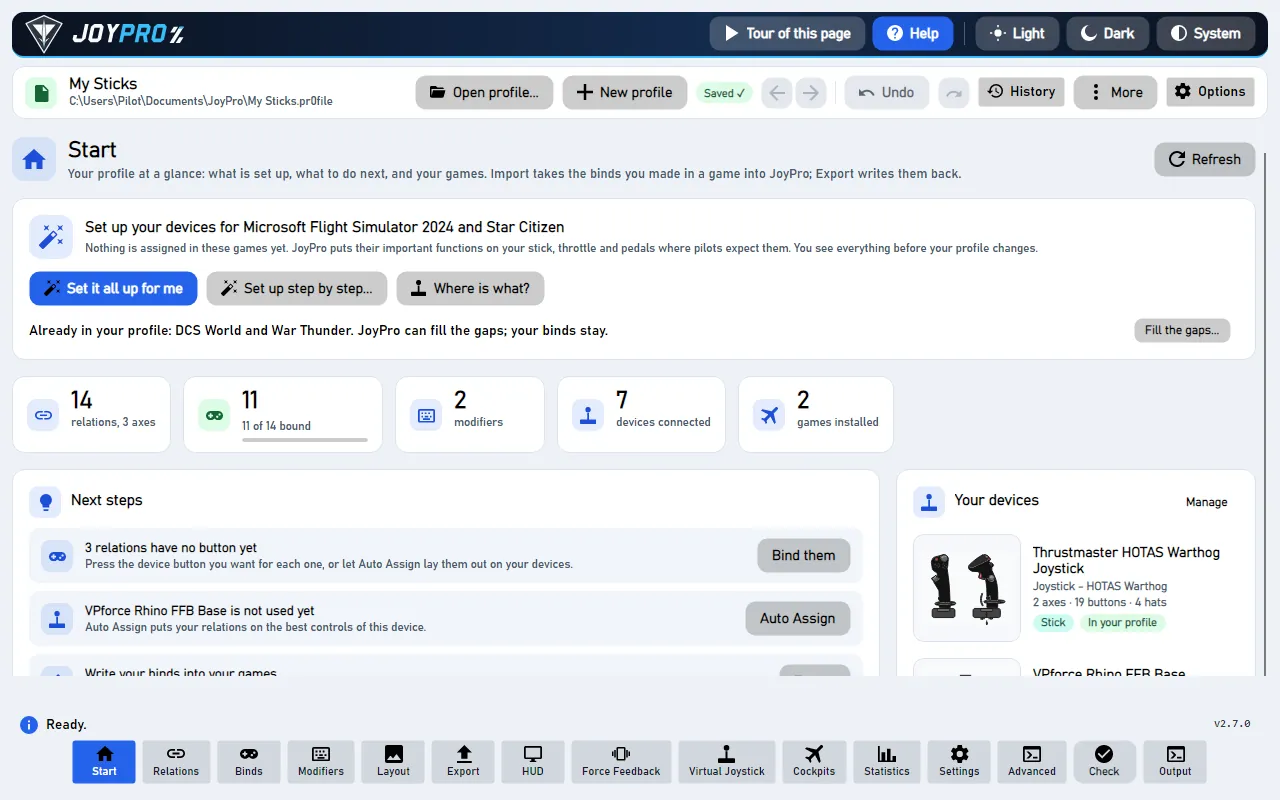
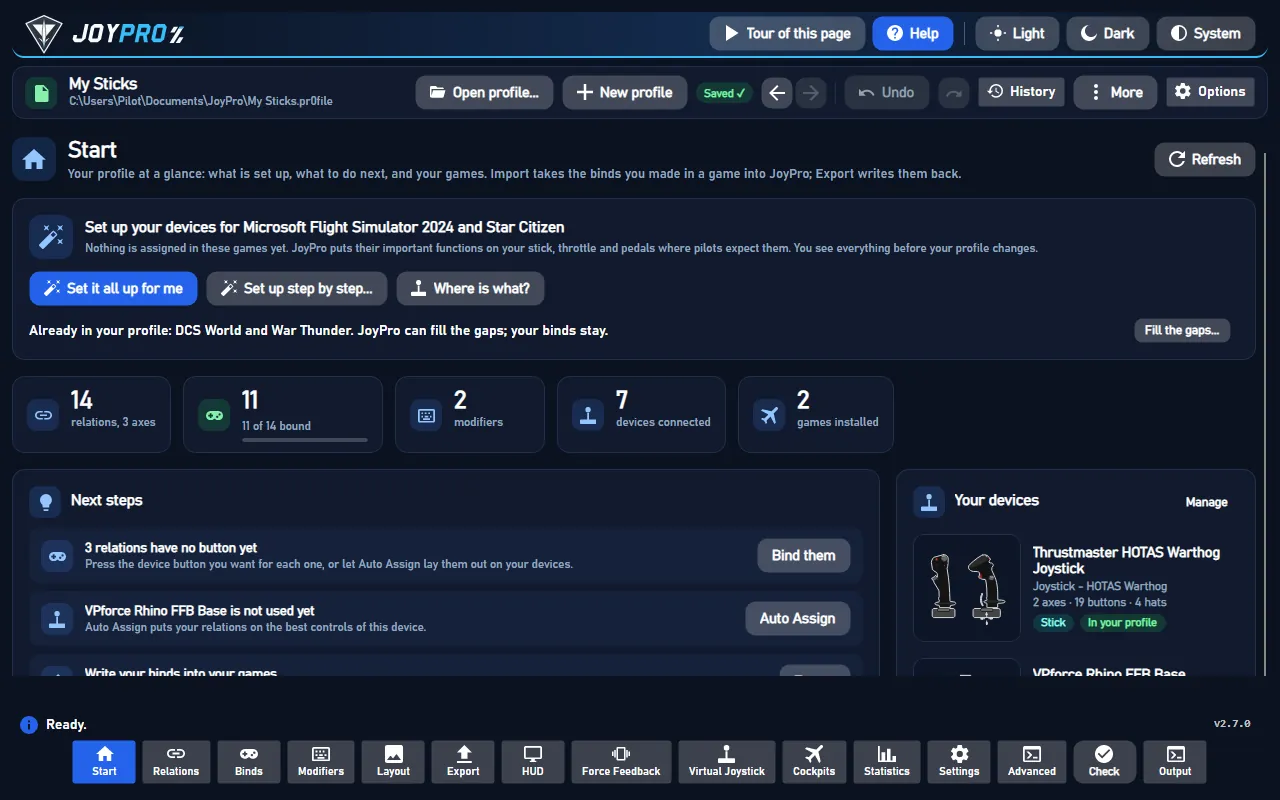
- Open Start and press Import on the Microsoft Flight Simulator 2024 card.
- Two options matter for MSFS, both off unless you tick them:
- Also import devices that are not connected: MSFS keeps the binds of every device it ever saw. Off: only the devices connected now.
- Also import default presets the sim may not use: for devices whose use of a shipped preset the sim's records do not show. This can add binds the sim does not have.
- Press Import now (or Look first to see what the sim has without changing your profile).
Imported relations apply to all aircraft. When a bind exists only in the profiles of some aircraft, the Relations page shows a note after the import with Limit to these aircraft per relation, Limit all and Keep for all aircraft.
#Build and check relations
On the Relations page an MSFS 2024 action shows the aircraft of the sim with checkmarks: every aircraft ticked means all aircraft. An action that exists only in some add-on aircraft says "only for:" with those aircraft, and adding it ticks just them. See the relations flow, then run the Check on the Export page: it finds one button with two functions before the sim does.
#Export to MSFS 2024
- Close MSFS 2024. JoyPro refuses to write while the sim runs (in the Microsoft Store version also while its launch helper runs).
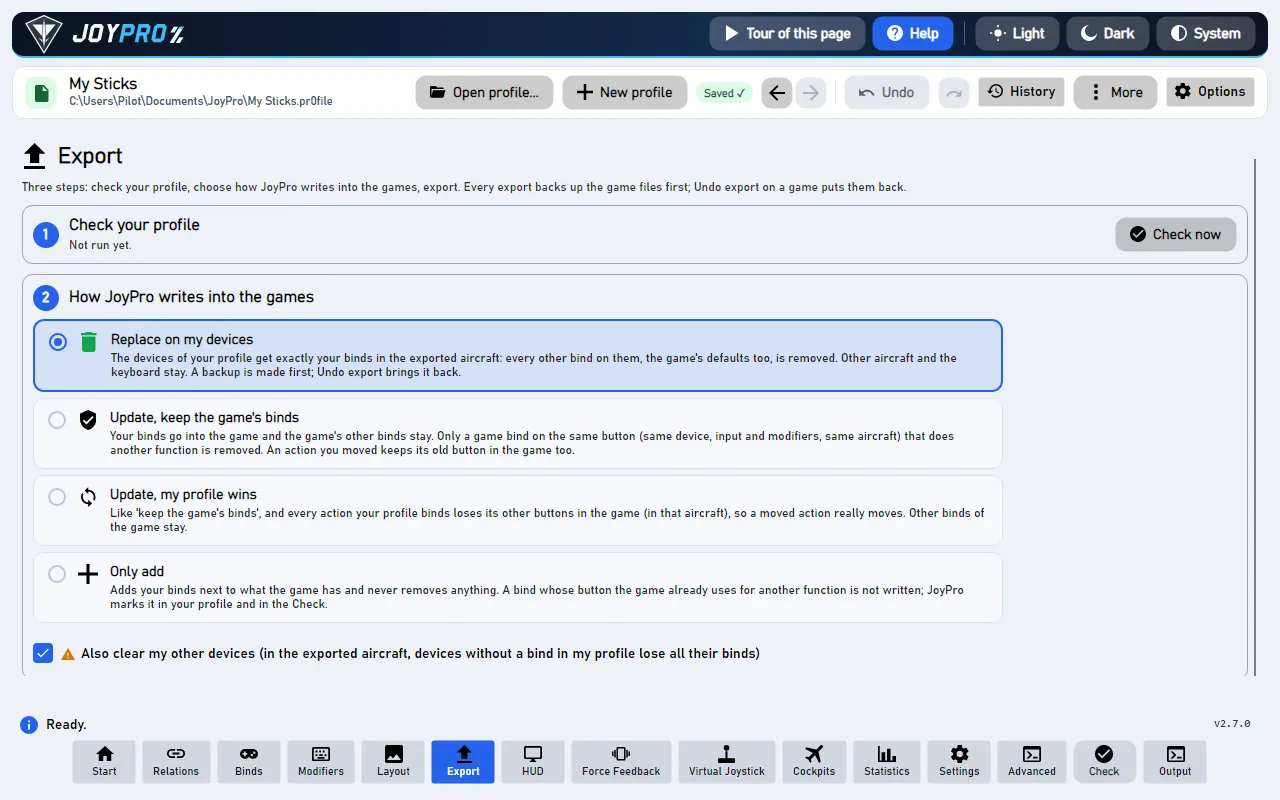
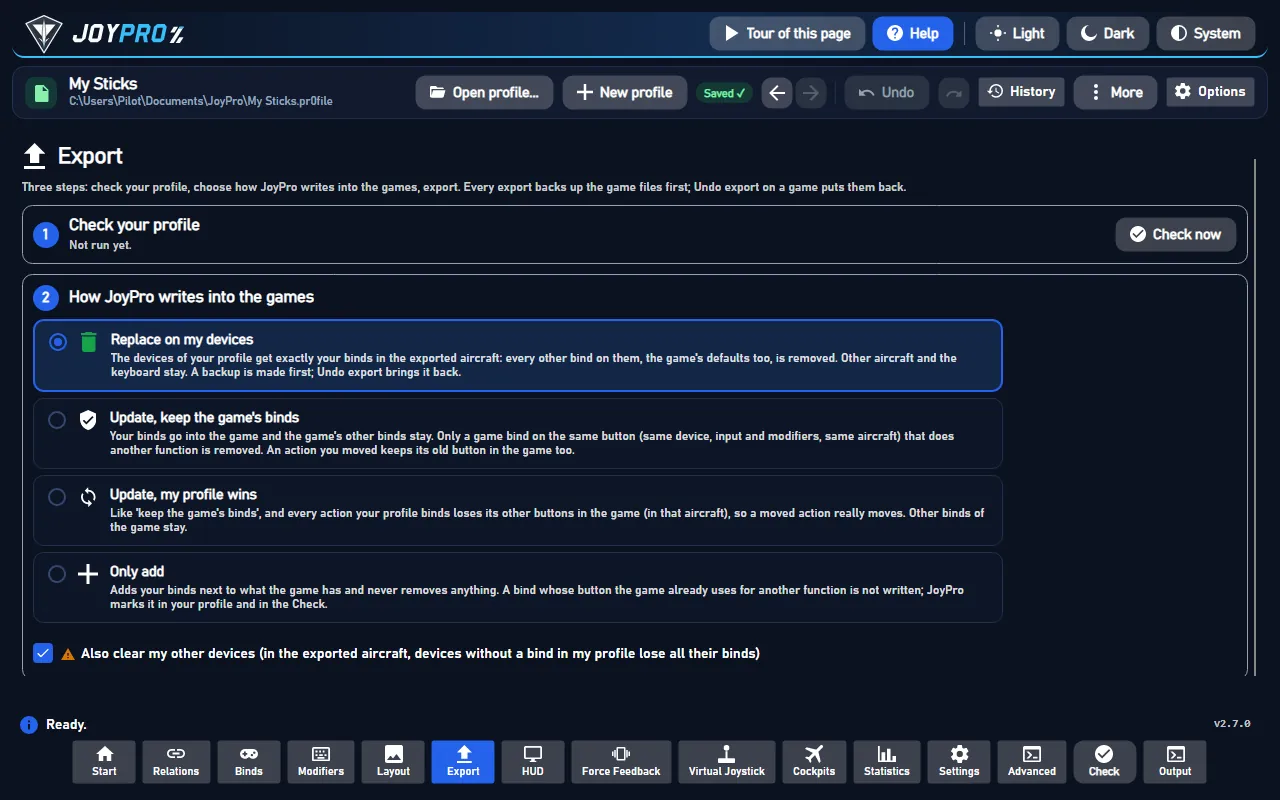
- Open Export. Under Export to games two ticks are for MSFS 2024:
- MSFS 2024: write into my MSFS profiles (on): the export updates the profile the sim uses for each device and category, backed up first.
- MSFS 2024: import files for every device (off): an import file for every device and category, not only where JoyPro could not write your profile.
- Keep Replace on my devices with Also clear my other devices if JoyPro is where you set up your devices, and press Export now on the MSFS 2024 card.
After the export the box Your MSFS 2024 profiles lists every profile JoyPro wrote, with its aircraft and the number of binds. When import files were written, a second box names them with Open folder.
Start the sim and open Settings > Controls, then pick your device and the category (Airplanes or General). Your binds are in your own profile, under the sim's action names; the device page (Hardware Settings on the device's cogwheel) shows the axis curves JoyPro wrote. In an aircraft the sim has not set up for that device yet, the device starts with JoyPro's preset.
#What you do yourself in MSFS 2024
- Nothing, for every profile listed as updated in Your MSFS 2024 profiles.
- Import files: when the export lists one, open Settings > Controls, pick the device and the category (Airplanes or General), click the cogwheel of the profile (not the one of the preset), choose Import and select the file JoyPro wrote for that device and category. The sim takes a file only for the same device and category. When the file carries the name of your profile, the sim asks whether to overwrite it: confirm, and your profile has JoyPro's binds. Import a file again only when the export says it is new or changed.
- Connect every device once before the first export: JoyPro needs the device's product ID for its preset.
- One aircraft needs other binds than the others: give it its own profile in the sim (Controls, with that aircraft loaded: duplicate the profile), then export again. The export names every relation it could not place.
- Xbox cloud question: if the sim or the Xbox app asks which save to keep, keep the one of this PC; the other one drops JoyPro's binds (export again then).
#Common pitfalls
- "MSFS 2024 is running": close the sim; in the Microsoft Store version the sim's launch helper
(
gamelaunchhelper.exe) must be gone too. - Binds missing in one aircraft: that aircraft uses another profile of yours. Check the list Your MSFS 2024 profiles; a line with "import file" means you import that file in the sim.
- A relation was not written: it is limited to some aircraft, but the profile the sim uses there is shared with other aircraft. The warning names the profile and the aircraft.
- A device has several profiles: import takes the one the sim's records name, else the newest, and names the others. Pick another one with Game Profile in the Other Games form on the Start page.
- "WRONG DEVICE" while binding in the sim: a device that keeps sending values (some force feedback sticks) takes the sim's scan. This happens in the sim's own binding, not in JoyPro.
- Reset to Defaults in the sim resets the presets of every device and aircraft; JoyPro never does it for you.
#Files JoyPro reads and writes
| File | What it is |
|---|---|
<Steam>\userdata\<id>\2537590\remote\inputprofile_<n> |
your own profile (Steam), plain XML without extension; written in place, Steam Cloud uploads it at the next sync |
%LOCALAPPDATA%\Packages\Microsoft.Limitless_8wekyb3d8bbwe\SystemAppData\wgs\<user>\ |
the Microsoft Store save (containers.index, container.<n>, one blob per profile); JoyPro writes a new blob, a new container file and the index |
remote\profile_00 (Store: the container profile_00) |
the sim's device records: which profile or preset each device uses per aircraft. Read only, never written |
<packages>\Community2024\joypro-input-profiles\InputProfiles\Categories\Airplane\JoyPro_<device>_<guid8>_2024_Planes.xml |
JoyPro's preset of a device (flight actions), with layout.json and manifest.json |
...\Categories\Transversal\JoyPro_<device>_<guid8>_2024_Transversal.xml |
JoyPro's preset of a device's General binds |
%USERPROFILE%\Documents\JoyPro2\MSFS 2024 import files\<device>_<guid8>_Airplanes.xml / _General.xml |
the import files, in the sim's own profile format |
<install>\Packages\fs-input-profiles, asobo-input-profiles-pc, fs-base\en-US.locPak |
the presets Asobo ships and the menu names: read only, for the command list and the default presets |
%LOCALAPPDATA%\JoyPro2\Ownership\MSFS, ...\Backups\MSFS |
JoyPro's ownership data and backups, never in a synced folder |
<packages> is InstalledPackagesPath of %APPDATA%\Microsoft Flight Simulator 2024\UserCfg.opt (Store:
%LOCALAPPDATA%\Packages\Microsoft.Limitless_8wekyb3d8bbwe\LocalCache\UserCfg.opt). Before every write the whole
Store save folder or the Steam file goes into the backup set, so Undo last export puts the save back.
#The export modes in MSFS 2024
The modes work per profile (so per aircraft group) and only in the managed contexts.
| Mode | What happens in your MSFS 2024 profiles |
|---|---|
| Only add | A bind is written only where no other action of that profile uses the input combination; otherwise it is listed as not written. Nothing is removed. |
| Update, keep the game's binds | The other action on your input combination loses it; everything else stays, also an action's old combination (an action has two: Primary and Secondary). |
| Update, my profile wins | As above, and every action you bind loses its other combinations, also in the profiles of other connected devices (those profiles are written too). |
| Replace on my devices | The profiles of the connected devices JoyPro writes keep only your binds. |
| + Also clear my other devices | Never clears one of your own MSFS 2024 profiles. |
A relation for all aircraft goes into every profile the sim's records name; a relation limited to aircraft goes only into profiles whose aircraft are all ticked. Limited relations never go into the preset package or the import files, because those apply to every aircraft.
#What is never touched
- The menu, world map and developer contexts (
MENU,MENU_*,WORLDMAP_*,DEBUG,DEVMODE*,EDITOR_*,MISSION_FLOW_TOOLS), in every mode. - Keyboard, mouse and gamepad profiles (
GUID="{0}"): keyboard binds are not written in MSFS. profile_00, the presets Asobo ships, aircraft-specific preset slots, and every other container of the Store save (logbooks, other titles).- Devices that are not connected, the import's ignored devices and the vJoy device JoyPro tunnels into.
#Aircraft, curves, the rest
- Granularity: per device and category (Airplanes, General) and per profile; the sim chooses the profile per device and aircraft, JoyPro follows that choice.
- Axis curves: the device's Sensitivity page, one set per physical axis: Sensitivity + and -, Neutral, Dead zone, Extremity dead zone, Reactivity, the no-curve flag and invert. A relation can give one action its own values (the per-action override of MSFS 2024). Relations on the same device axis share its page: the export writes the first relation's values and warns. See axis-curves.
- Force feedback: MSFS has none of its own.
- Telemetry recording: through SimConnect, read only, with your own
SimConnect.dll(JoyPro ships none): the Steam version of MSFS 2024 has none, so install the MSFS 2024 SDK or have MSFS 2020 installed (its copy works too). - HUD: the HUD finds the sim by its process and shows its binds.
- Watcher: JoyPro watches its package, the Steam profiles and the Store save's
containers.index; after the sim closes (the Store save waits 10 s after its last write) it asks whether to take your in-game changes over (the watcher). - Re-import: relation names, groups and tuning come back through JoyPro's metadata beside the files (re-import).
- Expert options (Other Games on the Start page): Game Profile (pick one profile when a device has several), Export Aircraft (also export the relations limited to one aircraft, for every aircraft), Write into my MSFS profiles, Also write MSFS import files for every device, a dry run.
#Inside the MSFS 2024 integration
flowchart LR
  P["Your profile"] --> E["engine msfs2024 export"]
  E --> U["Your own<br/>profiles"]
  E --> K["JoyPro's<br/>presets"]
  E --> F["Import files"]
  F --> I["You: cogwheel,<br/>Import"]
  U --> S["Settings ><br/>Controls"]
  K --> S
  I --> S
Code: engine\Games\MsfsIntegration.cs (one class for both sims), MsfsIntegration.UserProfiles.cs (the direct
write), MsfsIntegration.ImportFiles.cs, MsfsCommunityPackage.cs, MsfsUserProfiles.cs (Steam and Store reading),
WgsContainers.cs (the Store save), MsfsSimProfile.cs (the records in profile_00), MsfsSimDefaults.cs,
MsfsProfileFile.cs (the line-based editor), MsfsGameData.cs, MsfsAircraft.cs, engine\AxisModels\Msfs.cs.
- Format: an XML fragment (several top-level elements):
<Version>,<FriendlyName>,<Device DeviceName GUID ProductID CompositeID HWVer>with<Axes>and<Context ContextName>/<Action ActionName Flag>/<Primary>/<Secondary>/<KEY Information>code</KEY>. A 2024 profile lists every action of its contexts, unbound ones as empty<Action/>. Codes: button N = N-1, hat 256-259, L-axis X/Y/Z 1026/1042/1058, R-axis 770/786/802, sliders 514/530. Flags: 2 digital, 4 axis, 128 invert, 1024 no sensitivity curve, 4096 per-action axis override. Only changed<Action>elements are rendered again. - Devices: a profile names its device by the DirectInput instance GUID (
GUID), so no connected device is needed to read it. The sim matches a preset by the USB product ID (hex): JoyPro uses the one the sim noted inprofile_00, else the USB PID (vJoy shows as product ID 0). - Which profile is active: per device and aircraft the records in
profile_00hold a General slot and a category slot; an own profile there isinputprofile_<n>, which is the Steam file name and the Store container name. - Store save: written only when the index has the known layout (version 14, no conflict flag, the container
listed once in a known state); then a new blob,
container.<n+1>, the index last (temp file and replace), read back, and the old generation removed. Any failure puts everything back; anything unknown writes nothing and the import file carries the binds. - Command list:
engine msfs2024 refresh-dbreads Asobo's presets, every flight eventen-US.locPaknames, your General profiles and unpacked add-on packages (Community, Marketplace) with their aircraft; the aircraft list comes from the sim's content list. A fresh install builds the list at the first import. - Commands:
engine msfs2024 paths,engine msfs2024 catalog,engine msfs2024 scan,engine msfs2024 import(--game-profile,--include-disconnected,--include-sim-defaults,--limit-to-profile-aircraft,--replace),engine msfs2024 export(--mode,--nuke-untouched-devices,--dry-run,--aircraft <key>;--user-profiles falseand--import-filesas the two Export page ticks); per-aircraft relations withengine relations aircraft set; Undo withengine backups restore; the watcher withengine sync statusandengine sync diff. The old CLI nameengine msfs ...still means MSFS 2024.
#Known limits
- Aircraft-specific preset slots are not written (they come only with an aircraft's own package); JoyPro never writes
profile_00(the file ends with a checksum). - JoyPro's preset reaches only aircraft the sim has not set up for a device yet; elsewhere your own profile or an import file carries the binds.
- At most two input combinations per action; a third is reported. Half axes, hat diagonals and a second hat are not read or written. Modifiers: buttons of the same device only.
- Packed add-on packages (
.fsarchive) are skipped; Store save paths over 260 characters are not read. - A cloud copy (Steam Cloud, Xbox cloud) can win over JoyPro's write when another PC saved later.
- Tests:
engine\tests\smoke\msfs.ps1,smoke\msfsuserprofiles.ps1,gui\JoyPro.Gui.Tests\MsfsProfileImportTests.cs(Steam and Store saves, per-aircraft profiles, rollback),MsfsStoreWatcherEndToEndTests; in the simtools\e2e\games\Msfs2024Settings.ps1(presets, axes, buttons and the per-action curve in Controls).
All technical notes on this game (generated from the repository): msfs.md.