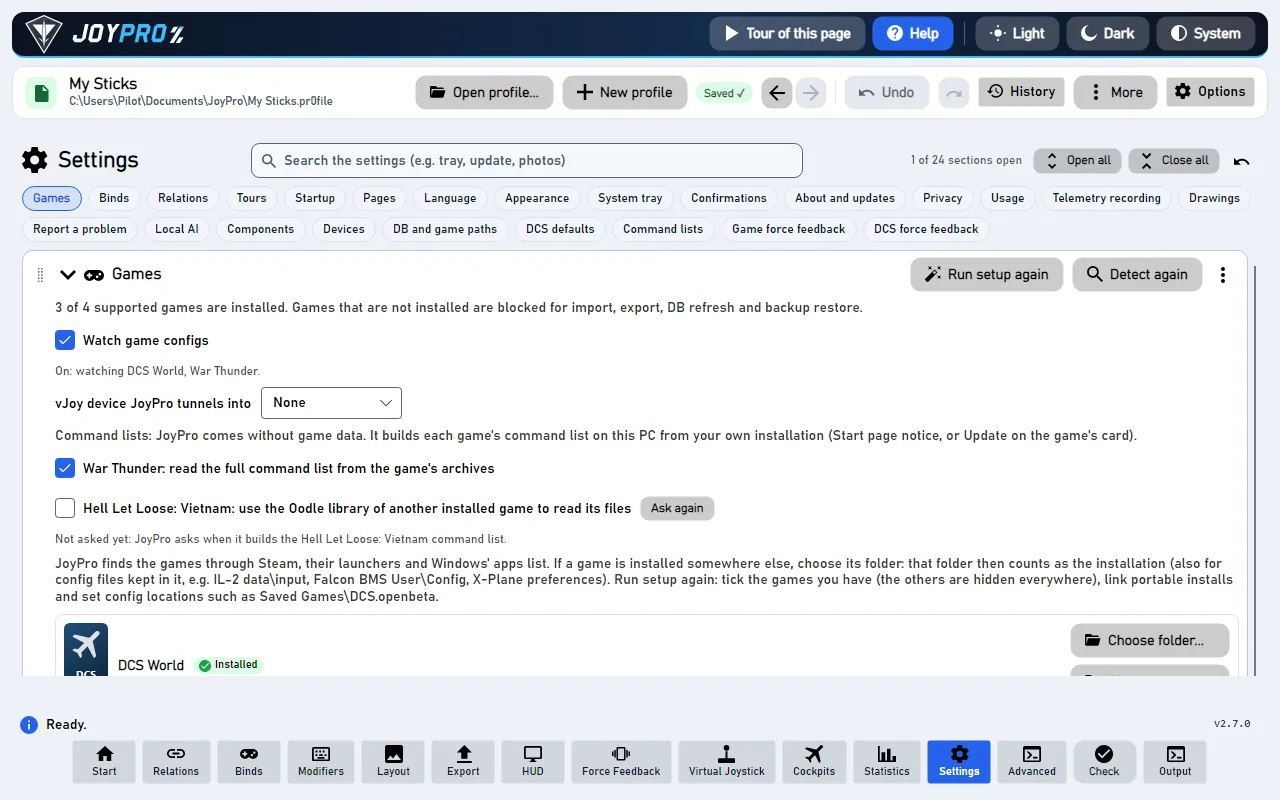
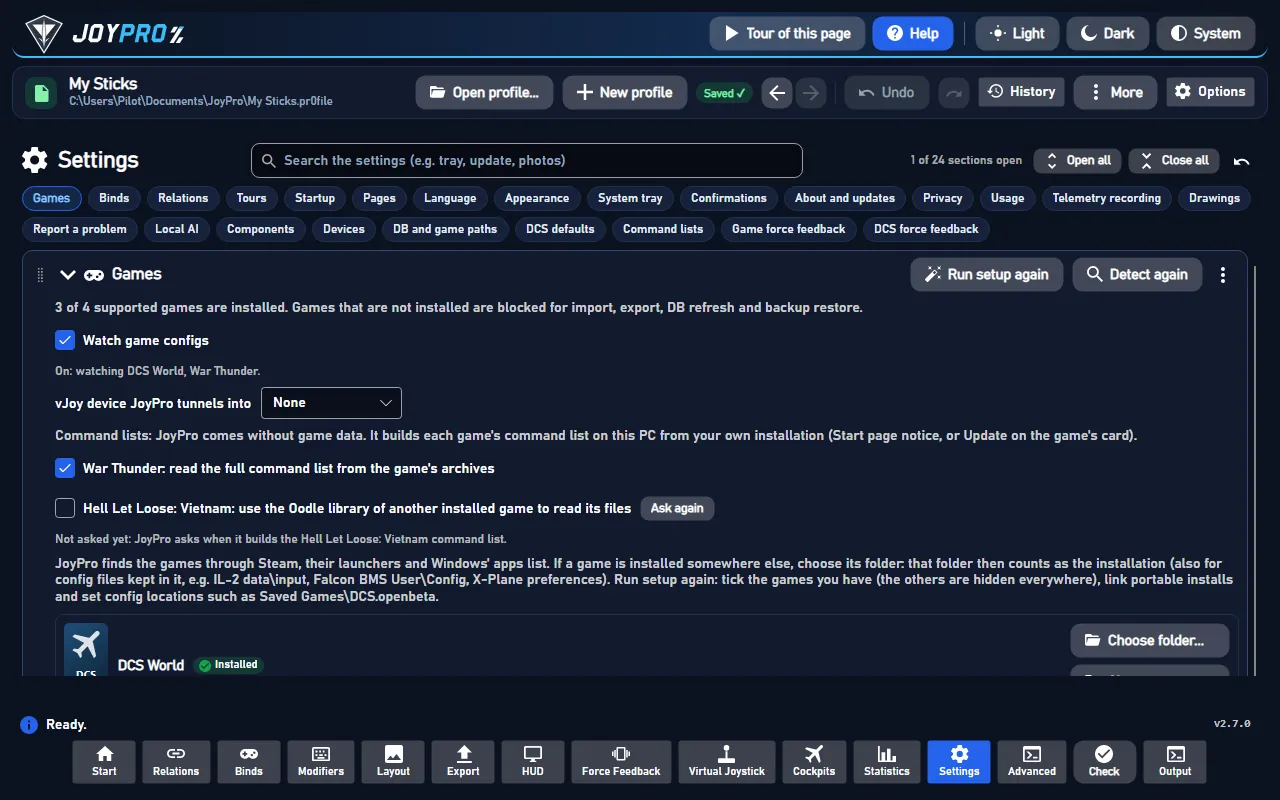
The Settings page holds every setting of JoyPro in 25 sections that open and close. A search box finds a setting by a
word ("tray", "update", "photos"), the tabs at the top jump to a section, and you can put the sections in your own
order. Every setting is kept at once and survives a restart; there is no Save button.
The Settings page with the Games section open
Search the settings: type a word ("tray"). Only the sections with a matching setting stay, and they open.
The tabs at the top jump to a section.
Drag a section's handle, or a tab, to put the sections in your order.
A setting you change is kept at once, on this PC. A few also change something else: your game folders, DCS files,
the local AI, the optional components. The force feedback settings go into the open profile.
Open a section: click its title. Open all / Close all at the top right open or close every section;
the small arrow next to them puts JoyPro's order back with only Games open.
Find a setting: type a word into Search the settings. Only the sections with a matching setting stay, and
they open. The x clears the search.
Your order: drag a section by its handle (or a tab at the top) to move it. JoyPro remembers which sections are
open and their order.
Settings take effect at once. A few say "at the next start" next to them.
The first start opens Games only; everything else is a click away. Most people only ever need Games,
Appearance, Language and About JoyPro and updates.
Section
What you set there
Games
Which games you have, linked folders, the game config watcher, the vJoy device JoyPro uses
Binds
Follow input, recording of buttons that rest pressed
Tours
The welcome, help mode (F1) and every tour, to start again
Startup
Open the last profile at start
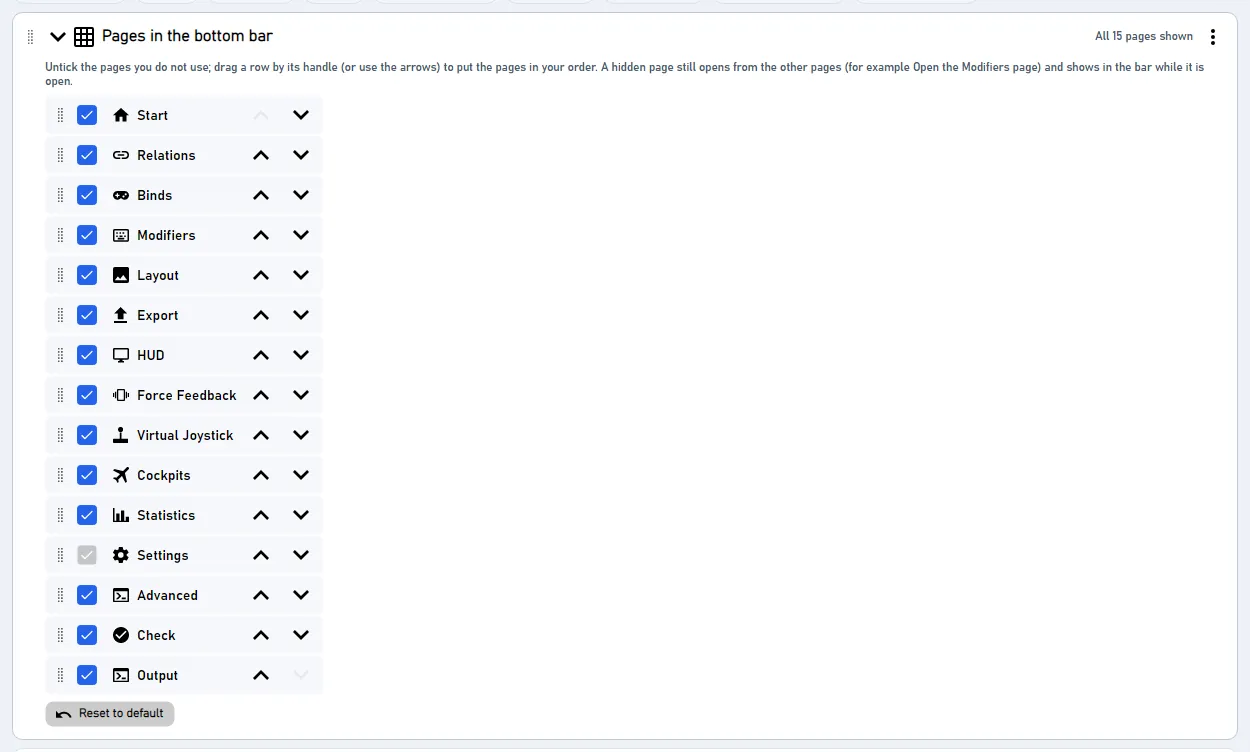
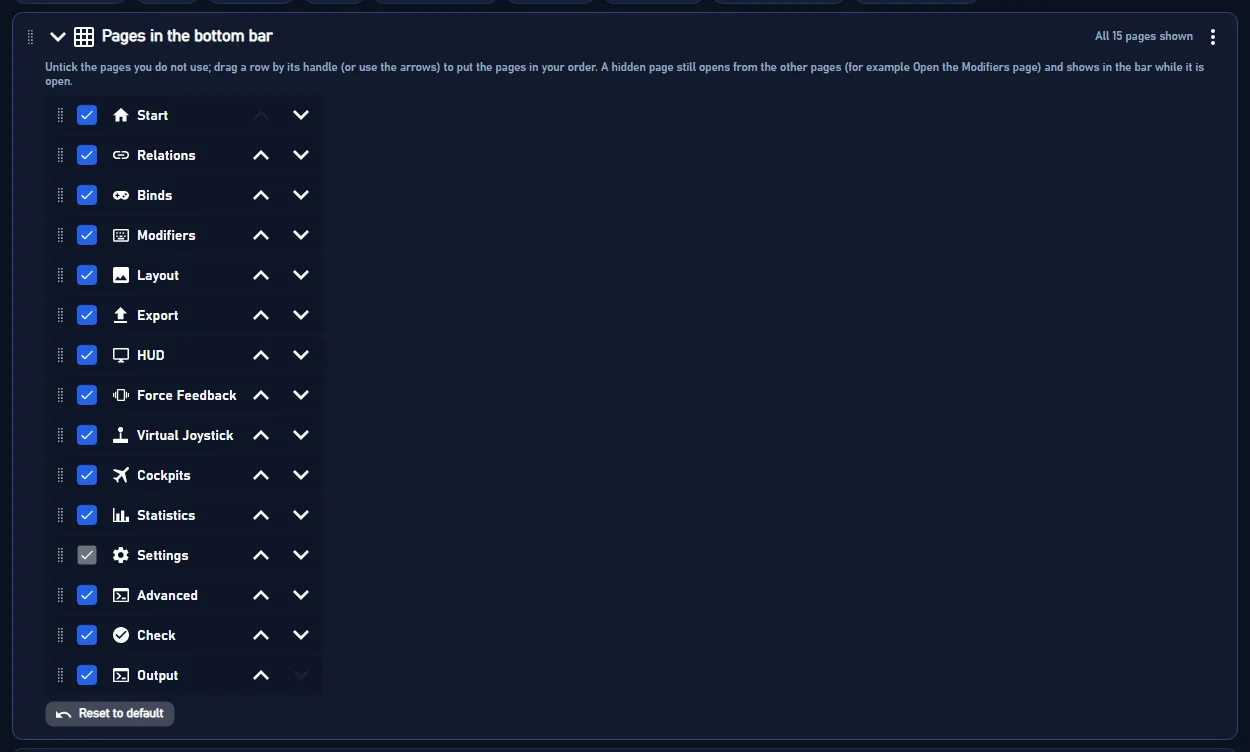
Pages in the bottom bar
Hide pages, change their order
Language
JoyPro's language
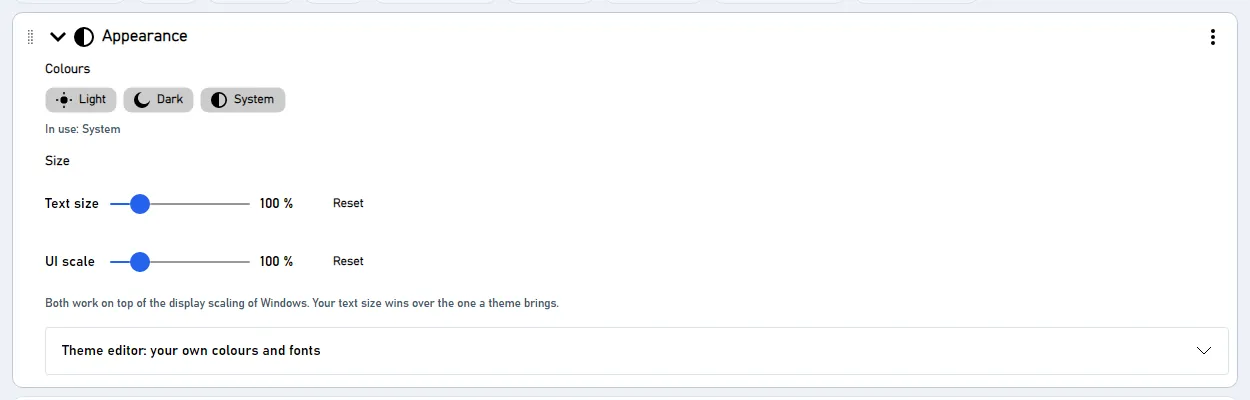
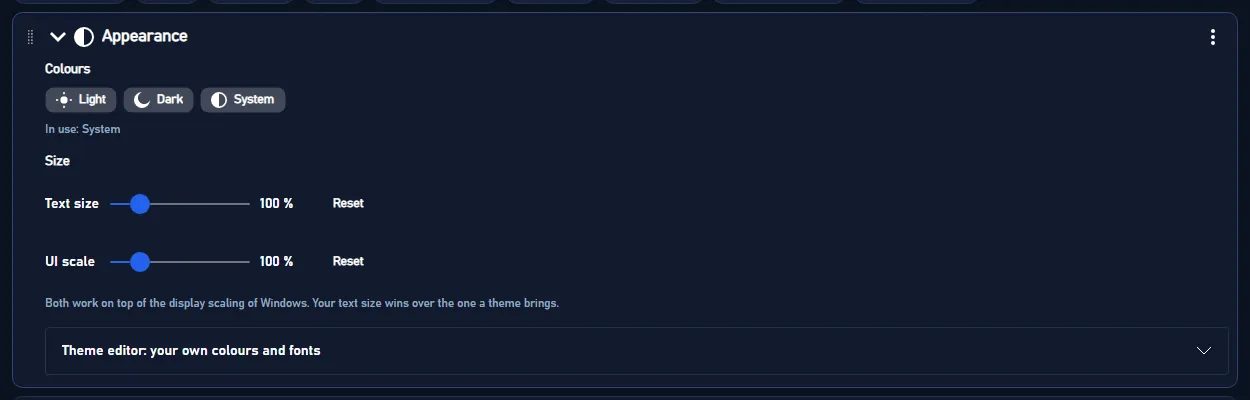
Appearance
Light, dark or your own colours, text size, UI scale, theme editor
Run in the background
The tray helper that keeps watching your games
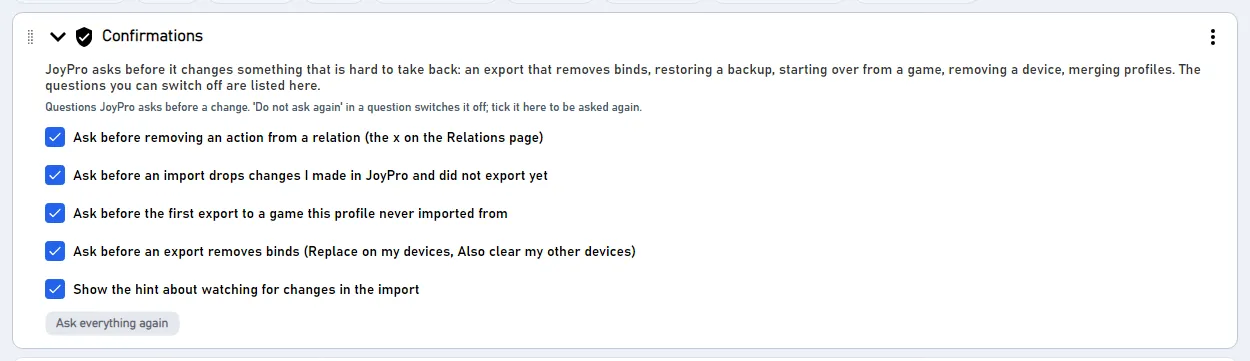
Confirmations
The questions JoyPro asks before a change
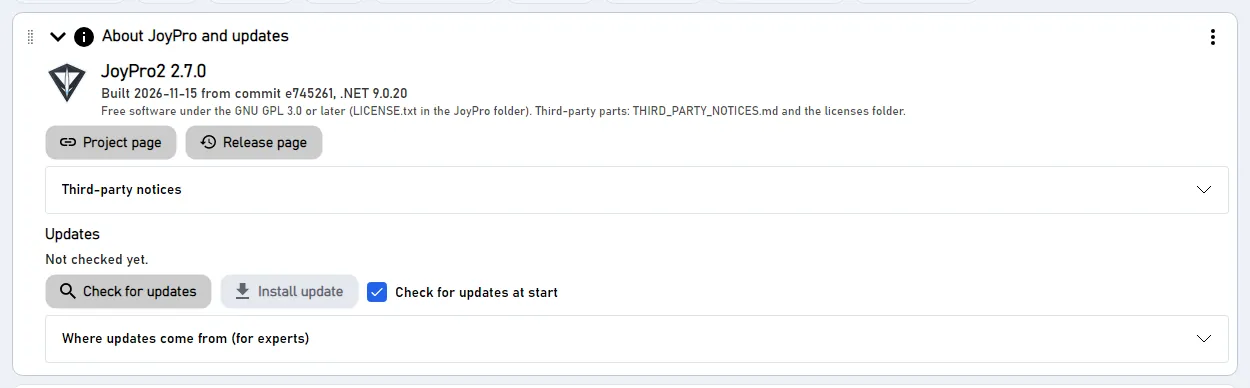
About JoyPro and updates
Version, project page, updates
Privacy
Makers' photos, picture packs, game covers
Usage statistics
The Statistics page, the ranking of your most used aircraft
Telemetry recording
Record your flights like Tacview
Drawings
How JoyPro draws your devices; reset your layout changes
Report a problem
One zip with everything needed to find a problem
Local AI
The optional language model
Components
vJoy, HidHide, ViGEmBus and other optional programs
Devices
Your devices, their names, replace or remove a device
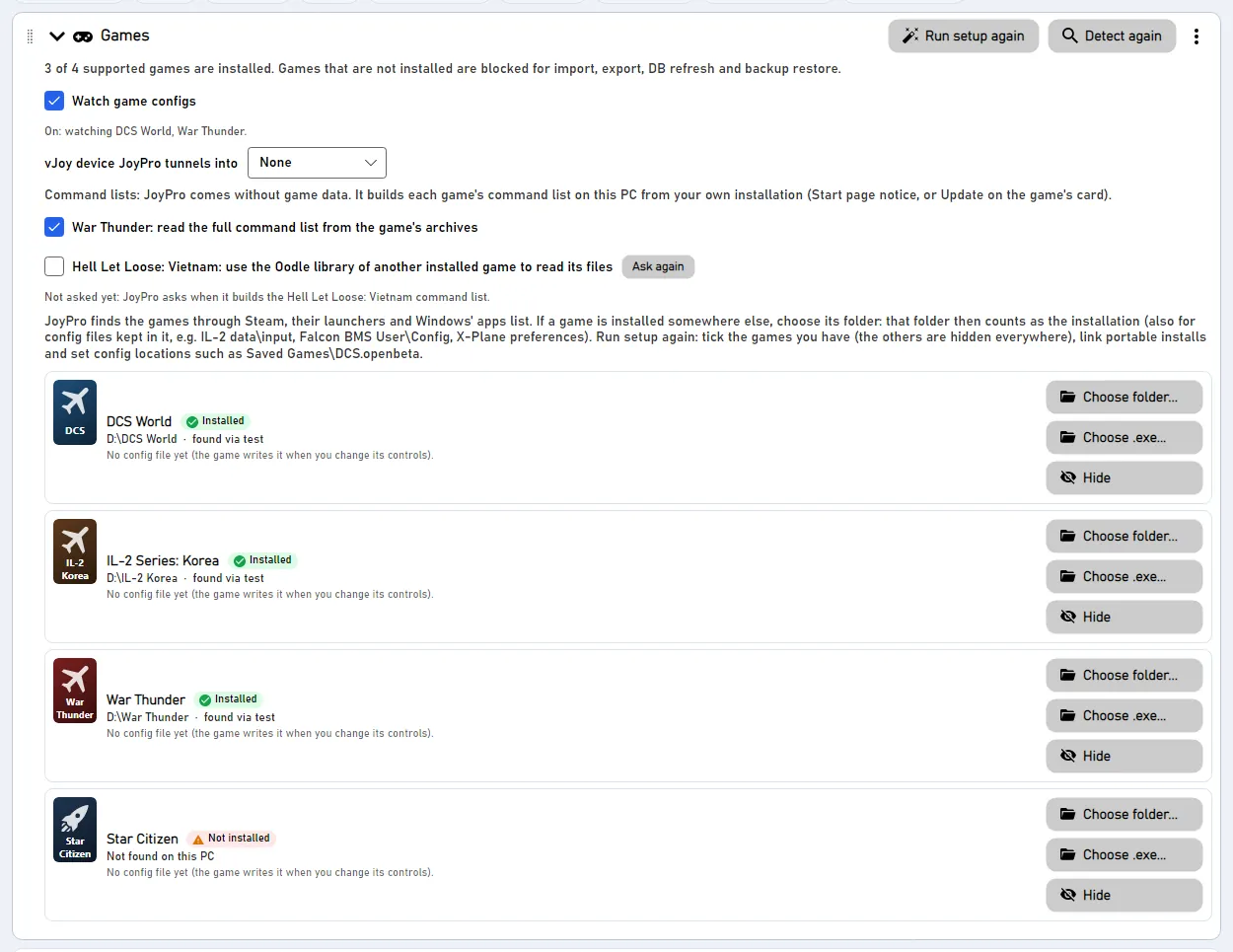
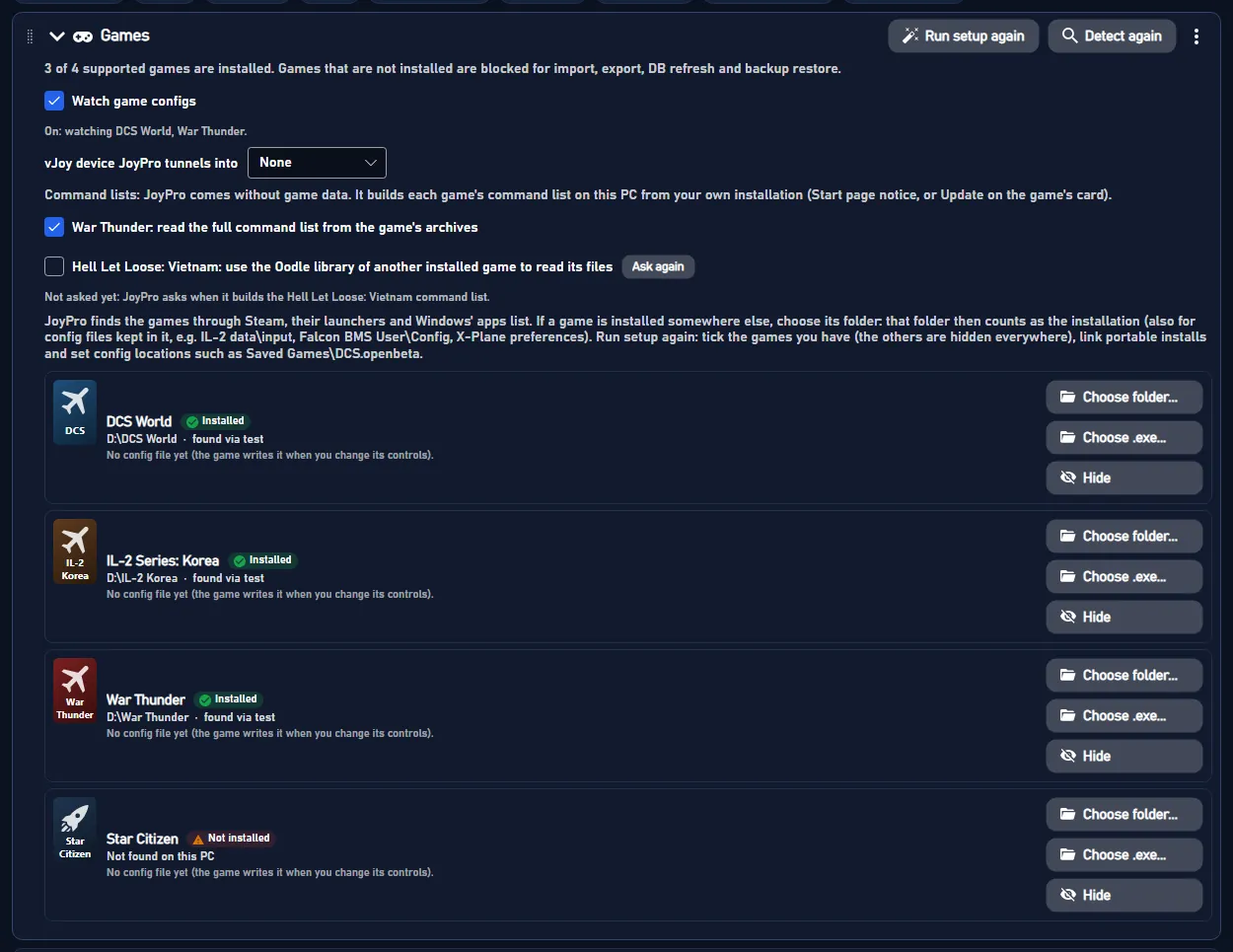
One card per game JoyPro supports and you have, with its cover, "Installed" or "Not installed", where it is and where
it keeps its controls.
Run setup again opens the first-start window again: tick the games you have, link
folders, set config locations. Detect again looks for the games once more (after you installed or moved one).
Watch game configs: when you change controls JoyPro manages inside a game, JoyPro asks after the game closed
whether to take the change into your profile (the game watcher).
vJoy device JoyPro tunnels into: None (default) treats every vJoy device as a normal device, for example one
VoiceAttack drives. A number tells JoyPro that this vJoy device carries JoyPro's own output
(Virtual Joystick): imports leave it out and exports never clear it.
War Thunder: read the full command list from the game's archives: on (default), JoyPro unpacks the game's
gui.vromfs.bin and lang.vromfs.bin read-only for every aircraft and helicopter action. Off: only JoyPro's own list of
the War Thunder actions it knows.
Hell Let Loose: Vietnam: use the Oodle library of another installed game: the game's files are compressed and it
ships no library to read them. With your yes JoyPro uses the one another game on this PC has, where it is. Off:
JoyPro's own list of the gamepad keys, which is all the Xbox pad mode needs. Ask again forgets your answer.
Per card: Choose folder... / Choose .exe... link the game's folder (a portable install, another drive); Use
detected forgets the link; Hide hides a game you do not have everywhere in JoyPro (your binds for it stay).
Hidden games are listed at the end with Show again.
In the game: Linked folders and hidden games
Nothing changes in a game here. A linked folder decides where import and export read and write; a hidden game gets no
export card and is not watched.
Follow input on the Binds and Relations pages: press a button (or move an axis a long way) and the page jumps to
its relation; press it again for the next relation on it. Not while recording or typing.
Show the note over the list when follow input jumps ("BTN 8 on WarBRD: Gear (1/3)"), off by default.
Record: also take a button that rests pressed when it is released: a 3-way switch's middle position or a mode
switch is pressed all the time; ticked, letting it go during recording counts as that button.
Your answer to the Setup wizard's question Do you use head tracking or VR? With head tracking (TrackIR, a face
tracking webcam, a Tobii eye tracker) or VR you look around by turning your head.
Yes: the setup puts no view buttons on your HOTAS in the flight sims, only a button to recenter the view.
No: looking around goes on a hat of your stick or throttle, with a high priority.
Open the last profile at start (on by default) opens the profile you had open last; the path is shown below. The
note explains the profile history: every change is saved by itself and every save is a version in History (top
bar). Old versions are thinned out: all of the last day, then one per hour for 7 days, one per day for 60 days, one per
week after that; at most 200 MB per profile and 1 GB for all. Versions you keep stay.
One row per page of the bottom bar. Untick a page you do not use; drag a row by its handle (or use the arrows) to
change the order. A hidden page still opens from other pages (for example Open the Modifiers page) and shows in the
bar while it is open. Settings cannot be hidden. Reset to default brings JoyPro's order back with every page shown.
Language of JoyPro: English and 38 other languages, or Windows language (the display language of Windows, or
English when JoyPro does not have it). The translations are made by a machine and may sound odd; game command names
stay as the game names them. The tray helper's menu follows the language.
Colours: Light, Dark or System (follows Windows), and your own themes with Use and Edit.
Text size (Ctrl+Plus, Ctrl+Minus, Ctrl+0) and UI scale (the whole window: texts, buttons, pictures,
spacing), both on top of Windows' display scaling; Reset next to each.
Theme editor: your own colours and fonts: New theme from Light / New theme from Dark start a theme;
Import... loads a theme file someone shared. Then name it, pick fonts, line spacing, heading size and every colour,
with a live preview of a small JoyPro page and a contrast check ("Some texts are hard to read" with Fix the
contrast). Use this theme, Save, Duplicate, Export..., Reset colours and Delete are below the
colours.
JoyPro can only notice that you changed controls in a game while it runs. A tiny helper keeps watching as an icon in
the system tray after you closed JoyPro; it uses no noticeable CPU and a few MB of memory.
Start with Windows (in the tray): the helper starts when you sign in; JoyPro's window does not open. No
administrator rights needed.
Close to tray: closing JoyPro (X) leaves the helper watching. Off: closing JoyPro ends the watching too.
Tray icon: click to open JoyPro (or to review a game's changes); right-click for "Watching game configs" on or off
and "Exit".
JoyPro asks before a change that is hard to take back. The questions you can switch off are listed here: removing an
action from a relation, an import that drops changes you did not export yet, the first export to a game the profile
never imported from, an export that removes binds, and the watcher hint in the import. A question you switched off
with "Do not ask again" shows here unticked; Ask everything again turns them all back on.
The version, the build and the licence line, Project page and Release page, the third-party notices, and the
updates: Check for updates, Install update (downloads the new version, checks it, installs it and restarts
JoyPro), Check for updates at start, and Offer it again for a version you skipped. "Where updates come from
(for experts)" names the GitHub repository whose releases JoyPro installs.
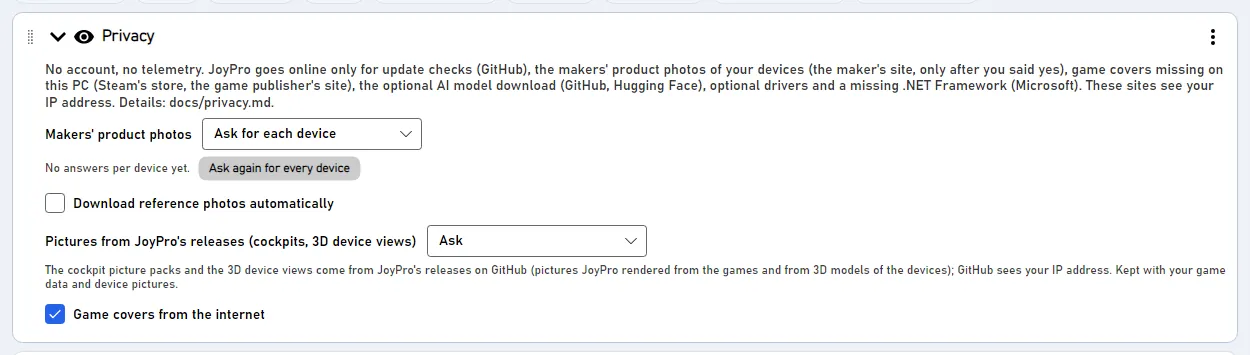
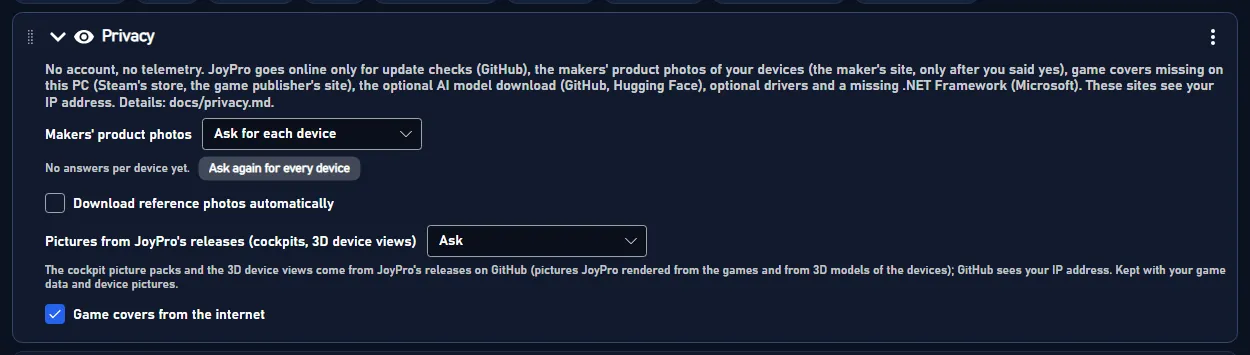
JoyPro has no account and no telemetry. It goes online only for update checks, makers' product photos (after you said
yes), game covers missing on this PC, the optional AI model download, optional drivers and a missing .NET Framework.
Makers' product photos: Ask for each device (default), Always download, Never (only JoyPro's drawings). Ask
again for every device forgets your per-device answers.
Download reference photos automatically: a device's reference photos are fetched in the background when it
appears (from the original address, or the web archive), checked and kept in your data folder. Off: JoyPro offers
them and waits for your click.
Pictures from JoyPro's releases (cockpits, 3D device views): Ask, Always download or Never. Used by the
Cockpits page and the 3D device views of the Layout page.
Game covers from the internet: covers Steam has no picture of on this PC are downloaded once. Takes effect at the
next start.
JoyPro notes which games, aircraft and ships you use, from the games' own logs and Steam's playtime, and keeps a summary
on this PC.
Show the Statistics page in the bottom bar (off by default): the Statistics page.
Lay out new aircraft like my most used one: Auto Assign, Auto Group, the Setup wizard and Lay out with AI give an
aircraft you have not flown yet the layout of your most used aircraft of its class (jets, helicopters, spaceships).
Read the games' logs now reads what your games logged since the last time.
The ranking "Most used aircraft, ships and vehicles" and "Most used games": Pin makes an aircraft the model for
its class; Exclude leaves it out of the ranking.
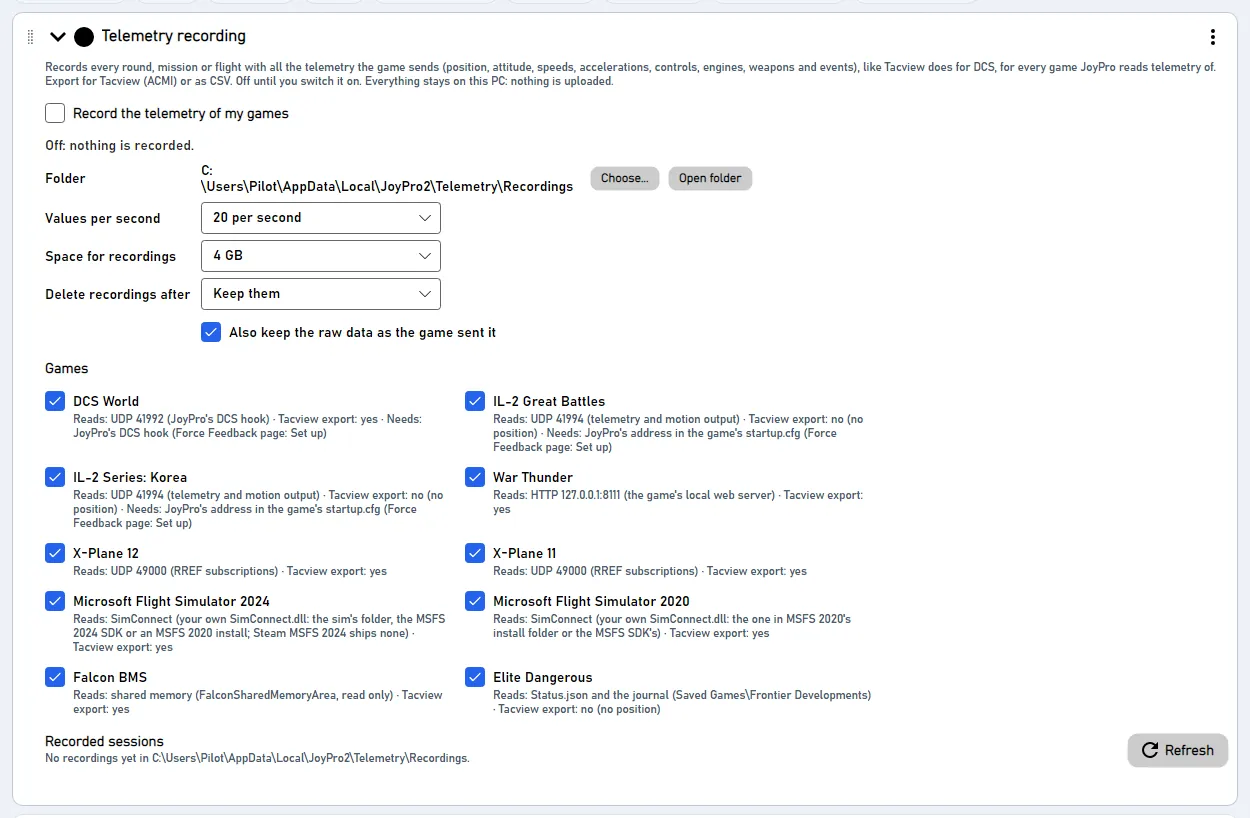
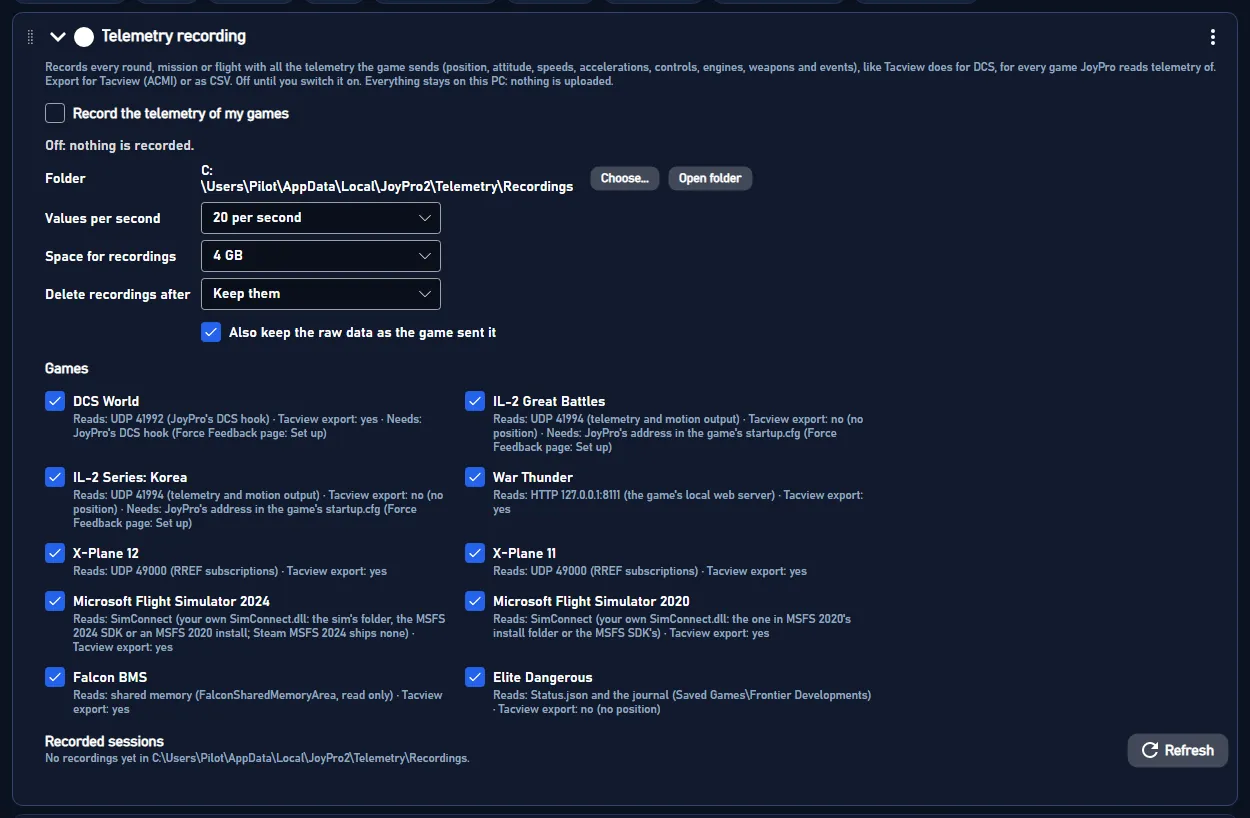
Records every round, mission or flight with all the telemetry the game sends (position, attitude, speeds, controls,
engines, weapons, events), like Tacview does for DCS, for every game JoyPro reads telemetry of.
Record the telemetry of my games (off by default), the Folder (Choose..., Default folder, Open
folder), Values per second, Space for recordings (the oldest go first), Delete recordings after, and
Also keep the raw data as the game sent it (about twice the size).
Games: tick the games to record.
Recorded sessions: date, game, aircraft, length and size, a small timeline of the selected one, Show in
folder, Export for Tacview (ACMI), Export CSV and Delete.
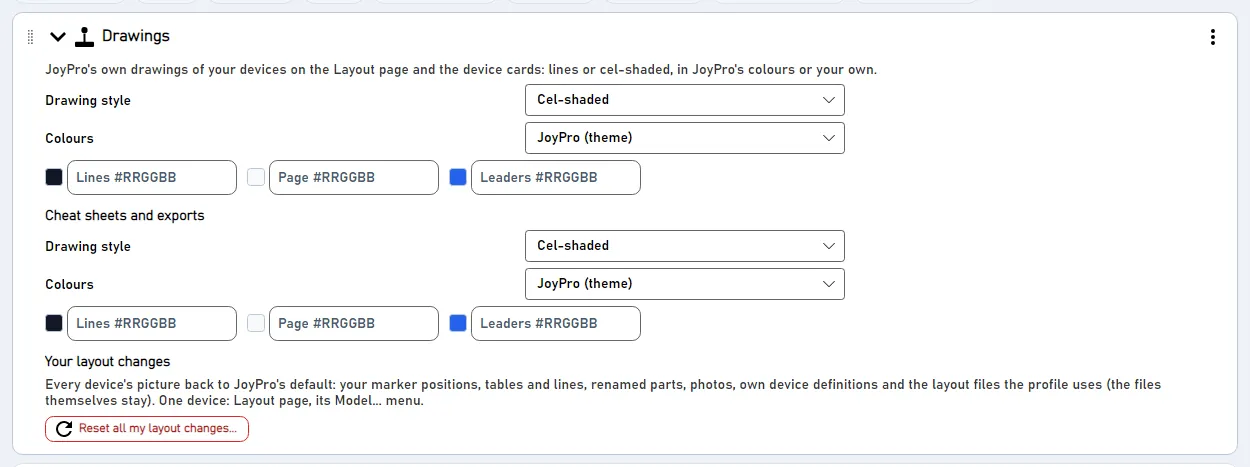
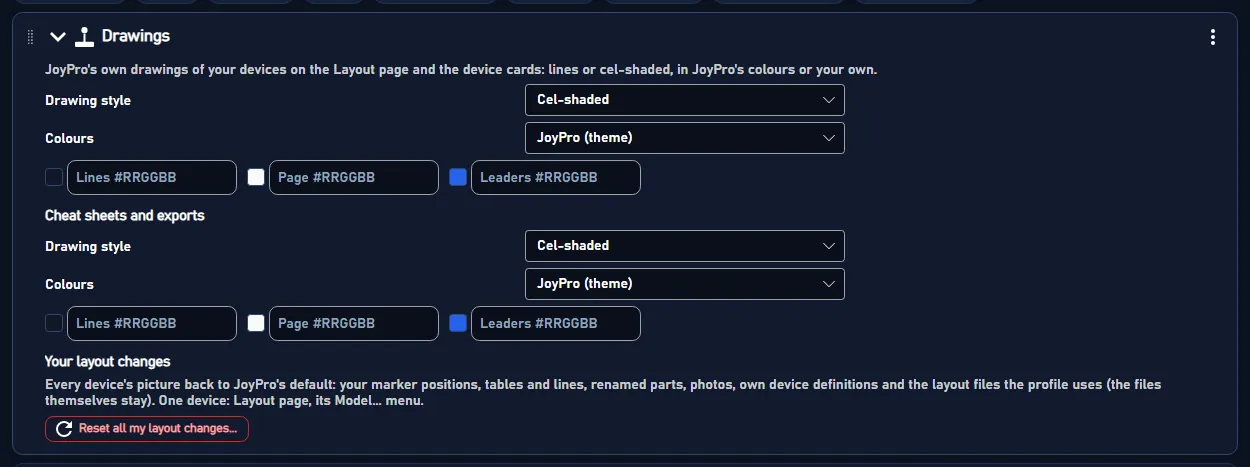
How JoyPro draws your devices on the Layout page and the device cards (lines or cel-shaded, JoyPro's colours or your
own), separately for the screen and for cheat sheets and exports. Reset all my layout changes... puts every
device's picture back to JoyPro's default (your marker positions, tables and lines, renamed parts, photos, own device
definitions and the layout files the profile uses; the files themselves stay); Undo reset right after brings them
back. One device alone: the Layout page, its Model... menu. The drawing controls are explained on
Layout.
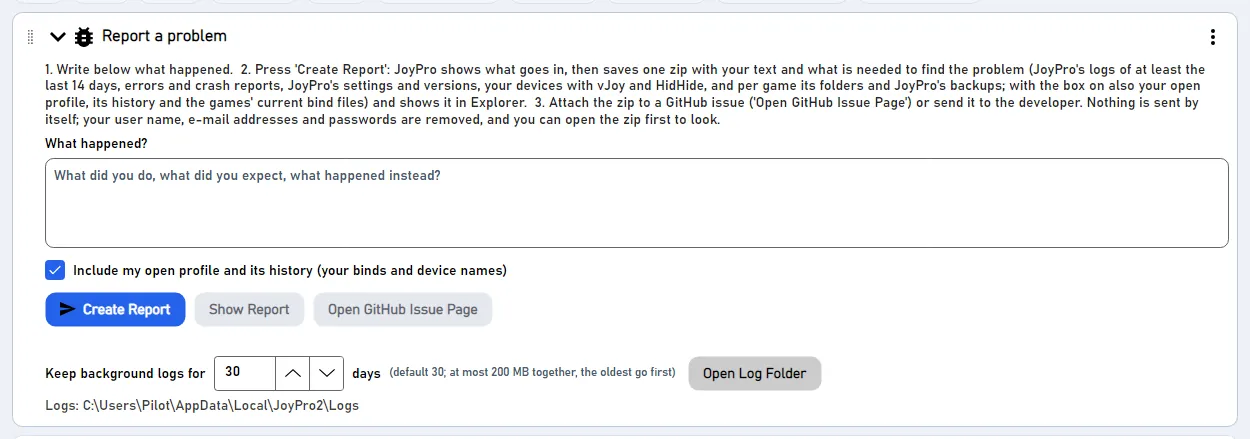
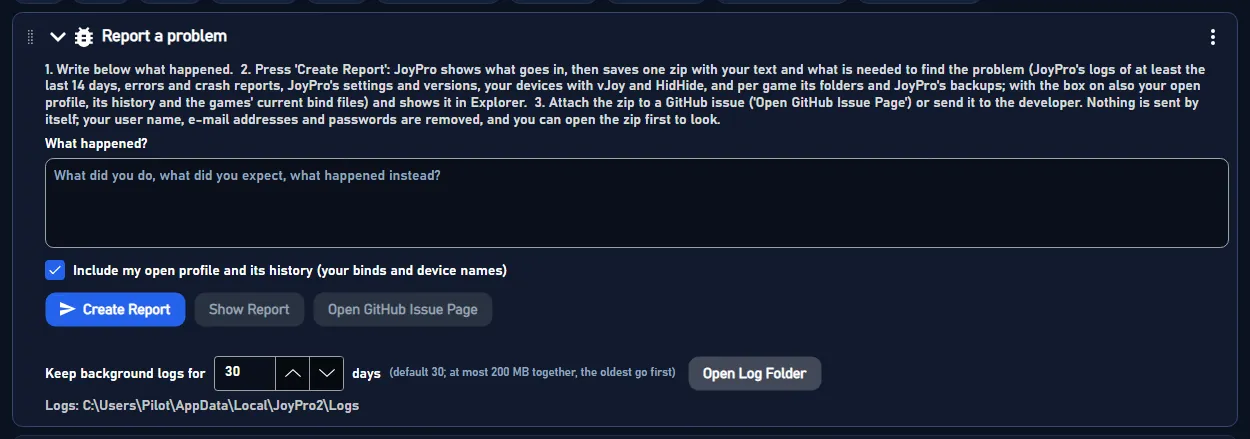
Create Report: JoyPro shows what goes in, then saves one zip with your text and what is needed to find the
problem (JoyPro's logs of at least the last 14 days, errors and crash reports, settings and versions, your devices,
per game its folders and JoyPro's backups; with Include my open profile and its history also your profile, its
history and the games' current bind files) and shows it in Explorer. Your user name, e-mail addresses and passwords
are removed.
Attach the zip to a GitHub issue (Open GitHub Issue Page) or send it to the developer. Nothing is sent by itself.
Keep background logs for n days (default 30; at most 200 MB together) and Open Log Folder are below.
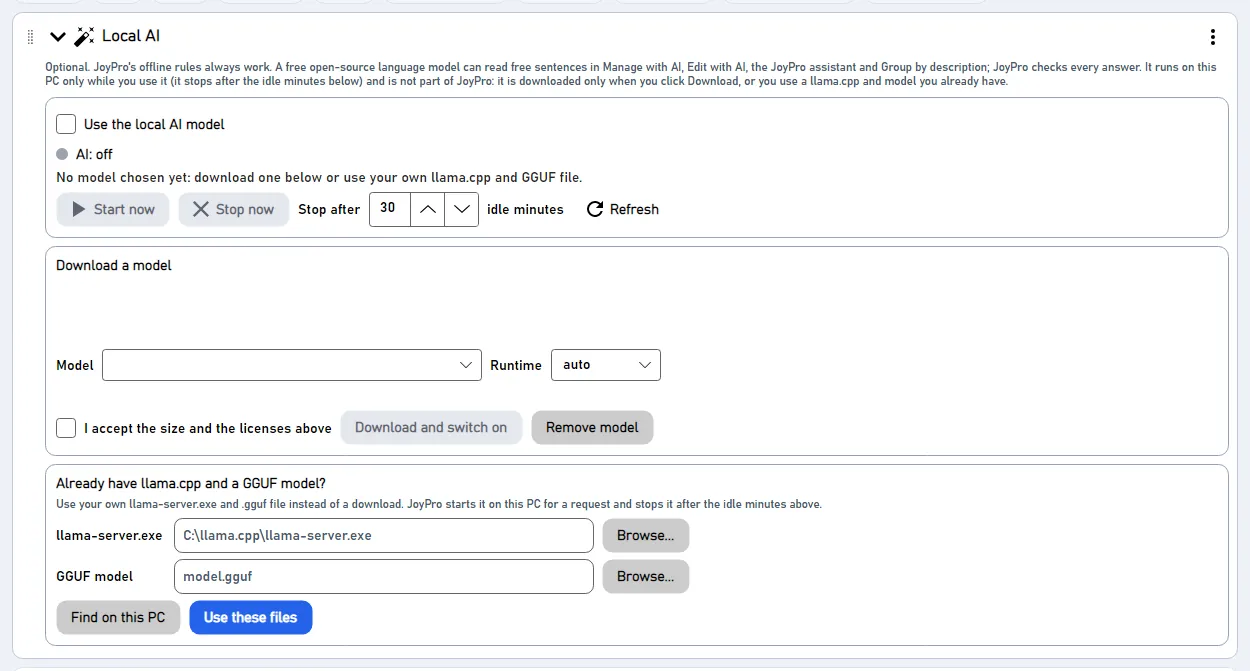
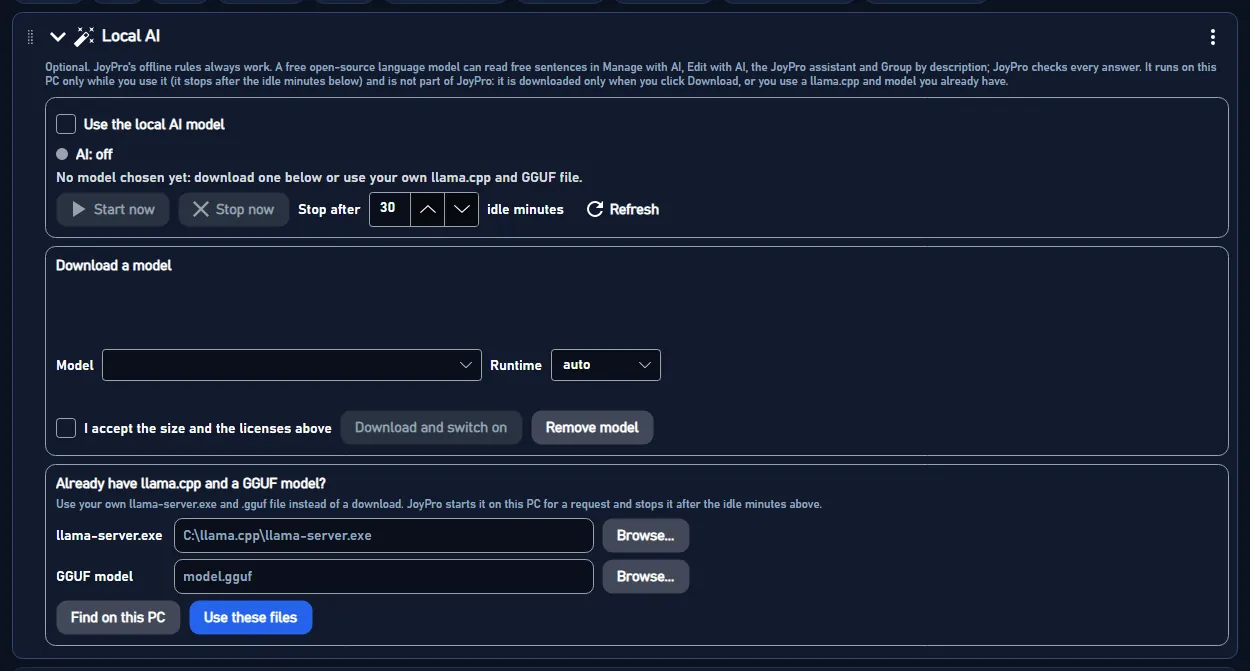
Optional. JoyPro's offline rules always work; a free open-source language model can additionally read free sentences
in Manage with AI, Edit with AI, the JoyPro assistant and Group by description, and JoyPro checks every answer. It runs
on this PC only while you use it.
Use the local AI model, its status (loaded, ready, off, problem), Start now, Stop now, Stop after n
idle minutes, Refresh.
Download a model: the model and runtime (auto, cpu, vulkan, cuda), its size and licences, I accept the size and
the licenses above, Download and switch on, Cancel download, Remove model.
Already have llama.cpp and a GGUF model?: the paths to llama-server.exe and the .gguf file, Find on this
PC, Use these files, Stop using them.
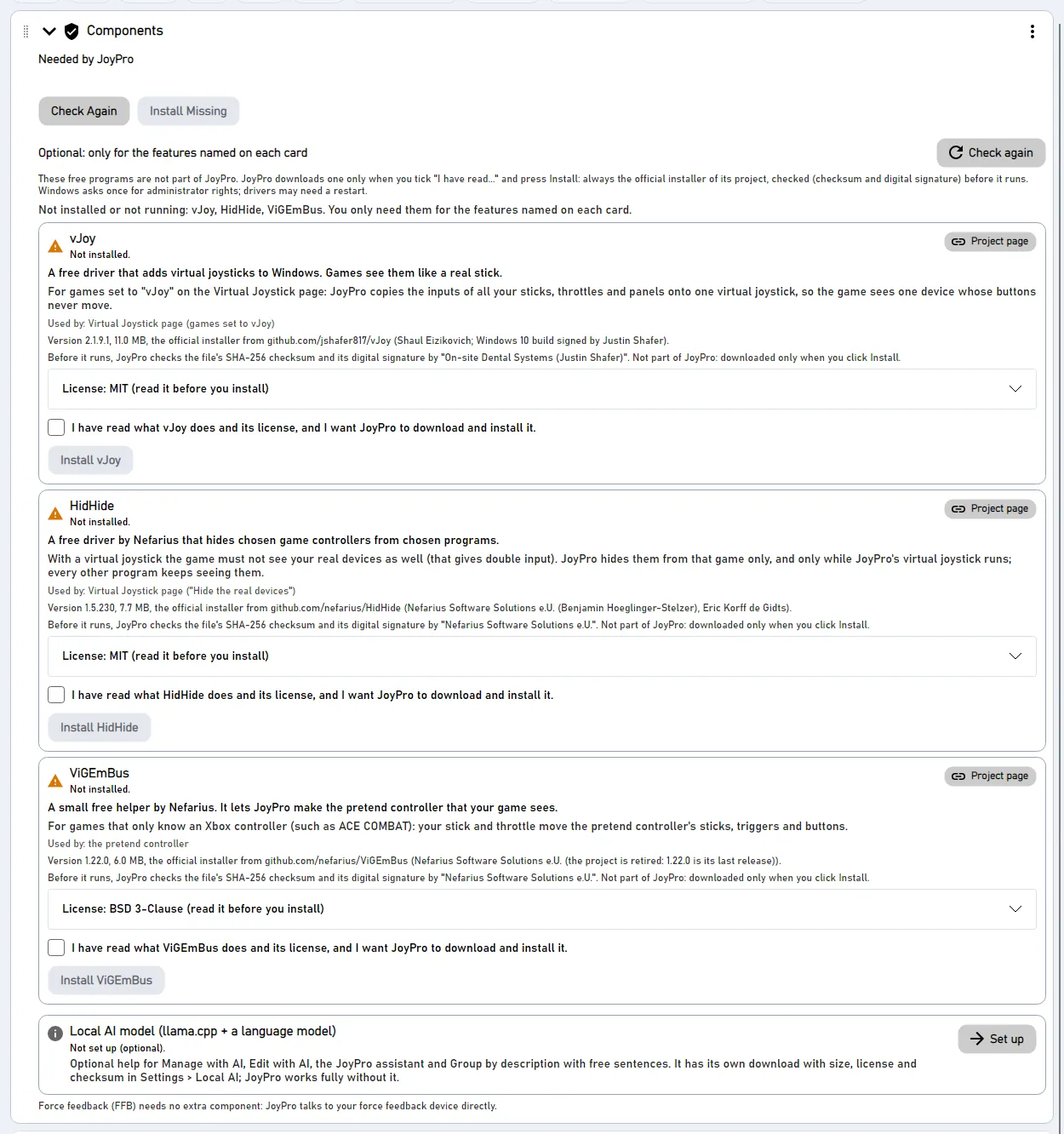
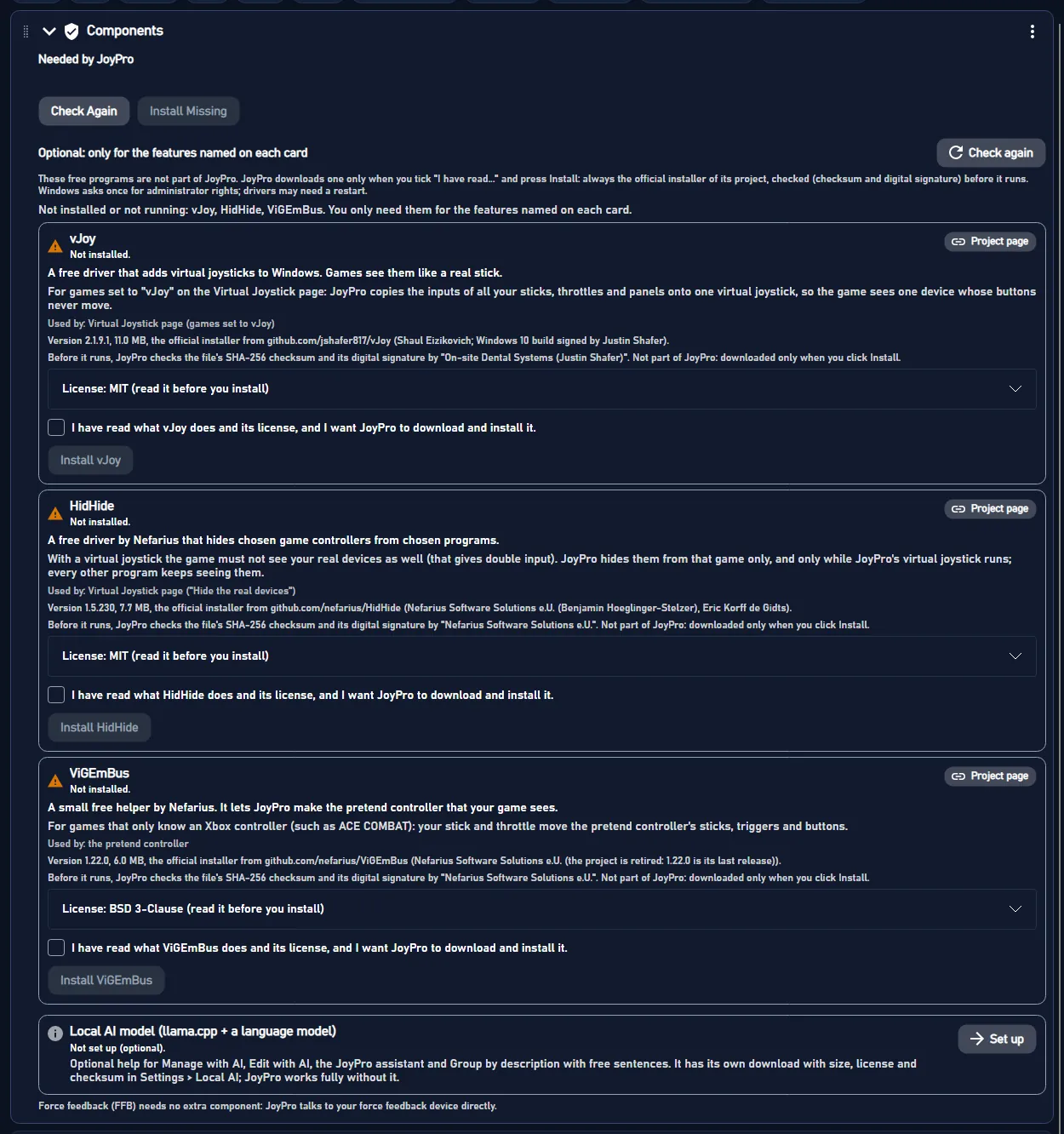
Needed by JoyPro: the .NET Framework and the engine's files, with Check Again and Install Missing.
Optional: one card per free program that is not part of JoyPro: vJoy (virtual joystick), HidHide (hides real
devices from games), ViGEmBus (virtual Xbox pad), BYOJoystick for VTOL VR, and the local AI model. Each card says
what it is for, its state, Project page, Windows apps (repair or uninstall), its licence, the tick "I have
read..." and Install. JoyPro downloads the official installer only after your tick, checks it and runs it;
Windows asks once for administrator rights. Force feedback needs no extra program.
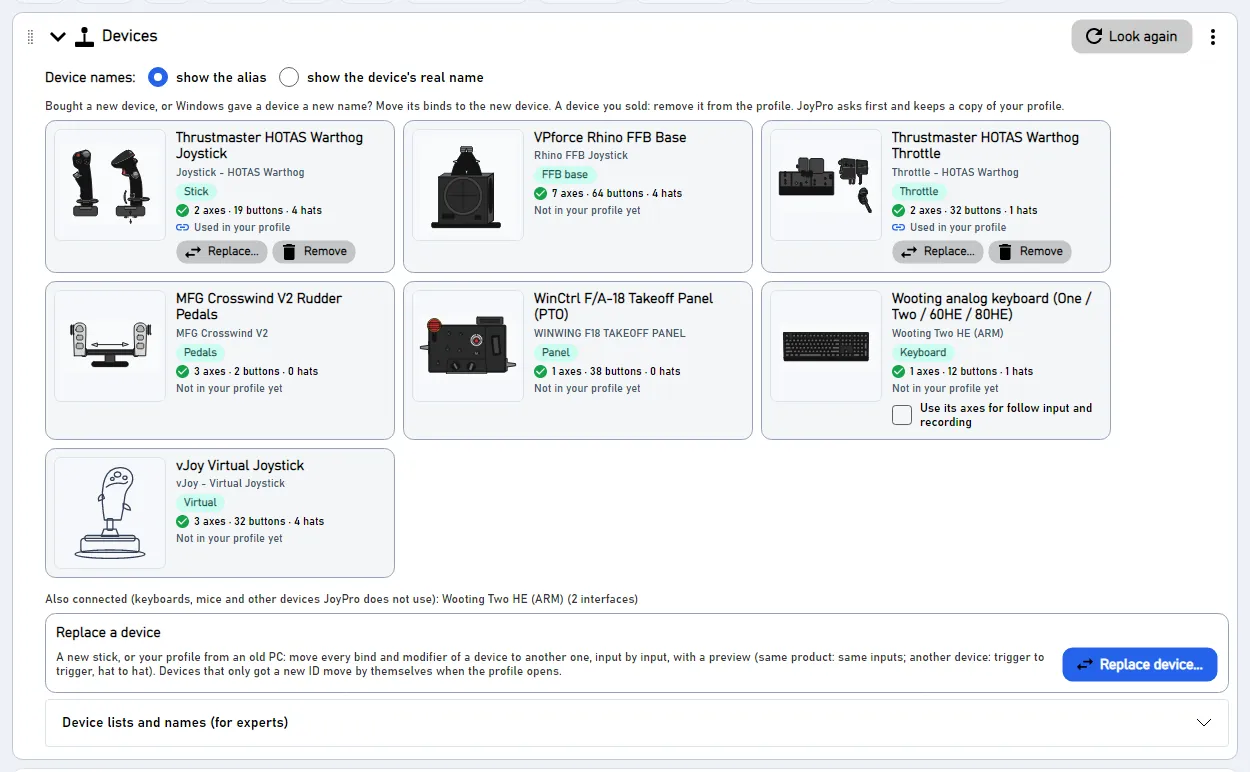
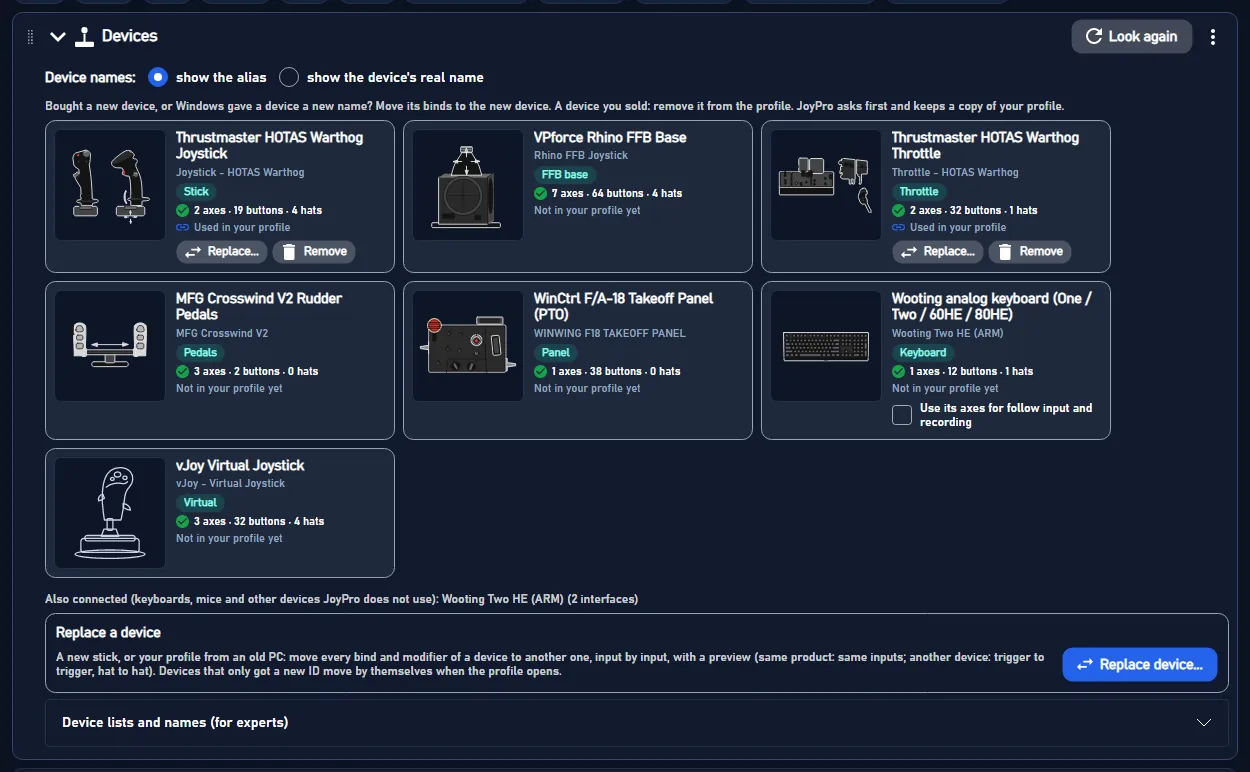
Look again shows a card per connected stick, throttle and pedals and per device your profile uses: its picture
(click it to open the device on the Layout page), name, connected or not, and how many binds it has.
Device names: show the alias you gave on the Layout page, or the device's real name.
Use its axes for follow input and recording: for analog keyboards, whose keys also report as axes.
Replace... gives a device's binds to another device, input by input, with a preview (a new stick, a profile from
an old PC); Move binds there asks first and keeps a copy of the profile. Remove takes a sold device's binds
out of the profile; it asks first and keeps a copy of the profile too.
"Device lists and names (for experts)": List Devices, Input Catalog, Device Details, and the old
Exchange Device / Remove Device Refs by typed names.
#Command lists (DB) and game paths: information for experts
Settings > Command lists and game paths
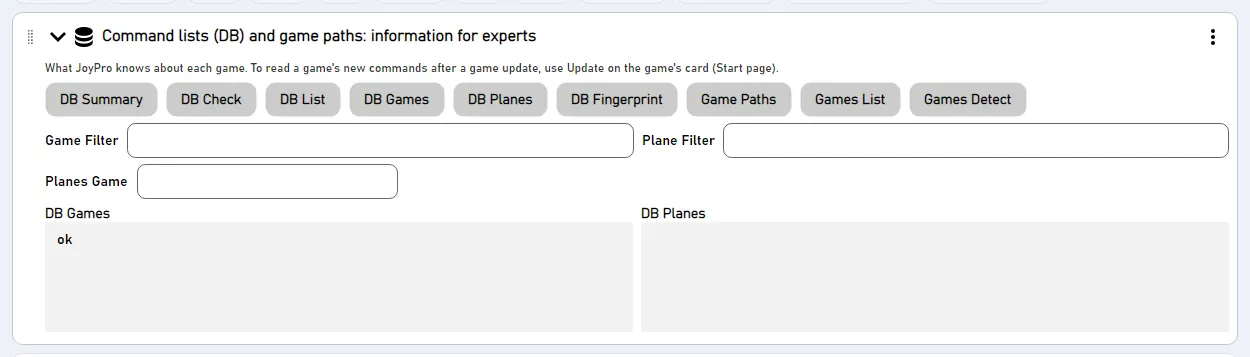
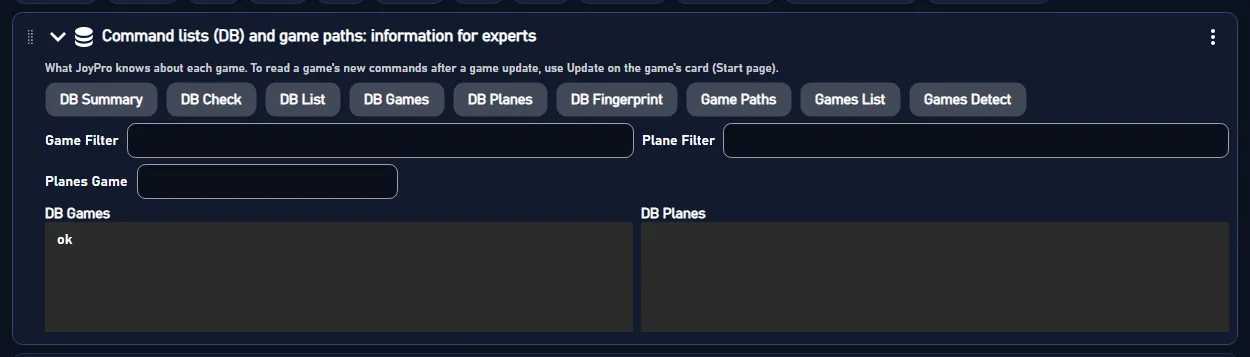
Read-only answers in the Output panel about what JoyPro knows of each game: DB Summary, DB Check, DB List,
DB Games, DB Planes, DB Fingerprint, Game Paths, Games List, Games Detect, with filters for a
game and an aircraft. To read a game's new commands after an update, use Update on the game's card on the Start
page.
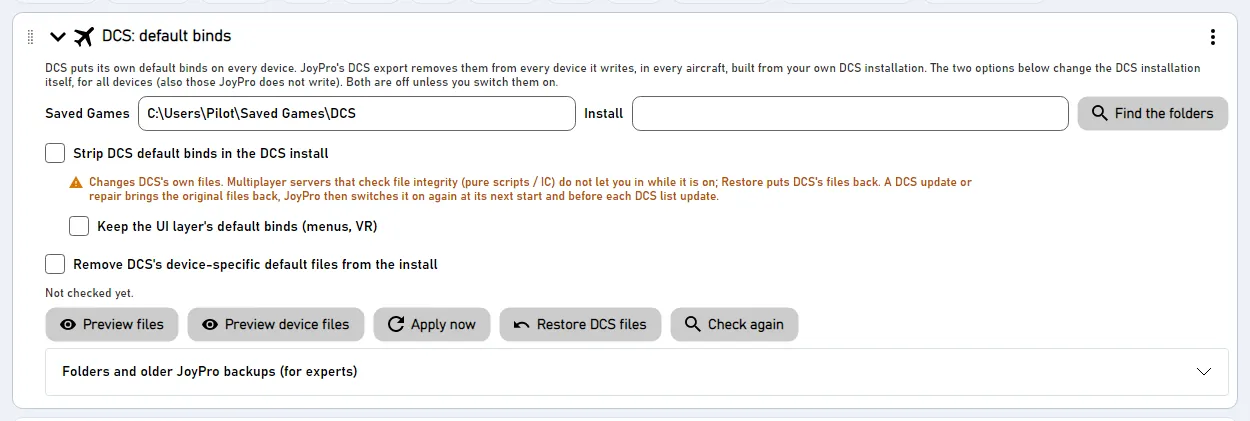
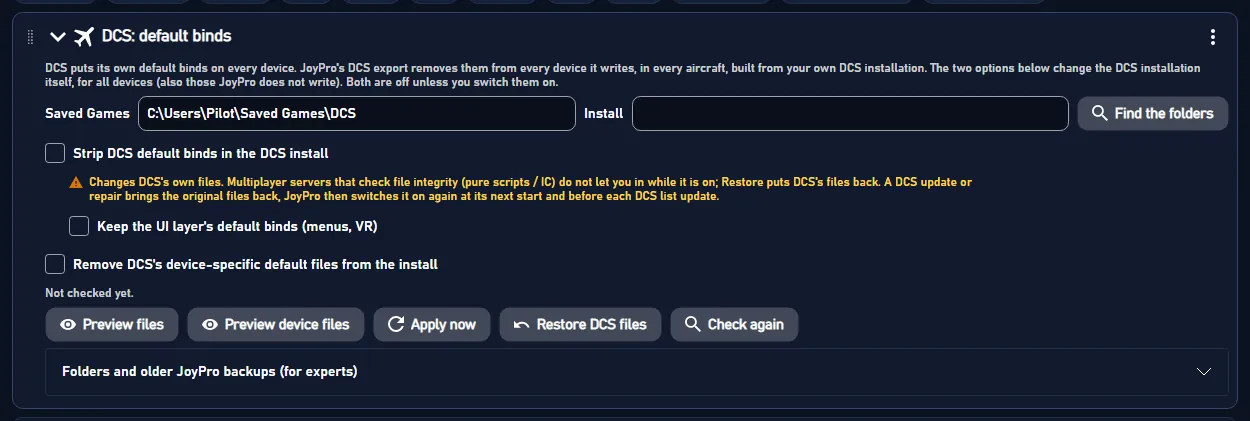
DCS puts its own default binds on every device. JoyPro's DCS export already removes them from every device it writes,
in every aircraft. The two options here change the DCS installation itself, for all devices; both are off unless
you switch them on.
Strip DCS default binds in the DCS install: every joystick input file of DCS gets its default binds switched off;
each original is kept as <file>.nocombo.bak. Keep the UI layer's default binds (menus, VR) leaves the UI layer
as it is.
Remove DCS's device-specific default files from the install: files such as "Joystick - HOTAS Warthog.lua" move
into JoyPro's backup folder, so DCS uses its plain default for every device.
Preview files, Preview device files, Apply now (again after a DCS update), Restore DCS files, Check
again; the folders and Find the folders; under "Folders and older JoyPro backups": Put back files an older
JoyPro moved.
Careful
These options change DCS's own files. Some multiplayer servers do not let you in while they are on; Restore DCS
files puts DCS's files back. A DCS update or repair brings the original files back; JoyPro switches the option on
again at its next start.
#Command lists of DCS, Star Citizen and IL-2 (for experts)
Settings > Command lists of DCS, Star Citizen and IL-2
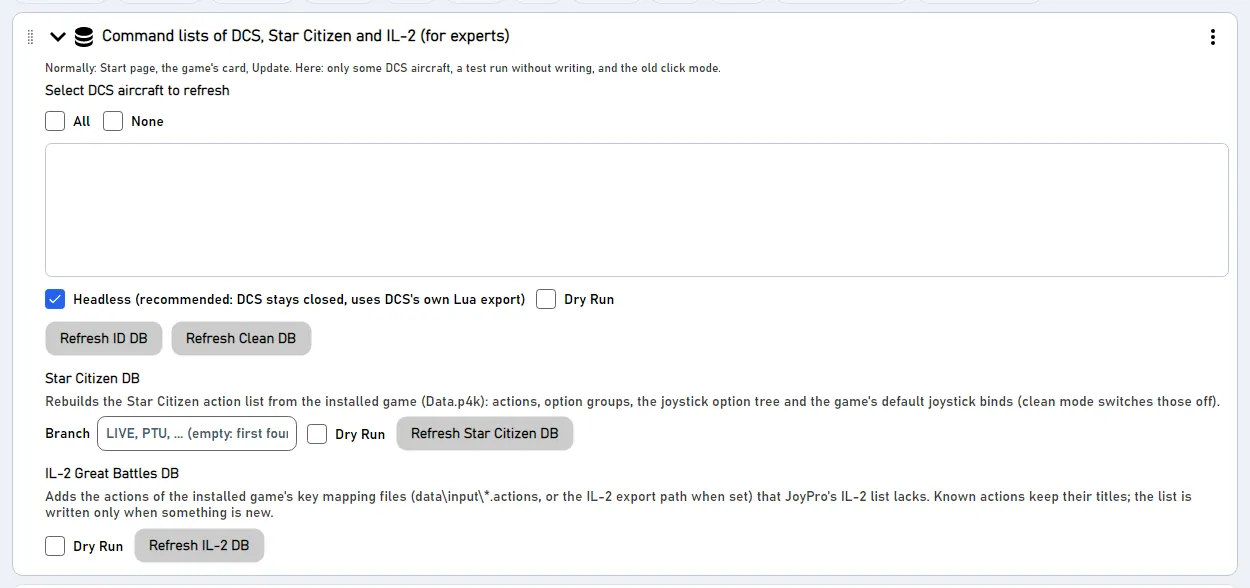
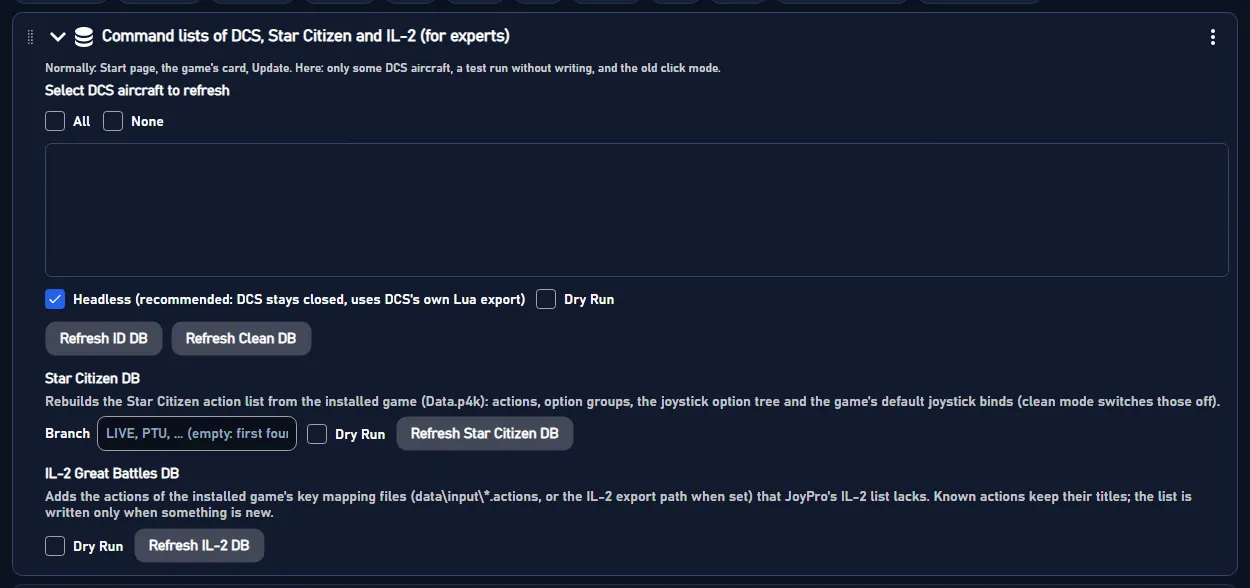
Normally a game's list is built with Update on its card on the Start page. Here: only some DCS aircraft, a test run
without writing, and the old click mode.
DCS: pick aircraft (All / None), Headless (recommended: DCS stays closed and JoyPro uses DCS's own
Lua), Dry Run, Refresh ID DB, Refresh Clean DB; without Headless the legacy click mode with OCR,
Launch, Keep Running and Preview Clicks.
Star Citizen DB: the game branch (LIVE, PTU, ...), Dry Run, Refresh Star Citizen DB.
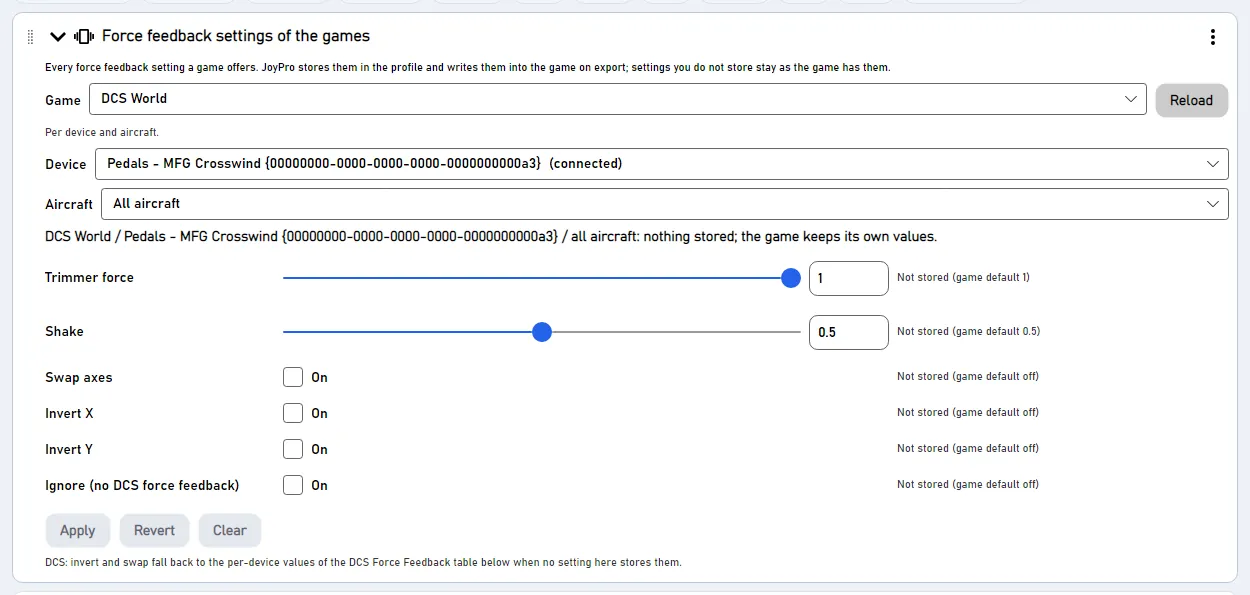
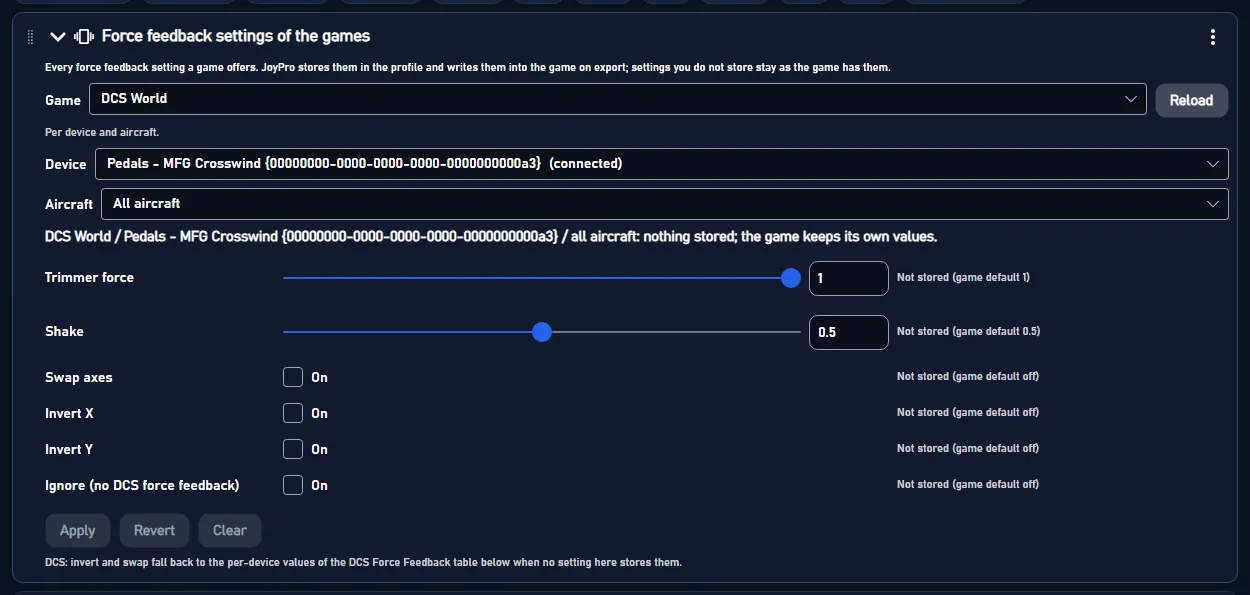
Every force feedback setting a game offers (strength, effects, per device and, in DCS, per aircraft). JoyPro stores the
values you set in the profile and writes them into the game on export; settings you do not store stay as the game has
them. Pick the Game, the Device and the Aircraft (All aircraft, or one aircraft whose values win), change
values, then Apply. Revert drops unapplied changes, Unset on a row stops storing one setting, Clear
removes every stored setting shown. The telemetry force feedback of JoyPro itself is on the
Force Feedback page.
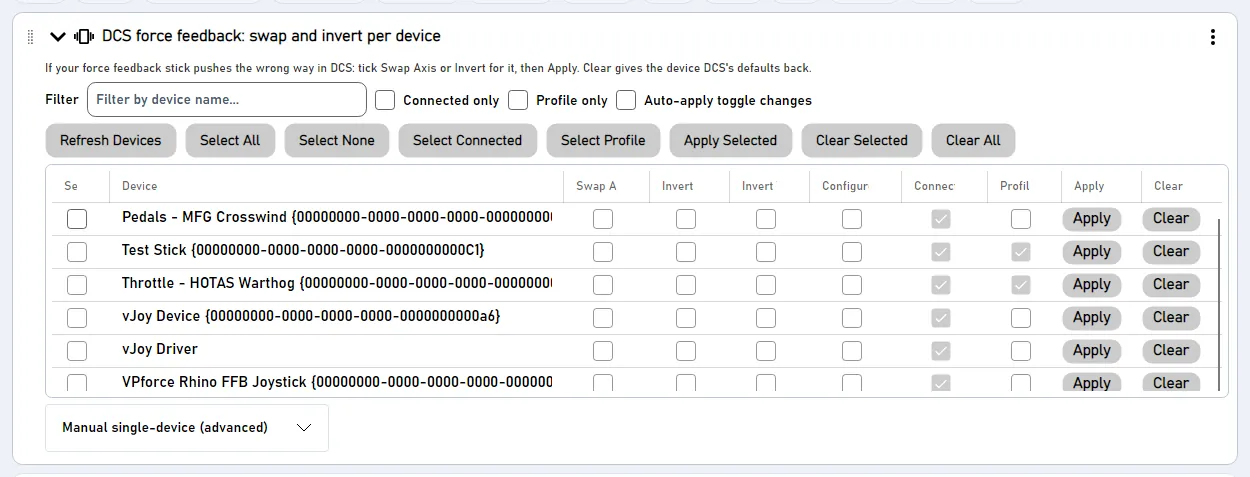
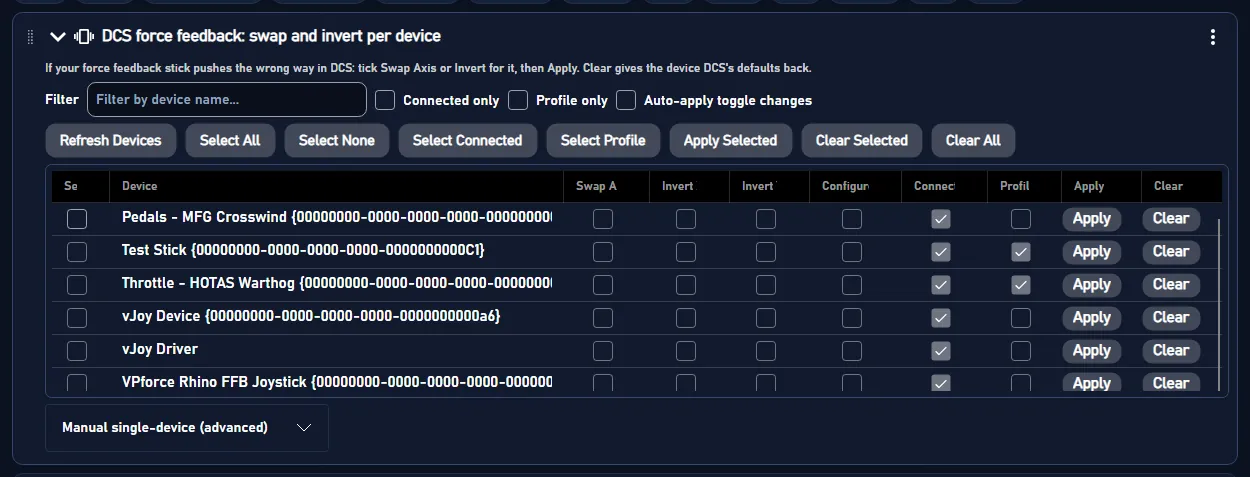
If your force feedback stick pushes the wrong way in DCS: tick Swap Axis, Invert X or Invert Y for it,
then Apply. Clear gives the device DCS's defaults back. A table of devices with filters (Connected only,
Profile only), selection buttons and Apply Selected / Clear Selected / Clear All; "Manual single-device
(advanced)" sets one device by name.
In the game: Swap and invert
DCS reads the force feedback direction per device at start: a swapped or inverted device pushes the other way in every
aircraft.
Games and the first-start window are two views of the same data: a link set in one shows in the other.
A game hidden in Games disappears from the Start page, the Export cards, the watcher, the game backups and every
game list; its relations stay in the profile and come back with Show again.
Watch game configs and the tray options work together: with Close to tray the helper keeps watching after
JoyPro closed and opens JoyPro on the game's changes.
The vJoy tunnel device should match the device chosen on the Virtual Joystick page; then
imports never pick up JoyPro's own output as binds and Also clear my other devices never empties it.
Report a problem replaces copying logs by hand: the zip has the session log of the
Output panel, the engine's logs and, when you allow it, the profile and its history.
Confirmations that matter most for safety are the export ones; switching them off makes Replace and nuke exports
run without a question (the game files are still backed up; Undo last export on the Export page restores them).
The Local AI status is the same line every AI action of JoyPro shows (the chip "Local AI: off - Turn on" next to
Manage with AI, the assistant, Fix with AI on the Check).
Force feedback settings of the games and DCS force feedback both end up in DCS: invert and swap fall back to
the per-device values of the DCS table when no game setting stores them.
PC settings: %APPDATA%\JoyPro2\ui-settings.json (window, pages, open sections and their order, theme, language,
confirmations, privacy answers, tray, local AI choices ...), written at once on every change; themes as JSON files next
to it. View model: MainWindowViewModel.SettingsPage.cs (sections, search, order; SettingsSectionDefaults holds the
ids, titles and search keywords), controls Views/Controls/SettingsSection.cs, SettingsSectionsPanel.cs,
SettingsTabStrip.cs.
190 controls, read from the program’s source: 190 written, 0 with the facts from the source (tooltip, code comment, engine call), 0 still to be expanded.
Tooltip Repair or uninstall: opens Windows' Installed apps list, where the component's own uninstaller is
On a component card that is installed: opens Windows' Installed apps list. Repair or uninstall the component there
with its own uninstaller; JoyPro does not remove components itself.
From the code Repair or uninstall: Windows' own apps settings (each component's uninstaller is listed there).
Tick this to say yes: JoyPro may download and install this free helper. Install works only with this ticked (the
helper's size, source and licence are on the card, the box says "I have read ...").
#Downloads the official installer, checks it, then runs it. Windows asks once for administrator rights.
Buttonwritten
Downloads and installs this free helper: Install with the component's name (Update to a version when an older
one is installed). It works only after the tick "I have read ...", so tick that box first. JoyPro downloads the official installer, checks its SHA-256 checksum and
digital signature, then runs it; Windows asks once for administrator rights. One component installs at a time; a
driver may need a restart of Windows afterwards, which the card then says.
#Ask before removing an action from a relation (the x on the Relations page)
Check boxwritten
Tooltip On: the x of an action asks 'Remove this action?' first. Off: it is removed at once (Ctrl+Z undoes it).
On (default): the x of an action on the Relations page asks "Remove this action?" first. Off: the action is removed at
once; Ctrl+Z still takes it back. "Do not ask again" in that question unticks this box. Saved in JoyPro's settings.
#Ask before an import drops changes I made in JoyPro and did not export yet
Check boxwritten
Tooltip On: Import on a game card asks first when the profile has changes for that game that are not in the game yet (Export first, Import, Cancel). Off: it imports at once (History brings the changes back).
On (default): Import on a game card asks first when your profile has changes for that game that are not in the
game yet, with Export first, Import and Cancel. Off: it imports at once; the profile History still has the
version from before. Saved in JoyPro's settings.
#Ask before the first export to a game this profile never imported from
Check boxwritten
On: the first export of a game this profile never imported from asks "Import first?", so the game's own binds are not
lost by surprise. Off: it exports at once.
#Ask before an export removes binds (Replace on my devices, Also clear my other devices)
Check boxwritten
On: an export that removes binds (Replace on my devices, Also clear my other devices) asks once before it
writes. Off: it writes at once (the game files are still backed up; Undo last export restores them).
Tooltip Switches the local AI on with the model that is set up; it loads with the next request
On the "Local AI" chip next to AI actions, shown when a model is set up but switched off: switches the local AI on
with that model in one click (engine llm enable); it loads with your next request. Without a model it opens
Settings > Local AI instead.
From the code The chip's "Turn on the local AI": the model that is set up is switched on (one click).
Tooltip Opens Settings > Local AI: download a model (size and license first) or use your own llama.cpp
Set up the local AI (and Settings) on the "Local AI" chip: opens Settings > Local AI and scrolls to it, where
you download a model (size and licence first) or point JoyPro to your own llama.cpp. Changes nothing by itself.
From the code Settings > Local AI, opened and scrolled to (the chip's Settings link, Components > Set up, Set up the local AI).
Tooltip Ends the local AI model at once and frees its memory (the next request loads it again)
Stop now, shown while the local AI model is loaded: ends the model at once and frees its memory. The local AI
stays switched on; the next AI request loads the model again.
Tooltip On: while a game below runs and sends telemetry, JoyPro writes one file per round, mission or flight. Off: nothing is recorded and nothing is looked up.
Off by default. On: while a ticked game runs and sends telemetry, JoyPro writes one recording per round, mission or
flight into the folder below. Off: nothing is recorded and JoyPro does not look for running games. Saved in the
telemetry recording settings; everything stays on this PC.
Tooltip Where the recordings go, on any drive (a drive with free space: an hour is about 10 to 50 MB)
Folder > Choose...: picks where new recordings go, on any drive (an hour takes about 10 to 50 MB). The list of
Recorded sessions then shows the recordings of that folder; existing recordings are not moved.
Shown when you chose your own folder: new recordings go to JoyPro's data folder again, and the list shows the
recordings there. Recordings in your folder stay where they are.
Tooltip The game's own packets, answers and files next to the values, for tools that read them. About twice the size.
On by default: each recording also keeps the game's own packets, answers and files next to the values, for tools that
read them. A recording is then about twice the size. Off: only the values and events.
One game of the telemetry recording: ticked games are recorded while they run and send telemetry (when Record the
telemetry of my games is on). The line below says what JoyPro listens to for that game.
Tooltip A .zip.acmi file Tacview opens: the track, attitude, speeds and the other objects the game reported. Only for games whose telemetry has a position.
Writes the selected recording as a .zip.acmi file that Tacview opens (track, attitude, speeds and the other objects
the game reported) into the Exports folder next to the recordings, and shows it in Explorer. Only for games whose
telemetry has a position. The recording itself stays as it is.
Tooltip A folder with one table of every value per moment, the events, the channel list and one small file per channel (comma separated, decimal point).
Writes the selected recording as a folder of CSV files (comma separated, decimal point) into the Exports folder next
to the recordings: one table of every value per moment, the events, the channel list and one small file per channel.
Explorer opens the folder.
Theme editor: starts a new theme ("My light theme") from JoyPro's light colours and opens it in the editor with a live
preview. It is saved as a file only with Save or Use this theme.
Tooltip A theme file (.json) someone shared with you
Theme editor: picks a theme file (.json) someone shared with you. JoyPro checks it, copies it into its themes folder
and opens it in the editor; the line above the editor says what was imported or why not. Press Use this theme to
show JoyPro in it.
Tooltip Makes the text colours lighter or darker until every text is readable
Shown when the contrast check finds texts that are hard to read: makes the text colours of the edited theme lighter or
darker until every text is readable and says how many colours changed. Saved only with Save or Use this theme.
Saves the edited theme as a file in JoyPro's settings folder (a name another theme has gets a number). When it is the
theme in use, the window shows the change at once.
Tooltip Every colour back to the theme it is based on, and the fonts back to JoyPro's
Puts every colour of the edited theme back to the theme it is based on (Light or Dark); the fonts go back to JoyPro's
too. The name stays, and the theme file changes only with Save or Use this theme.
From the code Every colour back to the base theme's (Light or Dark), the fonts to JoyPro's.
Tooltip The first-start setup: which games you have, linked folders (portable installs) and config locations
Looks for your games again (engine games installs) and opens the first-start window:
tick the games you have, link folders of portable installs and set other config locations. Nothing changes until you
press Done there.
From the code Settings > Games: detect again, then the same setup as at the first start.
Looks for your games again (Steam, launchers, the Windows apps list, your links), for example after you installed or
moved a game, and updates the cards here, the Start page and the Export page. Engine: engine games installs.
Tooltip When you change controls JoyPro manages in a game, JoyPro asks after the game has closed whether to take them into your profile
On by default: when you change controls JoyPro manages inside a game, JoyPro notices it after the game closed and asks
whether to take the changes into your profile (the game watcher). Watched are the games you
exported to or imported from and ticked for watching on the Start page. Off: no game is watched. Kept for the next
start.
#War Thunder: read the full command list from the game's archives
Check boxwritten
Tooltip On (default): JoyPro unpacks gui.vromfs.bin and lang.vromfs.bin (read only) for every aircraft and helicopter action. Off: JoyPro uses only its own list of the War Thunder actions it knows.
On by default: when JoyPro builds the War Thunder command list, it unpacks the game's gui.vromfs.bin and
lang.vromfs.bin (read-only) for every aircraft and helicopter action. Off: JoyPro uses only its own list of the War
Thunder actions it knows. Takes effect at the next build of the list (Update on the game's card).
From the code Settings > Games: JoyPro unpacks War Thunder's archives (gui.vromfs.bin, lang.vromfs.bin) to read the full command list. On by default; it can be turned off, and then JoyPro uses its own list of the War Thunder actions it knows (docs/games/war-thunder.md).
#Hell Let Loose: Vietnam: use the Oodle library of another installed game to read its files
Check boxwritten
Tooltip Hell Let Loose: Vietnam's files are Oodle-compressed and the game ships no Oodle library of its own. With your yes JoyPro uses the one another game on this PC ships (from where it is, never copied). Off: JoyPro's own list of the gamepad keys, which is all the Xbox-pad mode needs.
Your answer to the question JoyPro asks when it builds the Hell Let Loose: Vietnam command list: ticked, JoyPro reads
the game's compressed files with the Oodle library another installed game ships, from where it is (it is never
copied). Unticked: JoyPro's own list of the gamepad keys, which is all the Xbox pad mode needs. The line below shows
the answer.
Tooltip This folder then counts as the game's installation (the game's folder, its launcher folder or its bin folder)
Choose folder... on a game card: links the game's folder (a portable install, another drive). A launcher or bin
folder works too; JoyPro links the game's folder for it. The folder then counts as the installation for import, export
and the command list, and detection never replaces it. Engine: engine games install set.
Tooltip Pick the game's .exe or its launcher; JoyPro links the game's folder
Choose .exe... on a game card: pick the game's program or its launcher; JoyPro links the game's folder for it,
like Choose folder.... Engine: engine games install set.
Tooltip Forget your folder and detect the game again
Use detected on a game card with your own folder: forgets the link, so JoyPro detects the game again by itself
(engine games install clear). The game's files are not touched.
Tooltip You do not have it or are not interested: hidden everywhere in JoyPro (cards, export, watcher, game lists); it counts as not installed. Your binds for it stay.
Hide on a game card: for a game you do not have or do not care about. It is hidden everywhere in JoyPro (game
cards, export cards, the watcher, game lists) and counts as not installed; your binds for it stay in the profile.
Hidden games are listed at the end of the section, where Show again brings one back. Engine:
engine games install disable / enable.
From the code Settings > Games: "Show again" (engine games install enable) or "Hide" (disable: hidden everywhere).
Tooltip Press a button (or move an axis a long way) and the Binds or Relations page jumps to its relation; press it again for the next relation on it, the ones without modifiers first. Not while recording or typing in a box.
On by default: press a button (or move an axis a long way) and the Binds or Relations page jumps to its relation;
press it again for the next relation on it, those without modifiers first. Not while recording or typing in a box, and
only while JoyPro's window is in front. The same switch is on the Binds and Relations pages. Kept for the next start.
From the code Settings > Binds and the toggles of the Binds and Relations pages: on by default.
#Show the note over the list when follow input jumps
Check boxwritten
Tooltip The short note at the bottom of the list (BTN 8 on WarBRD: Gear) after follow input jumped. The list still jumps when it is off.
Off by default: after follow input jumped, a short note at the bottom of the list says what was pressed ("BTN 8 on
WarBRD: Gear (1/3)"). The list jumps with or without it.
From the code Settings > Binds: the note over the list ("BTN 8 on WarBRD: Gear (1/3)") after a jump (off by default).
#Record: also take a button that rests pressed when it is released
Check boxwritten
Tooltip Record only takes a button that changes state; a button already pressed when recording starts (a 3-way switch's middle, a mode switch) never counts. Ticked: letting it go counts as that button.
Off by default: recording only takes a button that changes state, so a button already pressed when recording starts (a
3-way switch's middle position, a mode switch) never counts. Ticked: letting such a button go counts as that button.
Used by every recording, also Move to another button.
From the code Record: releasing a button that rests pressed counts (off: such buttons never count).
#Add actions and catalog: also list actions with the same meaning, not only those whose name has every word
Check boxwritten
Tooltip On: below the name matches come Same function (the same function, found by a synonym or a description) and Related (folded). Off: only actions whose name has every word you typed. The same switch is next to All / Axes / Buttons.
Settings > Relations, on by default: the Add actions search also lists the actions that do what your words mean
(Same function: the same function, found by a synonym or a description) and the looser ones (Related, folded),
below the actions whose name has every word you typed. Off: only those name matches. The same switch is Same meaning
next to All / Axes / Buttons on the Relations page. Kept for the next start. The Catalog's filter follows it too.
From the code On: the rows found by what they do ("Same function") and the looser ones ("Related") are listed below the name matches; off: only titles with every typed word. Remembered (ui-settings.json addActionsSameMeaning, null: on); the same switch is in Settings > Relations. The catalog's filter follows it (its hits by what they do).
#Yes – I use head tracking, face tracking, Tobii or VR, or I plan to (no view buttons on the HOTAS)
Optionwritten
Pick this when you look around with head tracking (TrackIR, a face tracking webcam), a Tobii eye tracker or VR, or
when you plan to get one. Every later setup then puts no view or look buttons on your HOTAS in the flight sims, only a
button to recenter the view, so your buttons stay free for other functions.
#No – put looking around on a hat of my stick or throttle
Optionwritten
Pick this when you look around with your stick or throttle. Every later setup puts looking around on a hat (forward,
back, left, right) or a thumb stick, with a high priority: right after the gun, weapon release, countermeasures,
brakes, trim and target.
Shown after you changed your answer: opens the Setup wizard for the installed sims the answer concerns, so looking
around is set up again there. Your profile changes only when you apply the new plan.
Shows (ticked) or hides (unticked) this page in the bottom bar. A hidden page still opens from other pages and shows
while it is open. Settings cannot be hidden.
Tooltip The question of the first start: what do you want to do, and which tour fits
Show the welcome opens the question of the first start again: what do you want to do? Pick an answer and JoyPro
starts the tour or the quick setup that fits you.
From the code The welcome now (Settings > Tours, the ? menu, "--welcome").
Tooltip Click anything to see what it does; F1 or Esc ends it
Help mode (F1) switches help mode on: a click on any button, field, list row or tab no longer runs it but shows
what it does. F1, Esc or End help mode at the top ends it.
Tooltip The welcome shows again at the next start, and no tour counts as seen
Ask again at the next start makes the welcome show again the next time JoyPro starts. Every tour counts as not
seen again; your profile and your other settings stay as they are.
From the code Settings > Tours: the welcome is asked again at the next start; the seen marks go.
Tooltip Big text and very short sentences in the tours and the help. Good for children and for anyone who wants it simple.
Easy words: big cards and the shortest texts in the tours (German says "du"), and F1's help leads with one plain sentence with the details behind More details. Saved at once; it stays after a restart.
From the code Settings > Tours and the welcome: big cards, the shortest texts (German "du"), help that leads with one plain sentence and keeps the details behind "More details". Kept in ui-settings.json ("tours" > "easyWords").
Start tour starts this tour: it dims the window, makes the button it talks about glow and waits for your click.
The quick tour shows where to change a button later; the quick setup itself is Set it all up for me on the Start
page.
From the code Settings > Tours: a tour with the essentials / every feature choice of the list (the quick tour too: it shows where to change a button later; the quick setup itself is the Start page's "Set it all up for me").
Tooltip JoyPro opens the profile you had open last, right after its window shows. Untick it to start with no profile open.
On by default: JoyPro opens the profile you had open last, right after its window shows; its path is shown below.
Unticked: JoyPro starts with no profile open. Kept for the next start.
From the code "Open the last profile at start" (on by default; MainWindowViewModel.ProfileHistory.cs).
Tooltip The tray helper starts by itself when you sign in to Windows; JoyPro's window does not open. No administrator rights are needed; untick to remove it from Windows' startup again.
Off by default. On: the small tray helper starts by itself when you sign in to Windows and keeps watching your games;
JoyPro's window does not open. Ticking it also ticks Close to tray. No administrator rights are needed; unticking
it removes the entry from Windows' startup again.
Tooltip Closing JoyPro (X) leaves the tray helper watching your games. Untick it and closing JoyPro ends the watching too.
Closing JoyPro (X) hands the game watching to the tray helper, which stays in the system tray with a few MB of memory.
Ticking it starts the helper at once. Off: closing JoyPro ends the watching too. Kept for the next start.
Tooltip Asks GitHub for the latest release of JoyPro; a newer one is offered with what changed
Asks GitHub for the latest release of JoyPro and always says what it found: a newer version is offered with what
changed (Update now, Later, Skip this version), otherwise "JoyPro2 is up to date". A version you skipped
is offered here too. Nothing is downloaded without your click.
Tooltip Downloads the new version, checks it, installs it and starts JoyPro again
After a check found a newer version: downloads it, checks the download, closes JoyPro, installs the new version and
starts JoyPro again, with the progress in the update window. Your profiles and settings stay. Without a newer version
it only says "No update to install."
From the code The Settings button: the same dialog, straight to installing.
Tooltip At every start JoyPro asks GitHub once whether there is a newer version and asks you before it updates
On by default: at every start JoyPro asks GitHub once whether there is a newer version and shows the offer only when
there is one (not for a version you skipped). It never updates without your click. Kept for the next start.
Tooltip Forget the yes / no you gave per device; JoyPro asks again before it shows a maker's photo
Forgets the yes or no you gave per device for the maker's product photo, so JoyPro asks again before it downloads one.
The line next to it counts your answers.
Tooltip When a device appears whose reference photos are not on this PC, JoyPro downloads them in the background from the original address (or the web archive when it is gone), checks each one and keeps it in your data folder. Off: JoyPro offers them and waits for your click.
On: when a device appears whose reference photos are not on this PC, JoyPro downloads them in the background from the
original address (or the web archive when it is gone), checks each one and keeps it in your data folder. Off: JoyPro
offers them and waits for your click. Ticking it starts the check for the connected devices at once.
Tooltip Covers of games Steam has no picture of on this PC are downloaded once from Steam's store or the publisher's site (engine media sources). Off: JoyPro's badges and the pictures already on this PC. Takes effect at the next start.
Covers of games Steam has no picture of on this PC are downloaded once from Steam's store or the publisher's site.
Off: JoyPro's badges and the pictures already on this PC. Takes effect at the next start.
Tooltip Hours per game, aircraft and ship, top 10, streaks, kills, landings, jumps, your profile over time and fun facts
Off by default: shows the Statistics page in the bottom bar, with hours per game,
aircraft and ship, top 10, streaks, kills, landings, jumps, your profile over time and fun facts. Kept for the next
start.
From the code Settings: the Statistics page in the bottom bar (off by default; kept in ui-settings.json "showStatisticsPage").
Tooltip Auto Assign, Auto Group, the Setup wizard and Lay out with AI give an aircraft you have not flown yet the layout of your most used aircraft of its class (jets, helicopters, spaceships). Pin an aircraft below to make it the model.
On by default: Auto Assign, Auto Group, the Setup wizard and Lay out with AI give an aircraft you have not flown yet
the layout of your most used aircraft of its class (jets, helicopters, spaceships); Pin below picks the model.
Off: they lay it out without that model (--usage-style off). Kept for the next start.
From the code Settings: new or unused aircraft follow the user's most used aircraft of their class (on by default; ui-settings.json "usageStyle"). Off: the engine gets --usage-style off.
Reads what your games logged since the last time (logs, journals, logbooks, replays, Steam's playtime) and updates the
ranking and the Statistics page. Normally this happens at start and after a game closed. Engine:
engine usage harvest, then engine usage ranking.
Pin / Unpin on a row of the ranking: a pinned aircraft is the model for new aircraft of its class (jets,
helicopters, spaceships) when Auto Assign, Auto Group, the Setup wizard or Lay out with AI lay one out. Engine:
engine usage pin / unpin. In the game: aircraft laid out after that get the pinned aircraft's button layout.
Exclude / Include on a row: an excluded aircraft or game no longer counts in the ranking (for example one you
only tried). Engine: engine usage exclude / include.
Puts every device's picture back to JoyPro's default: your marker positions, tables and lines, renamed parts, photos,
own device definitions and the layout files the profile uses (the files themselves stay). Asks first; Undo reset
right after brings everything back. Engine: engine layout image--clear.
"Undo reset": puts back the layout changes the last reset took away (marker positions, tables, photos, layout files of
the devices). Shown only right after a reset.
#Include my open profile and its history (your binds and device names)
Check boxwritten
On by default: Create Report also puts your open profile, its history and the games' current bind files (your
binds and device names) into the zip, which helps most to find a problem. Off: the report leaves them out. Kept for
the next start.
From the code Settings > Report a problem, "Include my open profile and its history" (ui-settings.json supportIncludeProfile, null: on): the report then also holds the open profile, its history and the games' current bind files. It replaced the report's "Attach my profile" (never saved, off at every start), so there is nothing to carry over.
Shows what goes into the report first, then saves one zip on this PC with your text from What happened? and what
is needed to find the problem (logs, errors, settings, devices, the games' folders and JoyPro's backups; the profile
when ticked above) and selects it in Explorer. Your user folder and name are replaced, e-mail addresses and passwords
removed; nothing is sent. Engine: engine support bundle.
From the code Settings > Report a problem > "Create Report" (docs/logging.md "Problem report"): the one way to send a problem. The engine's support file (engine support bundle: logs, errors, JoyPro's settings and state, devices, the games' folders and backups; with the box "Include my open profile and its history" also the open profile, its history and the games' current bind files) gets report.txt with the description and the diagnostics and this session's engine output. The user sees what goes in first; nothing is sent. The engine runs off the UI thread and reports its progress in the busy area. When the engine cannot run, the GUI's own smaller zip is made instead (without the profile).
Opens a new issue on JoyPro's GitHub page in your browser with your description filled in; drag the report zip into the issue's text box there.
Nothing is uploaded by JoyPro.
Switches the optional local AI model on or off for every AI action (Manage with AI, Edit with AI, the JoyPro assistant,
Group by description, Fix with AI). Off: JoyPro's offline rules only, which always work. The model loads at the first
request and stops after the idle minutes. Engine: engine llm enable / disable.
Tooltip Loads the model now, so your next AI request answers at once (it stops after the idle minutes)
Loads the local AI model now, so your next AI request answers at once; it stops again after the idle minutes. Needs
the local AI switched on and ready; otherwise the status line says why. Engine: engine llm start.
From the code Start now: the model loads and stays loaded for the next requests (until the idle stop).
Tooltip Downloads llama.cpp and the model, checks the SHA-256 checksums and switches the local AI model on
Downloads llama.cpp (in the chosen runtime) and the chosen model, checks their SHA-256 checksums and switches the
local AI on, with the progress below. Works only with I accept the size and the licenses above ticked. Engine:
engine llm download.
Tooltip Looks for llama-server.exe and GGUF models in the usual folders (read-only) and picks the pair that suits this PC
Looks for llama-server.exe and GGUF models already on this PC in the usual folders (read-only) and fills in the pair
that suits this PC. Then press Use these files. Engine: engine llm find-local.
From the code Looks for a llama-server.exe and GGUF files already on this PC and fills in the pair that suits the hardware.
Tooltip From now on the local AI runs your llama-server.exe with this GGUF file (nothing is downloaded)
From now on the local AI runs your own llama-server.exe with the chosen GGUF file and is switched on; nothing is
downloaded. Stop using them goes back to the downloaded model. Engine: engine llm use-local.
From the code Uses the user's own llama.cpp and GGUF: nothing is downloaded, the model is switched on.
Stops using your own llama.cpp and GGUF file; the local AI uses the downloaded model again (or is off when there is
none). Your files stay where they are. Engine: engine llm use-local--clear.
Needed by JoyPro > Check Again: checks again whether the components the engine needs are installed and then
whether the engine really starts, as at program start. Install Missing is enabled when something it can install
is missing.
From the code "Check Again": the components and then whether the engine really starts, as at program start.
Installs what JoyPro itself needs and lacks (for example the .NET Framework the engine needs) from the official
source, then checks again whether the engine starts.
Tooltip Looks at what is installed and running (read-only)
Optional > Check again: looks at which optional programs (vJoy, HidHide, ViGEmBus ...) are installed, in which
version and whether their drivers run, and updates the cards. Read-only.
Set up on the local AI card of the Components section: opens Settings > Local AI, where the model has its own
download with size, licence and checksum.
From the code The local AI model's own setup (license, size, SHA-256, own llama.cpp) is Settings > Local AI.
Tooltip Your connected sticks, throttles and pedals, and the devices your profile uses
Reads your connected sticks, throttles and pedals and the devices your profile uses, and shows a card for each: its
picture, name, connected or not, and how many binds it has. Read-only. Engine: engine devices list,
engine hud devices.
Tooltip Devices you named on the Layout page are shown by that name (the real name is in the tooltip)
Device names: devices you named on the Layout page are shown in JoyPro by that name; the real name is in the tooltip.
Exports always use the real device. Kept for the next start.
From the code Settings > Devices: "Device names: show the alias" (on) or "show the device's real name" (off).
Tooltip An analog keyboard reports its keys as axes too: typing moves them. JoyPro leaves its axes out of follow input and axis recording unless this is ticked. Its keys and buttons always count.
On the card of an analog keyboard: its keys also report as axes, so typing would move them. JoyPro leaves those axes
out of follow input and axis recording unless this is ticked; the keys and buttons always count. Kept for the next
start.
From the code Settings > Devices: "Use this device's axes for follow input and recording" on a keyboard's card.
Tooltip Give this device's binds to another device, input by input, with a preview
Replace... on a card (and Replace device... below): opens the window that gives every bind and modifier of a
device to another device, input by input, with a preview, for example a new stick or a profile from an old PC.
Nothing moves until Move binds there, which asks first and keeps a copy of the profile next to it; Undo (Ctrl+Z)
takes the move back.
From the code The window, with the card's device as the old device (or empty to pick one).
Tooltip Remove this device's binds from your profile (asks first)
Remove on a card of a device your profile uses: removes every bind and modifier of that device from the profile;
the relations stay. Asks first and keeps a copy of the profile next to it. Engine:
engine devices remove. In the game: after the next export the device has no binds from JoyPro.
Fills the lists Connected Devices and Profile Devices below with the device names as the engine sees them.
Engine: engine devices list--connected --profile-devices.
Tooltip Connected devices with VID:PID, HID name and their DirectInput axes, buttons and hats (in the output panel)
Lists the connected devices with VID:PID, HID name and their DirectInput axes, buttons and hats in the Output panel.
Read-only; useful for a problem report about a device. Engine: engine games devices.
From the code The connected devices with VID:PID, HID name and DirectInput axes / buttons / hats (engine games devices), shown in the output panel.
Moves every bind and modifier of the device typed in Exchange Old to the one in Exchange New, input names
unchanged (asks first and keeps a copy of the profile). For a guided move with a preview use Replace device....
Engine: engine devices exchange. In the game: after the next export the binds are on the new device.
Removes every bind and modifier of the device typed in the box from the profile; the relations stay (asks first and
keeps a copy). Engine: engine devices remove. In the game: after the next export the device has no binds from
JoyPro.
Compares each DCS aircraft command list with its DCS clean profile and shows the counts in the Output panel: aircraft
lists, missing clean profiles, names matched only by alias. Other games are not checked. Read-only. Engine:
engine db summary.
The same comparison as DB Summary (each DCS aircraft command list with its clean profiles), plus the list of DCS
aircraft without a clean profile in the Output panel; it reports a failure when one is missing. Read-only. Engine:
engine db check.
Fills the DCS Saved Games and install folders (and the Star Citizen paths) that are empty or wrong with the folders
JoyPro finds on this PC. Folders you set that exist are kept.
Tooltip Every joystick input file of DCS gets its default binds switched off (combos = nil); each original is kept as <file>.nocombo.bak.
Off by default. On: every joystick input file of the DCS installation gets its default binds switched off, for all
devices (also those JoyPro does not write); each original is kept as <file>.nocombo.bak. Asks first; close DCS
before. Unticking puts the originals back. Engine: engine dcs strip-defaults. In the game: no device has DCS's
default binds.
From the code The switches as the engine has them (status); a change by the user asks first and runs the engine.
Tooltip Leaves the UI layer (Config > Input > UiLayer) as DCS ships it
Used when Strip DCS default binds is switched on (and by Preview files): the UI layer (Config > Input >
UiLayer, the menu and VR controls) keeps its default binds as DCS ships them. Changed while stripping is on, DCS's input
files are made again with the new choice (put back, then stripped again; close DCS before). Kept for the next start.
Engine: --skip-ui-layer of engine dcs strip-defaults.
#Remove DCS's device-specific default files from the install
Check boxwritten
Tooltip Files such as "Joystick - HOTAS Warthog.lua" move into JoyPro's backup folder, so DCS uses default.lua for every device (what JoyPro 1 did). Files another DCS file uses stay, and so do the UI layer's VR controller files.
Off by default. On: DCS's default files for single devices (such as "Joystick - HOTAS Warthog.lua") move into JoyPro's
backup folder, so DCS uses its plain default for every device; files another DCS file uses stay. Asks first; JoyPro
then rebuilds its DCS clean list once. Unticking puts the files back. Engine: engine dcs device-luas.
Tooltip Lists the DCS files the strip option changes; nothing is written
Lists the DCS input files that Strip DCS default binds would change (and how many are done already) below the
buttons. Nothing is written. Engine: engine dcs strip-defaultsapply --dry-run.
Lists the device-specific default files of the DCS installation that Remove DCS's device-specific default files
would move into JoyPro's backup folder. Nothing is written. Engine: engine dcs device-luaslist.
Tooltip Does again what is switched on, e.g. right after a DCS update
Does again what is switched on in this section, for example right after a DCS update or repair brought the original
files back, and rebuilds the DCS clean list when it no longer matches. JoyPro also does this by itself at start.
Engine: engine dcs strip-defaultsauto.
From the code Does again what is switched on (after a DCS update the original files are back).
Puts DCS's original input files back (from the .nocombo.bak copies) and the device default files JoyPro moved, and
stops switching them off after DCS updates. Asks first; close DCS before. Engine: engine dcs strip-defaultsrestore, engine dcs device-luasrestore. In the game: DCS's own default binds are back for devices JoyPro does not
write.
Looks at the DCS installation again and updates the status line (how many input files are without default binds, how
many device files are moved). Read-only. Engine: engine dcs strip-defaultsstatus.
Tooltip From Saved Games > DCS > BACKUP_JOYSTICK_DEFAULTS (engine dcs defaults restore)
Under "Folders and older JoyPro backups": puts the device default files an older JoyPro moved into
Saved Games\DCS\BACKUP_JOYSTICK_DEFAULTS back into DCS. Asks first; close DCS before. Engine:
engine dcs defaults restore.
From the code Puts back what an older JoyPro moved into Saved Games\DCS\BACKUP_JOYSTICK_DEFAULTS (engine dcs defaults restore).
#Headless (recommended: DCS stays closed, uses DCS's own Lua export)
Check boxwritten
On (recommended): DCS stays closed; JoyPro reads the command lists with DCS's own Lua from your installation. Off: the
legacy click mode, which starts DCS and clicks through its controls menu. Engine: --headless-lua.
Rebuilds the DCS command list with every action's id and name for the ticked aircraft (all when none is ticked), from
your DCS installation. Engine: engine dcs refresh id. Normally Update on the DCS card of the Start page does this.
Rebuilds the DCS "clean" list: the default binds DCS puts on devices, which the export removes from the devices it
writes. Engine: engine dcs refresh clean. In the game: the next export removes exactly the defaults of the current
DCS version.
Legacy click mode only: shows where the clicks would go in the controls menu (a picture with the click map), without
clicking. Engine: engine dcs refresh preview-clicks.
With Refresh Star Citizen DB: reads the game and reports what would change, but writes no command list. Engine:
--dry-run of engine db refresh-starcitizen.
From the code Star Citizen DB: the action catalog (with option groups, the joystick option tree and the game's default joystick binds) from the installed game's Data.p4k, or from StarCitizenSourcePath when set.
Rebuilds the Star Citizen action list from the installed game (Data.p4k) or the source path set on the Export page:
actions, option groups, the joystick option tree and the game's default joystick binds. With Dry Run it only
reports. Engine: engine db refresh-starcitizen.
With Refresh IL-2 DB: reports which actions of IL-2's key mapping files would be added, but writes nothing.
Engine: --dry-run of engine db refresh-il2.
From the code IL-2 DB: adds the actions of the installed game's key mapping files (data\input\*.actions) that DB\IL2\IL2.actions lacks; known actions keep their titles. Uses the IL-2 export path when one is set.
Adds the actions of IL-2's key mapping files (data\input\*.actions, or the IL-2 export path) that JoyPro's IL-2 list
lacks; known actions keep their titles. With Dry Run it only reports. Engine: engine db refresh-il2.
Reload: reads again which force feedback settings each game offers and which values your profile stores, and
fills the rows. Changes nothing in the profile. Engine: engine ffb models, engine ffb show.
From the code ffb models (the games and their settings), then ffb show (what the profile stores).
An on/off force feedback setting of the game (for example an effect). Ticking it marks it changed; Apply stores it
in the profile and the export writes it into the game.
Tooltip Stop storing this setting: the game keeps its own value again.
Unset on a stored row: the profile stops storing this one setting for the shown device and aircraft, so the game
keeps its own value again (or the aircraft takes the value set for all aircraft). Changes the profile. Engine:
engine ffb clear--param.
From the code Drops one stored setting; the game then keeps its own value (or the aircraft takes the game's).
Tooltip Store the changed settings in the profile (ffb set).
Stores the changed rows in your profile for the chosen game, device and aircraft. The export writes them into the
game; settings you never stored stay as the game has them. Engine: engine ffb set. In the game: the force feedback
values apply after the next export.
Tooltip Remove every stored setting shown here (ffb clear); the game keeps its own values.
Removes every stored setting shown here from your profile (for the chosen device and aircraft scope); the game keeps
its own values again from the next export. Does not ask first. Engine: engine ffb clear.
From the code ffb clear for the whole scope (every device / aircraft scope the shown settings are stored under).
When on, ticking Swap Axis, Invert X or Invert Y in the table stores that device in your profile at once, without
pressing Apply (DCS gets it at the next DCS export).
Stores Swap Axis, Invert X and Invert Y of every selected device in your profile; DCS gets them at the next DCS export.
Engine: engine dcs ffb set. In the game: those devices push the other way after the next export and DCS start.
Removes the stored force feedback settings of the selected devices from your profile: from the next DCS export DCS
uses its defaults for them again. Engine: engine dcs ffb clear.
Removes the stored force feedback settings of every device from your profile: DCS's defaults everywhere from the next
DCS export. Engine: engine dcs ffb clear--all.
Apply on a row: stores that device's Swap Axis, Invert X and Invert Y in your profile; DCS gets them at the next DCS
export. Engine: engine dcs ffb set. In the game: after the next export and DCS start.
Clear on a row: removes that device's stored settings from your profile, so the next DCS export gives it DCS's
default force feedback direction back. Engine: engine dcs ffb clear.
Manual single device: stores the three ticks in your profile for the device named above (or for the selected rows of
the table, when any is selected); DCS gets them at the next DCS export. Engine: engine dcs ffb set.
Manual single device: removes the stored settings of the device named above from your profile (the selected rows when
any; every device when the name is empty); the next DCS export applies it. Engine: engine dcs ffb clear.