Some windows and panels show over whatever page is open: a question before JoyPro changes game files or the profile,
the changes a game made to its controls (the game watcher), Move to another button for a single action, Move
to... for several actions or relations, and the update prompt. This page describes each of them and every button in them.
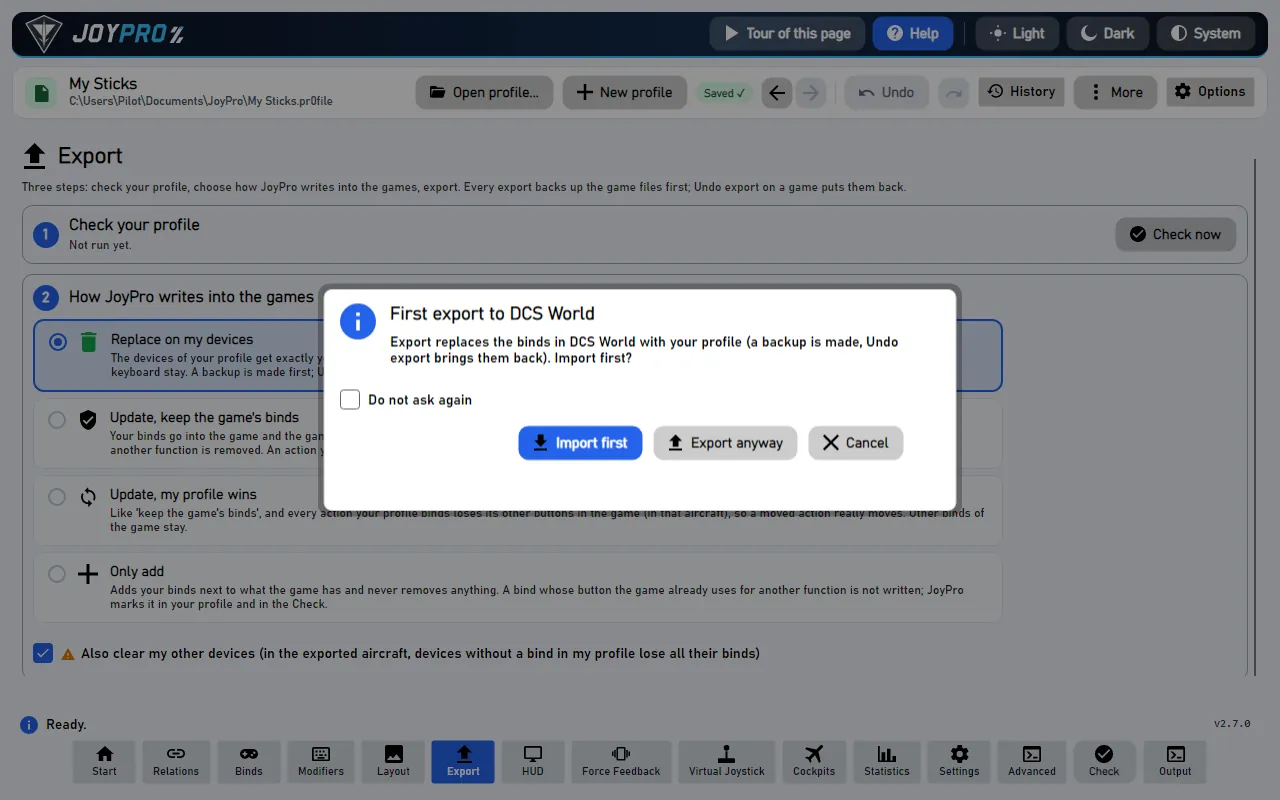
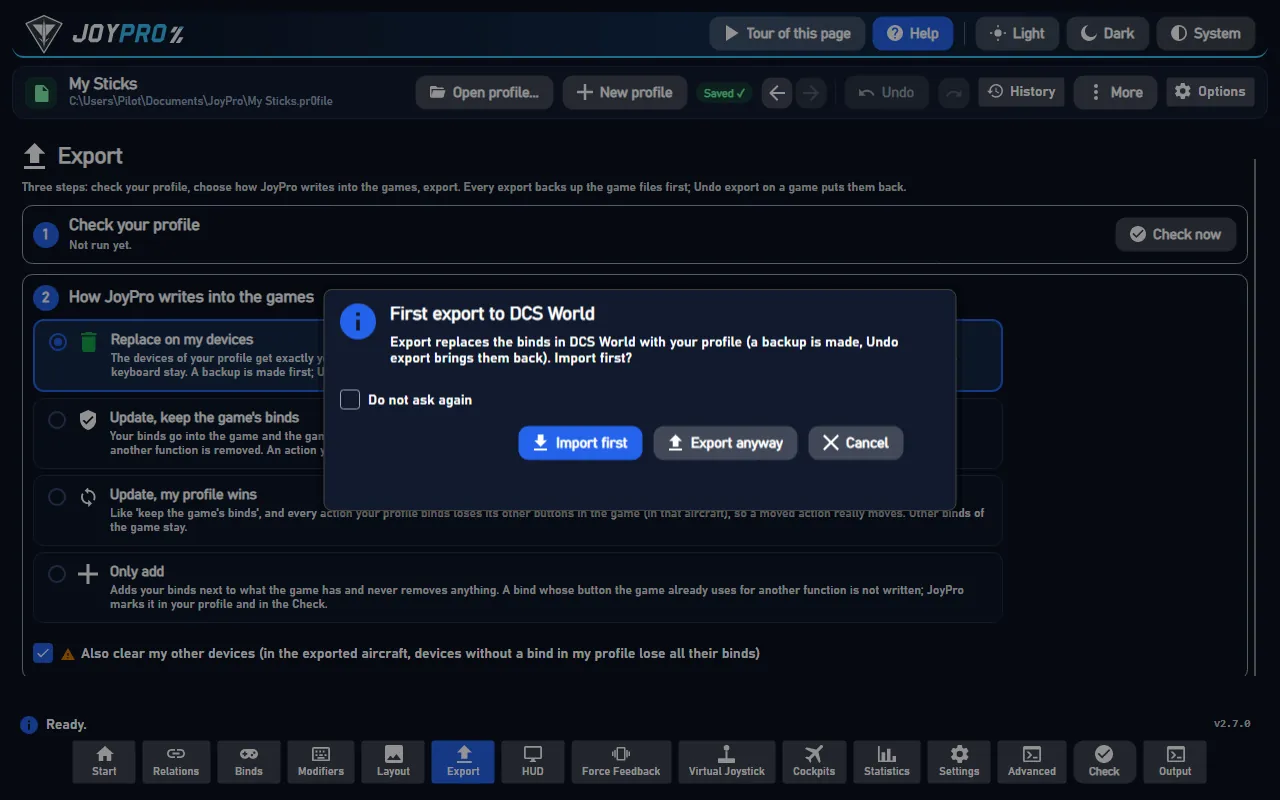
Before JoyPro does something that removes binds, overwrites files or replaces a lot of your profile, it asks. The
window names what happens ("Export to DCS with Replace? Binds of your devices that are not in your profile are
removed.") and offers:
the main answer (for example Export, Delete, Merge),
sometimes a second way (for example Export first),
Cancel: nothing happens.
Some questions have Do not ask again. Settings > Confirmations lists them and switches them back on.
When you change binds inside a game and close it, JoyPro notices (if the game watcher is on, Start page). A panel
lists every change ("Landing Gear Up/Down: now on Throttle BTN 22") with a tick and the relation it belongs to:
Take over: the ticked changes go into your profile.
Not now: JoyPro keeps them and asks again later.
Ignore these: your profile stays as it is; the next export writes your profile over the game's changes.
A relation is one button with all its actions. To move only one of them (one game's action) to another button, right-click
the action (Relations page) or a bind row (Binds page) and choose Move to another button.... Press the new button
(or pick device and input), then Move.
Selected actions of a relation (Ctrl/Shift+click, Move to...) or the actions of several selected relations
(Move actions to... in the Relations list) go to another relation. Pick New relation and type its name (it gets
the kind, axis or button, of the actions), or Existing relation (same kind) and pick it from the list (the search
box narrows it). Move does it in one step; Ctrl+Z undoes it.
At start (and with More > Check for updates) JoyPro asks GitHub for a newer version. The prompt shows what is new
with Update now, Later, Skip this version and Release page.
The action joins the relation that already uses the new button; if none does, it gets a relation of its own named
after it.
Keep the modifiers (Shift): the action keeps the shift buttons of its old bind (shown only when it had some).
When the new button already has an action of the same aircraft, one aircraft cannot have two actions in one relation;
you choose:
Swap: the other action goes to the old button.
Replace: the other action leaves that button and is unbound.
Keep both: the moved action gets its own relation on the same button; both fire when you press it.
A preview line says what will happen; Move is one undo step (Ctrl+Z).
In four steps:
Move to another button... on an action or a bind row.
Record: press the new button, or type the device and input.
Is the button taken for these aircraft? Then choose Swap, Replace or Keep both.
Move: the action joins the relation on that button, or gets a new relation (one undo step). After the next
export the action is on the new button in the game.
Confirmations: Views/ConfirmWindow.axaml, MainWindowViewModel.Confirm.cs (ConfirmAsync with an optional third
answer), the remembered answers in MainWindowViewModel.Confirmations.cs (Settings > Confirmations).
24 controls, read from the program’s source: 24 written, 0 with the facts from the source (tooltip, code comment, engine call), 0 still to be expanded.
Tooltip JoyPro does this without asking from now on. Settings > Confirmations asks again.
Shown only on questions you may switch off. Tick it and confirm with the main answer: from then on JoyPro does this
without asking (with Cancel the tick is not kept). Settings > Confirmations lists these questions and Ask
everything again turns them back on.
The main answer of a confirmation window; its text names the action ("Export", "Delete", "Merge", "Restore"). JoyPro
goes on with it. With Do not ask again ticked, this question is answered like this from now on.
A second way of going on, shown only where a question has one (for example "Export first" before an import, so changes
made in JoyPro are not lost). Its text says what it does.
Tooltip The ticked changes go into the chosen relations
Puts the ticked changes the game made into the relations chosen in each row (or a New relation with the name you
typed); unticked rows count as ignored. One undo step (Ctrl+Z). If an action ends up in two relations, the notice says
so and the check lists it. Engine: engine sync apply. In the game: nothing changes; the game already has these binds.
From the code Take over: the ticked changes go into the chosen relations (sync apply); unticked ones count as ignored.
Tooltip Keep the changes for later; JoyPro asks again
Closes the panel and keeps the game's changes as they are: nothing goes into the profile and nothing counts as seen.
JoyPro offers them again after the game's next change or the next start.
From the code Not now: the changes stay; JoyPro asks again after the next change or start.
Tooltip The profile stays as it is; the next export writes it over the game's changes
Your profile stays as it is and the game's current controls count as known (engine sync accept), so JoyPro does not
ask about these changes again. In the game: the next export writes your profile over the changes you made in the game.
From the code Ignore these: the game's state counts as known (sync accept); the next export writes the profile over it.
New relation (Move to...): the actions go to a new relation with the name typed below (suggested: the old name with
"(2)"). It has the kind of the actions (axis or button), no bind yet and no groups; bind it on the Binds page. A name
that is taken is refused with a note.
Existing relation (same kind) (Move to...): the actions go to the relation picked in the list below. Only
relations of the same kind are listed, without the ones the actions come from; an action the target already has gains
the aircraft it lacked.
Move (Move to...): moves the actions with their aircraft to the chosen relation in one step (Ctrl+Z undoes it). From
the Relations list, the relations left without an action are deleted with their binds. Engine:
engine relations item move-to, engine relations mass move-actions. In the game: after the next export the actions
are on the input of the relation they went to.
#Press it, then press the button (or move the axis) on your device
Buttonwritten
Move to another button: press it, then press the new button (or move the new axis for an axis action) on your
device; device and input are filled in. It uses the same recording settings as the Binds page. Press it again while
it waits to stop the recording.
From the code Press the new button: the Binds page's record (same capture, same options).
Moves the action to the new button: it joins the relation already on that button, or gets a relation of its own, and
with a taken button your choice (swap, replace, keep both) is applied. One undo step (Ctrl+Z). Engine:
engine relations item move-to-input. In the game: the action is on the new button after the next export; an import
before that brings the old button back.
Tooltip The release on GitHub (download it yourself from there)
Opens the GitHub page of the offered release in your browser, to read the notes or download the installer yourself.
Also offered when an update failed.
Tooltip JoyPro does not offer this version at start again (Check for updates still shows it)
Closes the offer; JoyPro does not offer this version at start again. Check for updates still shows it, and
Settings > About JoyPro and updates > Offer it again takes the skip back. Saved in JoyPro's settings.
Closes the offer without updating. The check at the next start offers the version again; Settings > About JoyPro and
updates > Install update installs it before that.
Tooltip Download, check, install and start JoyPro again (your profiles and settings stay)
Downloads the new version with a progress bar, checks the download, closes JoyPro, installs the version and starts
JoyPro again. Your profiles and settings stay. If the download or the check fails, JoyPro stays as it is and the
message says why, with Release page to download it yourself.