
Falcon BMS 4.38 sets up your devices in its launcher: the launcher keeps one XML file per device and builds the key file and the axis setup from them every time you press Launch. JoyPro writes exactly these launcher device files, so the launcher stays in charge: it turns JoyPro's binds into the files BMS reads, as if you had made them in the launcher yourself. Falcon 4.0 and Allied Force are not supported; use Falcon BMS.
Falcon BMS native (its own bind files)
- Support
- native (its own bind files)
- Engine command
engine bms- Bind file
<BMS>\User\Config\Setup.v100.<device> {GUID}.xml(launcher XML) +User.cfg,Feedback.ini,.pop- Inputs the game reads
- reads 128 buttons, 8 axes, 2 hats per joystick (documented)
- Command list from
BMS - Full.key- In-game test
- 20/21 steps passed (2026-10-09)
- ✓ Import
- ✓ Export
- ✗ Keyboard bindsFalcon BMS: the key file stays the one BMS manages.
- ◐ ModifiersFalcon BMS: only the one DX shift layer; no modifiers on axes.
- ✓ Command list built on your PC
- ✓ Game watcher
- ✓ Axis curves and dead zones
- ✓ Game control settings
- ✓ In-game force feedback settings
- ✗ Force feedback from telemetry
- ✓ Telemetry recording
- ✓ Virtual joystick (vJoy)
- ◐ Virtual Xbox pad
- ✓ Virtual functions
- ✓ Setup wizard / Auto Assign
- ✓ Cockpits
- ✓ Cheat sheets
- ◐ In-game testFalcon BMS: 20 of 21 steps; entering an active cockpit failed (an earlier settings run: 20/26, trim calibration).
From the support matrix, generated from the engine’s code: all games.
#Get it working in 3 steps
- Set it all up for me
on the Start page - Use these buttons
look at the list first - Write to my game
keep BMS and its launcher closed
Before: close BMS and its launcher.
Then: start the launcher and press Launch. Only then does the launcher build the files BMS reads.
Did you bind buttons in Falcon BMS before? Then the Start page offers Import, then fill the gaps. Your binds stay, and only free buttons get new jobs. See Quick start: make my stick work.
#What JoyPro does for Falcon BMS
- Import: the buttons, hats and axes of your devices come in from the launcher's device files, with the shift layer as a modifier and each axis's invert, dead zone and saturation steps.
- Relations: one relation is one function in all your games ("Gear" in BMS, DCS and IL-2 on the same button). The
commands are BMS's callbacks from
BMS - Full.key. - Export: JoyPro writes the launcher's device files. On your next Launch the launcher builds the key file and the axis setup from them.
#Import your BMS binds
- Open Start. The Falcon BMS card shows the game's picture. If it asks for a command list, press Build List:
JoyPro reads the callbacks of the installed
BMS - Full.key. - Press Import on the card and choose Add to my profile (keyboard keys stay in BMS's key file, so the keyboard box does not apply here).
- Press Import now. See my relations opens what came in.
#Build and check relations
On the Relations page the BMS callback of a relation sits next to the same function in your other games. Use the relations flow to join them, then press Check now on the Export page (the Check).
#Export to Falcon BMS
- Close BMS and its launcher. JoyPro refuses while
Falcon BMS.exeorFalconBMS_Alternative_Launcher.exeruns. - Open Export. The Falcon BMS card shows how many of its relations are bound.
- Keep Replace on my devices with Also clear my other devices if JoyPro is where you set up your devices. Press Export now on the card.
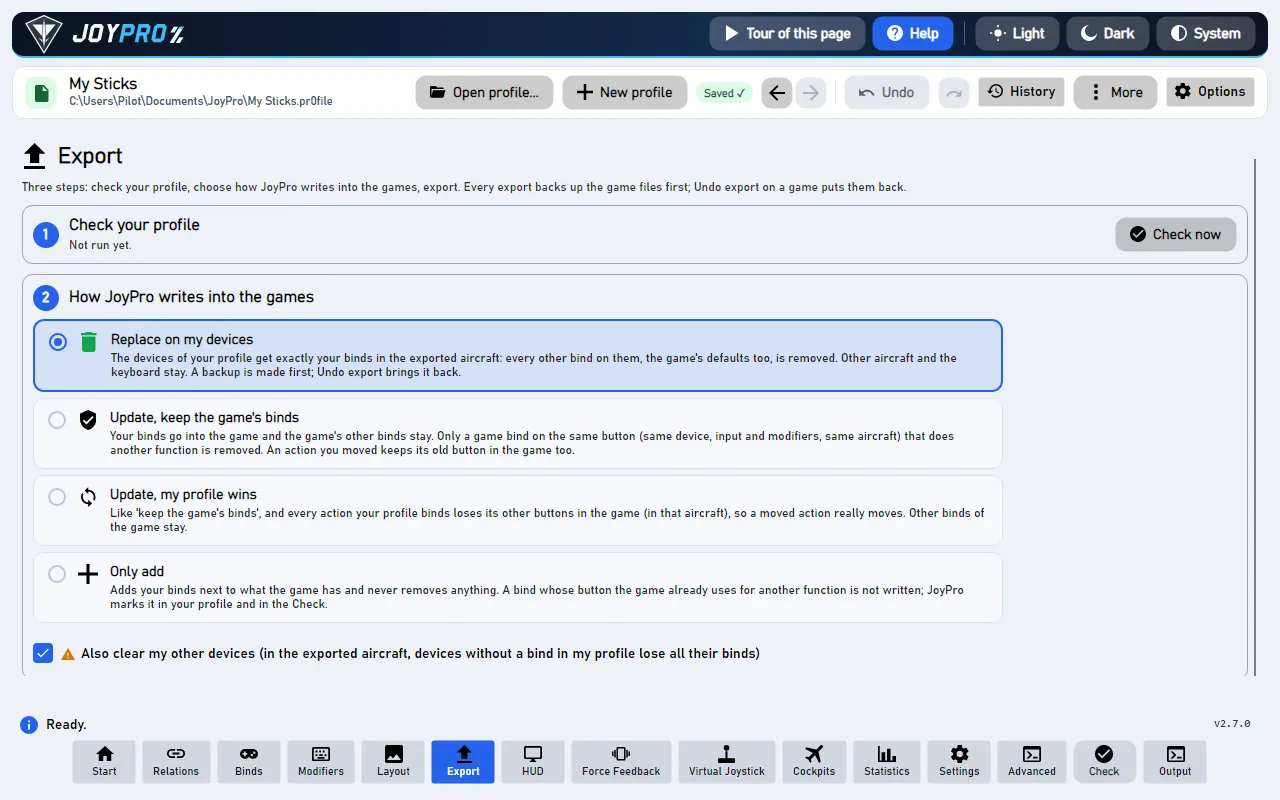
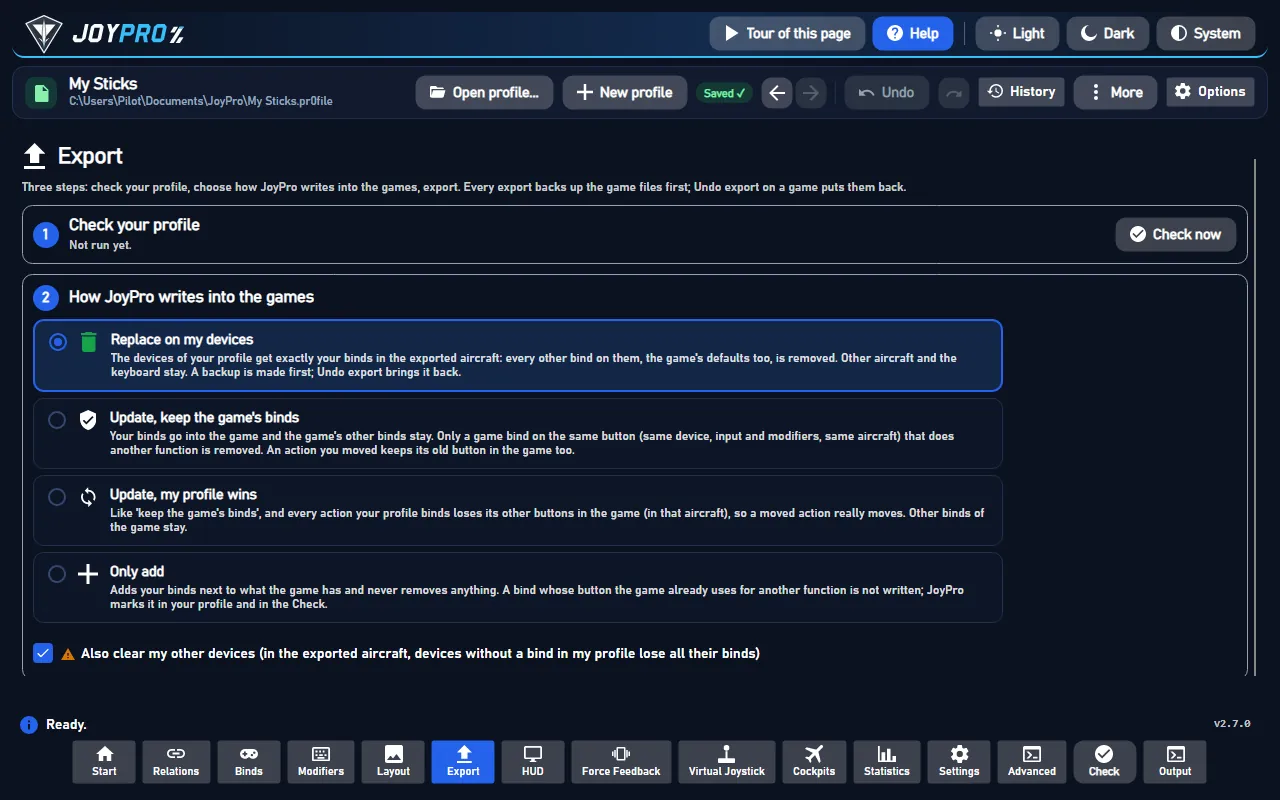
Start the launcher and press Launch: the launcher builds the key file and the axis setup from JoyPro's device files. In the sim, Setup > Controllers > Advanced > Flight Control shows each exported axis on your device with the dead zone and saturation steps JoyPro set, and your buttons and hats do what your profile says.
#What you do yourself in Falcon BMS
- Press Launch in the launcher after every export. Only then does the launcher write the key file,
axismapping.dat,joystick.calandDeviceSorting.txtthat BMS reads. - Leave "Launch without any Setup override" unticked, or the launcher does not write your setup.
- Keyboard keys stay in the key file BMS manages; set them in the launcher. JoyPro writes only joystick inputs.
- Enable Force Feedback is written into your pilot file (
<callsign>.pop, the 468-byte file of BMS 4.36 and later). For a pilot file of another size JoyPro skips this one setting with a warning.
#Common pitfalls
- "Falcon BMS is running": close the sim and the launcher and export again.
- A modifier bind is missing: BMS has one shift layer for all devices, held by the button that has
SimHotasPinkyShift. JoyPro writes binds with that modifier into the shifted slot; any other modifier is skipped with a warning. - An axis stayed on another device in "Only add": BMS gives each function to one axis only, and Only add never moves it. Use an Update mode to move it.
- Binds did not change in the sim: the launcher was not started with Launch after the export.
#Files JoyPro reads and writes
| File | What it is |
|---|---|
<BMS>\User\Config\Setup.v100.<device> {<GUID>}.xml |
the launcher's file per device: axes, hats, buttons, throttle detents |
<BMS>\User\Config\Falcon BMS User.cfg |
curve values and game settings, only above the launcher's marker line |
<BMS>\User\Config\Feedback.ini |
force feedback effect gains and the centring spring |
<BMS>\User\Config\<callsign>.pop |
the pilot file: only the Enable Force Feedback byte |
<BMS>\User\Config\JoyPro.joypro.json |
the inputs JoyPro wrote |
<BMS> is found through HKLM\SOFTWARE\WOW6432Node\Benchmark Sims\...\baseDir or a Falcon BMS* folder.
axismapping.dat, joystick.cal, DeviceSorting.txt, the key files and the launcher's block in User.cfg are rebuilt
by every Launch; JoyPro never writes them. A connected device without a device file gets one: from the launcher's stock
file of that model, else an empty file in the launcher's layout.
#The export modes in Falcon BMS
| Mode | What happens in BMS |
|---|---|
| Only add | Writes free slots only; a bind on a slot with another callback is not written and is listed. A function BMS has on another axis stays there (warning). |
| Update, keep the game's binds | Replaces the callback on your slot (the conflict) and keeps everything else; an axis function moves to your axis. |
| Update, my profile wins | Also releases the other press slots, hats and axes of connected devices that hold an action you bind. |
| Replace on my devices | Releases everything else of the connected devices you write (also cataloged callbacks in the release slots). |
| + Also clear my other devices | The connected devices without binds in the export are cleared. |
#What is never touched
- Device files of devices that are not connected (an older axis claim there stays; the launcher takes the newest).
- The import's ignored devices and the vJoy device JoyPro tunnels into.
- Keyboard keys and the key file, the files the launcher generates, and the launcher's block in User.cfg.
#Curves, settings, force feedback
- Granularity: global, one setup for all aircraft.
- Axes (axis model
bms): invert, the launcher's dead zone step (None, Small, Medium, Large) and saturation step, one-sided axes (throttle, toe brakes, brightness, volumes) without a dead zone; for pitch, roll, yaw and cursor X/Y also the exponential curve (0 to 100) and exponential saturation (0 to 99) in User.cfg. The Default curve sets the nearest launcher steps but no exponent. - Throttle detents: the AB and IDLE detent positions per throttle device, in its device file.
- Game settings (Settings > Force feedback settings of the games): centring spring, runway rumble, anti-jitter deadband, analog idle cutoff, click at the AB detent, virtual rudder, Depr-Ret axis as brake.
- Force feedback: Enable Force Feedback, gun, bounce, centring spring, bomb drop and stall gains, the force feedback dead band. An export without BMS binds still writes settings and detents.
- Telemetry recording: read only from BMS's shared memory, with position (a Tacview track is possible). No telemetry force feedback.
- Watcher: changes in the device files, User.cfg, Feedback.ini or the pilot file are noticed after BMS closes (the watcher).
#Inside the BMS integration
flowchart LR
  P["Your profile"] --> E["engine bms export"]
  E --> X["Device files"]
  E --> U["User.cfg,<br/>Feedback.ini"]
  X --> L["Launcher:<br/>Launch"]
  U --> L
  L --> G["Falcon BMS"]
Code: engine\Games\FalconBmsIntegration.cs, axis model bms, settings model FalconBMS; telemetry
gui\JoyPro.Ffb.Core\Telemetry\Bms\BmsTelemetry.cs.
- Device files: root
<JoyAssgn>with<detentPosition>, 8<axis>entries (X, Y, Z, Rx, Ry, Rz, Slider0, Slider1:<AxisName>,<AssgnDate>,<Invert>,<Deadzone>,<Saturation>),<pov>(4 hats × 8 directions, normal and shifted) and<dx>(128 buttons × 4 slots: press, press+shift, release, release+shift). The copy in<profileDefaultF16>is written alike. Declaration, whitespace, line ends and BOM are kept; only changed files are written. - Devices: by the DirectInput instance GUID in the file name.
- Buttons: press slot 0; the shift layer is slot 1 and becomes the modifier
BMS Shift. Release slots are never imported. A new callback getsInvoke= Default. - Axes: a new claim gets
AssgnDate= now; older claims of the same function are released (the launcher gives a function to the newest claim). - Command list:
engine bms refresh-db: the visible callbacks ofBMS - Full.key(cockpit and HOTAS sections) plus the launcher's axis functions (without FOV and camera distance). - Import / export:
engine bms paths,engine bms import,engine bms scan,engine bms export(--mode,--nuke-untouched-devices,--dry-run). Backup to.jpbakand the backup store first; the read-only attribute is restored. - Settings and detents:
engine ffb set--device * --game FalconBMS --param flightControlsDeadband=0.05, per throttle--device "<throttle>" --param abDetent=80 --param idleDetent=5;engine binds tuning preview--game FalconBMS.
#Known limits
- Not written: the legacy key-file workflow, custom axis shaping (
axiscurves.cal), dead zones other than the launcher's steps. - The curve formula of the exponent and how BMS reads the saturation steps are not confirmed yet.
- Tests:
engine\tests\smoke\bms.ps1(stock files); in the gametools\e2e\games\BmsSettings.ps1(Launch, the generated files, Setup > Controllers). The best in-game run passed 20 of 21 steps.
All technical notes on this game (generated from the repository): falcon-bms.md.