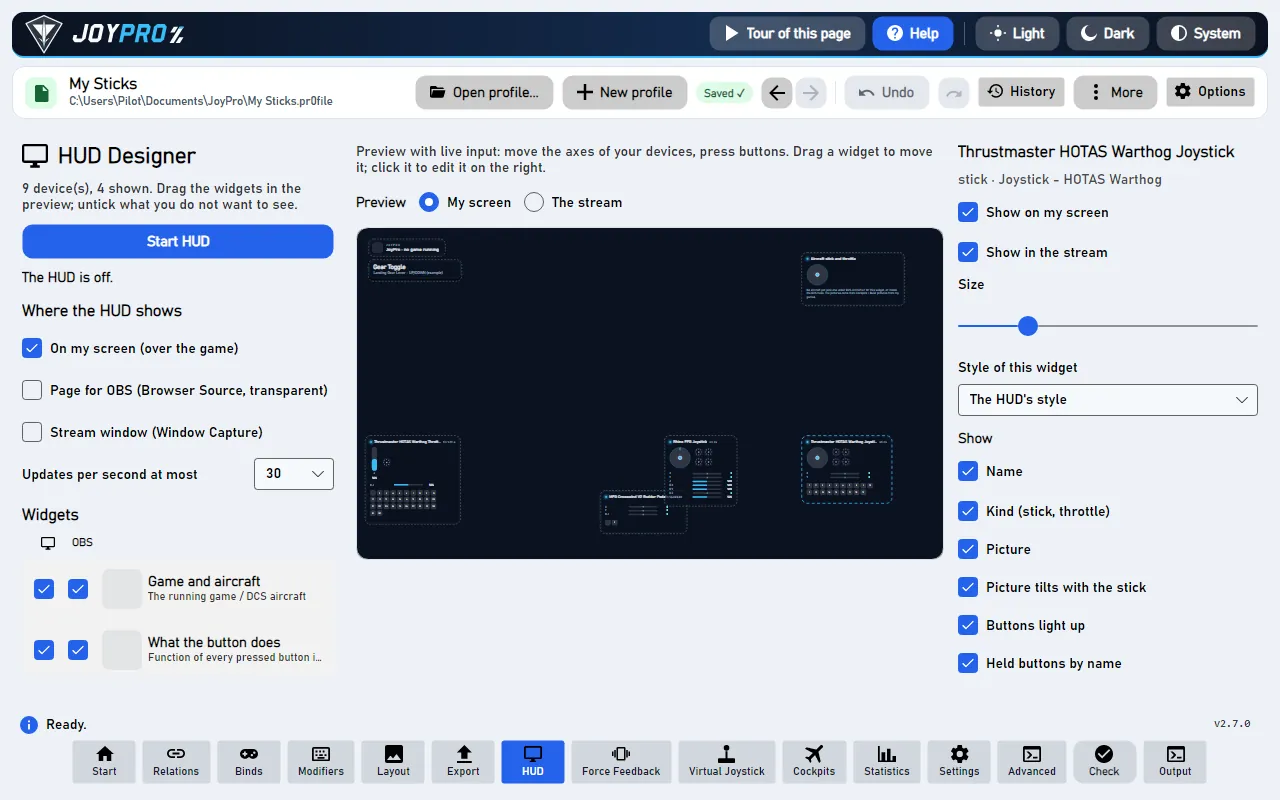
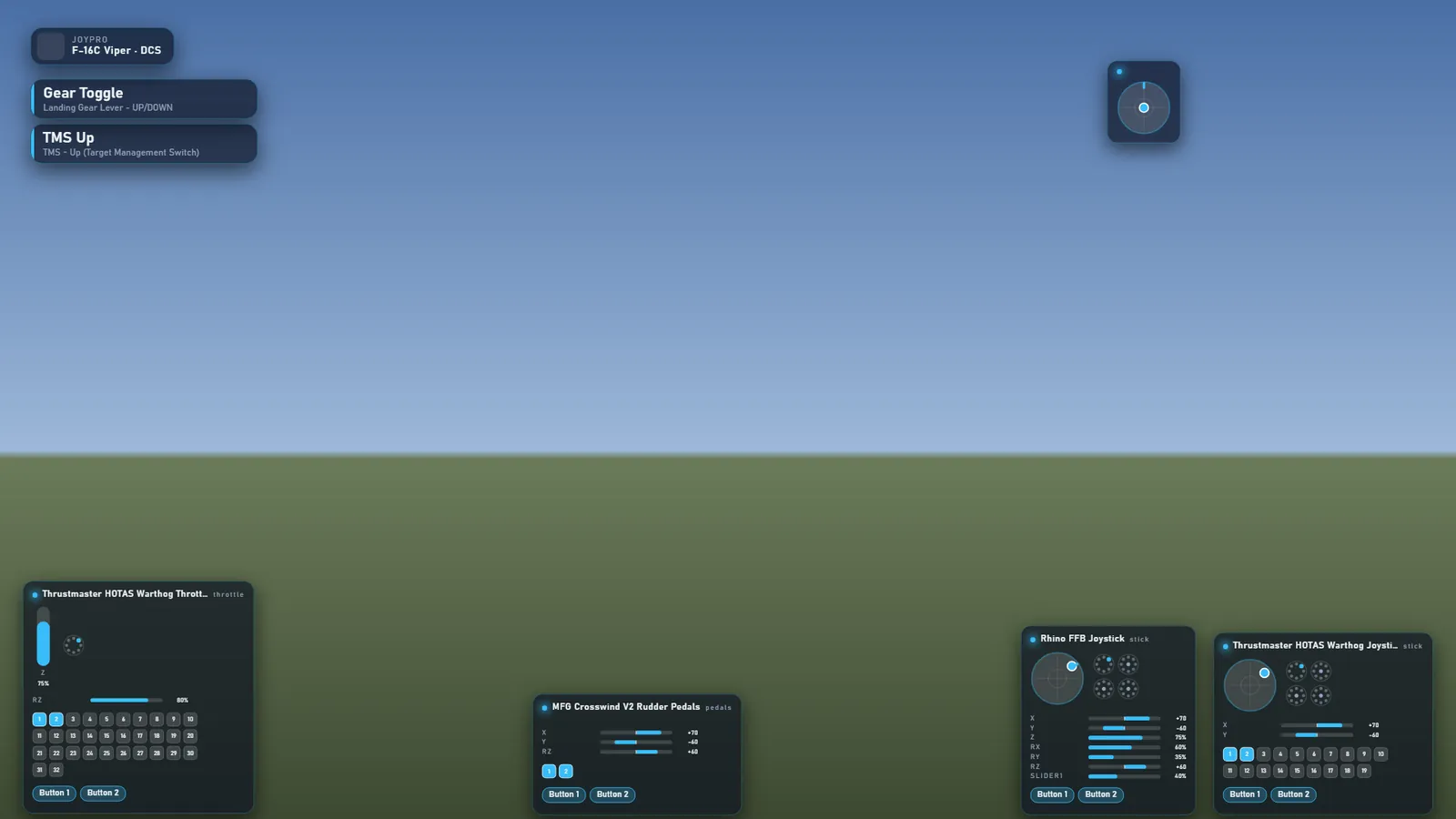
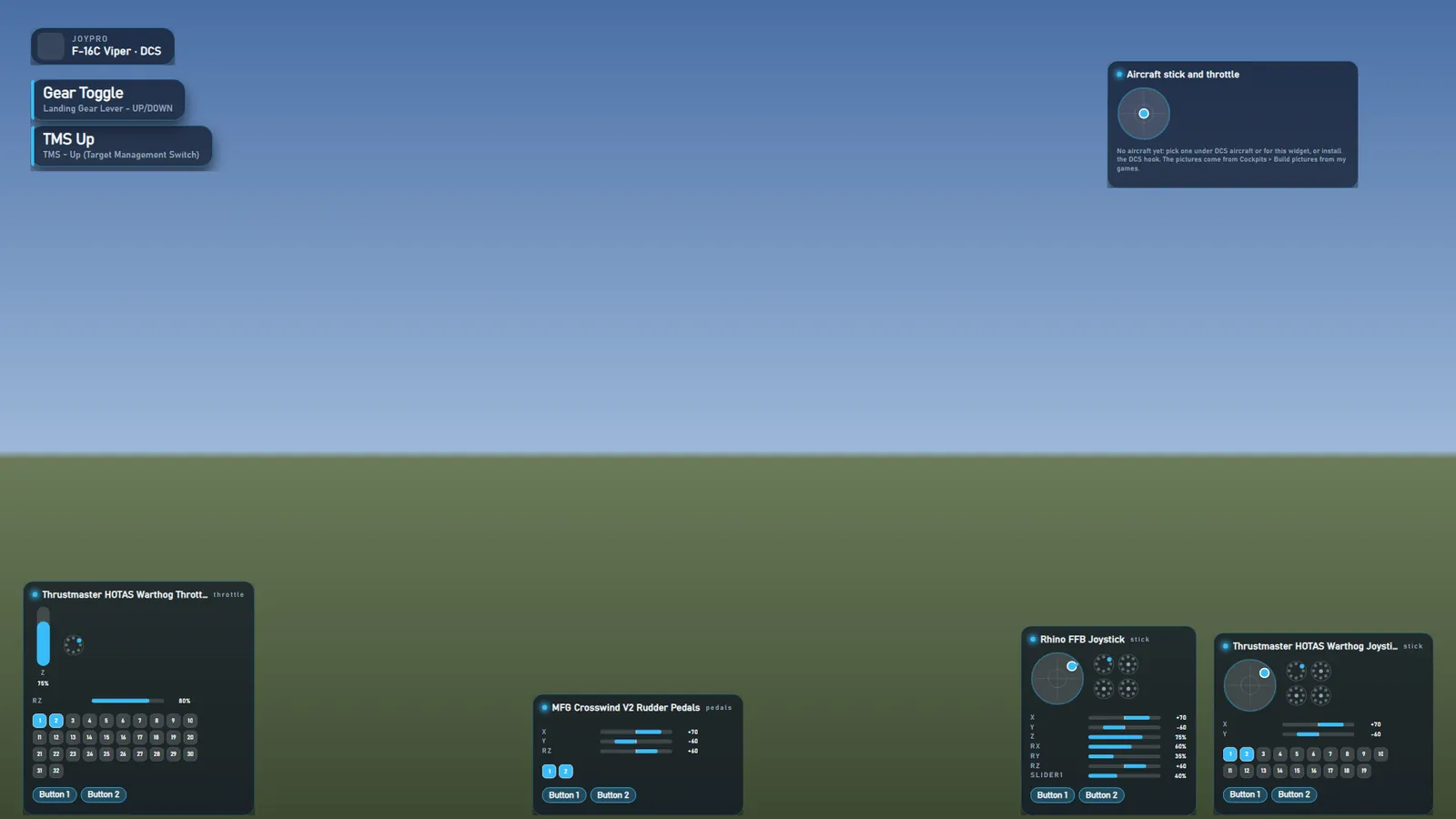
The HUD shows your devices on screen while you play, like a streamer's controller overlay: the stick picture tilts
with your stick, levers and axes move as bars, held buttons light up with their names, and a line says what the
pressed button does in the running game ("Gear Toggle"). It can show over the game, in OBS, or both, each with its
own widgets. This page is its designer.
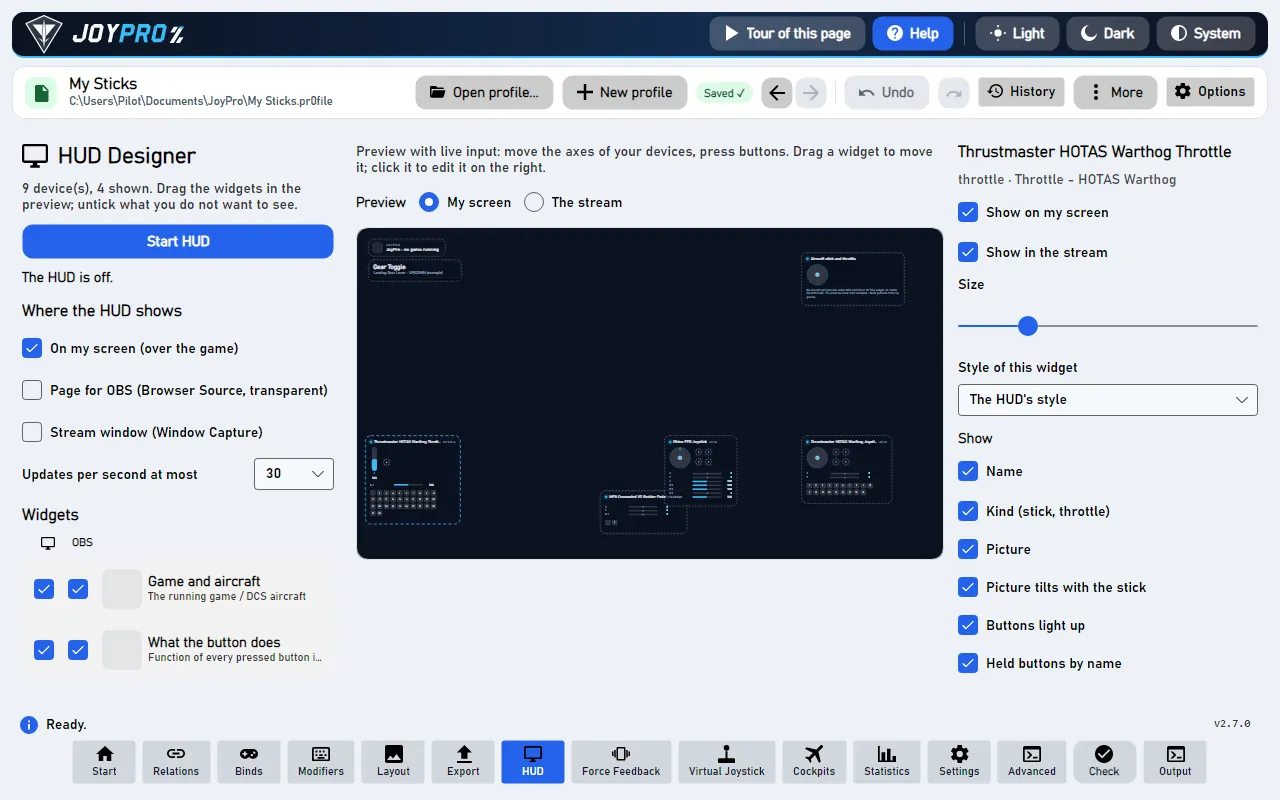
The HUD designer with the live preview
flowchart LR
  D["Your devices"] --> P["The HUD"]
  O["Your binds in<br/>the game"] --> P
  P --> S["On my screen"]
  P --> B["Page for OBS"]
  P --> W["Stream window"]
The HUD reads your devices and your binds in the running game, and shows them in up to three places at once: on your screen over the game, on a page for OBS, and in a stream window.
One widget per device: sticks, throttles and pedals are shown at the start, panels and keyboards are hidden
(tick them in the Widgets list). Each widget can show the device's photo, the stick position, the axes as bars,
the buttons and hats.
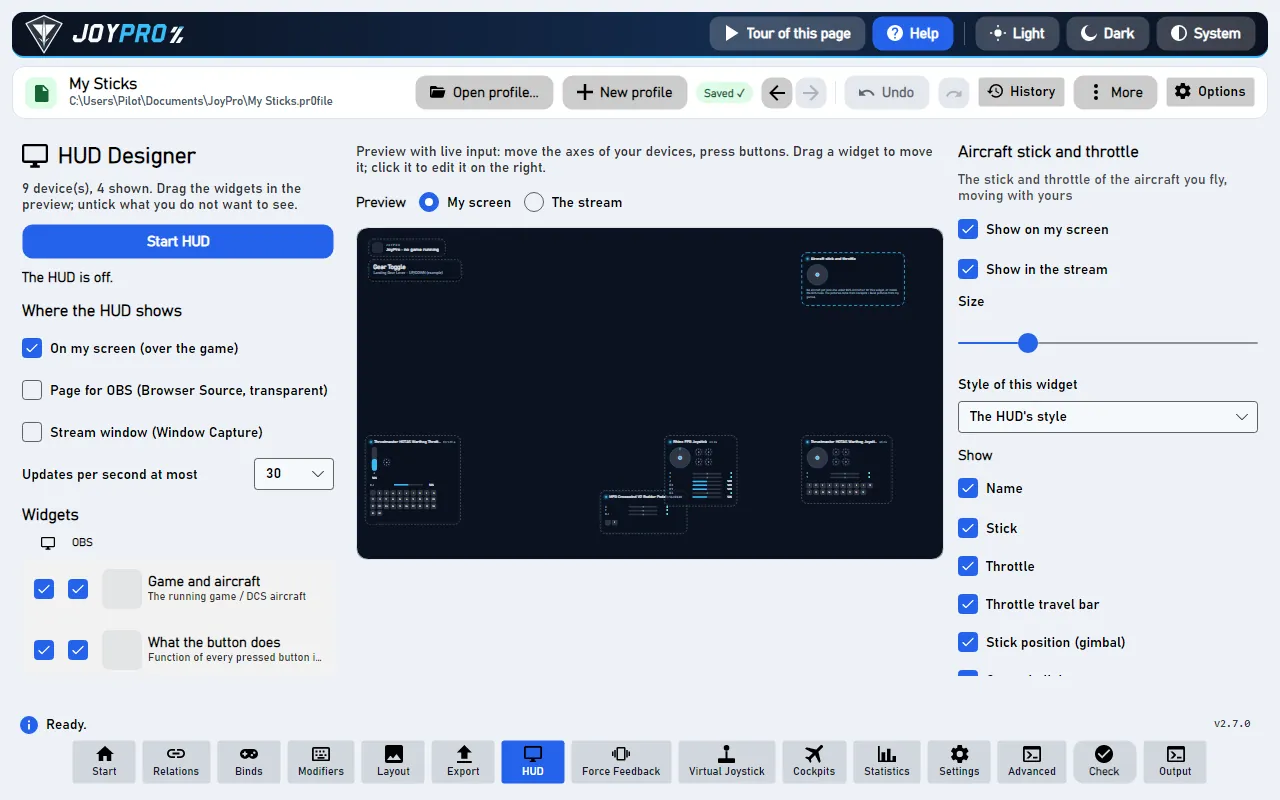
The aircraft widget: the stick and throttle of the aircraft you fly, as the game draws them, moving with yours.
The game header: the game or DCS aircraft with its picture.
What the button does: the last pressed buttons with their action in the running game.
Drag a widget in the preview to move it; click it to change it on the right. Arrange automatically puts them
along the bottom: throttle and left-hand devices left, pedals in the middle, the right-hand stick right.
The aircraft widget: the aircraft's own stick and throttle
In the game: What you see in the game
The HUD window is transparent and stays on top of windowed and borderless games. Clicks go through it to the game.
It is not in the task bar or Alt+Tab. Exclusive full screen hides it (a Windows limit): switch the game to
borderless. The pressed button's line names the action of that game and aircraft, for example "Weapon Release" in
the F-16C and "Fire guns" in IL-2.
JoyPro serves a page on this PC only; Copy puts its address on the clipboard
Stream window (Window Capture)
streams with Window Capture
a normal window (may sit behind the game) with a transparent or chroma key background
Untick On my screen to play with a clean screen while the stream still shows the HUD, or show other widgets on
each: every widget has two ticks, a monitor (your screen) and OBS (the stream). Preview: My screen / The
stream switches what the designer shows. Updates per second at most (15, 30 or 60; 30 is smooth and light).
Tick Page for OBS (Browser Source, transparent) and press Start HUD.
Press Copy next to the address (http://127.0.0.1:8765/hud).
In OBS: Sources > + > Browser. Paste the address as URL, Width 1920, Height 1080. Nothing else is
needed: the background is transparent, no custom CSS.
Optional: tick Shutdown source when not visible so OBS stops the page in scenes without it.
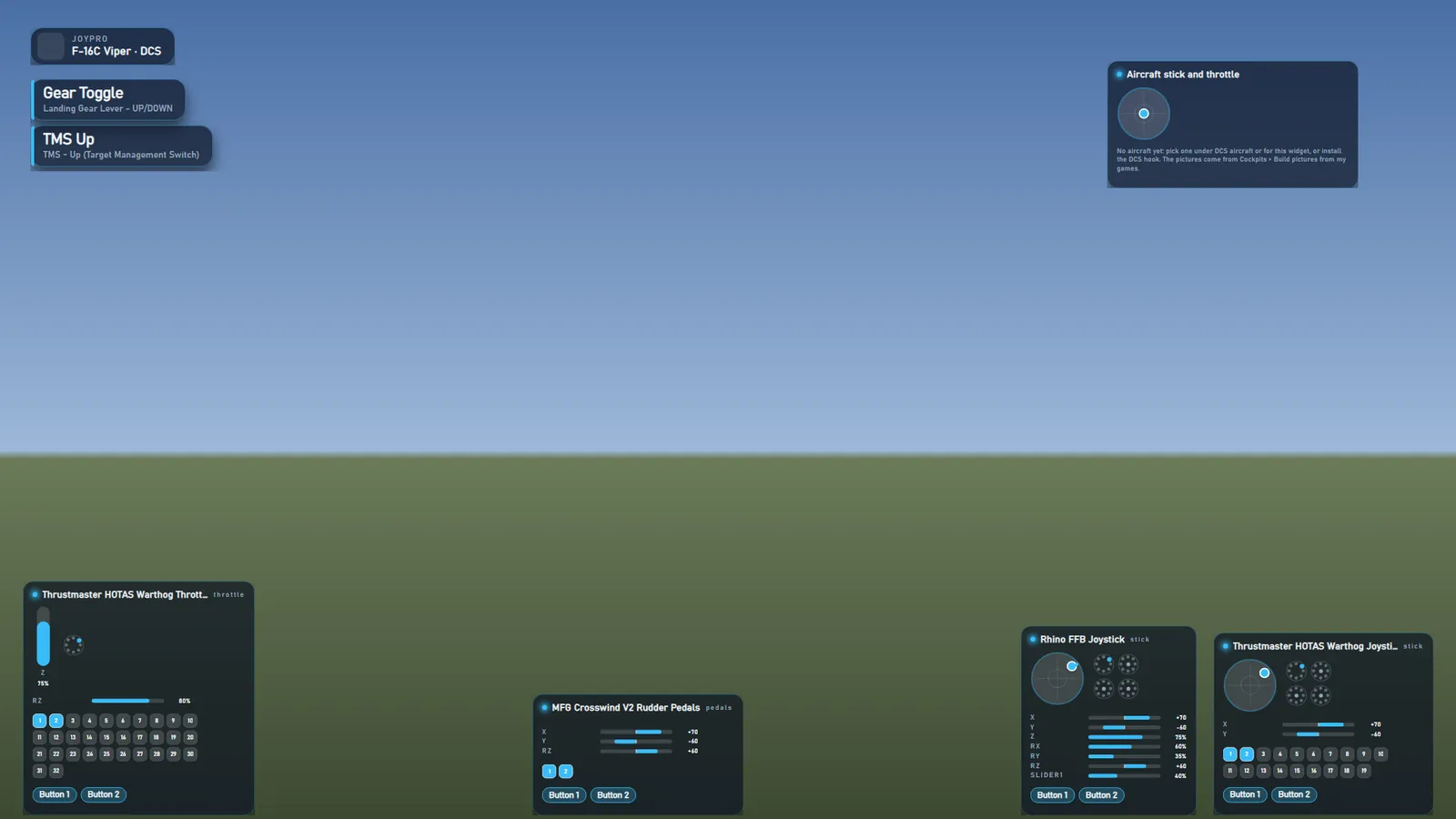
The page draws the widgets ticked for the stream, in the same places and styles as the app, on a 1920 x 1080 stage
scaled to the source. Port taken by another program? Pick another one under Port and copy the address again.
The stream page as OBS shows it
Window Capture instead: tick Stream window, pick the background (transparent, green, magenta, blue or your
colour). In OBS add Window Capture with Capture Method: Windows 10 (1903 and up); with a colour add a Chroma Key
filter in that colour. If a transparent background shows black in your OBS, use the Browser Source or a colour.
How the OBS Browser Source gets the HUD: one page, then only the changes.
#
Who
What happens
1
OBS
The Browser Source opens http://127.0.0.1:8765/hud.
2
JoyPro
Sends the page: layout, styles and pictures.
3
OBS
Opens /hud/events. It stays open.
4
JoyPro
Sends the state (axes, buttons, what the button does), at most 30 times a second and only when something changed.
5
JoyPro
Sends the layout again when widgets, places or styles change.
Widgets lists every device plus the header, the binds ticker and the aircraft widget. Reload devices reads
the connected devices again; Show all ticks every widget for your screen; Arrange automatically and Reset
places put them in place.
Per widget (click it in the preview or the list):
Show on my screen, Show in the stream, Size, Style of this widget (the HUD's style or any other).
Show: name, kind (stick, throttle), picture, picture tilts with the stick, buttons light up, held buttons by
name, axes and levers, axis names, axis values, stick position (gimbal), hats. The header widget: its picture.
Picture: Photo (the manufacturer's picture, background cut away), Layout (your JoyPro layout picture from
the Layout page, with the pressed buttons lit at their place), Auto (the photo when there is one).
Grip on this base: for bases that take several grips (VPforce Rhino, Virpil WarBRD); the grip decides the
picture and the button names.
Stick axes: where X, Y and Twist of the stick element come from. Automatic takes the device's own axes; a grip
that is a device of its own without axes takes them from the base it sits on.
A device widget selected: what it shows, its picture and stick axes
The aircraft widget: stick, throttle, throttle travel bar, stick position, controls light up, held controls by
name; Aircraft (Automatic: the aircraft you fly, or any picture set on this PC) and Moves with (the stick and
throttle that move it). Its pictures come from the game's own cockpit pictures (Cockpits > Build
pictures from my games, or a picture pack), else JoyPro's line drawing of the real grip.
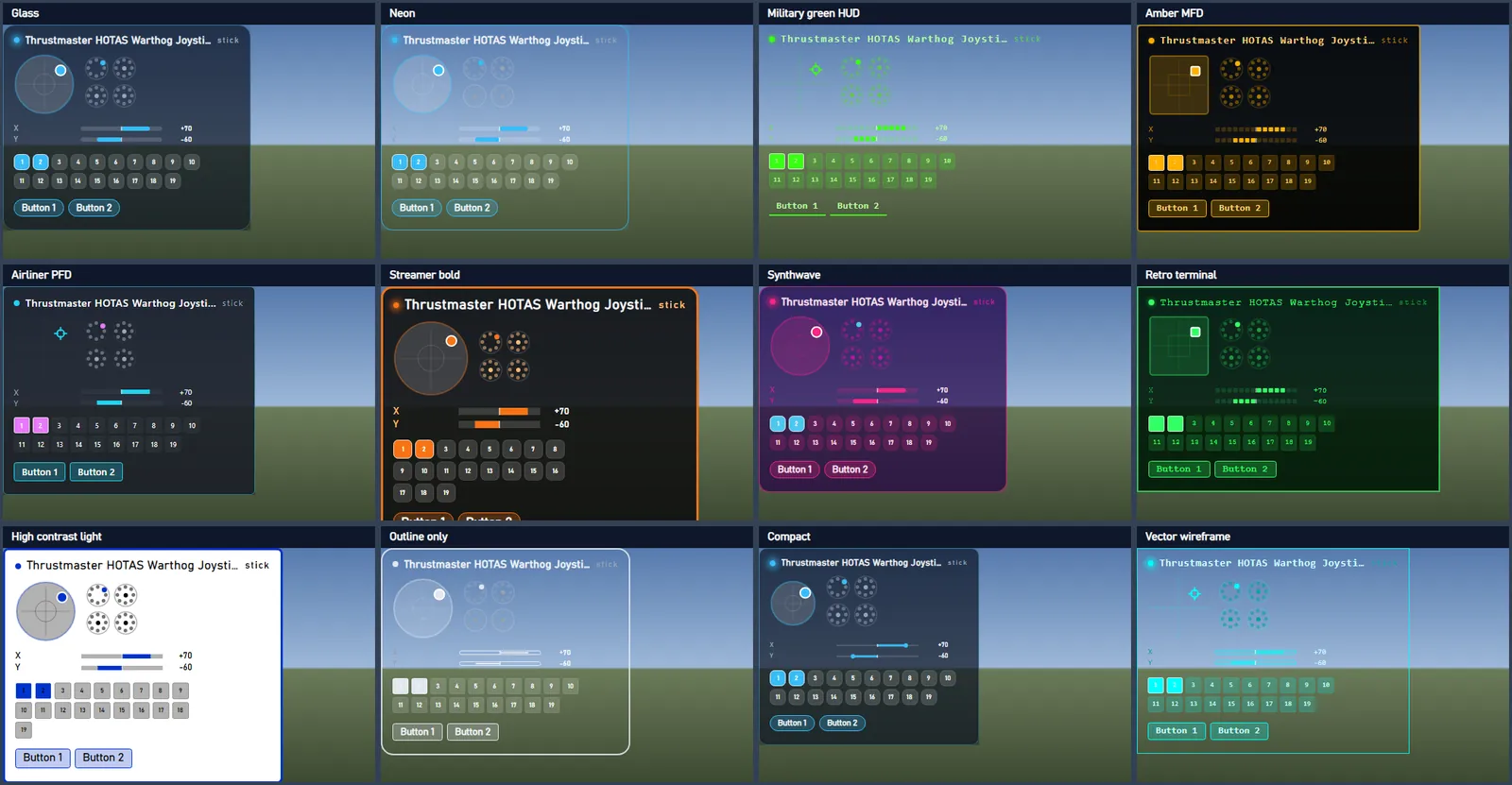
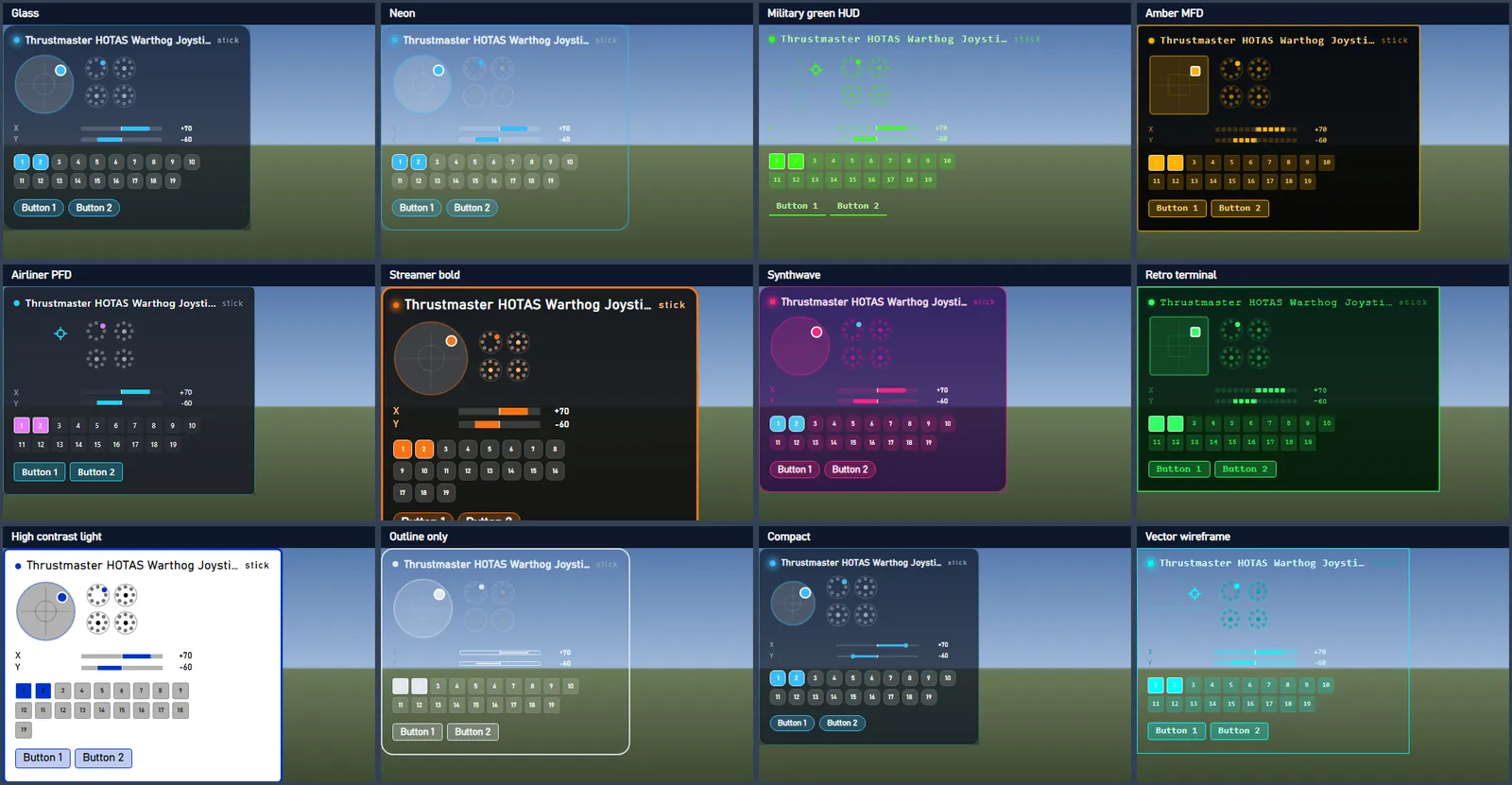
Style has 40 presets: Glass, Neon, Minimal, clean ones (Frosted light, Streamer clean, Streamer
bold, Compact, Large text, Pastel, Outline only), cockpit displays (Military green HUD, Amber MFD,
Airliner PFD, Glass cockpit, Night vision, Red cockpit lighting, Vector wireframe, Retro terminal,
Warbird, Hologram), games and genres (Space sim orange, Holo cyan, Cyberpunk, Synthwave, Neon pink,
Racing, Tactical tan, Navy and gold, Stealth, Ghost), colour themes (Arctic, Desert, Ocean,
Sunset, Royal, Carbon) and readability (High contrast, High contrast light, Monochrome, Monochrome
light). › steps to the next one.
A few of the 40 styles
Below: accent colours in one click, Accent, Pressed and Opacity, then the design options per element:
Cards (background, border, corners, shadow), Text (font, size, letter spacing, colours, Bold names),
Stick element (ring, square, crosshair, radar, dot; size, glow), Bars and levers (shapes, heights, the empty
part) and Buttons and chips (shapes). A changed option makes the style "own design (changed)": Save style
keeps it under your name, Undo changes goes back to the preset, Export style... / Import style... share it
as a file, Delete removes your own style.
What the button does: how many lines, how long they stay (seconds), the font size, Show device and button
and Only while a game runs. Click-through lets mouse clicks pass through the HUD window (applies when the HUD
starts).
JoyPro finds the running game by its process (DCS, IL-2, Star Citizen and every other game it handles) and shows
only that game's binds. DCS also needs the aircraft: pick it under DCS aircraft, or Install DCS hook so DCS
tells JoyPro the aircraft at every mission start (a small Lua file plus one guarded line in Export.lua, backed up
first; Remove puts the file back byte for byte; close DCS first). Check says whether the hook is installed.
Devices: engine hud devices gives each connected device's model, kind, hand, product picture, axes with their
role, buttons with their names and control ids (Controls, for the aircraft widget) and the layout picture with
button positions.
Binds of the running game: engine overlay map (--game, --plane, --unit): the bound buttons with
modifiers and titles. A bind with modifiers shows while its modifiers are held; the bind with the most matching
modifiers wins.
DCS hook: engine overlay dcs-hook status / install / remove (--path, --dry-run): Scripts\JoyProOverlay.lua
plus one pcall-wrapped line in Export.lua; DCS sends the unit type to 127.0.0.1:1992 (UDP). The hook calls the
export functions of other scripts (SRS, Tacview) it replaces.
Stream server: Services/HudStreamServer.cs, HudStreamHub.cs, Resources/hud-stream.html; bound to
127.0.0.1 only, requests with another host name are refused. GET /hud (page), /hud/events (Server-Sent Events:
layout, state), /hud/img/<id> (pictures as PNG), /hud/state (JSON). Without a connected page it only
listens.
Cost while you play: Services/HudInputPump.cs keeps only the newest report per device and applies them at the
chosen rate; elements redraw only on change; nothing is allocated per report; pictures are cut once (aircraft grips
480 px high). Measured by the HUD soak test against CPU, allocation and memory budgets.
Settings: %APPDATA%\JoyPro2\hud.json (places, sizes, per-widget ticks for screen and stream, the style with
every option, own styles, outputs, port, background, update rate). Style files: *.joypro-hudstyle.json
("format": "joypro-hud-style").
42 controls, read from the program’s source: 42 written, 0 with the facts from the source (tooltip, code comment, engine call), 0 still to be expanded.
Start HUD / Stop HUD: starts the HUD with the outputs ticked above (on screen, the OBS page, the stream
window): reads the devices if needed, finds the running game and loads its binds (engine overlay map). Pressed
again it closes every output. In the game: the HUD appears over the game (windowed or borderless) and in OBS.
Tooltip The transparent HUD on top of the game. Untick it to keep your own screen clean while the stream still shows the HUD.
Shows the HUD as a transparent window on top of the game (on by default). Untick it to keep your own screen clean while
the stream still shows the HUD. While the HUD runs the change applies at once. In the game: the HUD appears or goes away
over a windowed or borderless game.
Tooltip JoyPro serves the HUD as a web page on this PC only. In OBS add a Browser Source with this address: the background is transparent, no custom CSS needed.
While the HUD runs, JoyPro serves it as a web page on this PC only (http://127.0.0.1:<port>/hud) for an OBS Browser
Source: transparent background, no custom CSS. Ticked, the address with Copy and the Port show below.
Copies the address of the OBS page (http://127.0.0.1:<port>/hud) to the clipboard. In OBS: Sources > + >
Browser, paste it as URL, width 1920, height 1080.
Tooltip A window of its own, not on top: it may sit behind the game. In OBS: Window Capture with the capture method Windows 10 (1903 and up); with a chroma key colour add a Chroma Key filter.
While the HUD runs, opens a window of its own for OBS's Window Capture (not on top, so it may sit behind the game), with
a transparent background or a chroma key colour picked below. In OBS: capture method Windows 10 (1903 and up), and a
Chroma Key filter for a colour.
Reads the connected devices again (engine hud devices): new devices get a widget, the pictures and button names are
refreshed. Use it after plugging in a device.
Tooltip Throttle and left hand left, pedals in the middle, right-hand stick right, along the bottom
Places the device widgets shown on your screen along the bottom: throttle and left-hand devices left, pedals in the
middle, the right-hand stick right; what does not fit goes a row up. The new places are kept.
Keeps the current design as your own style under the name typed next to it, and makes it the HUD's style. A preset's
name is refused; your style of the same name is replaced.
From the code Save style: the current design as an own style under HudStyleName (an own style of that name is replaced).
Puts the design back to the style you had before the changes made by hand: the style picked, saved or imported last
(or the HUD's design when JoyPro started).
From the code Undo changes: back to the style before the changes made by hand (the one picked, saved or imported last, or the HUD's look at start).
Installs the DCS hook (engine overlay dcs-hook install): Scripts\JoyProOverlay.lua and one guarded line in
Export.lua (backed up first, other export scripts keep working). Close DCS first. In the game: from the next mission
start DCS tells JoyPro the aircraft you fly, and the HUD shows its binds and its stick and throttle.
Removes the DCS hook again (engine overlay dcs-hook remove): Export.lua is byte for byte as before. Close DCS
first. Pick the aircraft under DCS aircraft afterwards.
My screen / The stream: what the designer's preview shows, the widgets ticked for your screen or those ticked
for the stream. Only the preview changes; the choice is kept for the next start.
From the code The designer's preview shows the widgets ticked for the stream instead of those for the screen.
Device widget: held buttons light up (on the button grid, or on the layout picture at their place). Aircraft widget
(Controls light up): the aircraft's control that your pressed button stands for lights up on its stick or
throttle (the Warthog's TMS up lights the A-10C's TMS).
Device widget: held buttons show as chips with their names from the device catalog ("Trigger second detent").
Aircraft widget (Held controls by name): the aircraft's held controls by name under the grips.