
The first time JoyPro starts, it looks for your games. Then it shows them in a window, "Your games". After that, a welcome asks what you want to do.
- Your games
check the list - Done, and set everything up for me
or Done - Quick setup
or the welcome
#The window "Your games"
JoyPro looks for your games for a few seconds. Then a window shows one row per game.
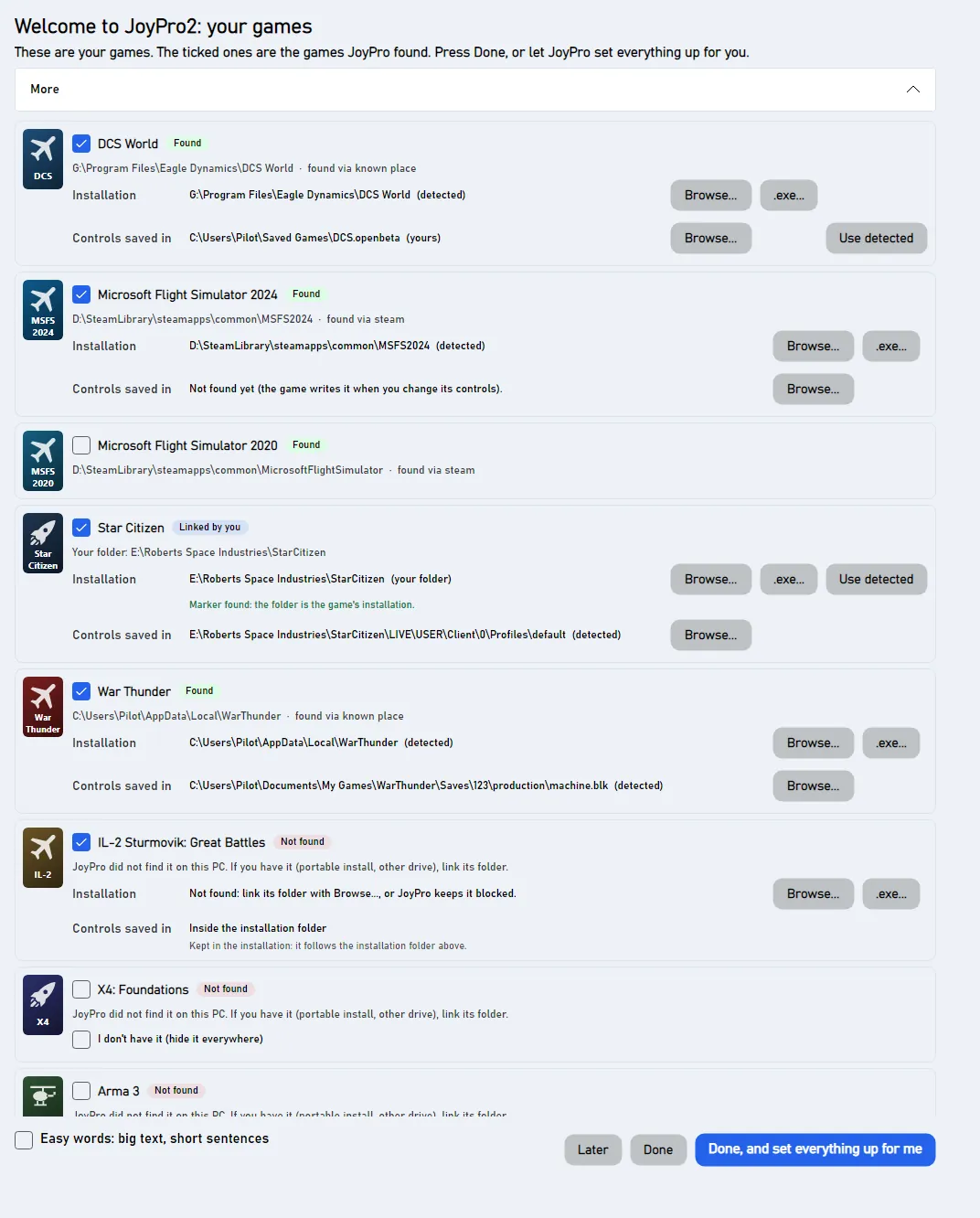
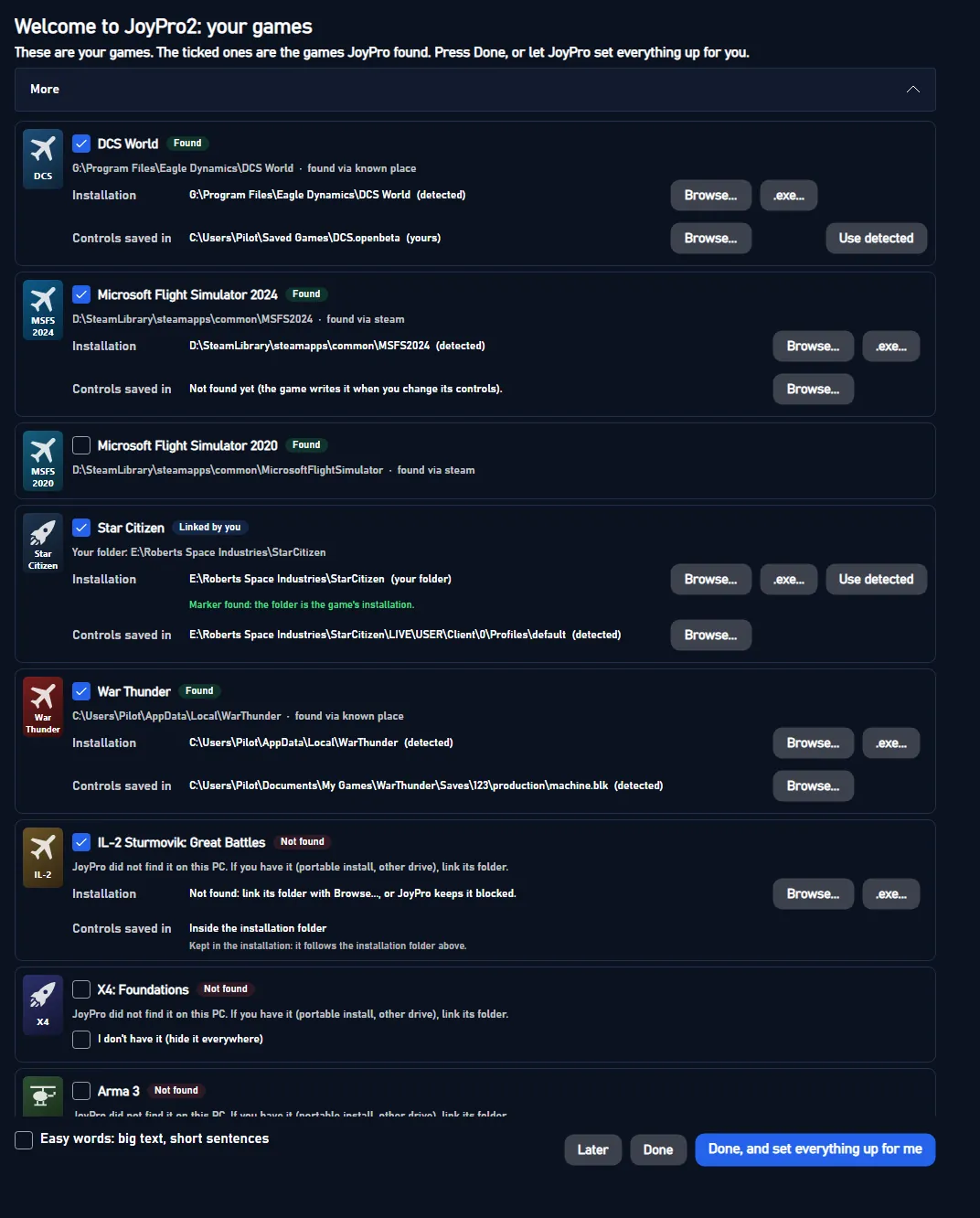
| You see | What it means | What you can do |
|---|---|---|
| A ticked row with a folder | JoyPro found the game. | Nothing. Untick it if you do not want it in JoyPro. |
| An unticked row | JoyPro did not find the game. | Nothing, if you do not have it. Have it elsewhere? Tick it and press Browse.... |
| Controls saved in | Where the game keeps its controls. | Press Browse... there if yours are elsewhere, for example Saved Games\DCS.openbeta. |
An unticked game is not hidden. Once you install it, JoyPro finds it.
#The three buttons
| Button | What happens next |
|---|---|
| Done, and set everything up for me | JoyPro saves your games. Then it sets up your stick, throttle and pedals by itself. |
| Done | JoyPro saves your games. Then the welcome asks what you want to do. |
| Later | Nothing changes. The welcome comes next. |
New to JoyPro? Press Done, and set everything up for me. Then follow Quick start: make my stick work.
Want big text and short sentences? Tick Easy words: big text, short sentences in this window.
You can open the window again any time: Settings > Games > Run setup again.
#The welcome
After Done or Later, JoyPro asks once: what do you want to do? It marks the answer that fits your games as suggested.
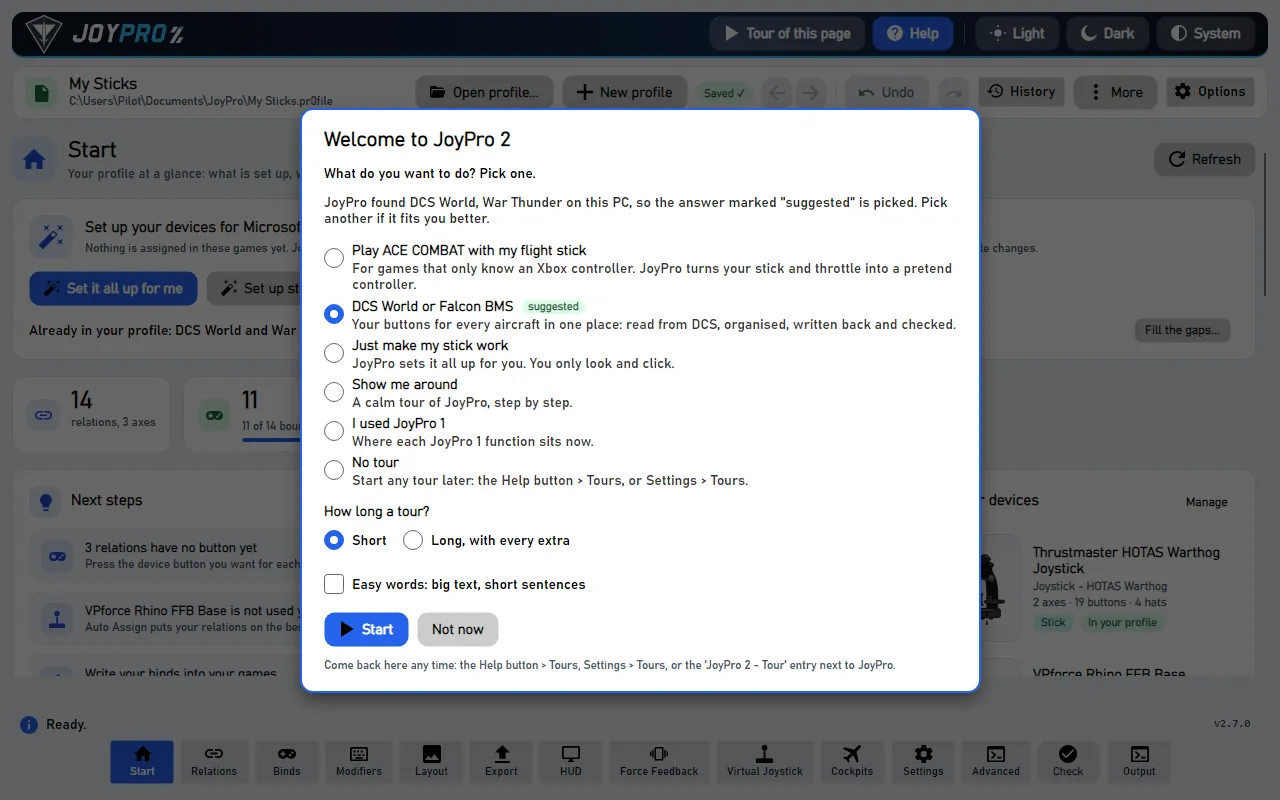
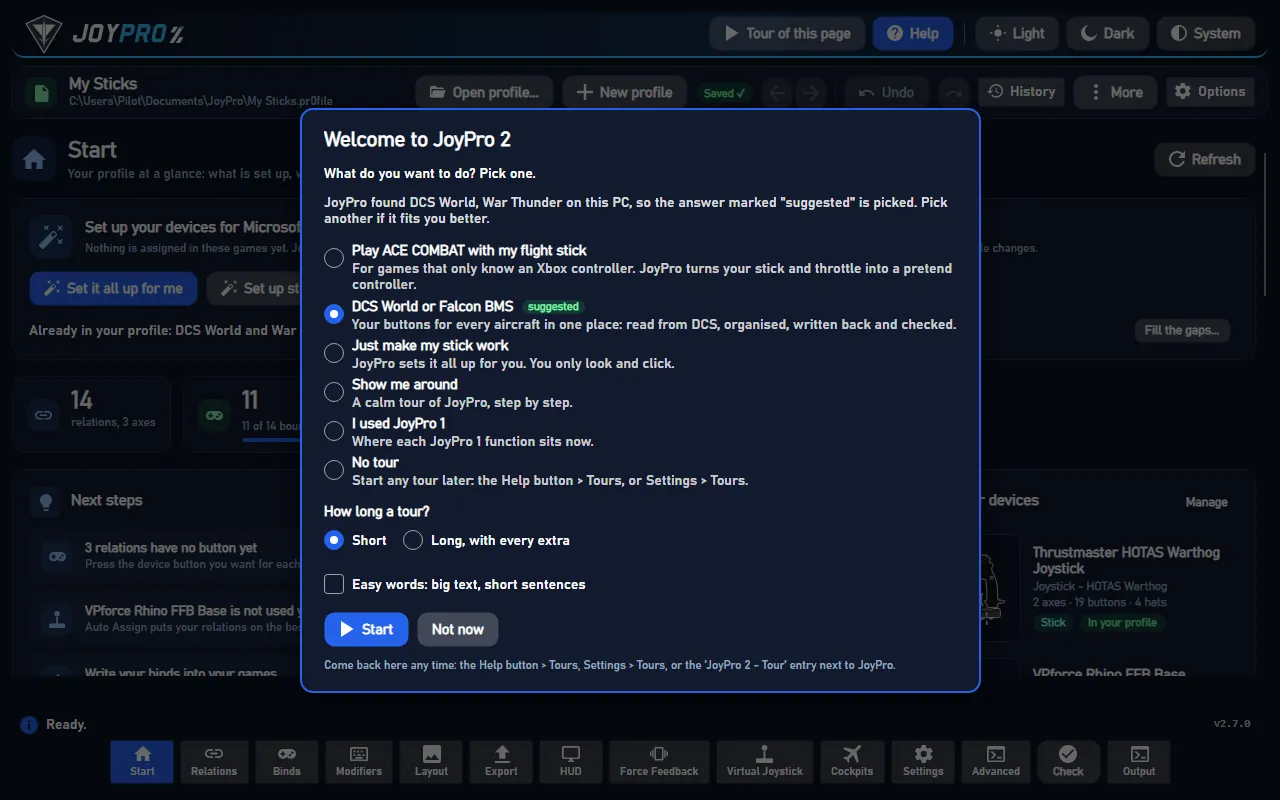
| Answer | What starts |
|---|---|
| Play ACE COMBAT with my flight stick | The quick setup and the pretend controller (virtual Xbox pad). |
| DCS World or Falcon BMS | A tour of the DCS way: import, relations, curves, export, check. |
| Just make my stick work | The quick setup. |
| Show me around | A calm tour of JoyPro, step by step. |
| I used JoyPro 1 | Where each JoyPro 1 function sits now. It can open your old profile. |
| No tour | Nothing. |
Press Start. Not now closes the welcome. It does not come back by itself; see Easy words, tours and F1 to get it back.
#There is no Save button
You do not need to make a profile first. JoyPro makes one for you. It saves after every change ("Saved" in the top bar). Undo and Redo work, even after a restart.
#Details
- A game somewhere else (a portable install, another drive): tick it and press Browse... next to Installation, or .exe... to pick the game's program.
- The folder you link is checked at once: "Marker found" or "Marker not found, but the folder is kept as you chose it". Use detected forgets the link.
- Games that keep their controls in the installation (IL-2, IL-2 Korea, IL-2 1946, Falcon BMS, X-Plane, VTOL VR with BYOJoystick) show the location read-only; registry games (Nuclear Option) too.
- A hidden game counts as not installed everywhere (export cards, watcher, filters, the HUD ...); your relations for it stay in the profile. Settings > Games lists hidden games with Show again.
- Done, and set everything up for me answers the welcome with the quick way: the setup opens, and the welcome does not open next to it.
#The command lists
JoyPro needs each game's list of commands (their names and ids). It builds the list once from your installation. The Start page shows a notice with Build List per game or Build All Missing Lists. After a game update a card says "Game updated: update its command list" with Update.
- DCS builds it with the installed modules, without a game window. IL-2 reads the key mapping files the game writes. Other games read their own files (command lists on a fresh install).
- Ctrl+S saves the profile at once. History lists every version.
#How it works inside
- The GUI runs one
engine games installsat start (no polling) and shows the window once (gameSetupDonein%APPDATA%\JoyPro2\ui-settings.json). View model:MainWindowViewModel.GameSetup.cs, windowViews/GameSetupWindow.axaml. - Done writes everything through the engine:
engine games install set/clear,engine games config set/clear,engine games install disable/enable, then detects again. - The marker files of a linked folder:
bin\DCS.exe,bin\game\Il-2.exe,X4.exe... - Detection per game (
engine\GameInstalls.csand eachGameIntegration): Steam library folders and app ids, known install places, the Windows uninstall and apps lists, and the user's own link, which detection never replaces. - Command lists:
engine db check-updatesreportsno-catalogfor a game without a list; the build runs the game'srefresh-db(engine dcs refresh id+engine dcs refresh cleanfor DCS,engine db refresh-il2,engine db refresh-starcitizen,engine <game> refresh-db) and writes only into%LOCALAPPDATA%\JoyPro2\GameData.
#Related
- The first-start window, every control in it
- Quick start: make my stick work
- Help mode and tours